TABLE OF CONTENTS
- Visit History Export
- Duplicates Report
- Guest Data Report
- Association Visit History
- Visit Frequency
- Signature Forms
- Export Notes
- No Visits Export
- Others Export
- Others Visit Export
Visit History Export
Exports raw data containing guest and visit details within a specified date range.
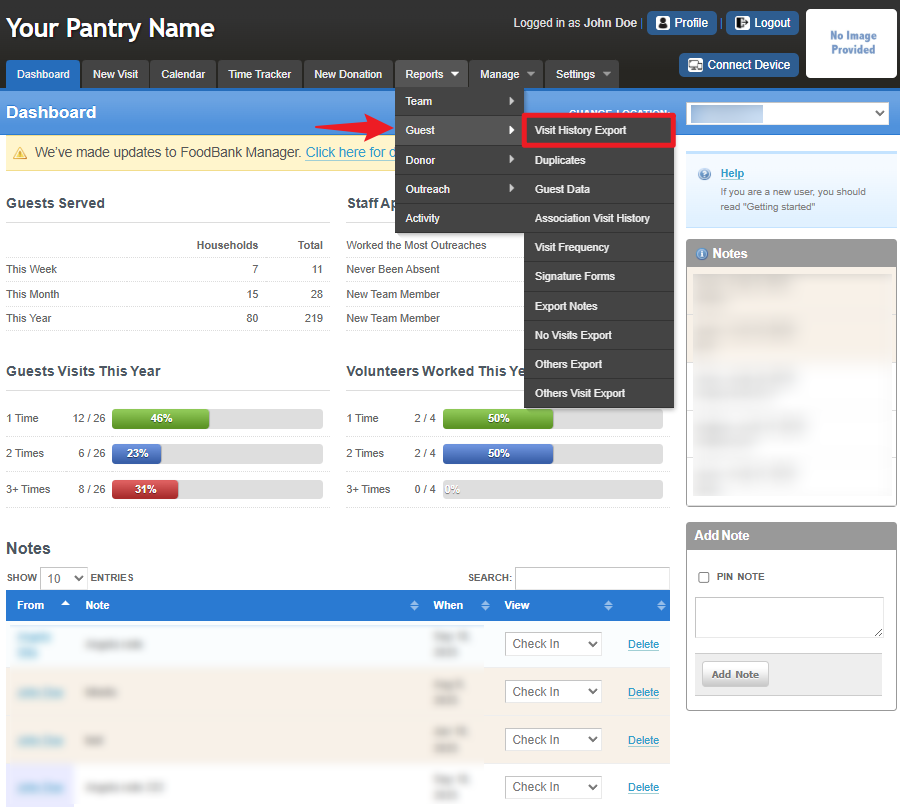
To access the report, go to Reports > Guest > Visit History Export.
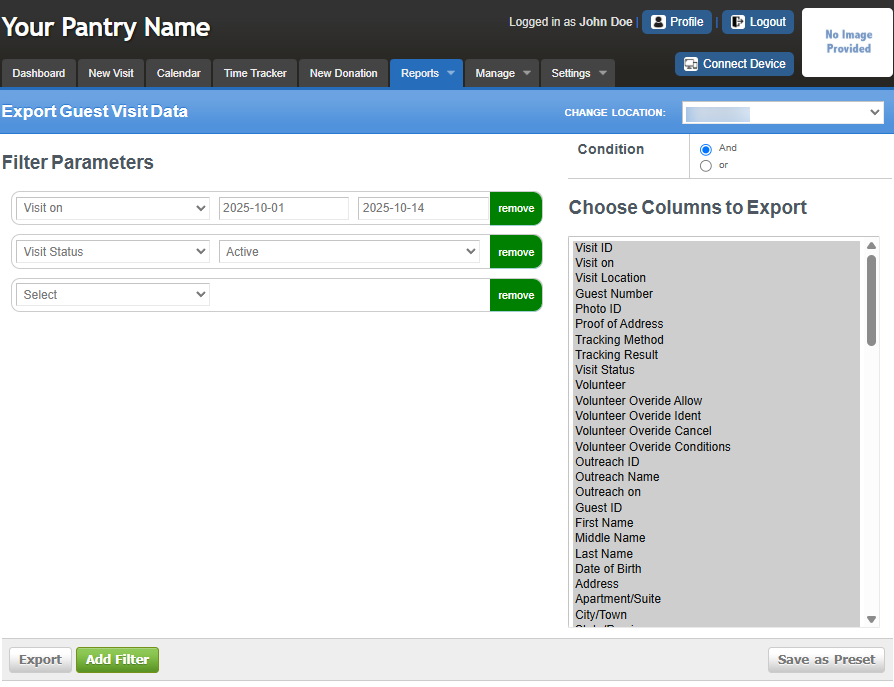
In this section, you can select which columns to export from the right side of the screen. You can also set Filter Parameters by clicking Add Filter and configuring them based on your desired output. Additionally, you may use the AND and OR conditions to refine your results. Once done, you can Export the data as a CSV file for record tracking.
Duplicates Report
Identifies potential duplicate accounts in your system based on matching names and/or addresses.
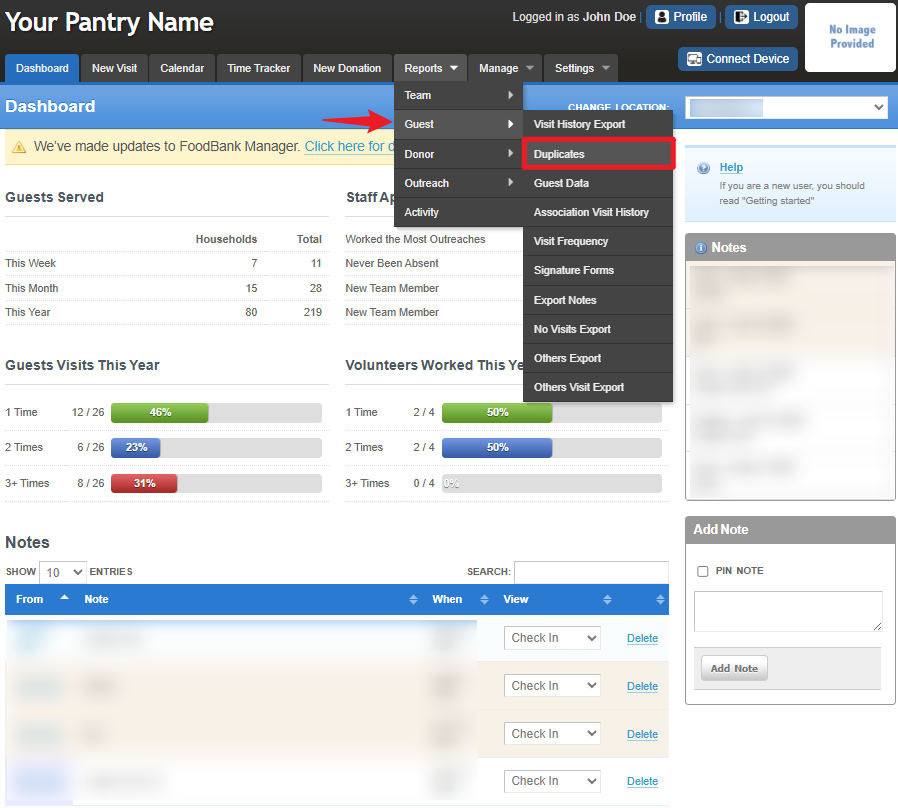
To access the report, go to Reports > Guest > Duplicates.
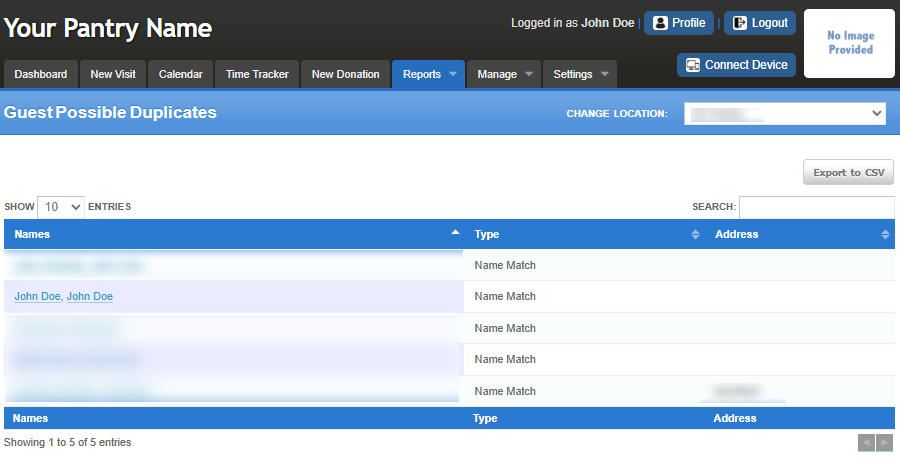
In this section, you can view potential duplicate guest records. You can also search by name and Export the results to a CSV file for record tracking.
Guest Data Report
Provides a raw data export of guest information from your organization’s guest database.
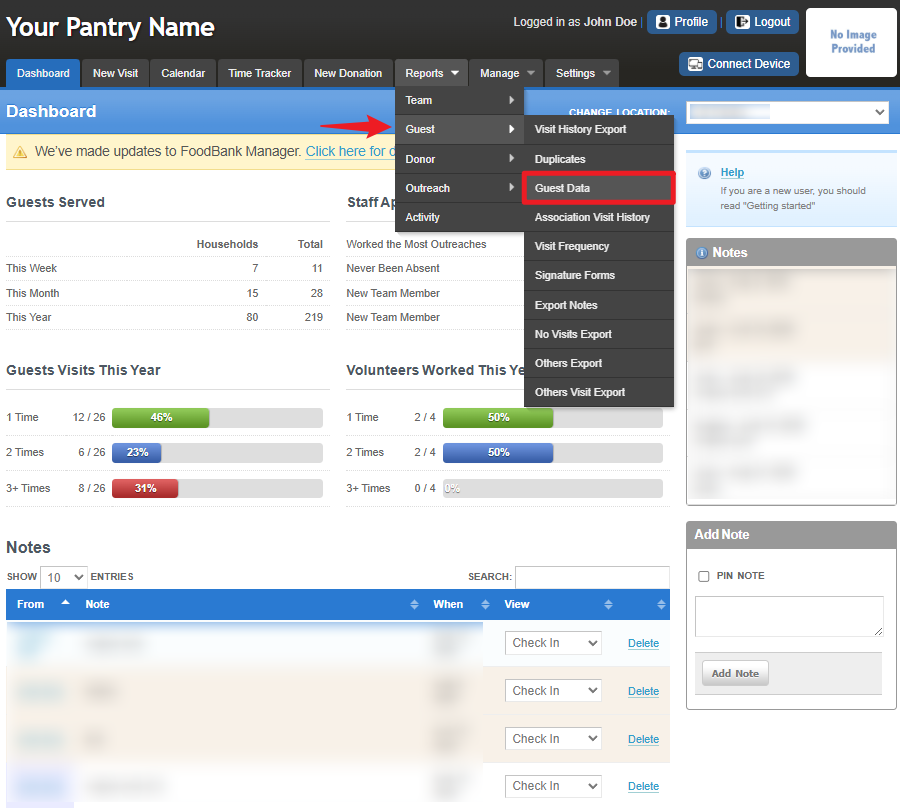
To access the report, go to Reports > Guest > Guest Data.
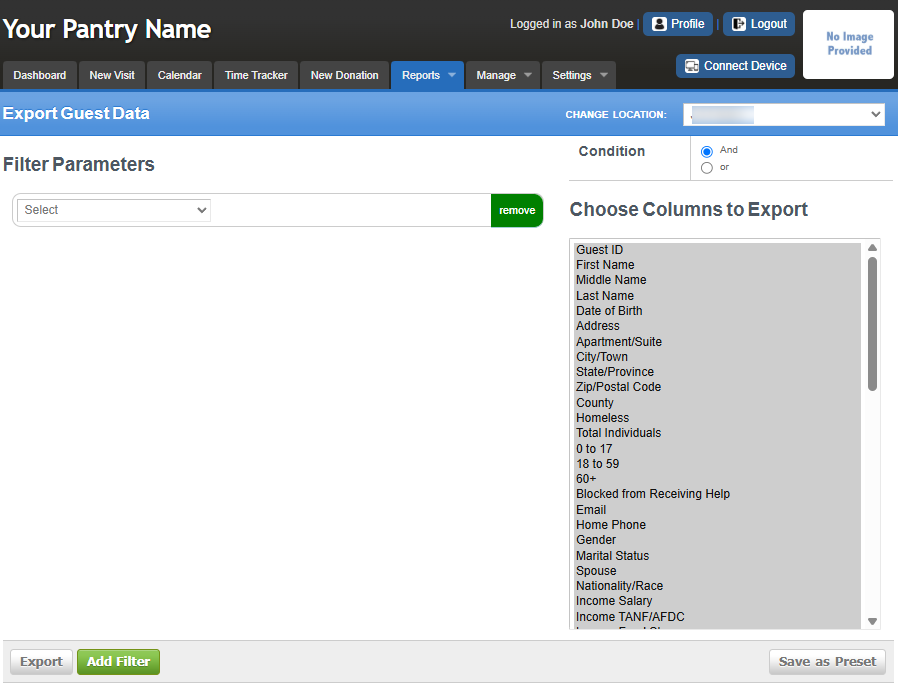
In this section, you can select which columns to export from the right side of the screen. You can also set Filter Parameters by clicking Add Filter and configuring them based on your desired output. Additionally, you may use the AND and OR conditions to refine your results. Once done, you can Export the data as a CSV file for record tracking.
Association Visit History
This shows a guest’s visit records across linked accounts, helping you track visit patterns and review outreach participation.
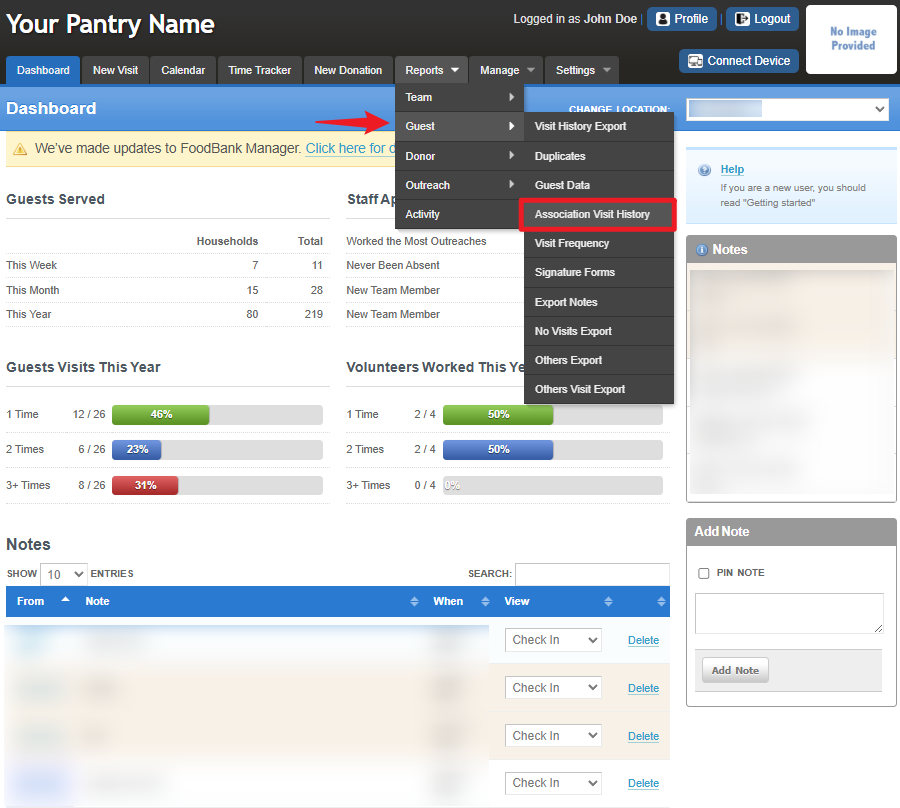
To access the report, go to Reports > Guest > Association Visit History.
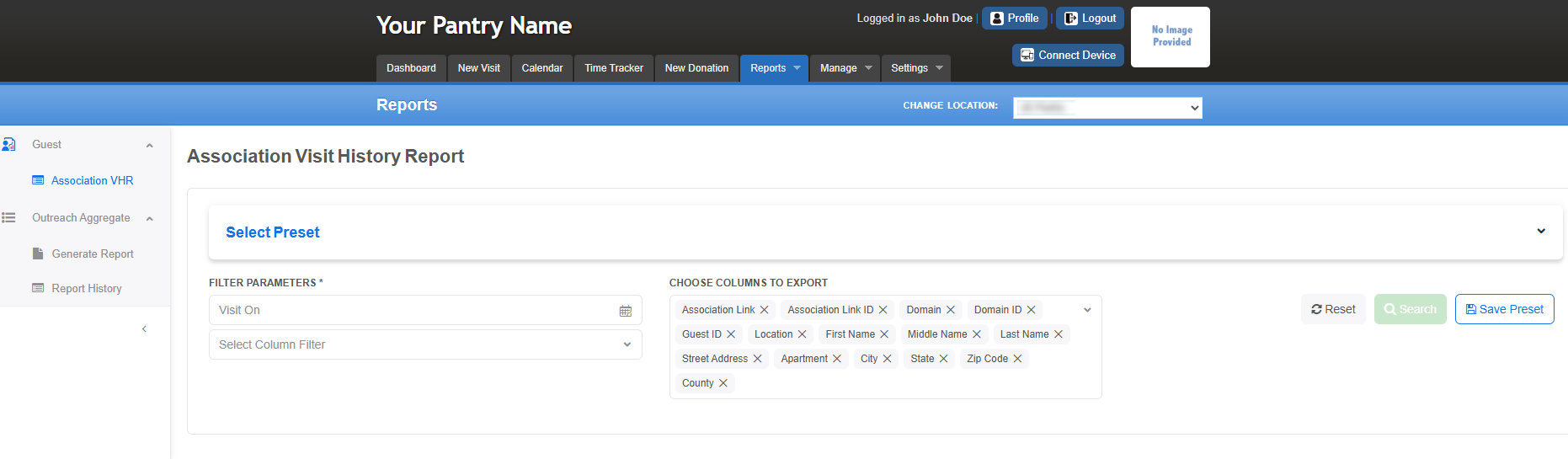
In this section, you can configure the Filter Parameters, select the Columns to Export, and either choose from existing Presets or save your customized preset. Click Search to display the Association Visit History data for the guest. You can also export the results as a CSV file for record tracking.
Visit Frequency
Displays visit patterns to help analyze guest frequency—useful for program evaluation and fiscal planning.
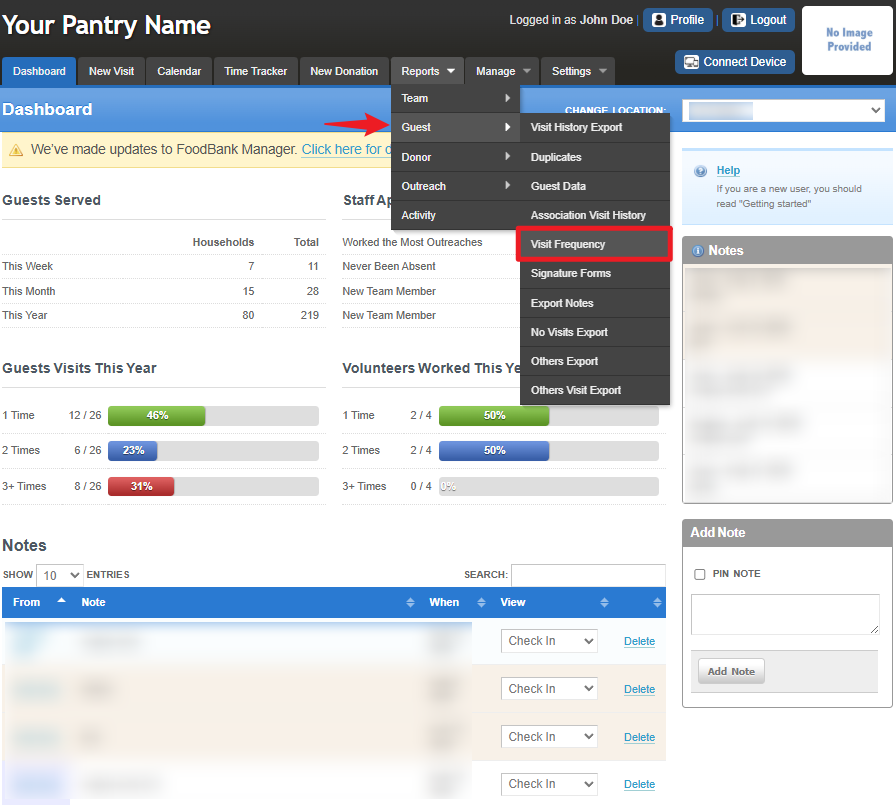
To access the report, go to Reports > Guest > Visit Frequency.
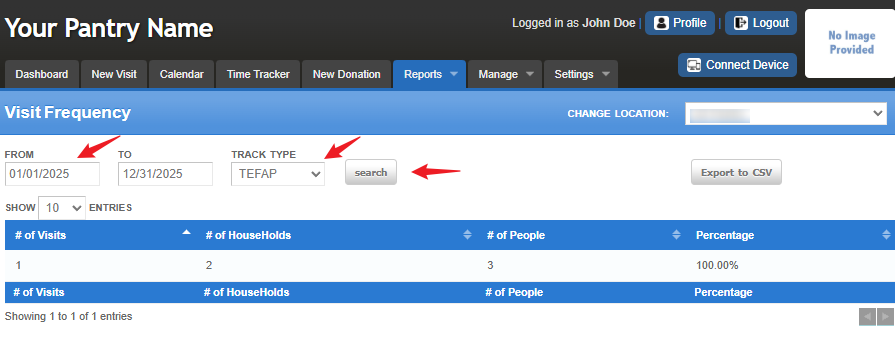
In this section, you can set the Date range, choose the track type, and click Search to display the visit frequency data, you can also Export the data as a CSV file for record tracking.
Signature Forms
Converts collected visit data into forms such as TEFAP, CSFP, EFP, and others.
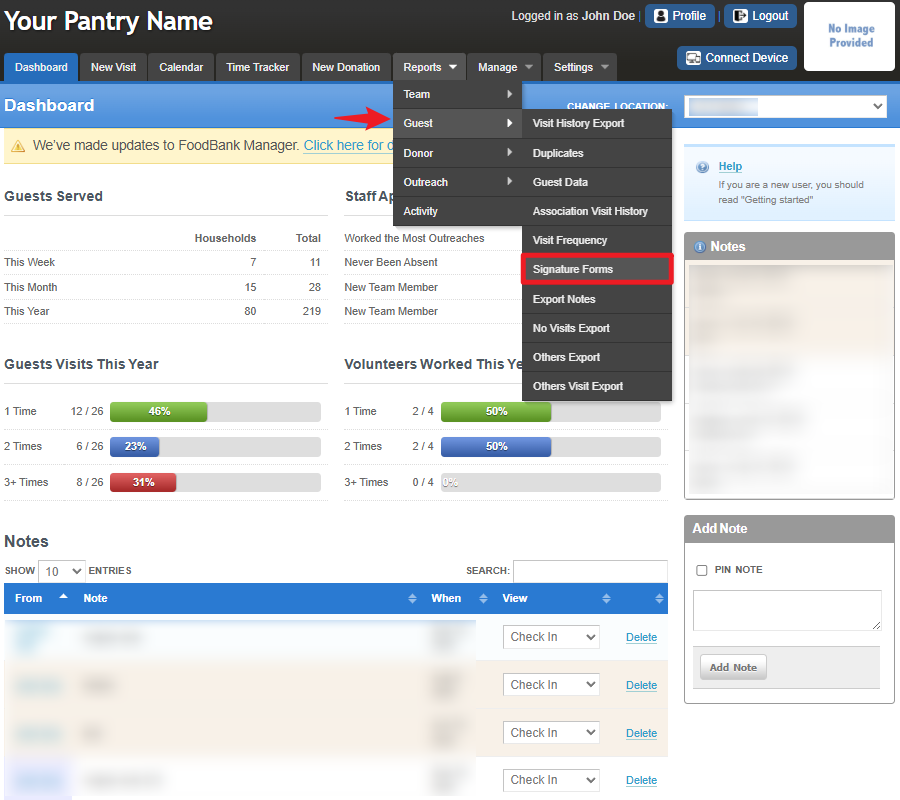
To access the report, go to Reports > Guest > Signature Forms.
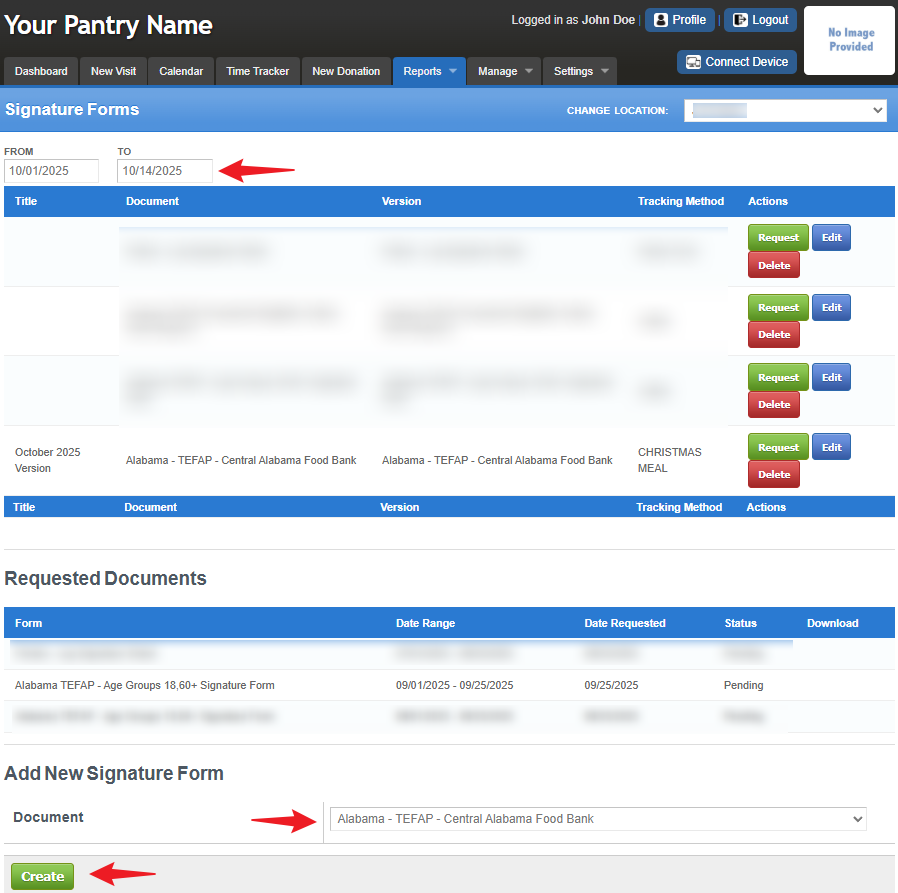
In this section, you can set up your signature forms by scrolling to the bottom and selecting Add New Signature Form. Choose the specific form you need, complete the setup, and click Save. Then, adjust the date range for the data you want to request. Once submitted, your requested documents will appear below — wait for the status to change from Pending to Download, indicating that the file is ready to be downloaded.
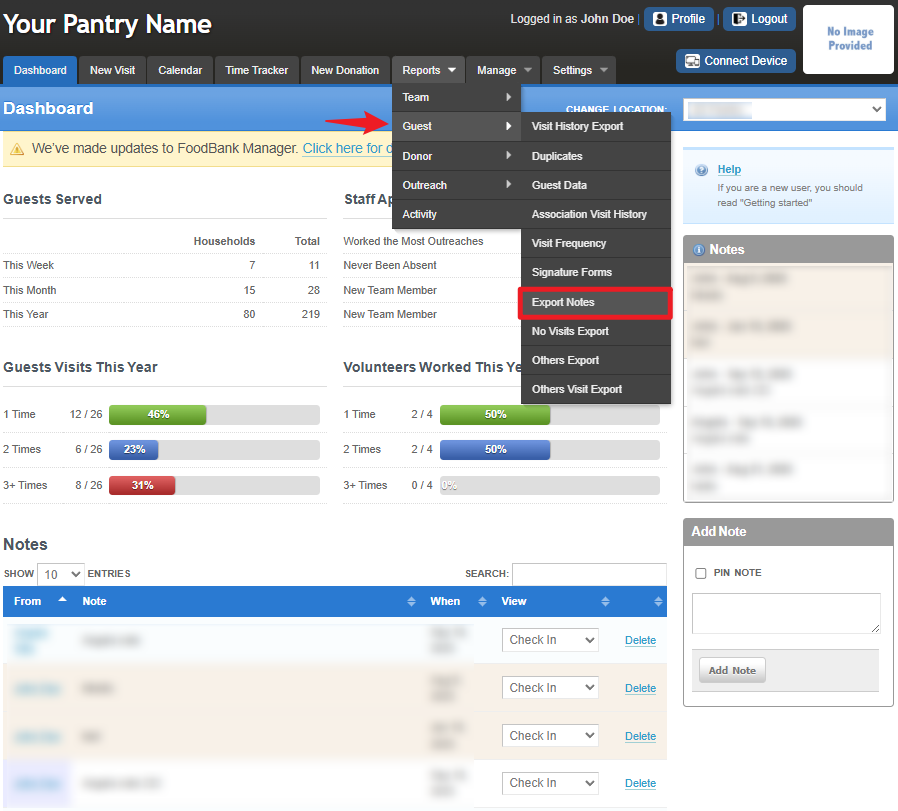
Export Notes
Provides all notes added to guest accounts during the selected time period for follow-up purposes.
To access the report, go to Reports > Guest > Export Notes.
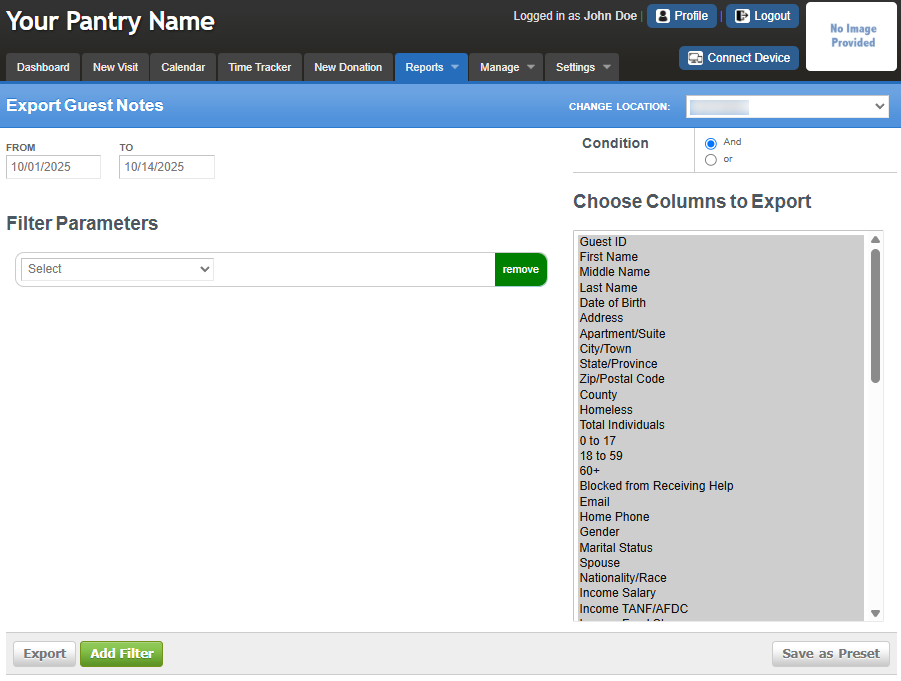
In this section, you can select which columns to export from the right side of the screen. You can also set Filter Parameters by clicking Add Filter and configuring them based on your desired output. Additionally, you may use the AND and OR conditions to refine your results. Once done, you can Export the data as a CSV file for record tracking.
No Visits Export
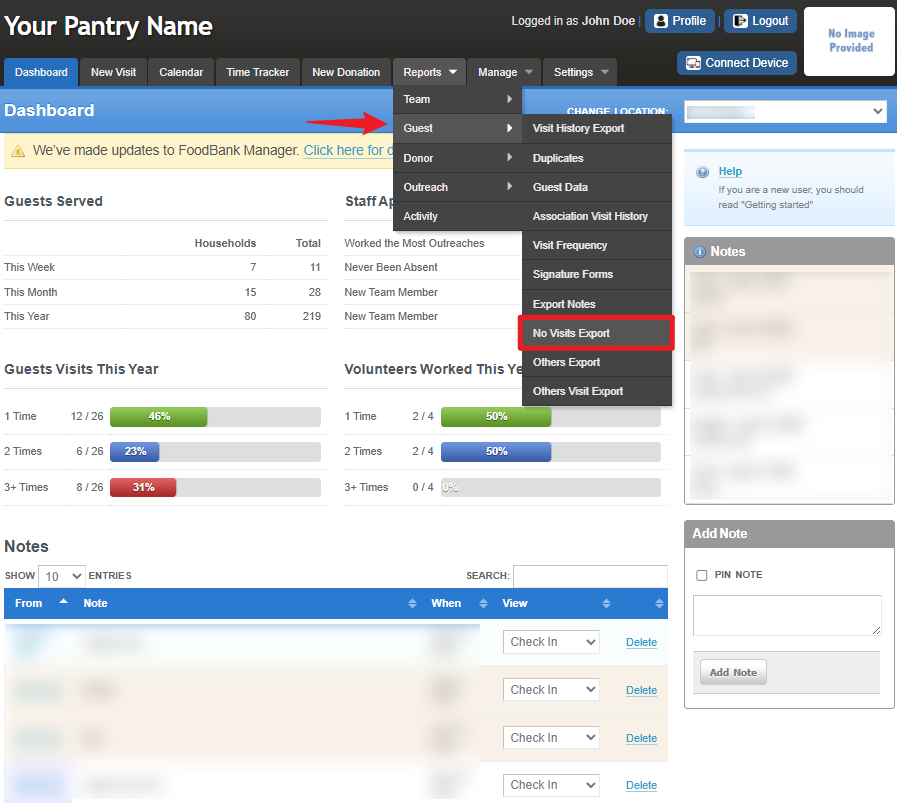
Identifies guests or households that have not visited recently, ideal for follow-up with “At Risk” groups or households.
To access the report, go to Reports > Guest > No Visits Export.
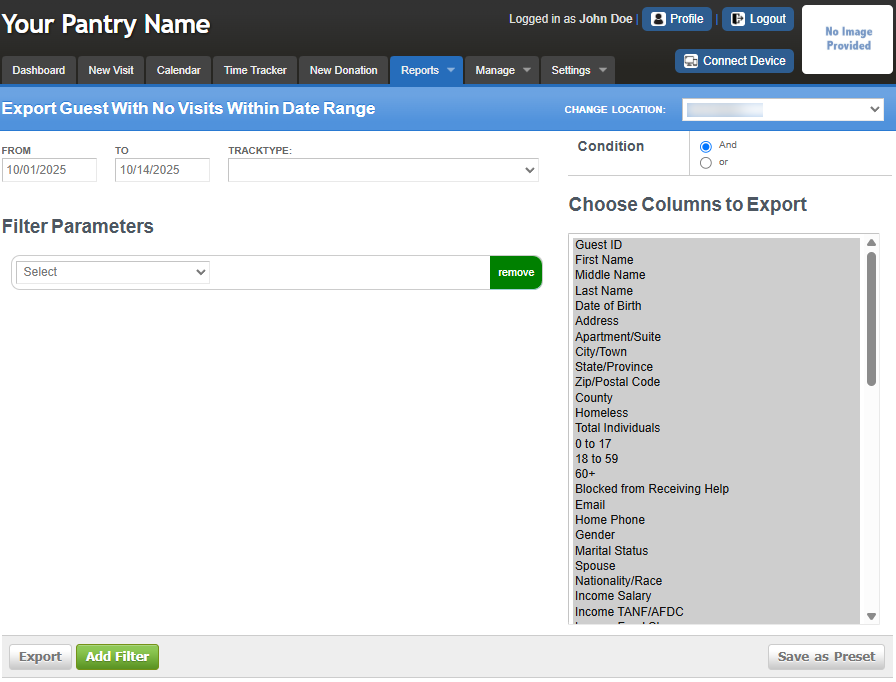
In this section, you can choose which columns to export from the right side of the screen. You can also set the Date Range and Track Type, then add filters by clicking Add Filter and configuring them according to your preferred output. You may also use AND and OR conditions to refine your search. Once everything is set, you can export the data as a CSV file for record tracking and analysis.
Others Export
Generates a one-line-per-person report showing demographic information for primary guests and household members.
To access the report, go to Reports > Guest > Others Export.
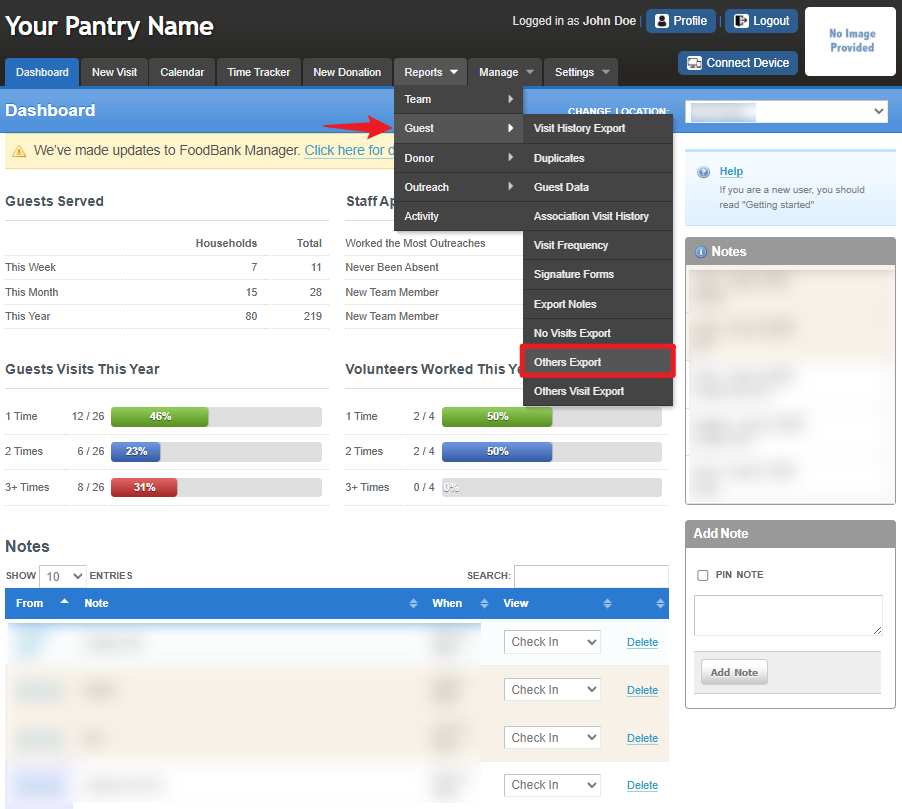
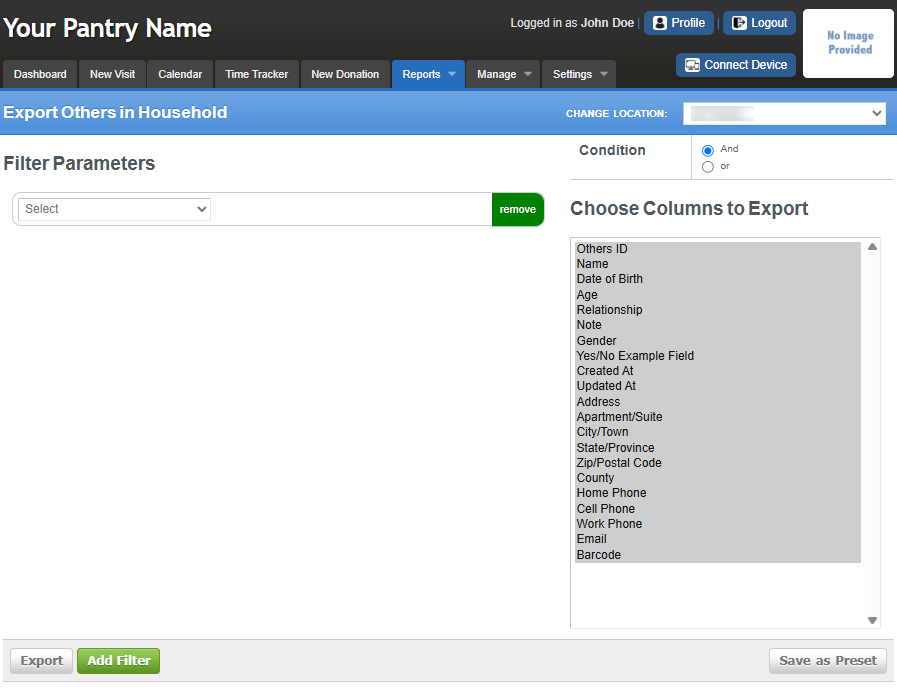
In this section, you can select which columns to export from the right side of the screen. You can also set Filter Parameters by clicking Add Filter and configuring them based on your desired output. Additionally, you may use the AND and OR conditions to refine your results. Once done, you can Export the data as a CSV file for record tracking.
Others Visit Export
Exports a one-line-per-person view of demographic details for primary guests and household members based on visits within a chosen time range.
To access the report, go to Reports > Guest > Others Visit Export.
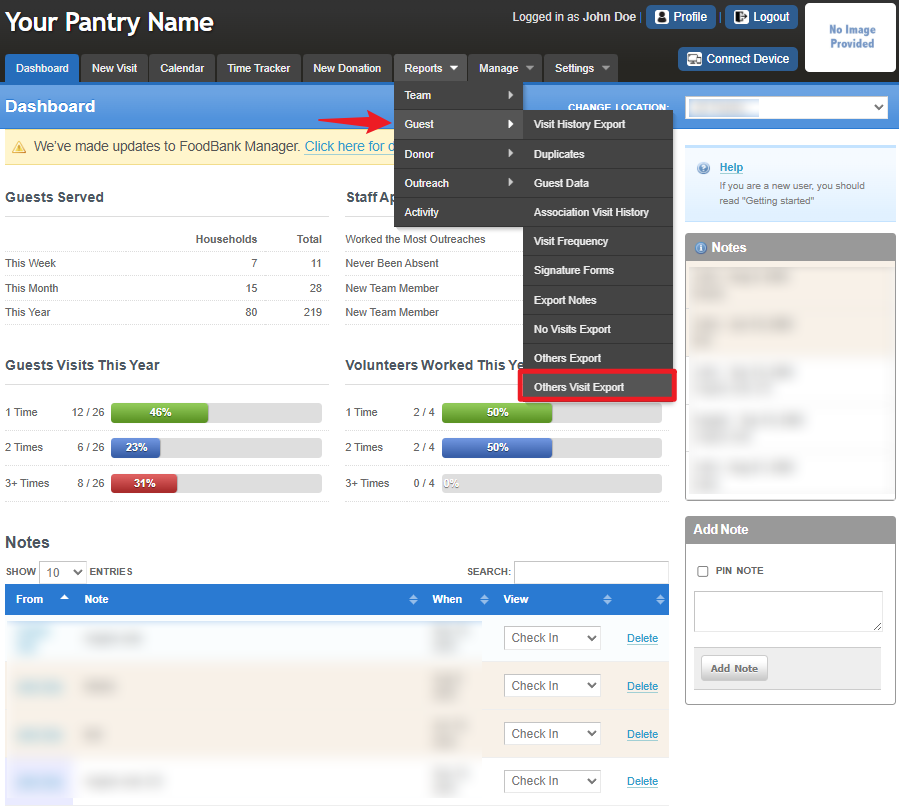
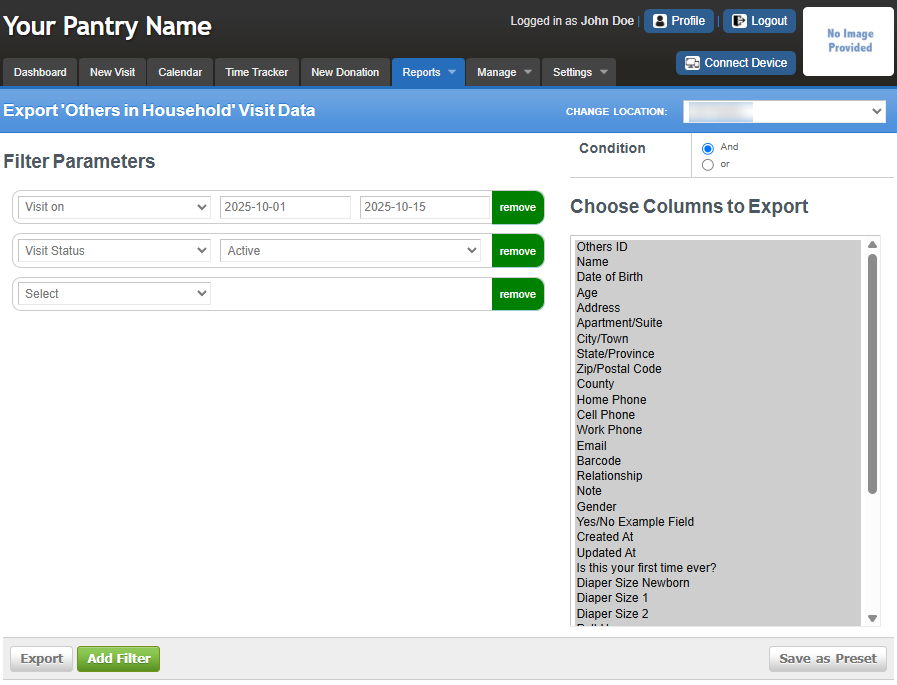
In this section, you can select which columns to export from the right side of the screen. You can also set Filter Parameters by clicking Add Filter and configuring them based on your desired output. Additionally, you may use the AND and OR conditions to refine your results. Once done, you can Export the data as a CSV file for record tracking.
Was this article helpful?
That’s Great!
Thank you for your feedback
Sorry! We couldn't be helpful
Thank you for your feedback
Feedback sent
We appreciate your effort and will try to fix the article