The Nationality/Race static options in Food Bank Manager let pantries define and manage demographic categories used for guest profiles and reporting. These options help track service data by race or ethnicity for accurate reporting and community insights
To navigate to it: Go to Settings >Static Options > Nationality/Race.
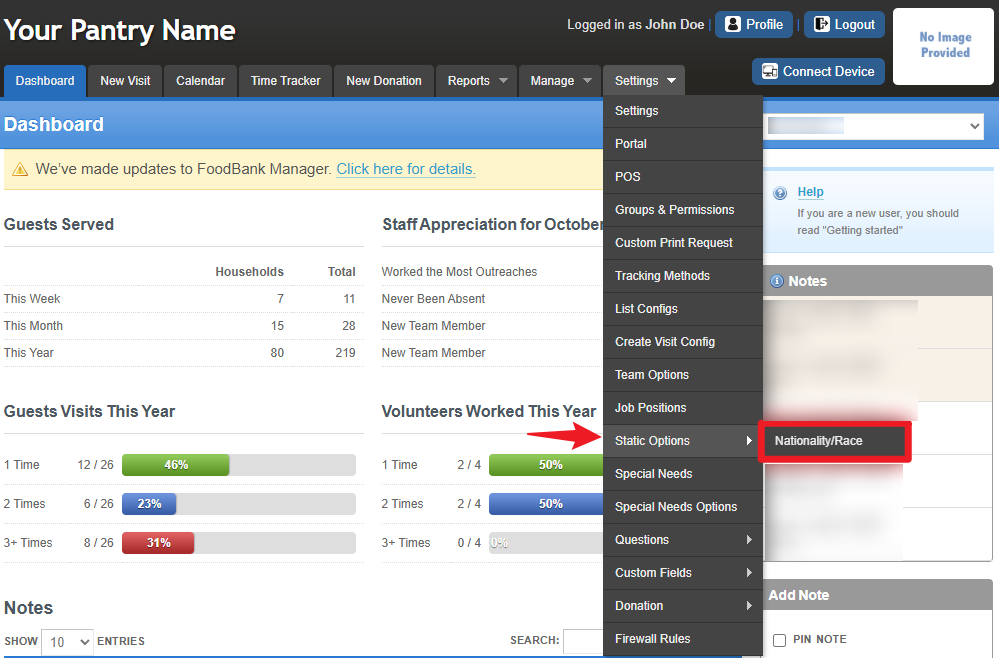
The Nationality/Race Options page allows you to view, organize, and manage race or ethnicity categories used in guest profiles. You can edit, delete, or reorder entries to match your reporting needs. To add a new category, use the “Create New Nationality/Race” button on the right panel.
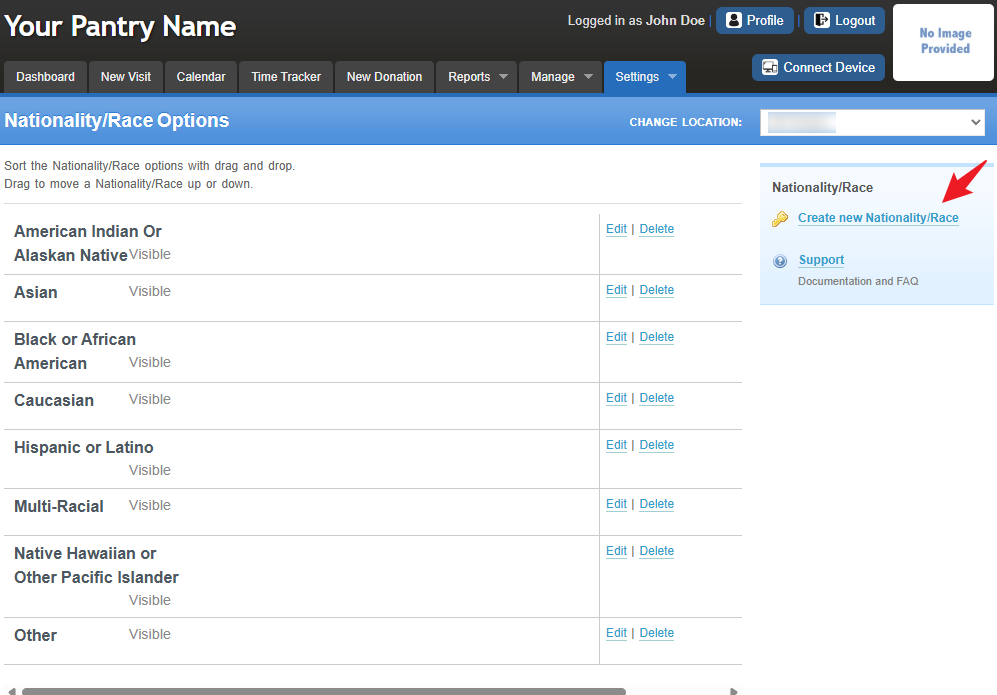
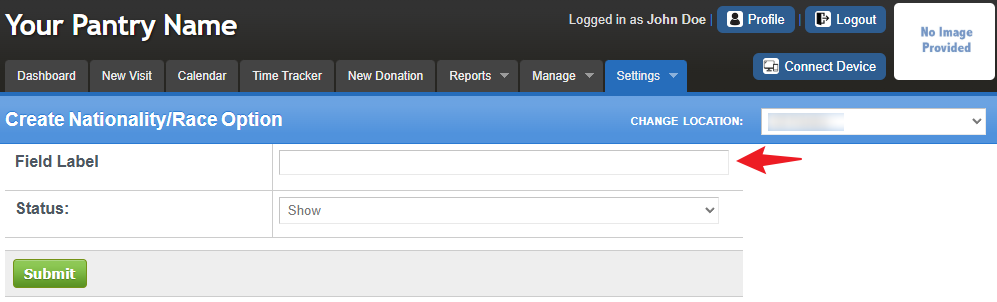
The Create Nationality/Race Option page allows you to add a new demographic category to your guest records. Enter a field label for the new nationality or race and set its visibility status before clicking Submit to save the option for use in guest profiles and reports.
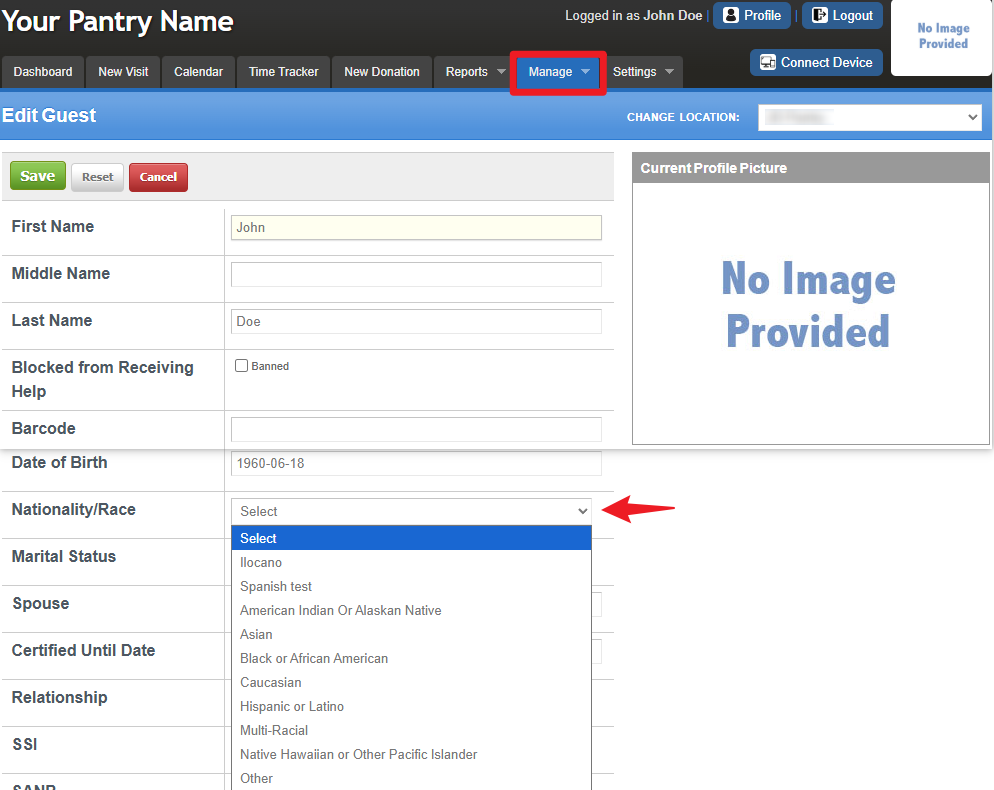
Note: These options appear both in the New Visit and Manage Guest sections.There are few ways to view the Nationality/Race field:
1. Go to New Visit > Search for a guest > Select guest > Edit Guest to see the field.
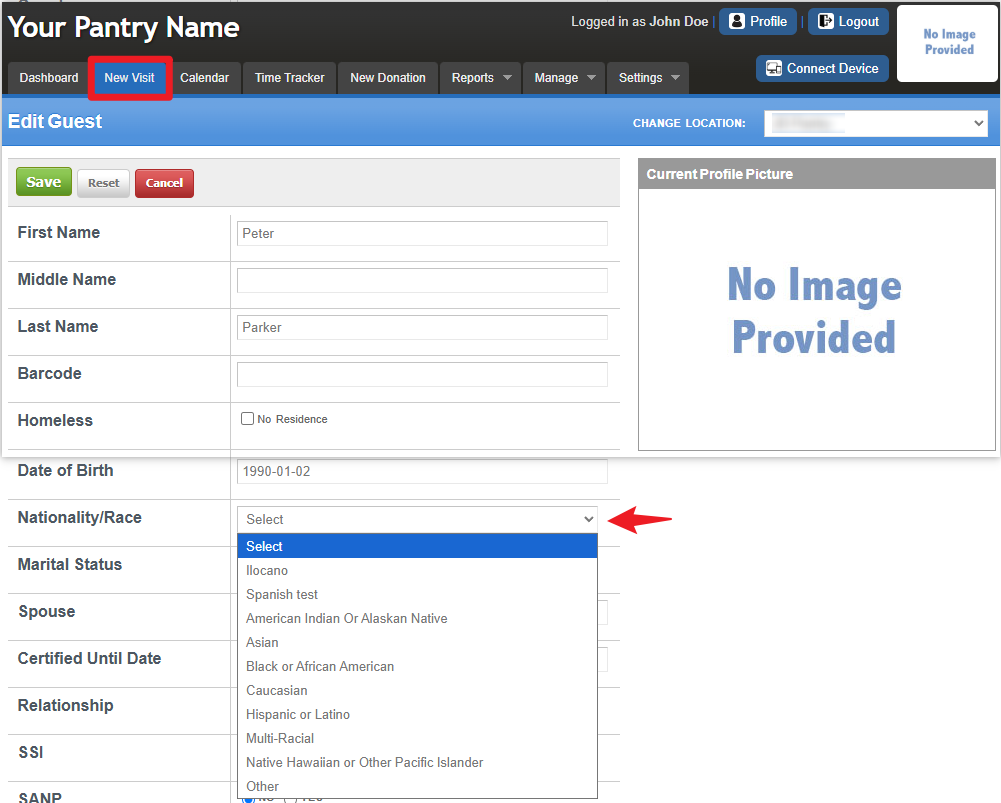
2. Navigate to Manage > Guest > Select a guest > Click Edit to see the field. You will also see this field when viewing the guest profile.
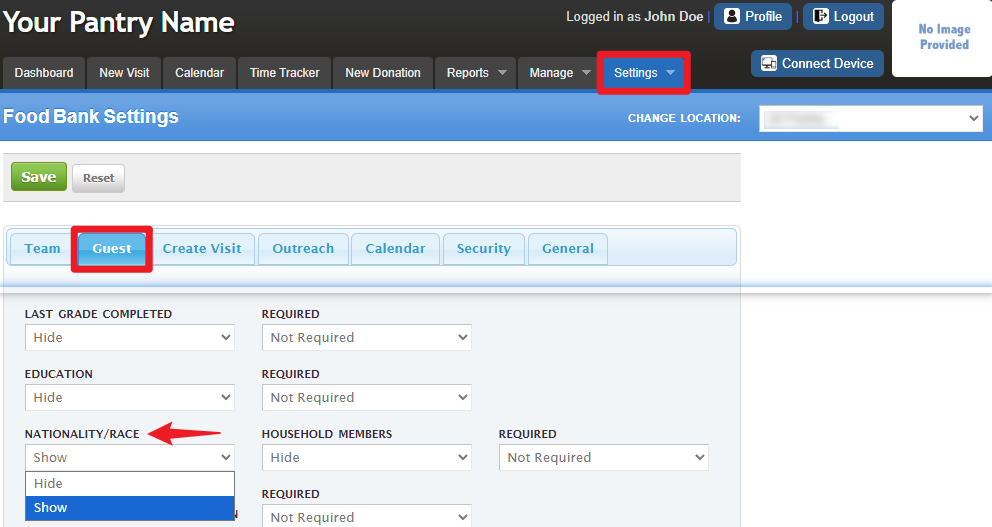
You can configure the Nationality/Race field visibility by going to Settings > Settings > Guest, where you can choose to Show or Hide this field.
Was this article helpful?
That’s Great!
Thank you for your feedback
Sorry! We couldn't be helpful
Thank you for your feedback
Feedback sent
We appreciate your effort and will try to fix the article