TABLE OF CONTENTS
- Introduction
- Sample View of Demographic Reports
- Understanding the Column Headers
- Map
- Examples of How to Use This Report
Introduction
The Outreach Demographics Report compiles visit data from all outreaches within a selected date range into a single summarized view. It allows you to analyze visit statistics based on key demographic categories such as:
- County
- City
- Zip Code
In addition, the report displays detailed data in line-item format for the selected demographic, including:
- Tracking Type
- Tracking Result
- 1st time Household (new to your agency)
- Repeat Household (have visited before)
- Unique Household
- Combine Household (new and have visited before)
- Speaks English
- Speaks Other
- Nationality/Race Numbers
- Age Group Numbers
This report organizes and displays outreach statistics within the selected date range, grouped according to the chosen demographic. You can customize the report settings to show either a specific tracking type or all tracking types—such as USDA Food, Bread, or Produce—depending on what your agency tracks.
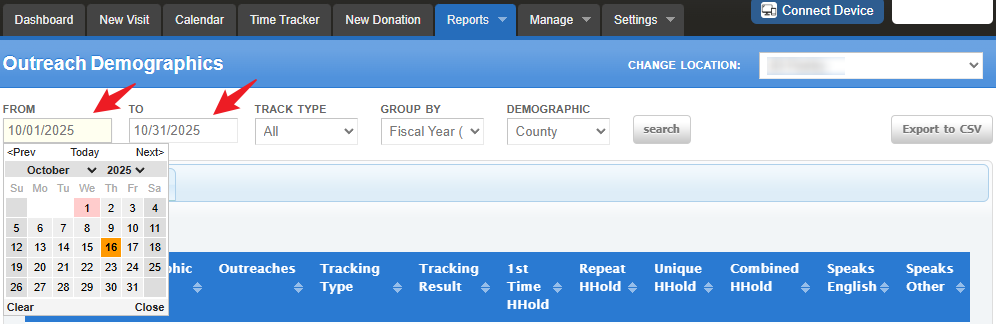
To access the report, go to Reports > Outreach > Outreach Demographics.To set up the report, begin by entering the desired date range for the data you want to include. Click the “From” date box and use the date picker to select the starting date. Repeat the same process for the “To” date box to define the end date for your data selection.
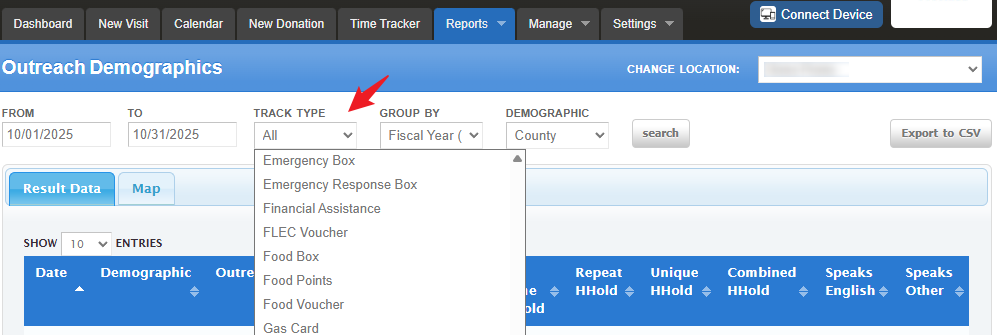
Next, click the “Track Type” field to view a list of available services your agency provides, then select the one you want to include in the report.
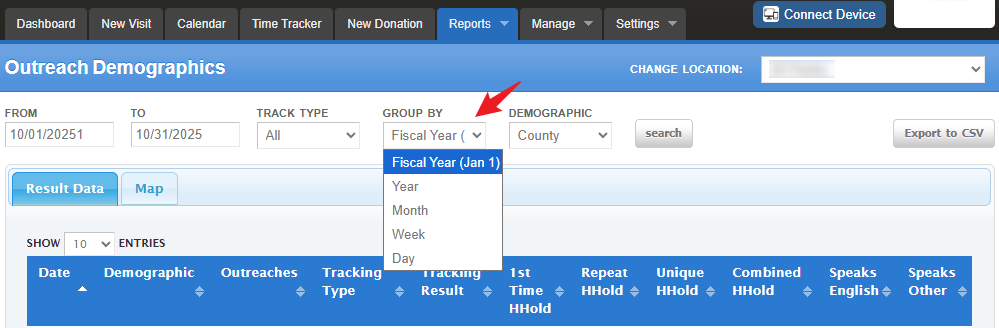
Choose how you want your results displayed by selecting the appropriate “Group By” option. Each option represents a calendar period and determines how your data will be grouped:
Day: Displays a line item for each day within the selected date range.
Week: Displays a line item for each week within the selected date range.
Month: Displays a line item for each month within the selected date range.
Year: Displays a line item for each year within the selected date range.
Fiscal Year: Displays data grouped by the fiscal year as defined in your settings. The starting date of your fiscal year (e.g., Jan 1) will appear in parentheses.
Next, select the demographic by which you want to view your data — County, City, or Zip Code — under the “Demographic” dropdown.
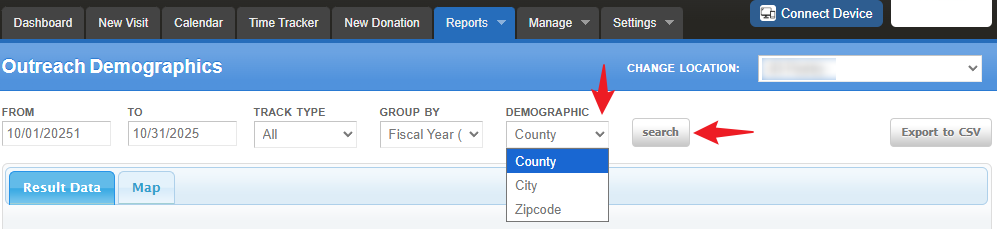
Once all parameters are set, click “Search” to generate the report. The selected data will be displayed on-screen.
Please note that not all data fields are visible on the screen. To view the full dataset, click the “Export to CSV” button in the upper-right corner. This allows you to download the complete report, review it in Excel, print it, or further customize it for your records or other reporting purposes.
Sample View of Demographic Reports
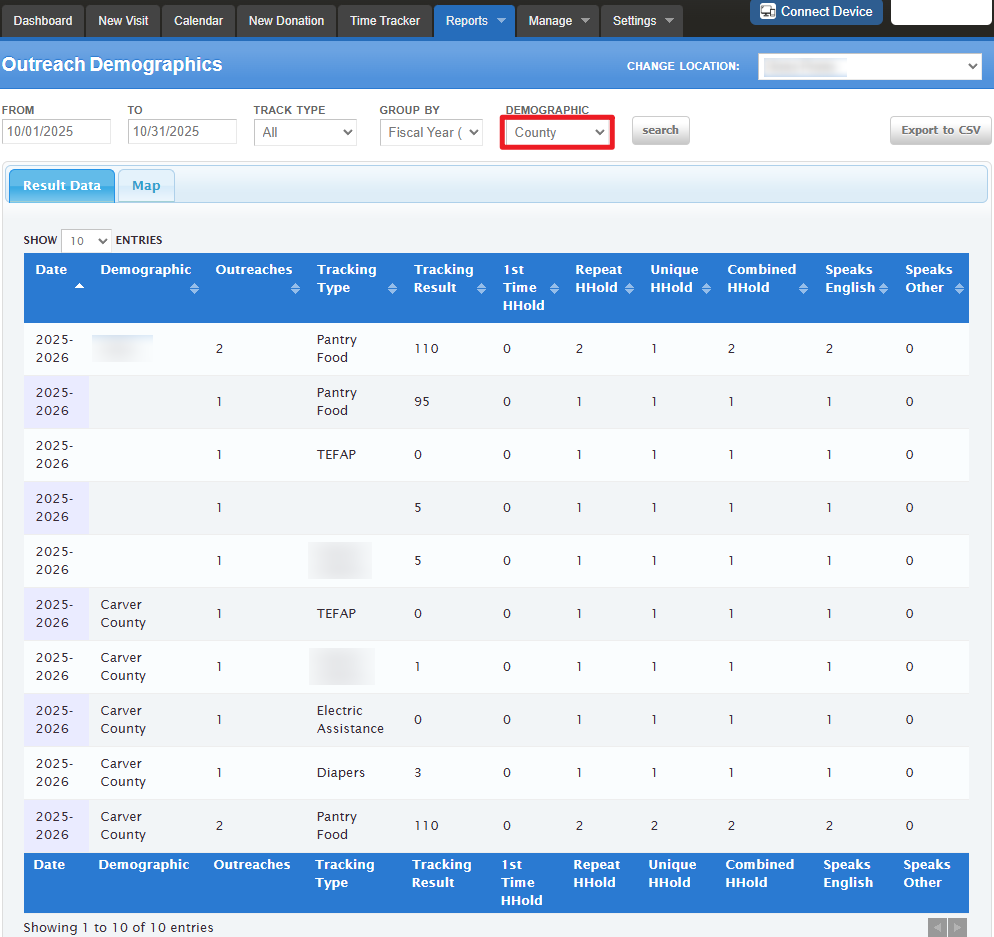
County Report
This provides the outreach numbers for the entire month, broken down by County and the tracking methods.
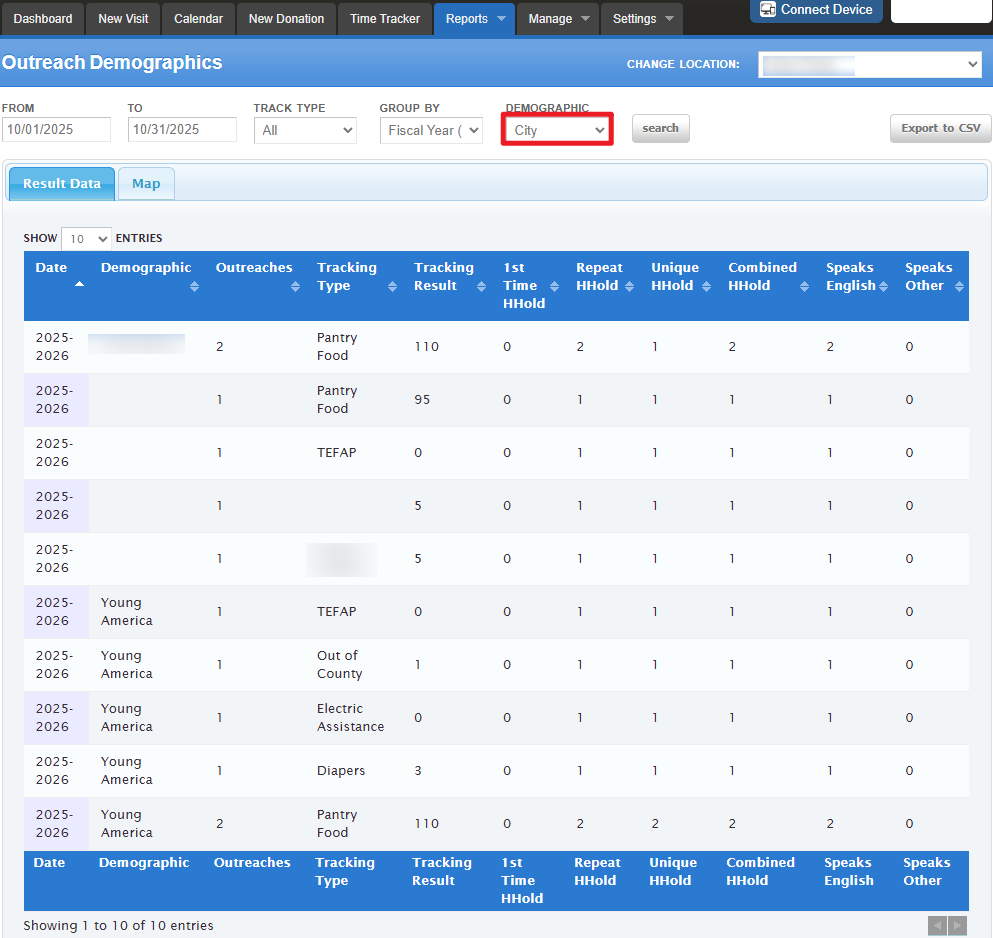
City Report
This provides the outreach numbers for the entire month, broken down by City and the tracking methods.
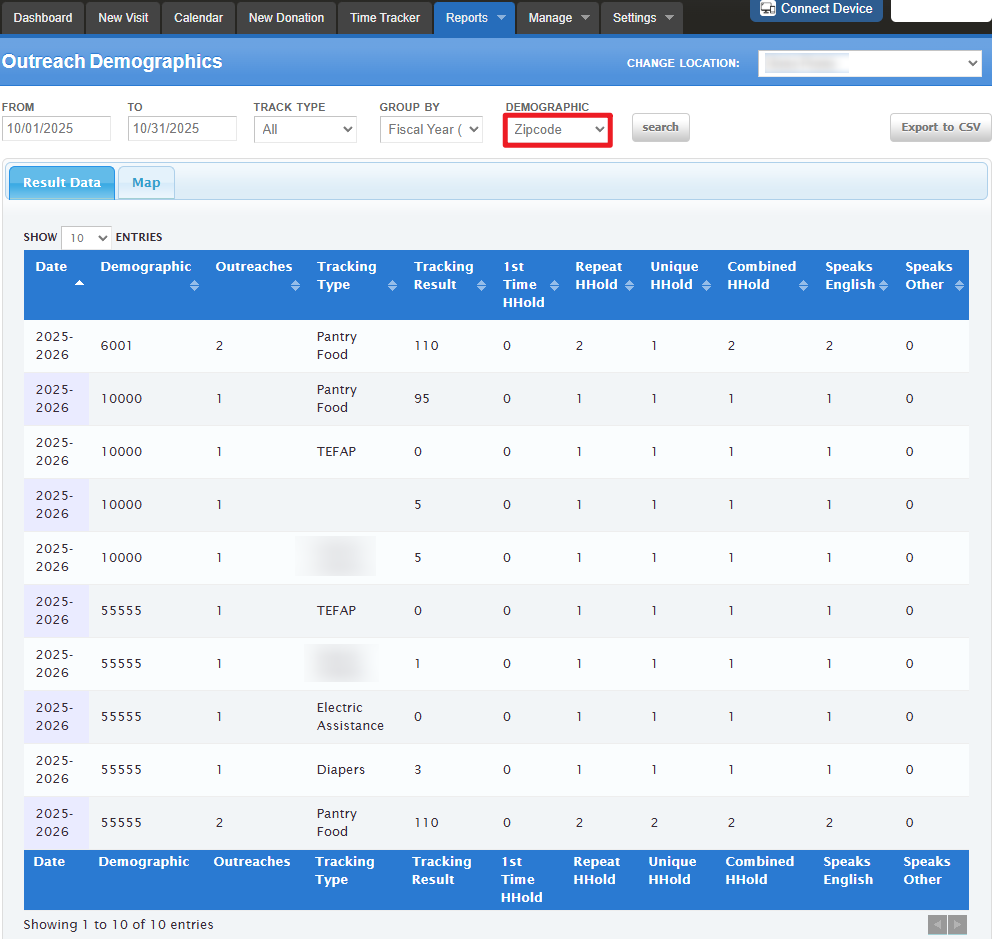
Zipcode Report
This provides the outreach numbers for the entire month, broken down by Zipcode and the tracking methods.
Understanding the Column Headers
This section helps you clearly interpret each column and understand how the data reflects outreach activity and demographic distribution.
To interpret the report effectively, it’s important to understand what each column represents. Below is a breakdown of the column headers and their meanings:
Date: Displays the specific date when the outreach occurred.
Demographic: Shows the selected demographic values such as county, city, or ZIP code.
Outreaches: Indicates the number of outreach events where individuals from that demographic received services.
Tracking Type: Lists the type of goods or services provided (e.g., food, clothing). Each service type is displayed on a separate line.
Tracking Result: Displays the calculated totals for the corresponding tracking type (e.g., “household totals” for food or “weight” for clothing).
1st Time Household: Shows the number of new households visiting the pantry for the first time during the selected period.
Repeat Household: Indicates the number of returning households who have visited before within the same period.
Unique Household: Displays the count of distinct household visits during that time period.
Combined Household: Represents the total number of household visits by combining both first-time and repeat households.
Nationality/Race Columns: These columns show the number of households identifying with each nationality or race category, based on your system’s setup.
Age Group Columns: Displays the total number of individuals within each age group who visited during the outreach for that tracking type.
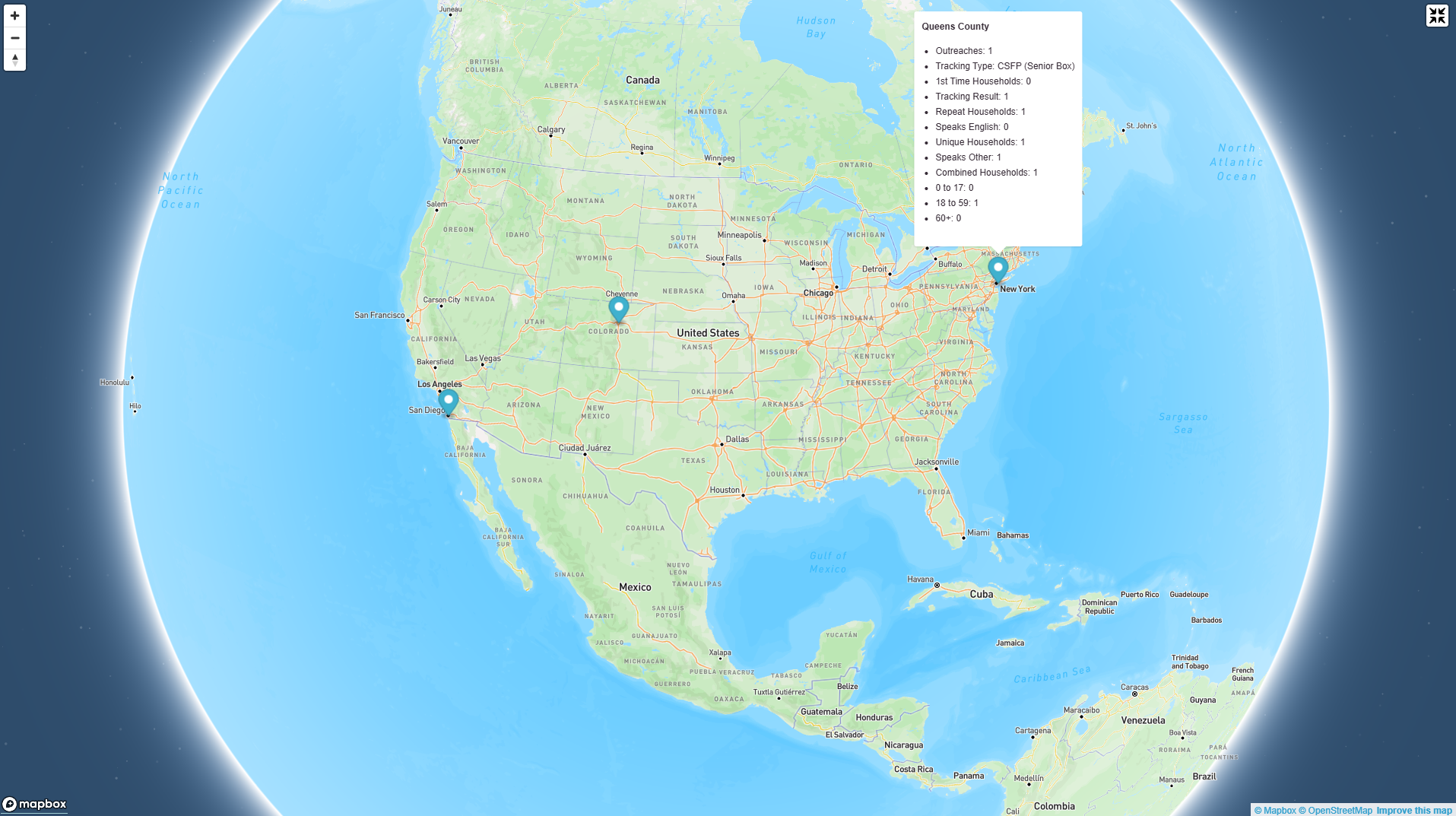
Map
A heat map is also available to provide a visual representation of the selected demographic data. To view it, simply click the “Map” tab.
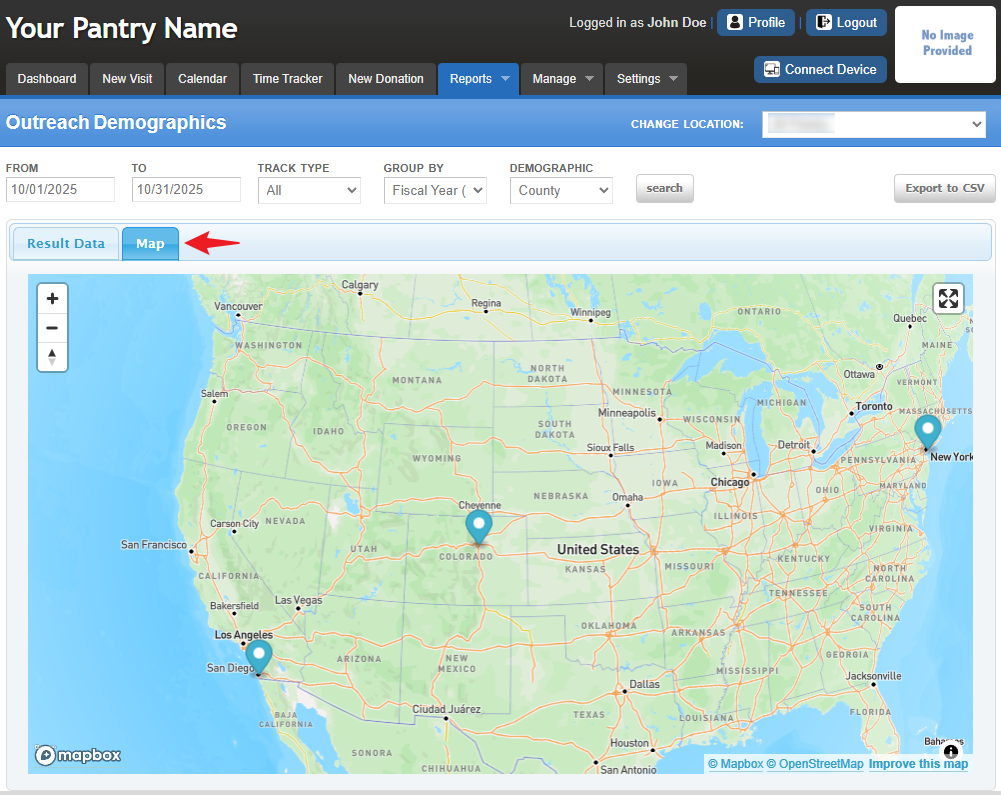
Sample overview of Map in Full Screen
Examples of How to Use This Report
Evaluation and Strategic Planning
This report is highly beneficial for assessing your service coverage area, supporting informed decision-making, and guiding strategic and funding efforts such as grant applications and reporting.
Example:
Your agency serves an entire county. You generate the Outreach Demographics Report for a fiscal year, select “Zipcode,” and export the data to Excel for further analysis. Upon review, you discover that 80% of your clients come from only three out of seven zip codes. This insight may prompt questions such as:
Should outreach efforts be increased in the remaining zip code areas?
What are the population sizes and needs in those zip codes?
Are there other social service organizations you could partner with to enhance visibility and accessibility?
You can perform similar analyses for County, City, or Zipcode groupings to evaluate service reach and identify areas for improvement.
Funding Requests and Messaging
This report also serves as a valuable tool when preparing funding proposals or communicating program impact.
Example:
You’re preparing a grant request to a funder supporting a specific geographic area within your service region. Using this report, you can accurately demonstrate the number of households served in their target area.
Tip:
If the report shows that 60% of households come from a particular area, you can refer to your Dupe/Undupe Report to calculate the approximate number of individuals represented by that percentage.
Additionally, when meeting with city officials or community partners, you can filter the data by City and export it to Excel for a clear, data-driven presentation of local needs and your agency’s response efforts.
NOTE: This report provides both Duplicated (Repeat) and Unique Households for you to utilize in your review and messaging.
Was this article helpful?
That’s Great!
Thank you for your feedback
Sorry! We couldn't be helpful
Thank you for your feedback
Feedback sent
We appreciate your effort and will try to fix the article