Dup / Undupe Report Full Article

Modified on Thu, 16 Oct, 2025 at 5:18 AM

TABLE OF CONTENTS


Duplicated and Unduplicated (Dupe & Undupe) Report


The Dupe & Undupe Report serves as a key tool for understanding your agency’s overall service numbers. It provides a detailed breakdown of household and individual visits within a selected date range, including:

  • Total number of distributions provided.
  • Number of unduplicated and duplicated households served.
  • Number of unduplicated and duplicated individuals served.
  • Breakdown of unduplicated and duplicated individuals by age group.

This report is essential for accurately tracking service reach and understanding client visit frequency across reporting periods.


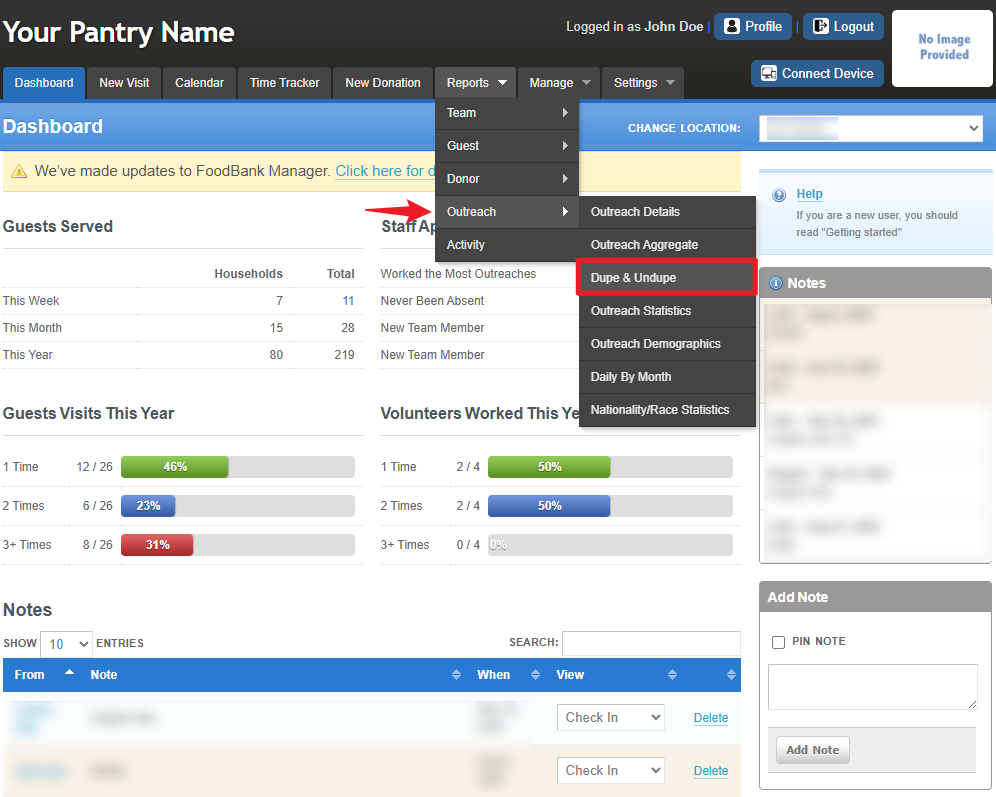
To access the report, go to Reports > Outreach > Dupe & Undupe.


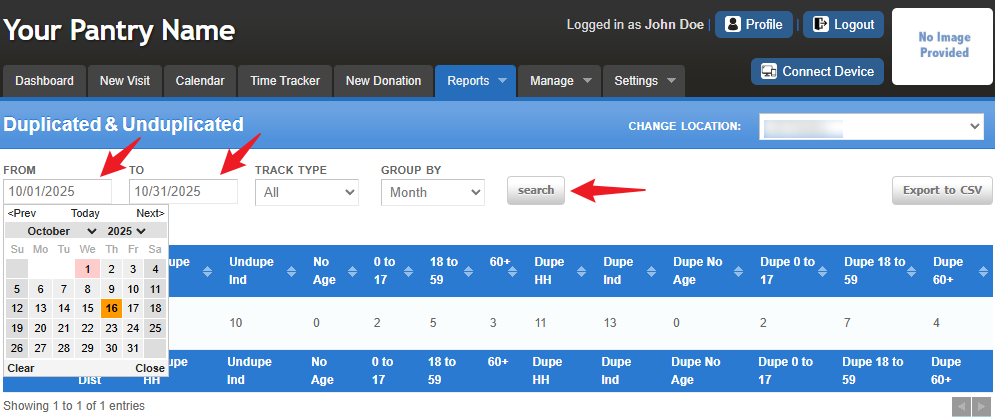
To configure the report, start by setting the desired date range for the data you want to include. Click the “From” date box and use the date picker to select the start date. Then, repeat the process for the “To” date box to set the end date.

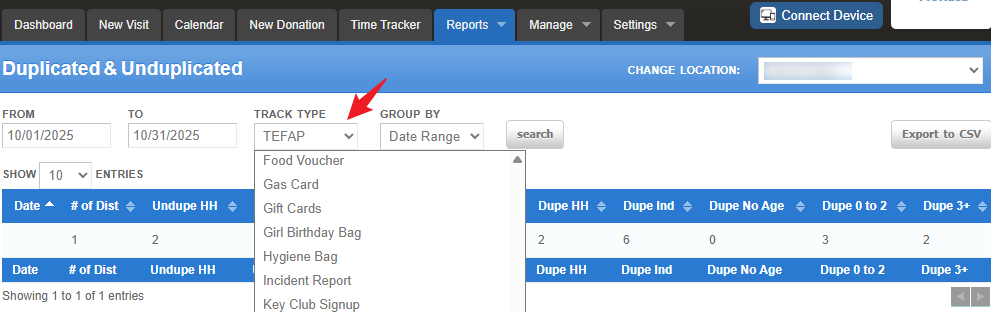
Next, click the “Track Type” dropdown menu to view all available services offered 

by your agency and select the specific service you want to generate the report for.


Note: If you select “ALL” for "Track Type", this may screw your numbers and is not always beneficial. Select each track type individually for complete accuracy.

Select how you want the numbers to be displayed by choosing the appropriate “Group By” option. It’s important to understand how this setting impacts your report. Below are some guidelines to help you select the best “Group By” option based on your chosen date range:

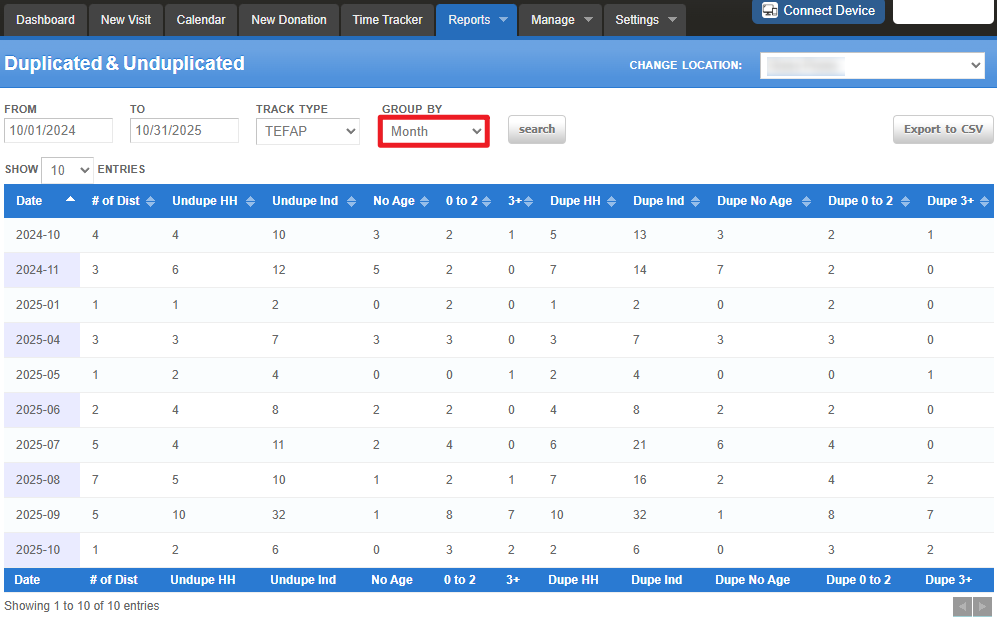
  • If you select a monthly range (e.g., January 1, 2025 to January 31, 2025), consider grouping by “Month.”

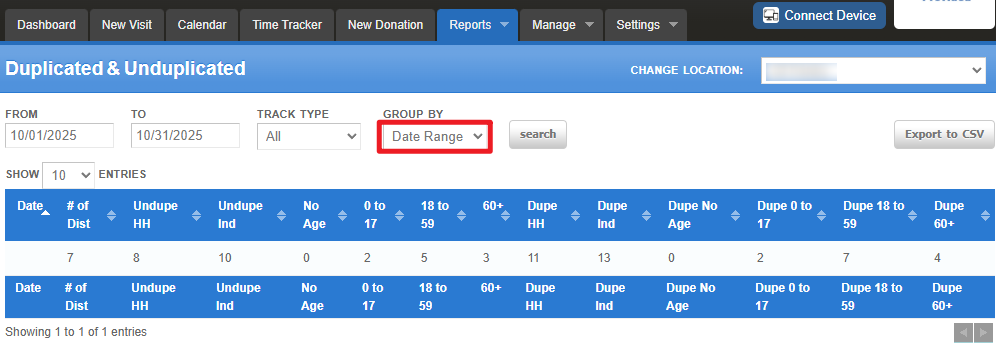
  • If you select a quarterly range and want the data as one combined result (e.g., April 1, 2025 to June 30, 2025), consider grouping by “Date Range.”

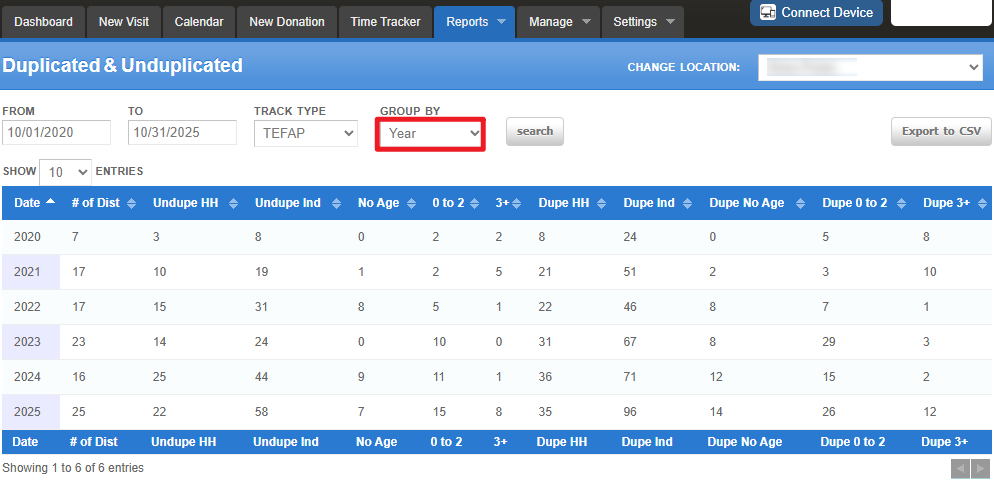
If you select a yearly range (e.g., January 1, 2025 to December 31, 2025), consider grouping by “Year.”


Sample View of Group By:

Group By: Year


Group By: Month


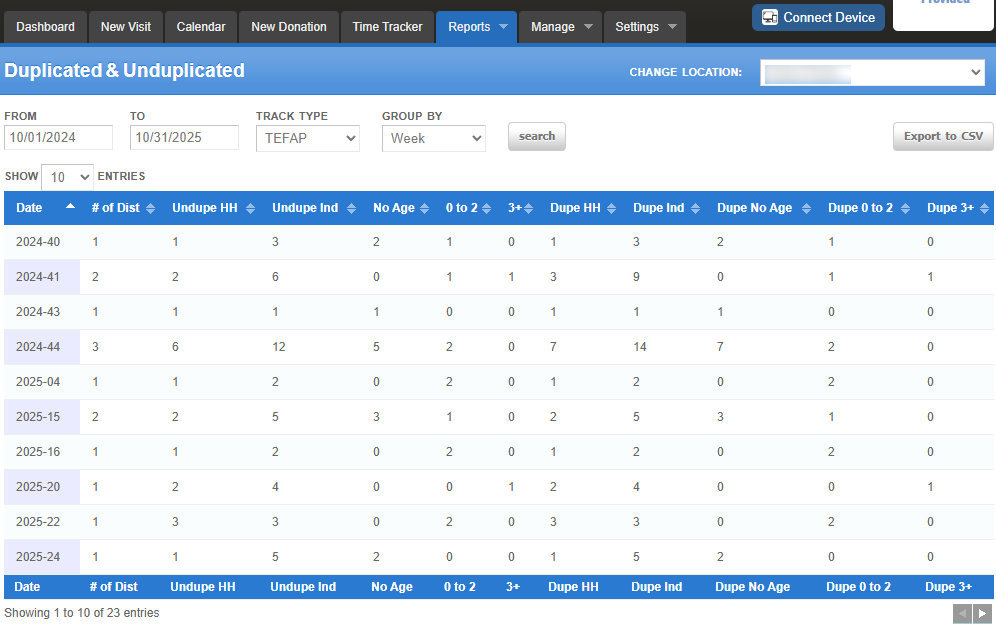
Group By: Week


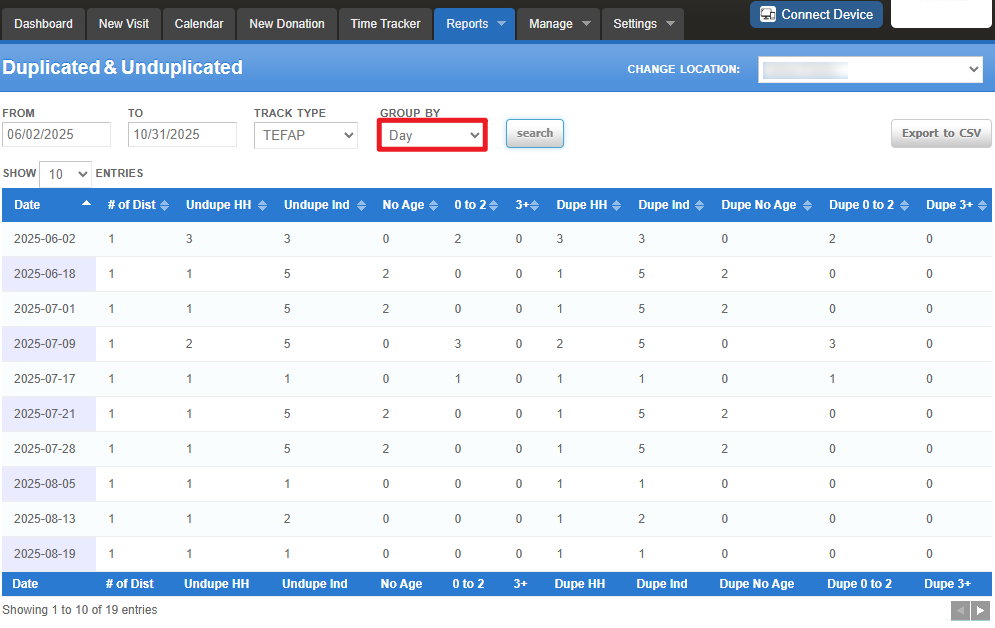
Group By: Day

Group By: Date Range

Once the report is configured with your desired data settings, click the “Search” button to display the results on the screen.

If you’d like to save or customize the data further, click the “Export to CSV” button located at the top-right corner of the screen. This allows you to download a copy for recordkeeping, printing, or additional formatting as needed.


Examples of How to Use This Report


Quantifying Percentages of Specific Age Groups Served

If you need to determine the percentage of children (ages 17 and younger) who visited your pantry during a specific fiscal year, you can calculate it using the data from the report.

In the report, the 17 and younger group is split into two age categories. To find the total, add the numbers from both columns (unduplicated) for ages 0–17, then divide that by the total number of unduplicated individuals.

Example Calculation:

  • Total unduplicated children (ages 0–17): 5,953

  • Total unduplicated individuals: 14,269

  • Calculation: 5,953 ÷ 14,269 = 0.417, or approximately 42%

This means that 42% of the clients your pantry served were children.
You can apply the same method to calculate percentages for other age groups, such as seniors.


Converting Data into Messaging

You can also use the report data to create clear, compelling messages for communications, reports, or grant applications.

Example Messaging:

  • “Our agency provided 9,323 food visits to clients last fiscal year.”
  • “Our agency served 3,347 families across 9,323 visits during the last fiscal year.”
  • “We provided food assistance to 14,269 unique individuals, 42% of whom were children age 17 or younger.”
  • “Through 9,323 visits, our agency reached 14,269 individuals, offering food and resources 41,375 times.”


Use these figures creatively to highlight your organization’s impact and communicate your mission effectively.


Back to Top


Was this article helpful?

That’s Great!

Thank you for your feedback

Sorry! We couldn't be helpful

Thank you for your feedback

Let us know how can we improve this article!

Select at least one of the reasons
CAPTCHA verification is required.

Feedback sent

We appreciate your effort and will try to fix the article