TABLE OF CONTENTS
Outreach Aggregate Generate Report
Select Date From - To
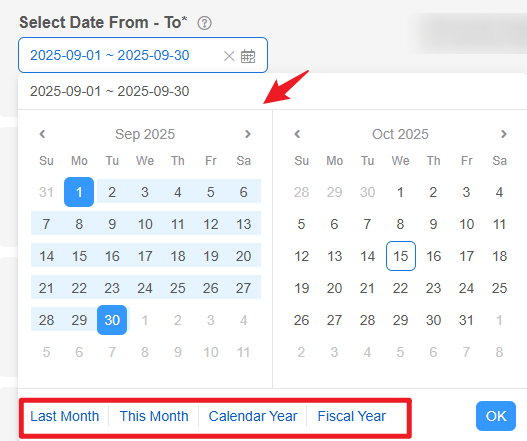
Set the Date Range for your report Start by choosing the From - To dates you would like to work with. Once you click on the date range box, you can select your dates by using the calendars, or by choosing one of the fast select options at the bottom of the field. To work with a single day, just double click on the day. All entries will be locked in when you click OK.
Locations
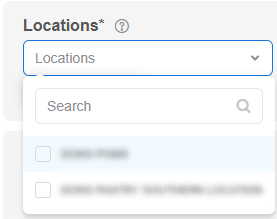
Choose the location(s) you wish to include in your report
- Single location domains: Will only see one (1) location. Be sure it is checked.
- Multi-location domains: Will see all of the locations in this list. Choose one or more locations to include in your report. Adding more than one location here will provide aggregate data between all locations added.
Tracking Methods
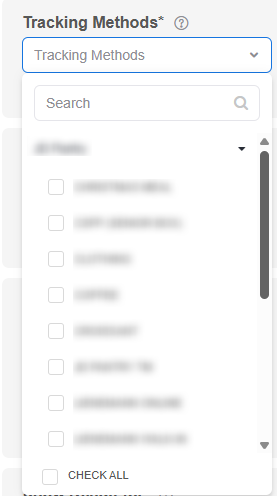
Choose the Tracking Method(s) to include in this report.
You can select several tracking methods at the same time or choose just one. To make it easy to select all of the tracking methods in the report, there is a ‘Check All’ box located at the bottom of the list.
- Choosing One Tracking Method: Reports out data specifically relating to the tracking method chosen. If I wanted a TEFAP only report, only choose the TEFAP Tracking Method.
- Choosing Multiple Tracking Methods: Will report out the data from all chosen Tracking into into an aggregated report.
Report Type
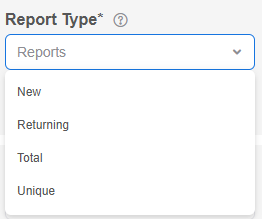
There are four report type options. You may only run one (1) report type at a time.
- New: Provides a report that only shows the results for that are considered new within the date range set for this report. What determines a new visit is configured in the ‘First Time By’ selector.
- Returning: Provides a report that only shows the results for visits that are considered ‘not new’ but are returning. What returning. What determines a returning visit is configured ‘First Time By’ selector.
- Total: Can also be called duplicated. Total will include all visits in the selected date range for the report.
- Unique: Can also be called unduplicated. Unique will provide a data set result that only reports on the first visit for each client in the selected time period. Caution: not Unique with First Time!
First Time By
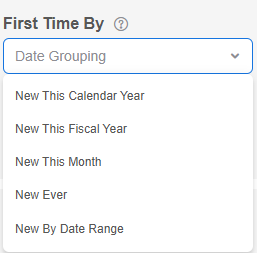
First Time By is the partner to the ‘Report Type’ selector. It is used to test the selected visits to determine if a visit is new or not new. This works by comparing the visits within the date range chosen and determines if the visits for each household are new visits or returning visits. There are four (4) options.
- New this Calendar Year: Tests the selected visits against all of the visits made this calendar year.
- New This Fiscal Year: Tests the selected visits against all of the visits made during the fiscal year set in settings > settings > general.
- New This Month: Tests the selected visits against the visits within selected month.
- New Ever: Tests the selected visits against all visits ever recorded.
- New By Date Range: Tests the selected visits against the selected date range.
Show Results for
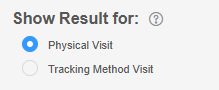
Show Result For tells the report what a visit is. There are two options: Physical Visit (attendance - commonly used) and Tracking Method Visit (rarely used).
- Physical Visit (attendance) considers all services received during a visit as one (1) visit. An example is John comes in and receives food and clothing. The physical visit will count both services as only one (1) visit and outputs results for one (1) visit.
- Tracking Method Visit considers each tracking method received during a visit as separate visits. An example is John comes in and receives food and clothing. The program visit will count both services as their own visits and outputs results for two (2) visits. This option is required if pivoting on Tracking Method.
Pivot On
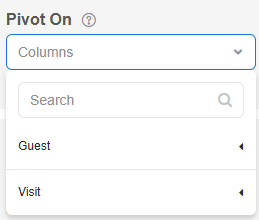
Pivot On columns allow you to add a field(s) to divide the report results. An example of this would be a Yes/No field. The results presented will show both Yes and No data sets. You may choose from Guest record fields and/or Visit fields. The Pivot On field is not required, however the maximum number of fields you can pivot on at any one time is three (3). Common pivots include zip code, household total, disabled and veteran.
Sum/Count By
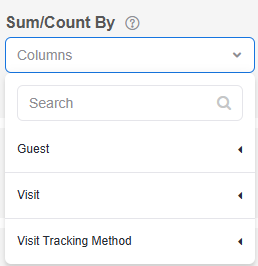
The Sum/Count By will sum the values for Number fields and will count how many times a value is chosen for Yes/No fields and Select box fields. There is a maximum of twenty (20) fields that can be included in a report.
Sum will auto sum the field values for any field that numbers. An example of this would be weight, household total household total or age groups.
Count By will total the number of times each option is present in the data set provided. An example would be how many Yes or No results.
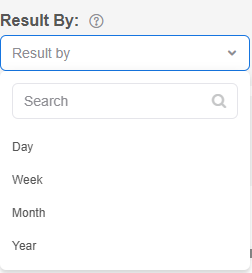
Result By
Allows you to divide the results into smaller subsets, Day, Week, Month or Year. If you do not choose any of these options your result will be based on the date range set in the ‘Select Date From – To’ selector.
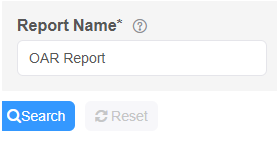
Report Name
Use the Report Name field to identify one report from another in the History Page. The name field will take on the Preset name if a Preset is used. The field is editable as desired.
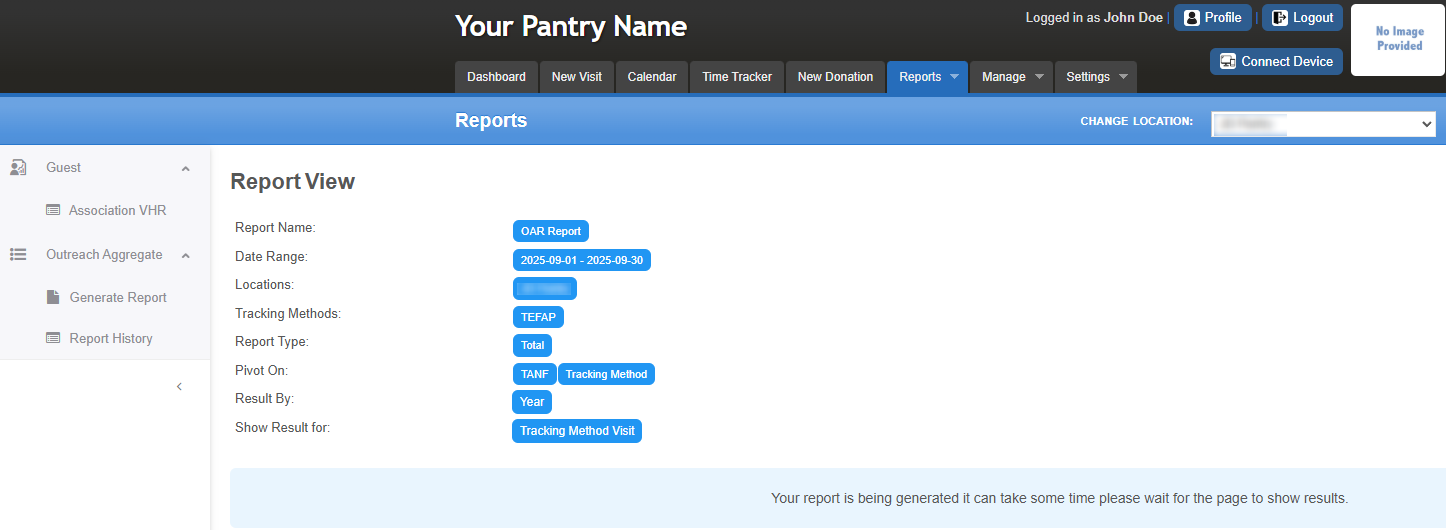
Sample Report View
This is what the report will look like after completing your setup and clicking Search in the Generate Report section.
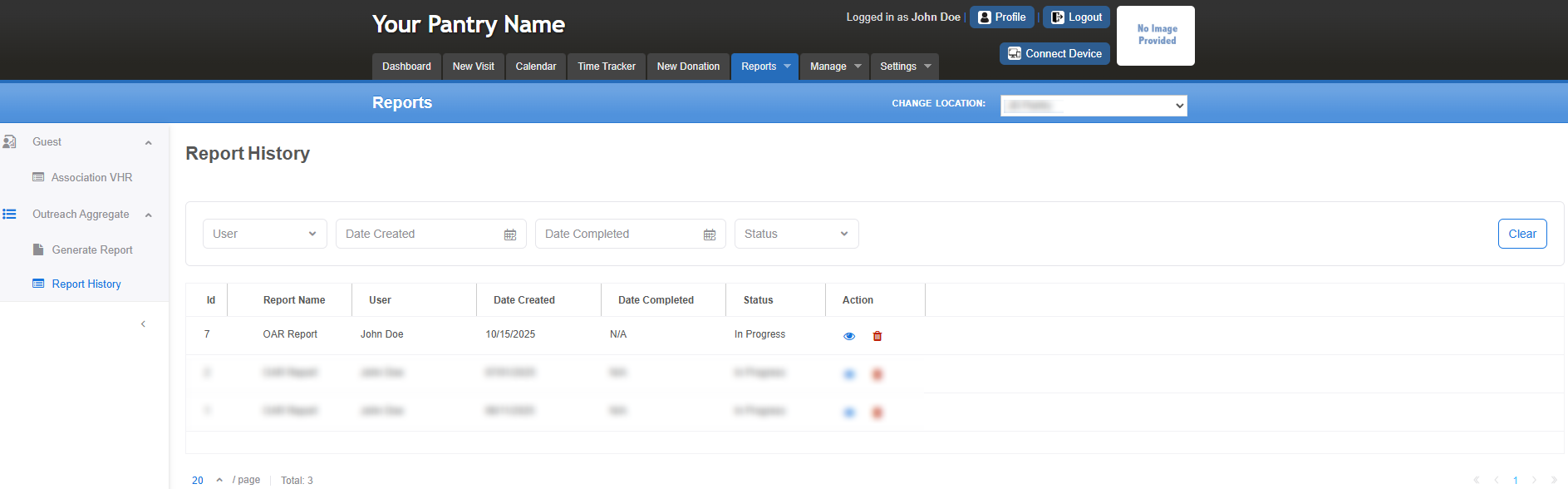
Sample Overview of the Report History
Was this article helpful?
That’s Great!
Thank you for your feedback
Sorry! We couldn't be helpful
Thank you for your feedback
Feedback sent
We appreciate your effort and will try to fix the article