TABLE OF CONTENTS
- Overview
- Cancelling a Guest Visit
- Updating the Help Desired Selection
- FAQs – Guest Visit & Help Desired
Overview
This article explains how to remove a guest visit record in the FoodBank Manager system. Cancelling a visit removes the guest’s visit record for a specific Outreach and allows staff to correct visits that were created by mistake or saved with the wrong Help Desired for the guest.
Note: Removed guest visits remain part of the system records for reporting purposes. They will be included in reports whenever the Visit Status report filter is set to Canceled.Steps on How to Remove a Visit
- Go to the New Visit tab, select an Outreach and then select the guest who has a completed visit.
Locate the Help Desired that was used to create the visit.
Click Cancel next to the selected Help Desired.
When prompted, confirm “Are you sure you want to cancel the visit for New Order?”
An Override is required. If you don't have permission, please ask a supervisor or administrator to approve.
After cancellation, the Help Desired will no longer appear highlighted in green shade.
Click Cancel to exit the visit.
When prompted with “Are you sure you want to leave before creating a visit?”, click OK.
The guest visit for that Outreach is now successfully canceled.
Click the GIF to expand it into a larger view.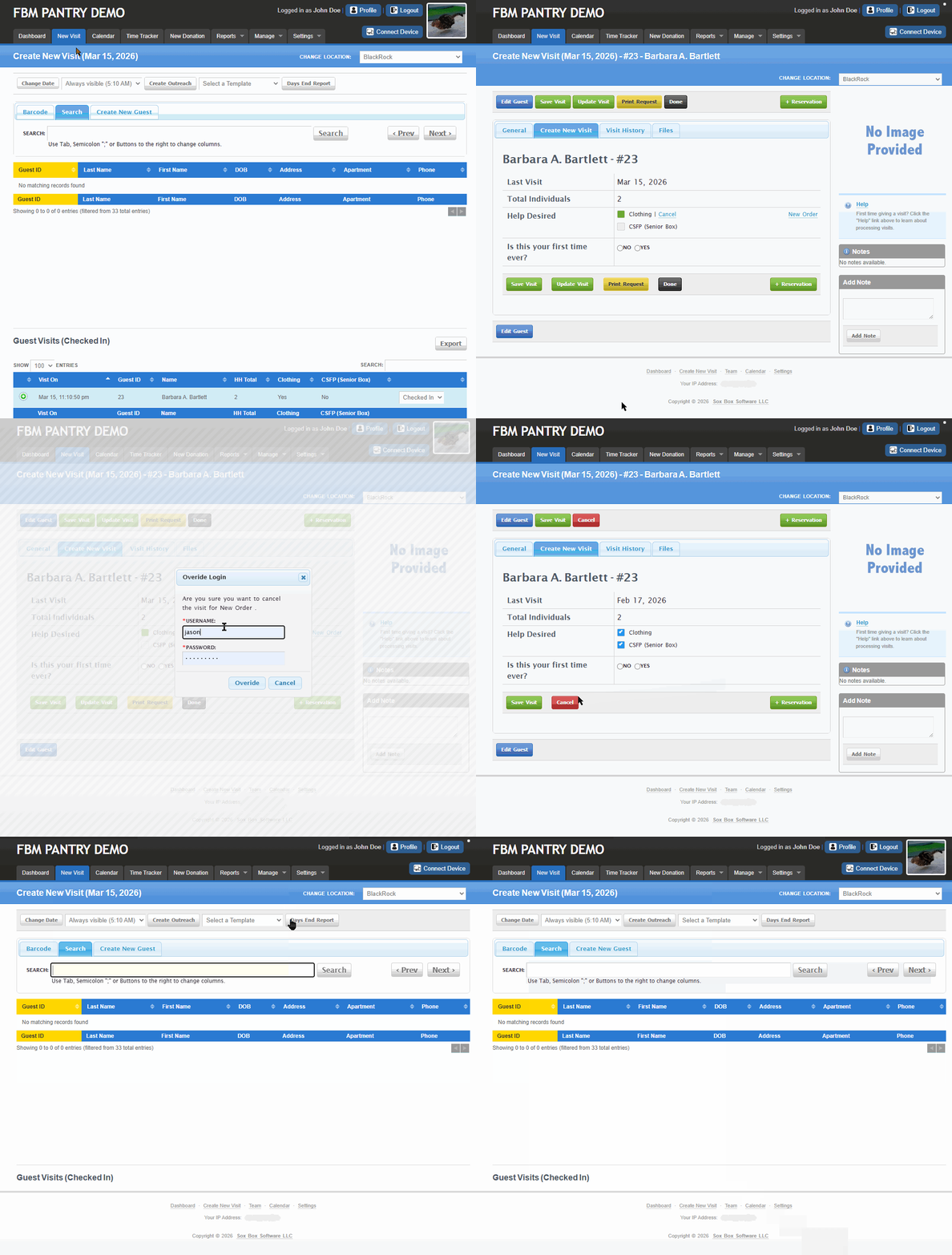
Updating the Help Desired Selection
If a visit was created with the wrong Help Desired, cancel the current selection before choosing a new one.
How to Update the Help Desired Selection
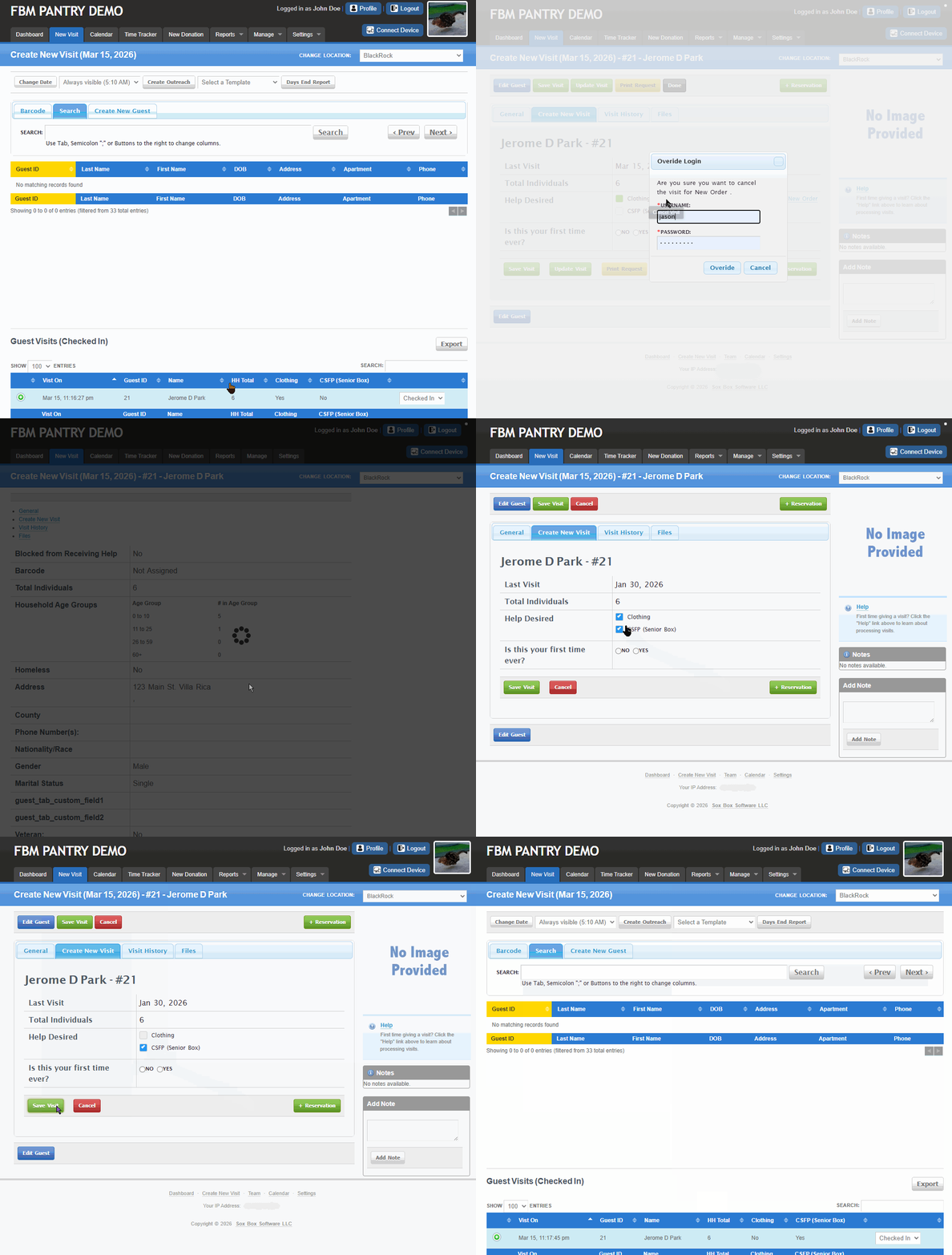
Go to the New Visit tab, select an Outreach and then select the guest who has a completed visit
Click Cancel next to the incorrectly selected Help Desired.
When prompted, confirm “Are you sure you want to cancel the visit for New Order?”
An Override is required. If you don't have permission, please ask a supervisor or administrator to approve.
After the override is approved, you can select the correct Help Desired option.
Click Save Visit to complete the updated visit, then click Done.
After saving, the guest’s visit for that Outreach will reflect the correct Help Desired selection.
Resolving the “No Help Desired Selected” Alert
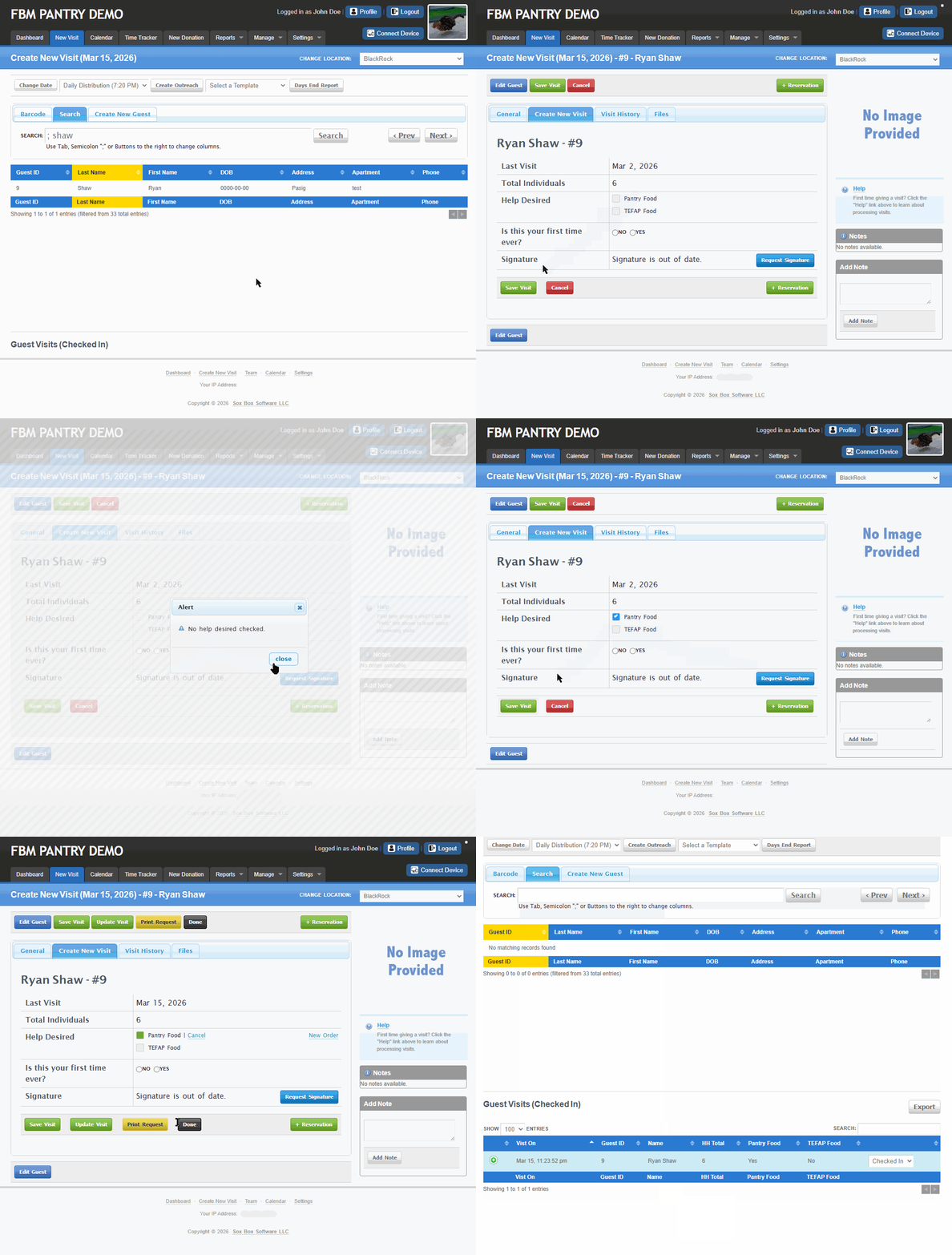
If you see a "No Help Desired Checked" alert, it means that at least one Help Desired must be selected before saving a visit.
To resolve this alert:
Select one of the available Help Desired options for the Outreach on the Create New Visit page.
Click Save Visit once a valid option is selected.
FAQs – Guest Visit & Help Desired
1. What happens when I remove a guest visit?
The visit will no longer appear on the New Visit page. However, the record remains in the system and the visit status is changed to Canceled for reporting purposes.
2. Will a removed visit appear in reports?
Yes. Removed visits will appear in reports (e.g., Visit History Export) when the Visit Status filter for that report is set to Canceled.
3. Can I remove a guest visit?
Yes. A guest visit is removed by canceling the Help Desired assigned to the visit.
4. Can I change a canceled visit back to active?
No. A canceled visit cannot be changed back to active because it serves as a recorded snapshot of that visit. However, you can create a new visit for the same guest which will then reflect that specific outreach.
5. Can I change the Help Desired after a visit is created?
Yes. If the Help Desired was selected incorrectly, it must first be canceled and overridden by the admin or staff (with admin permission) managing the visit before a new Help Desired can be selected.
6. Why do I need to cancel the incorrect Help Desired before selecting another one?
Canceling is required when the Help Desired was selected incorrectly. This ensures the incorrect selection is properly overridden by the admin or staff managing the visit.
However, if you only need to add another Help Desired, you can simply select the additional option and click "Update Visit".
7. Will canceling a Help Desired cancel the entire guest visit?
It depends on how many Tracking Methods are included in the visit. If there is only one Tracking Method, canceling it will cancel the entire visit. If there are multiple Tracking Methods, the visit will remain and only the canceled Tracking Method will be removed, while the remaining Tracking Methods stay saved for the guest.
8. What happens after I select a new Help Desired?
The system updates the visit record with the newly selected Help Desired.
9. Why am I seeing the “No Help Desired Selected” alert?
This alert appears when you attempt to proceed without selecting a required Help Desired.
10. How do I fix the “No Help Desired Selected” alert?
Select at least one Help Desired, then continue to save the visit.
11. Is the “No Help Desired Selected” alert an error?
No. It is a system prompt to remind you to select a Help Desired before the visit can be completed.
Was this article helpful?
That’s Great!
Thank you for your feedback
Sorry! We couldn't be helpful
Thank you for your feedback
Feedback sent
We appreciate your effort and will try to fix the article