TABLE OF CONTENTS
Introduction
Customize the Guest Record to record the data that you need to collect. FBM has several fields already available for you. If you don’t see something you need, it can easily be applied through the “Custom Fields” feature.
To start this process, go to “Manage>Guest”, click the “Create New Guest” button.
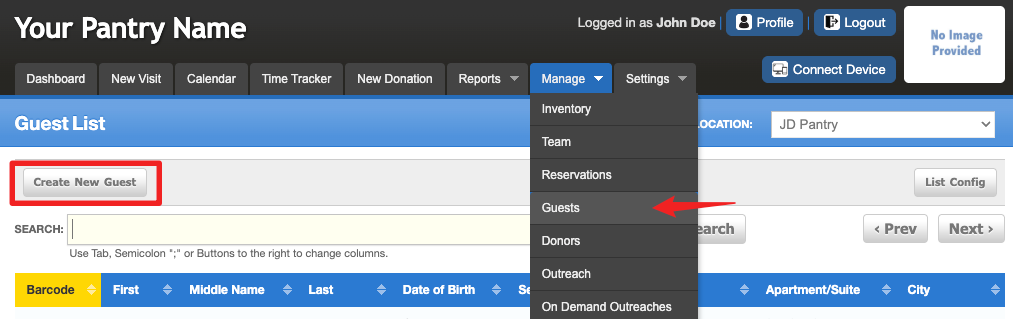
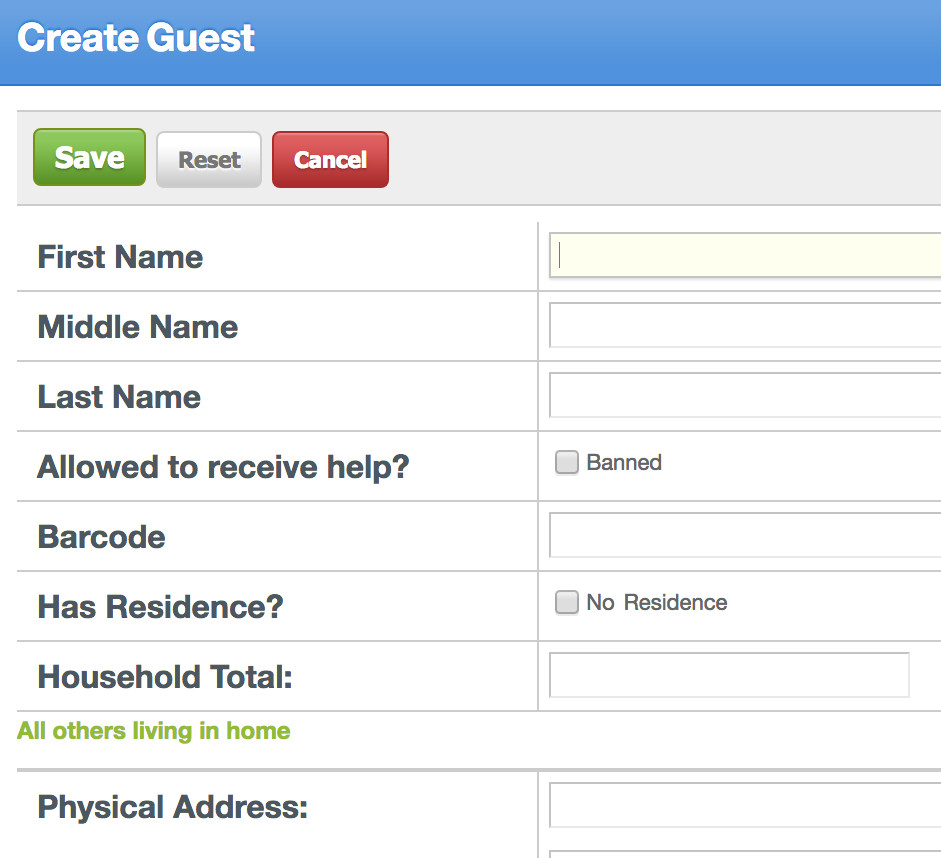
Scroll through this record and take note of the fields that are available. Jot down the field names you wish to remove and make a list of fields you wish to add. Whenever you make a change to the guest record go back to “Manage>Guest” to see the changes. You will spend considerable time in “Manage>Guest” while you configure the guest record.
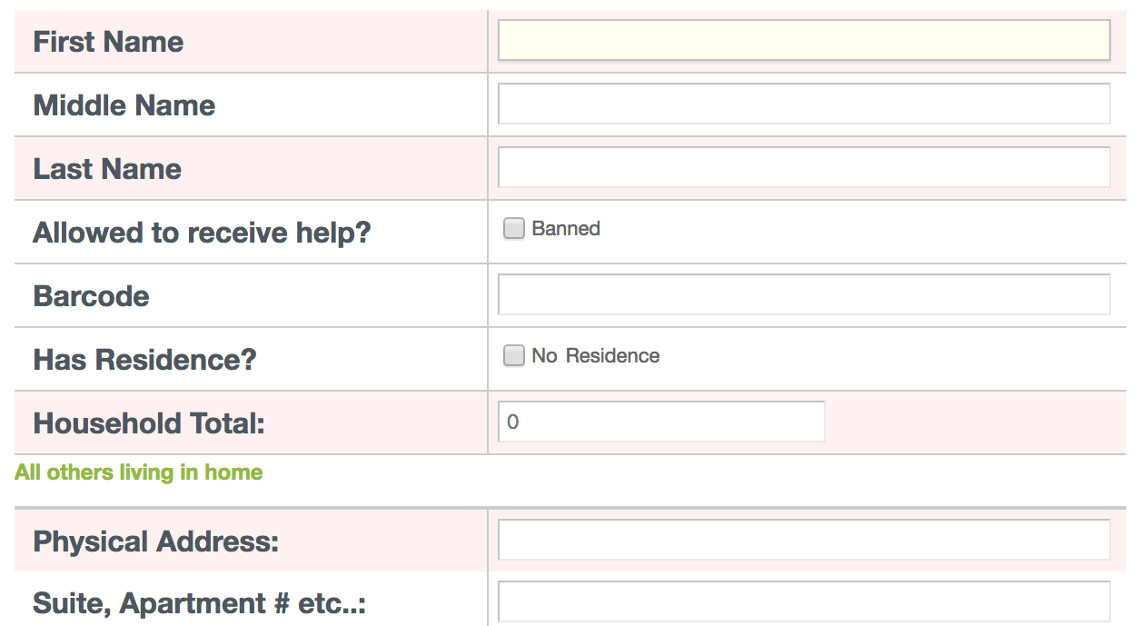
To test for required field compatibility, create a new guest record, do not add any data and immediately save it. This process will show you the fields that are required, they will be highlighted in pink. Make the changes needed then perform this process again until you are happy with the fields that are required and the fields that are not set to required.
Customize Guest Record
After you have performed the above steps it is time to start your customization of the Guest Record. Go to “Settings > Settings > Guest”. Using the drop-down you will see the choices available for each field.

- Required – this field must be answered in the guest record to save it.
- Not Required – this field will be visible but will not have to be answered to save the record.
- Show – This field will be visible in the guest record.
- Hide – This field will not be visible in the guest record.
Determine what type of information you are collecting for “Others Living in Home”.
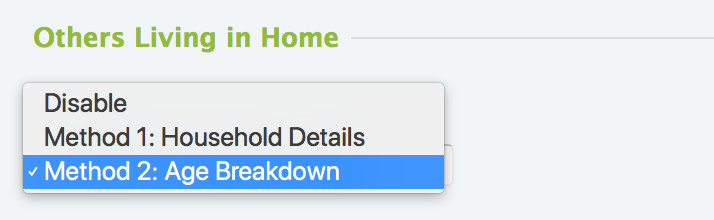
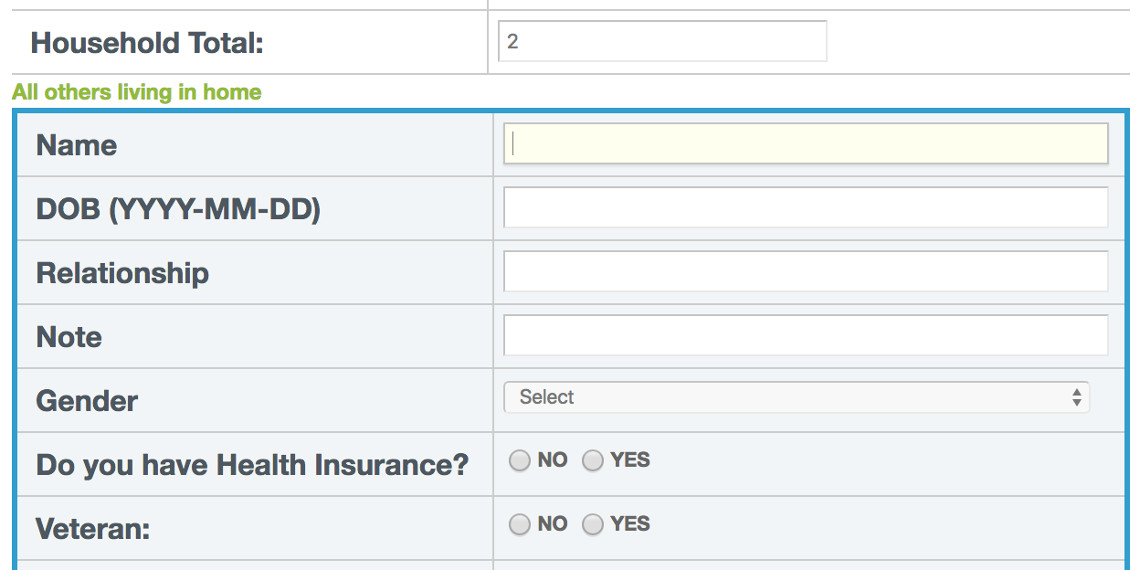
Method 1 : Household Details – allows you to collect personal data on each member of the household.
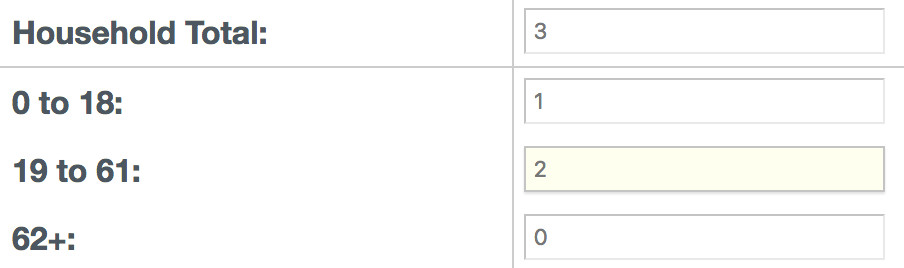
Method 2 : Age Breakdown – allows for applying numbers directly into the appropriate age brackets.
Under “Optional Fields” you will see two fields that can be applied to “Other in Household”. They are Gender and Nationality/Race. You can decide if they are required or not.

We provide 10 Income and 10 Expense fields, if you need more than this for either, contact support to discuss the best possible solution for you.You will see 5 custom fields near the bottom of the page. We recommend NOT using these and instead applying all your custom needs in our newer custom fields feature by going to “Settings > Custom Fields > Guest”. (see below)
The “Guest Force Edit” allows you set up a time that requires your guest to be edited and updated to process a visit. There are other ways to do this. Contact support to discuss your specific needs.
If we do not have the fields that you need, you can create them using the “Custom Fields” feature. Go to “Settings > Custom Fields > Guest”. (add link)This link will provide what you need to know about custom fields. Please note that ‘Other Field’ has been re-named to “Others Living in Home Type 1:”
Was this article helpful?
That’s Great!
Thank you for your feedback
Sorry! We couldn't be helpful
Thank you for your feedback
Feedback sent
We appreciate your effort and will try to fix the article