TABLE OF CONTENTS
Team Appreciation
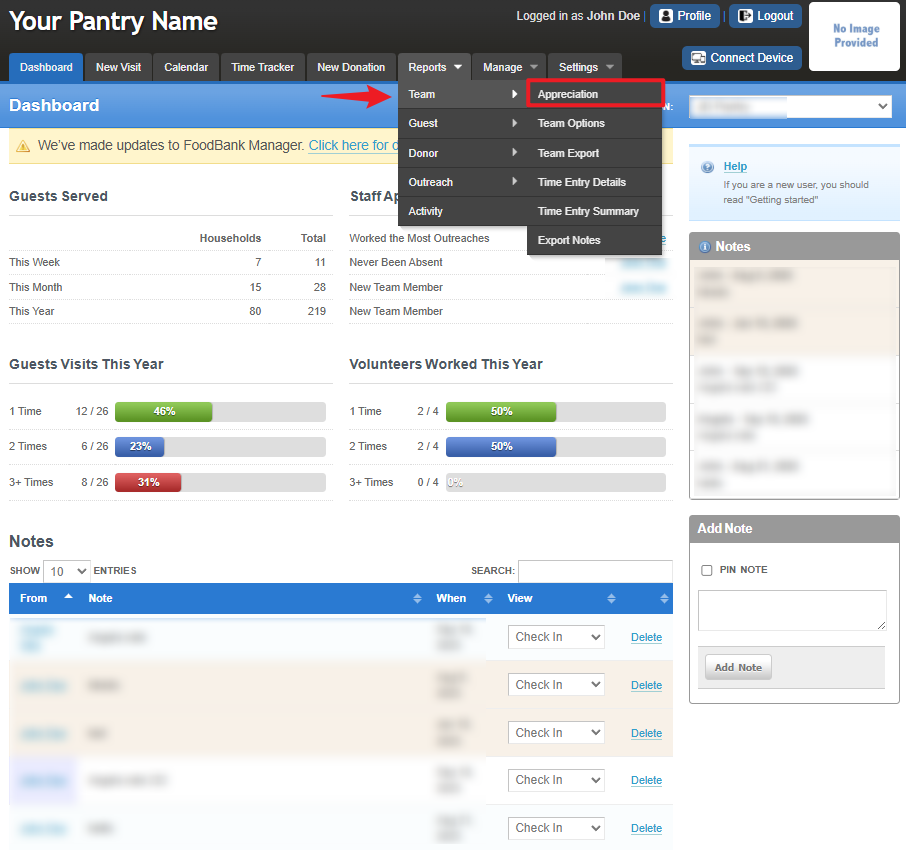
Displays a list of volunteers who have contributed at least one hour of service to your organization. To access the report, go to Reports > Team > Appreciation.
Note: This report applies to the previous version of the volunteer time management system.
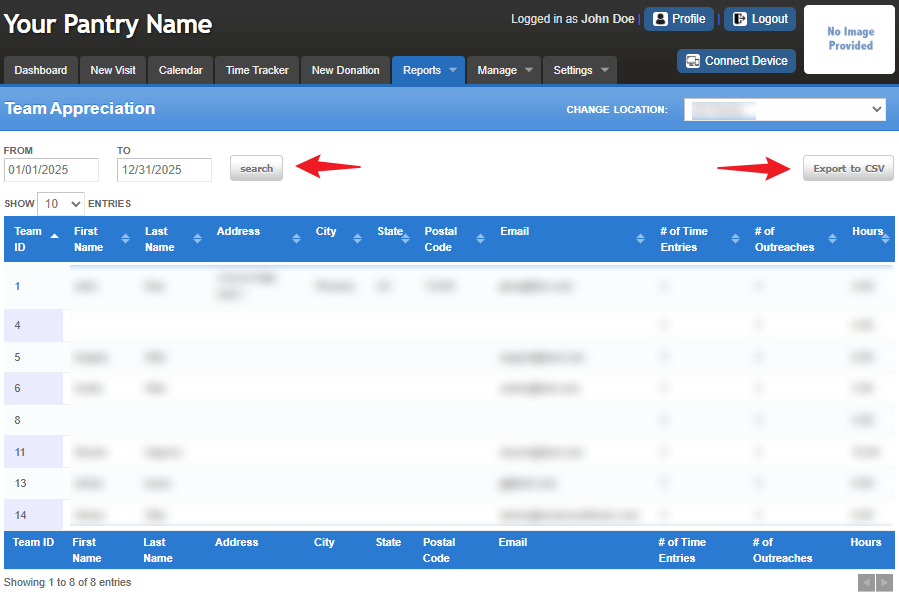
From there, select the desired date range, click Search to display the team members. You can also choose to Export to CSV for easy recordkeeping and monitoring.
Team Options
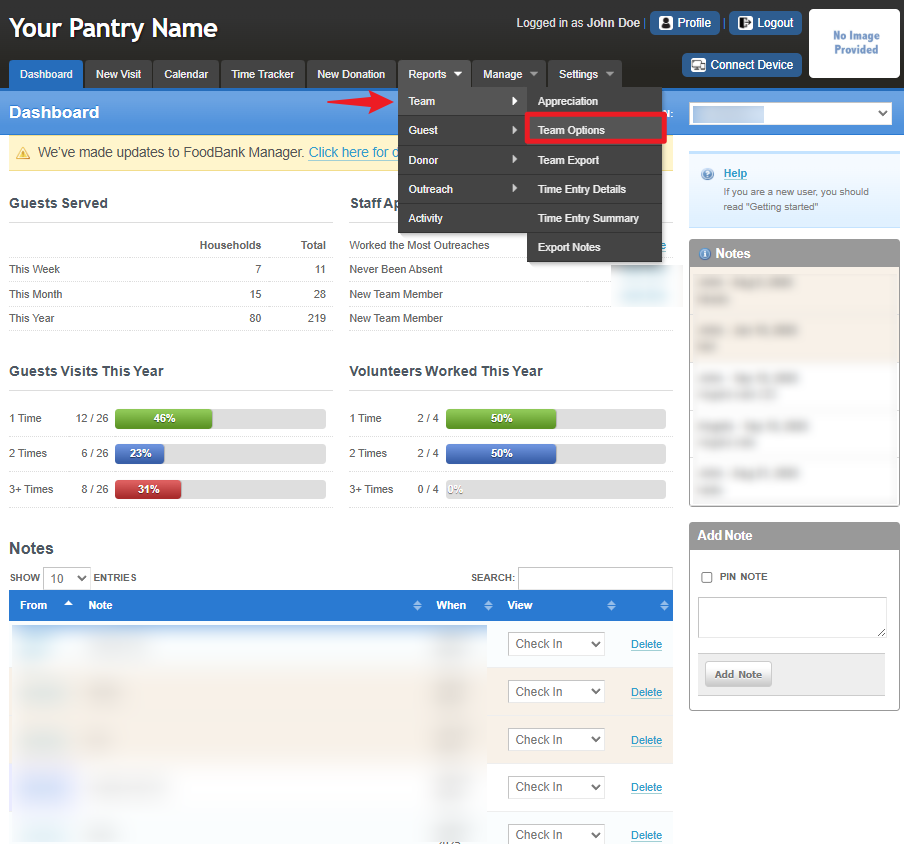
Displays volunteers who have specific skills, training, or other attributes assigned to them through your organization’s Team Options settings.
To access the report, go to Reports > Team > Team Options.
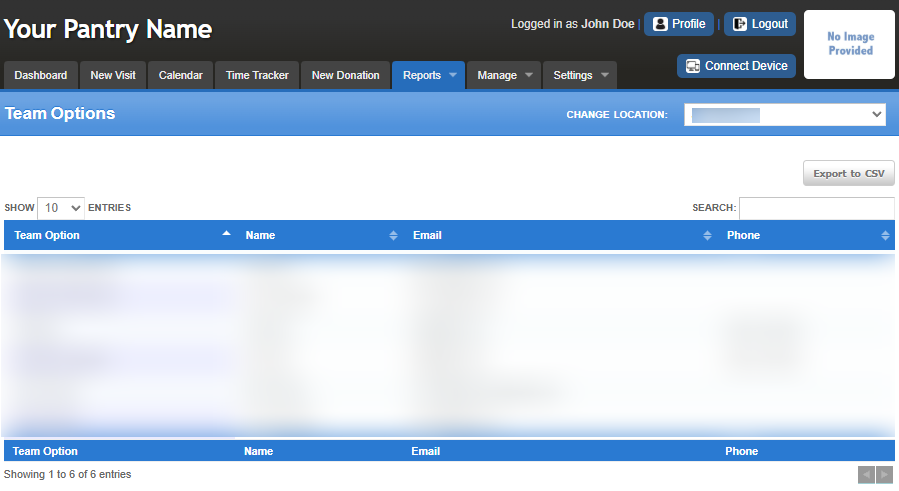
You can search by Team Option or Team Member Name, and you also have the option to export the report to a CSV file for record-keeping and tracking purposes.
Team Export
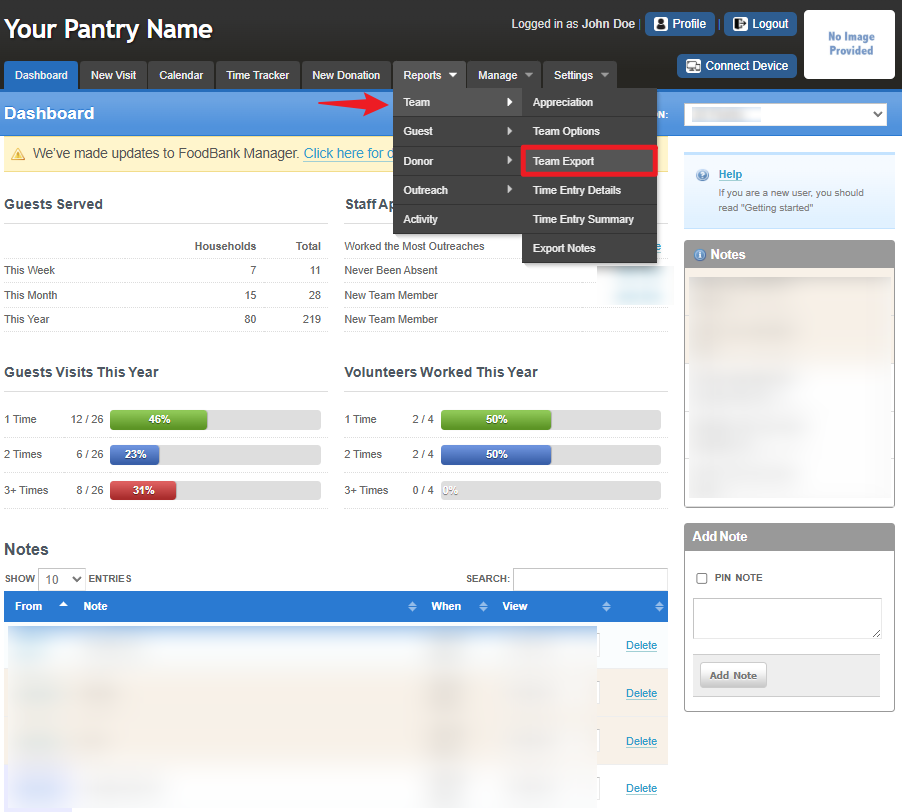
This report provides a raw data export containing volunteer account information based on the selected criteria. To access the report, go to Reports > Team > Team Export.
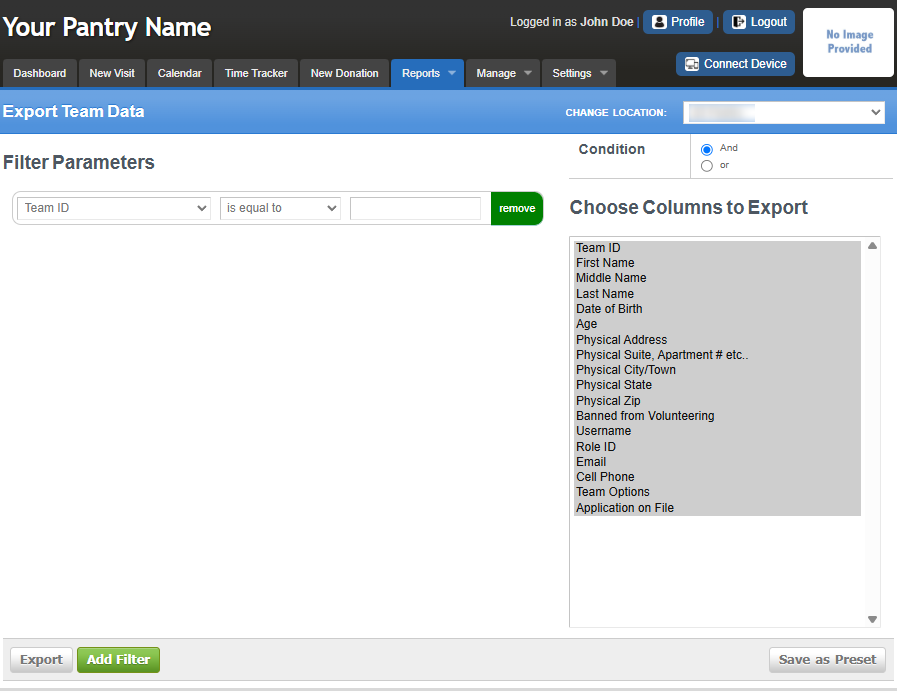
In this section, you can select which columns to export from the right side of the screen. You can also set Filter Parameters by clicking Add Filter and configuring them based on your desired output. Additionally, you may use the AND and OR conditions to refine your results. Once done, you can Export the data as a CSV file for record tracking.
Time Entry Details
Displays detailed information about each volunteer’s recorded time activity. This report is part of the new volunteer system, Time Tracker.
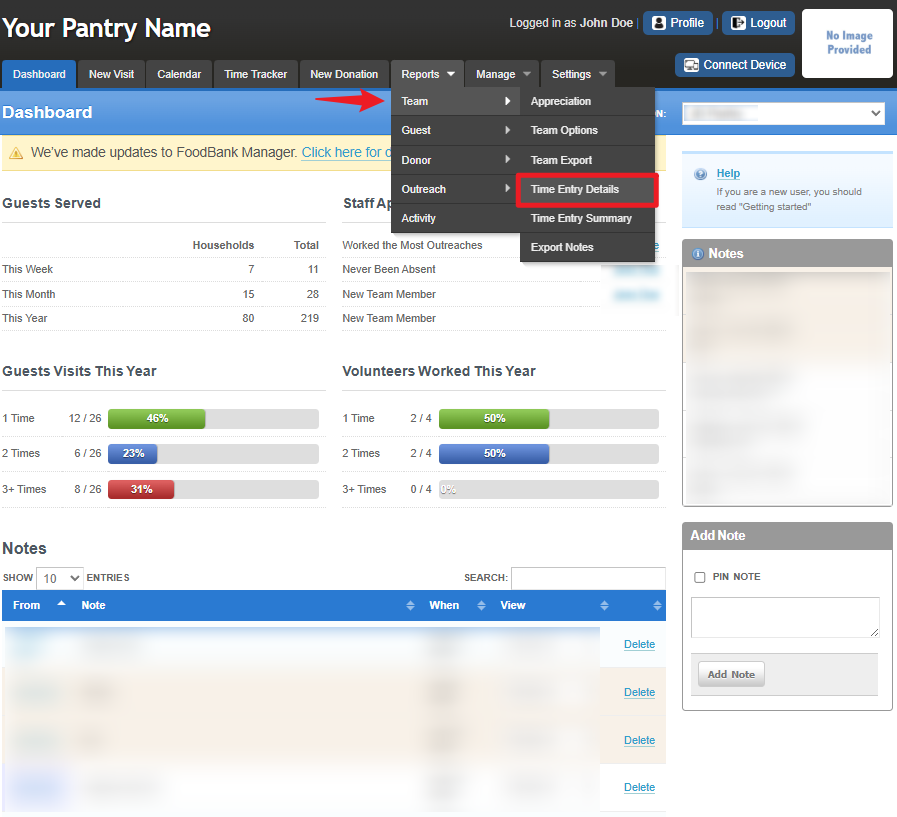
To access the report, go to Reports > Team > Time Entry Details.
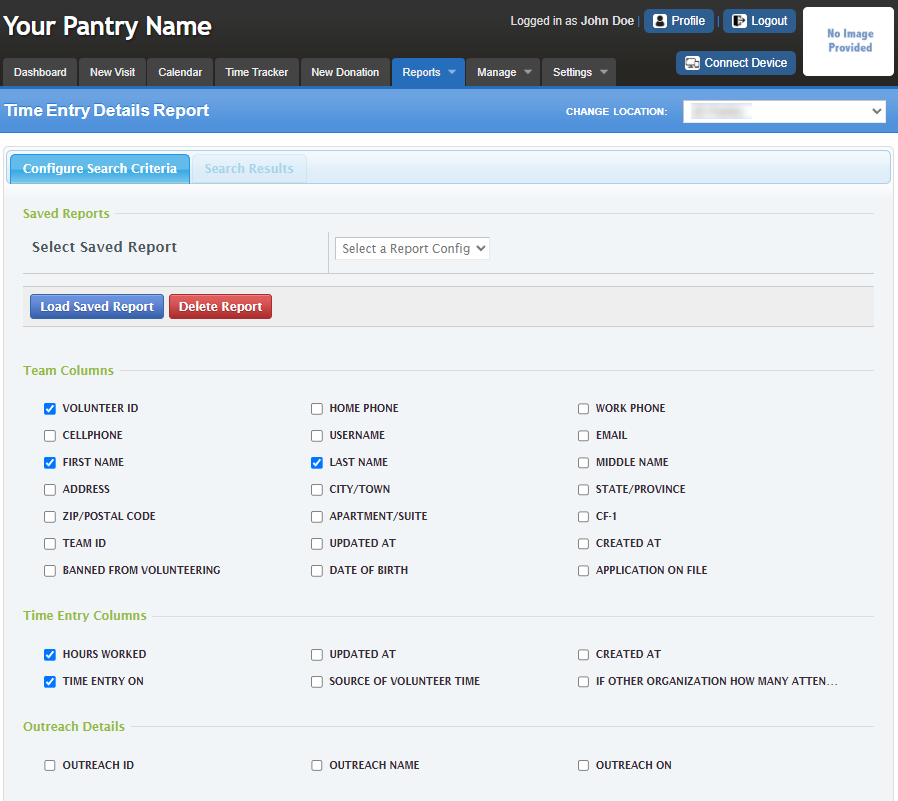
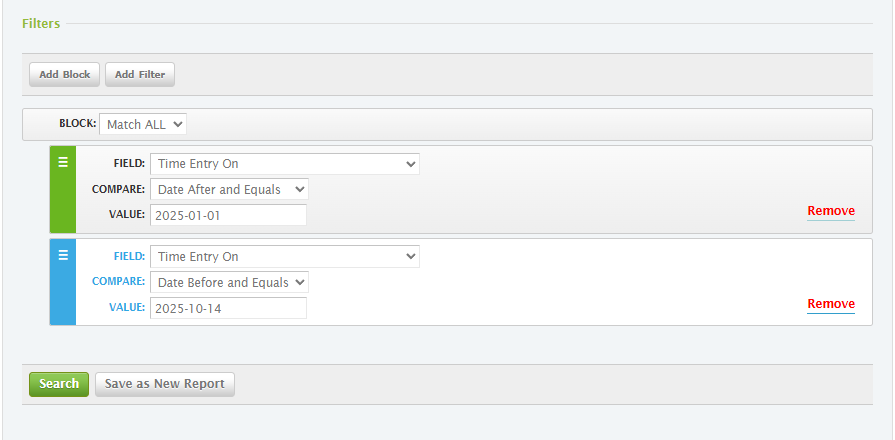
You can configure the Search Criteria section by selecting the checkboxes you need under Team Columns, Time Entry Columns, and Outreach Details. Set your preferred filters, then click Search to display the results or choose Save as New Report to save your customized report settings.
Time Entry Summary
This report provides summarized data categorized by the control fields you use and grouped by each volunteer. It is part of the new volunteer system, Time Tracker.
To access the report, go to Reports > Team > Time Entry Summary.
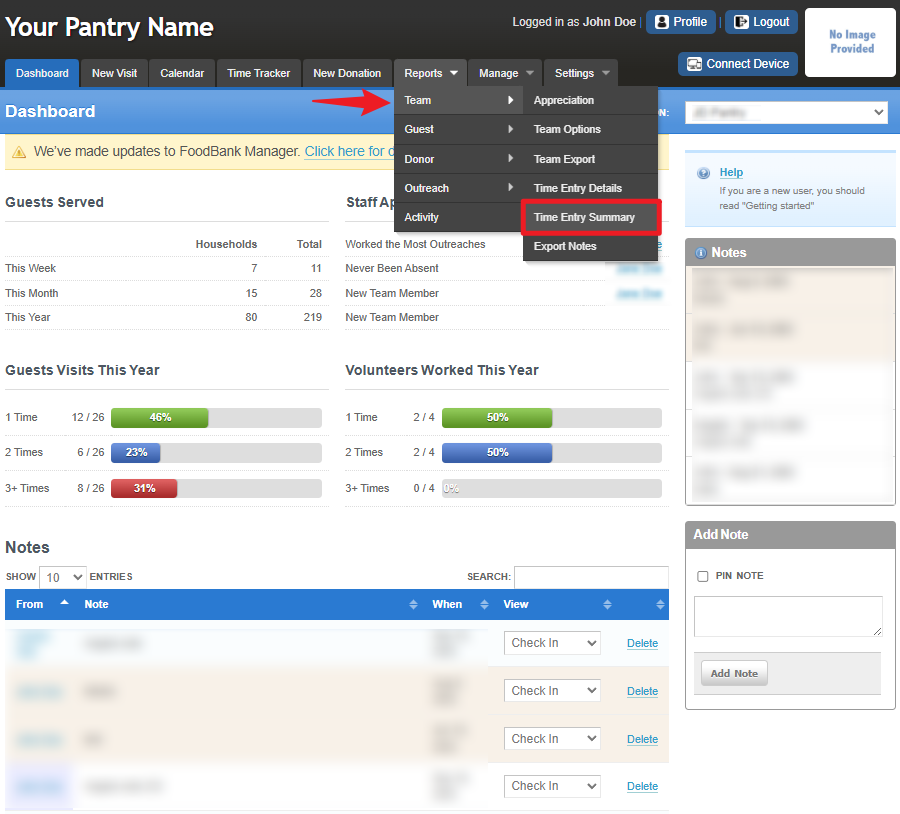
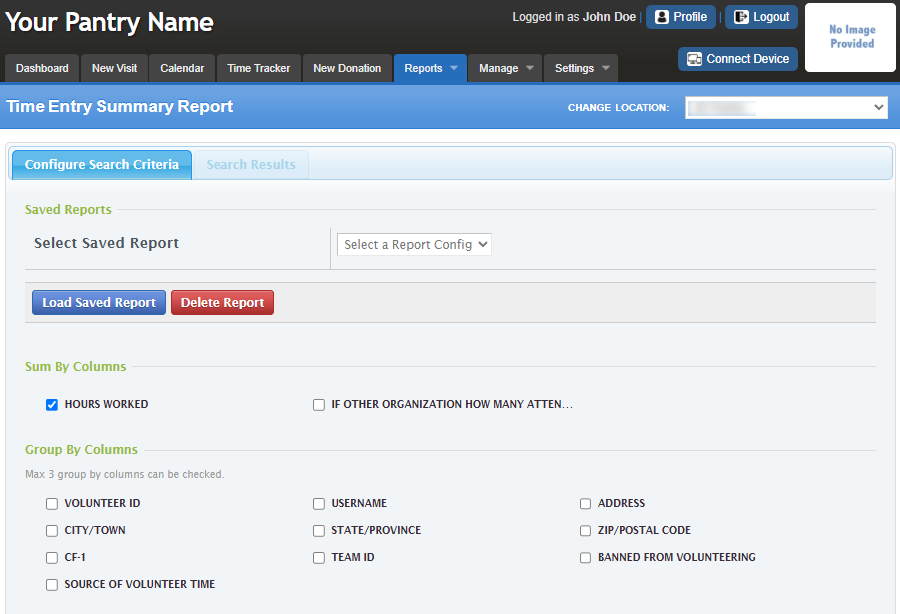
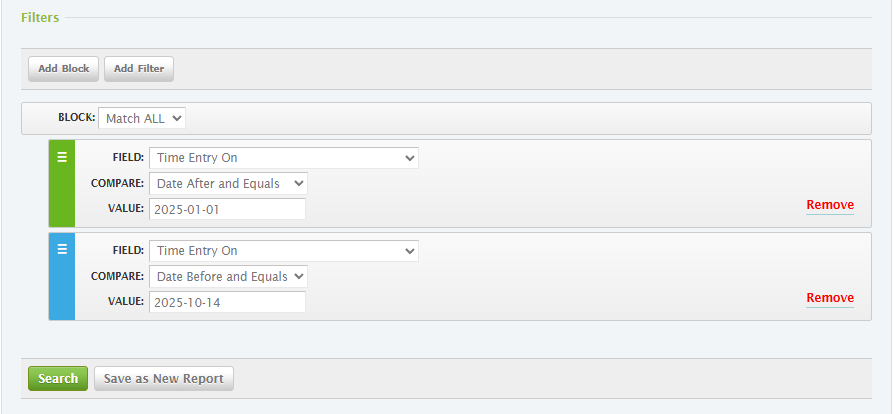
In this section, you can configure the Sum by Columns and Group by Columns, then set your preferred filters. Once configured, click Search to display the results based on your setup. You can also Save it as a New Report for future use/
Export Notes
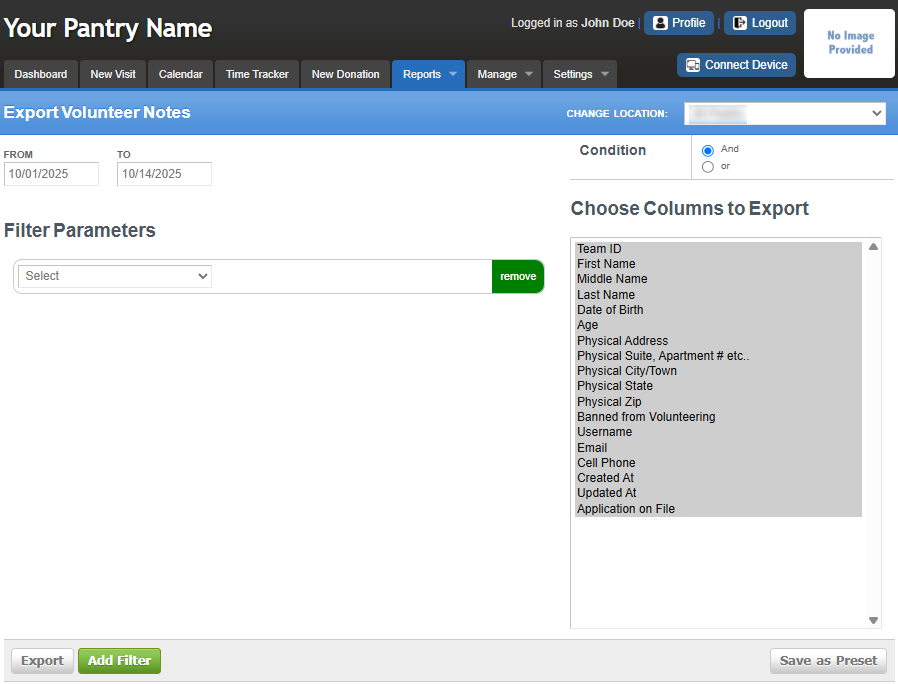
This provides a raw data export containing volunteer account information based on the selected criteria you choose to include.
To access the report, go to Reports > Team > Time Entry Details.
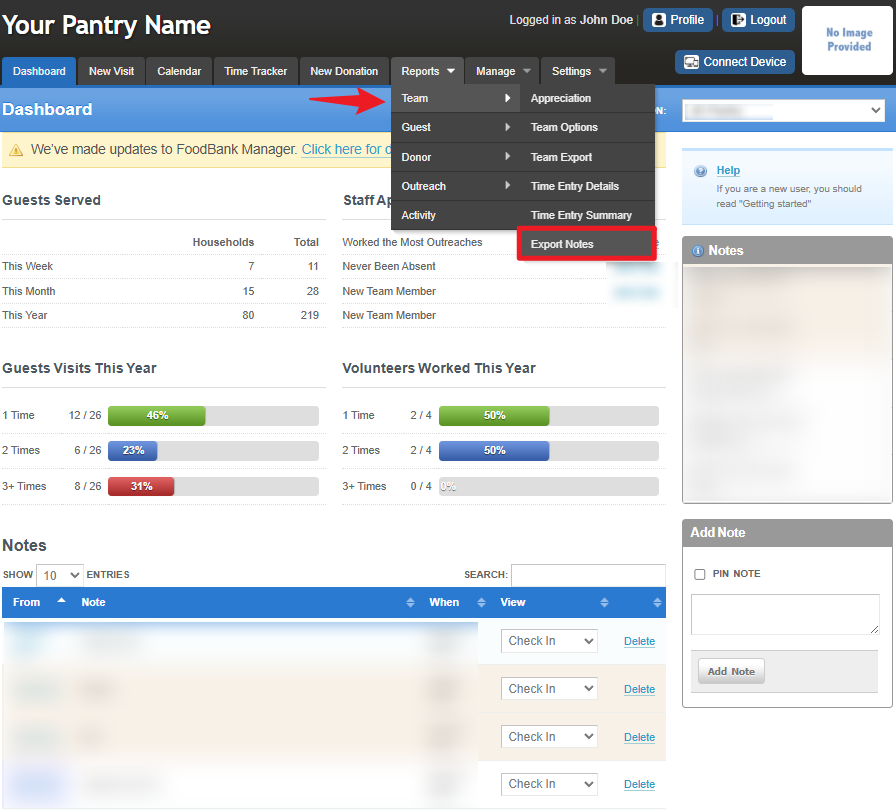
In this section, you can select which columns to export from the right side of the screen. You can also set Filter Parameters by clicking Add Filter and configuring them based on your desired output. Additionally, you may use the AND and OR conditions to refine your results. Once done, you can Export the data as a CSV file for record tracking.
Was this article helpful?
That’s Great!
Thank you for your feedback
Sorry! We couldn't be helpful
Thank you for your feedback
Feedback sent
We appreciate your effort and will try to fix the article