TABLE OF CONTENTS
- Changing the Visit Date
- Select an Outreach
- Creating an Outreach
- Using Outreach Templates
- Days End Report
- Finding your Guests
- Viewing Guests Checked In
Changing the Visit Date
Note: All of the screenshots and the examples below this use a login that has full permissions. What you see when you log in will depend on the permissions that have been set for you.
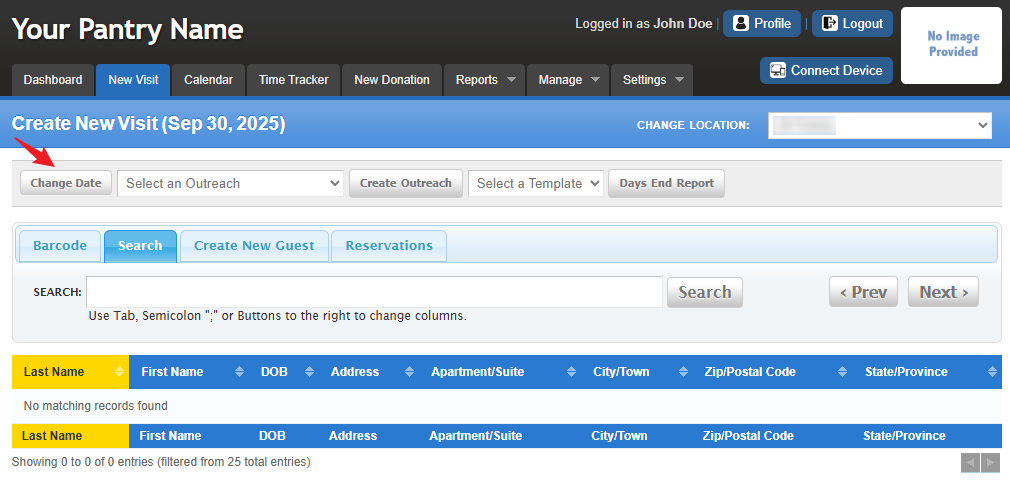
Click the New Visit tab to get started.
When you open this page, it automatically shows today’s date, which you’ll find in the blue section just below the New Visit tab.
To change the date, click Change Date. A small calendar will pop up so you can easily pick the right date.
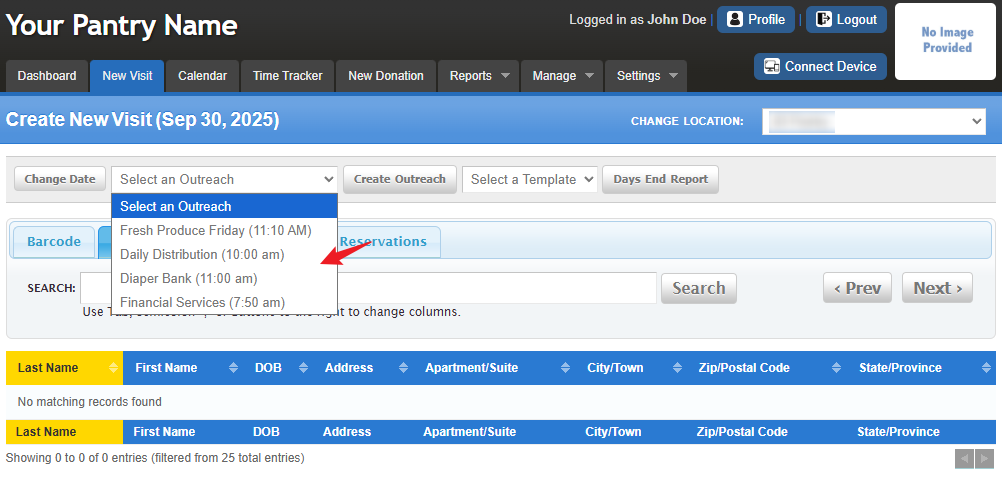
After selecting a new date, the "Select an Outreach" dropdown also gets updated to show the available Outreaches based on the date selected. This helps you confirm which day and Outreach you’re entering visits for.
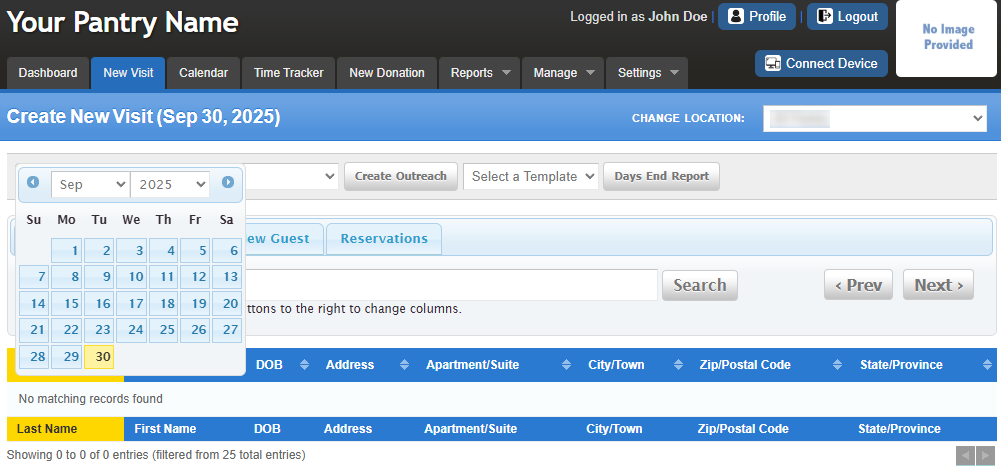
FoodBank Manager allows you to record visits ahead of time or after they happen, it’s important to make sure the date is correct before processing guests.
Select an Outreach
Click the Select an Outreach dropdown menu.
Choose the outreach you want to use from the list. The options shown come from your On Demand Outreaches.
The system requires an outreach to be selected before you can search for a guest or start a visit.
On Demand Outreaches are always available as long as they are enabled in your settings.
Creating an Outreach
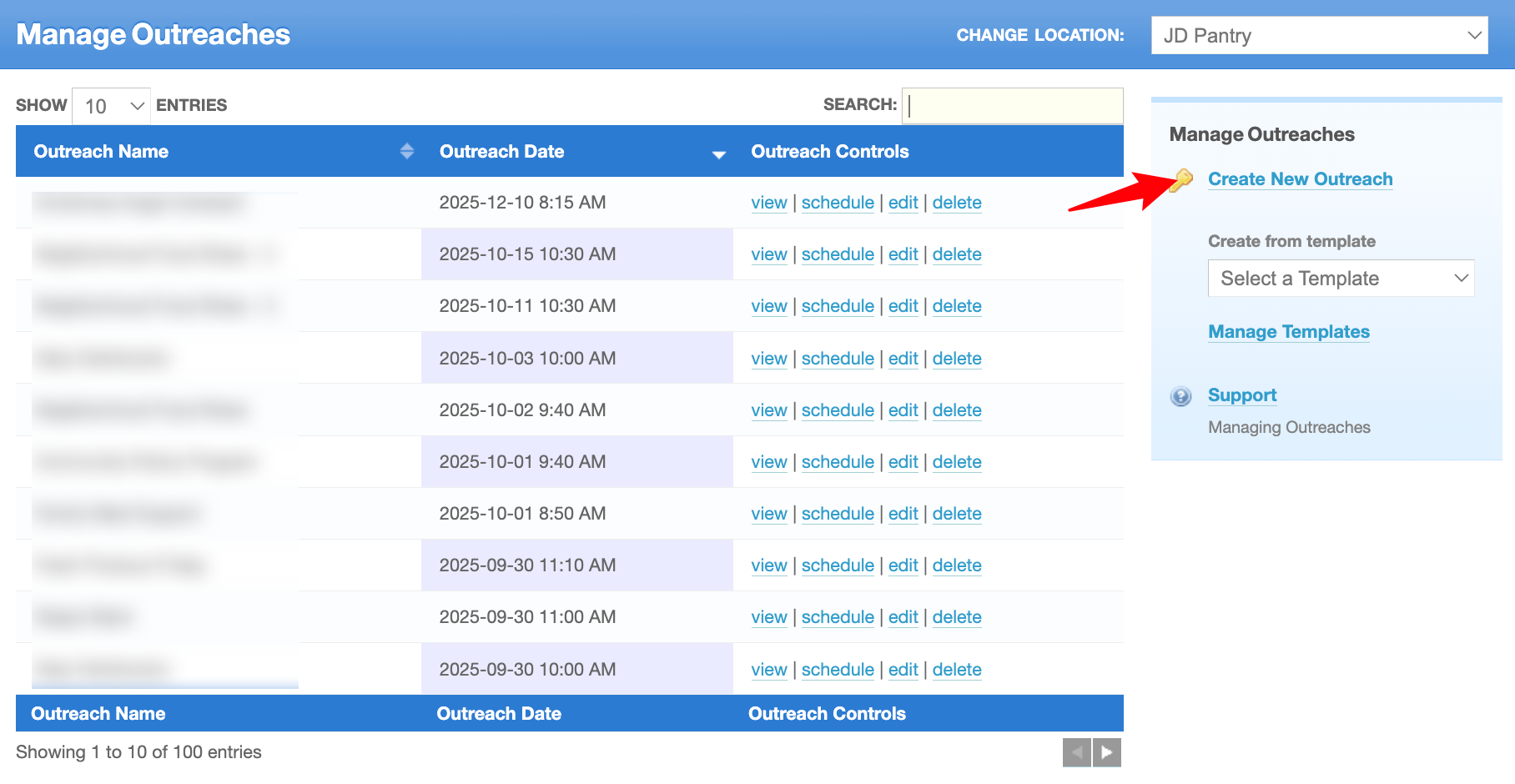
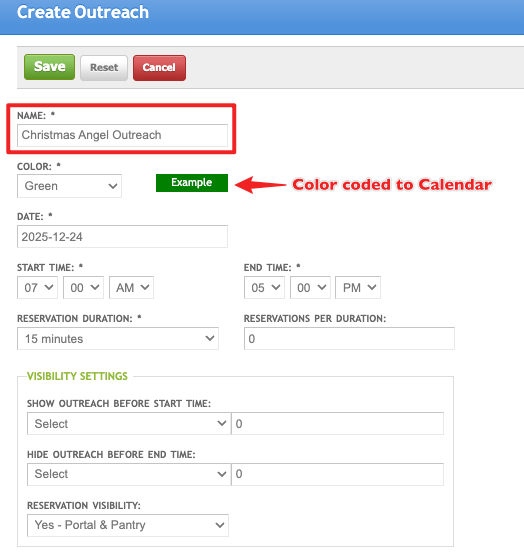
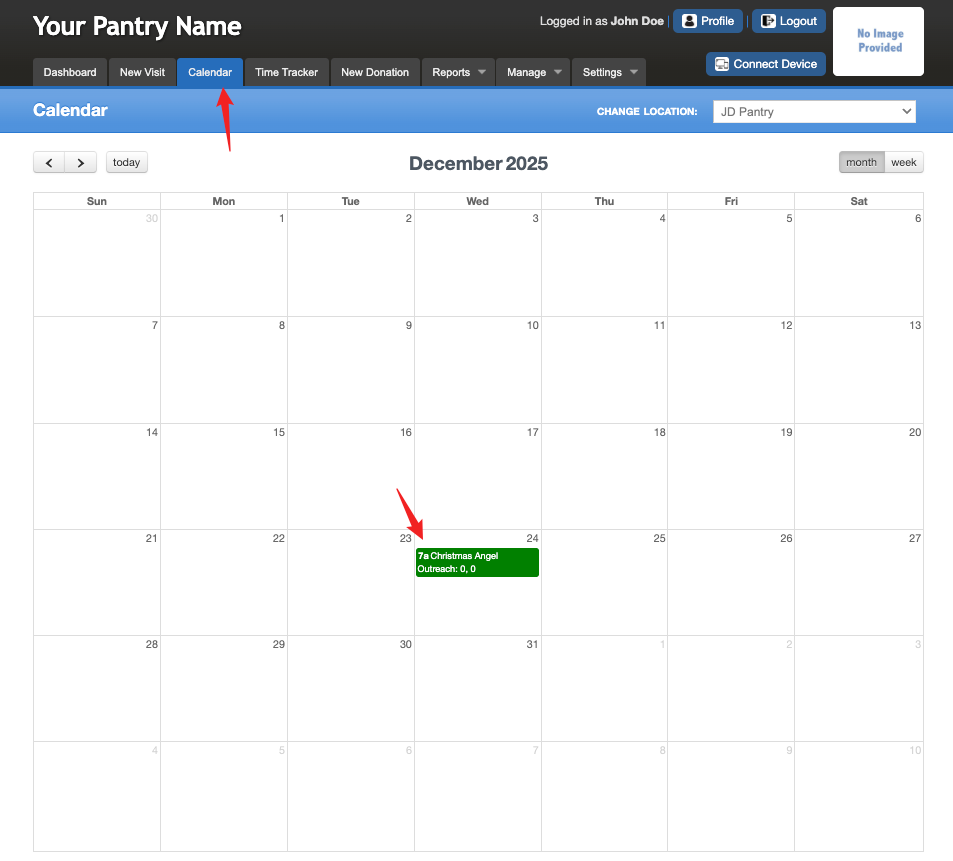
On the right side of the screen there is a "Manage Outreaches" box. To create a new outreach, click on "Create Outreach" next to the gold key. Set up and save the outreach. (Note – to add a team member, start typing in the name of the person. There must be at least 3 letters before choices will appear.) Once saved you will see this outreach on this list and on your calendar.
Using Outreach Templates
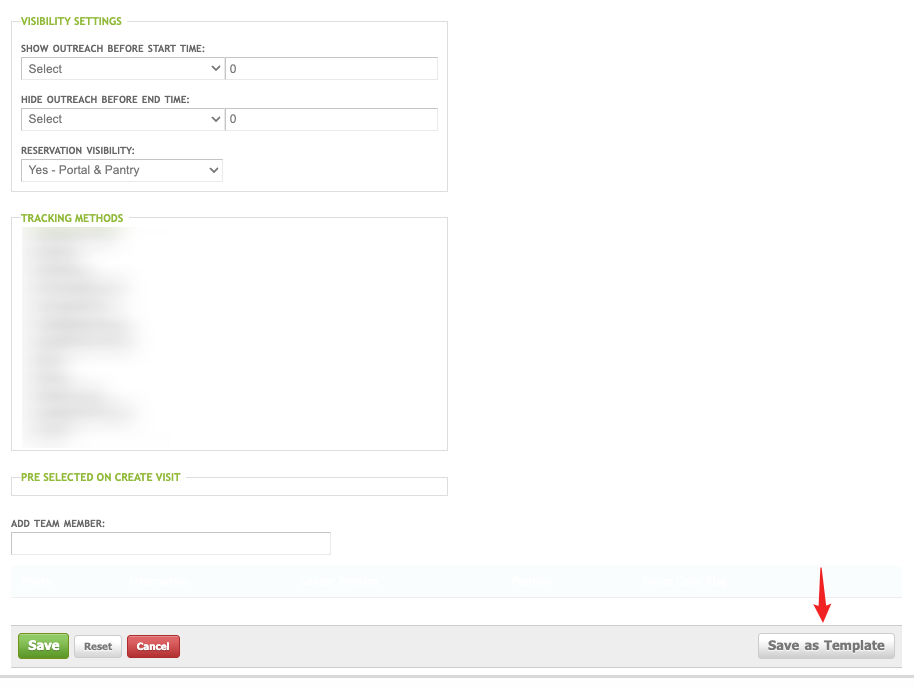
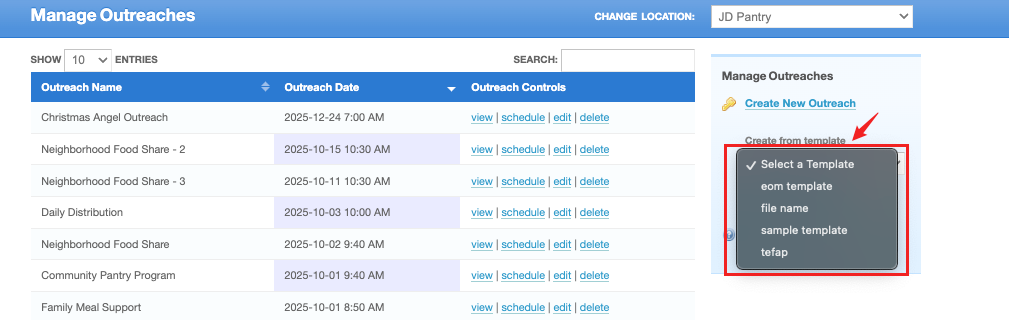
Outreaches that you wish to use frequently can be saved as a template for easy outreach management. To convert an outreach setup into a template, click the "Save as Template" button in the lower right-hand corner. Name your template and save. This is especially helpful if you are using the volunteer schedule printout. Once a template is created, you can find it in the "Select a Template" drop down menu.

To view your saved Templates, go back to "Manage > Outreach".
Days End Report
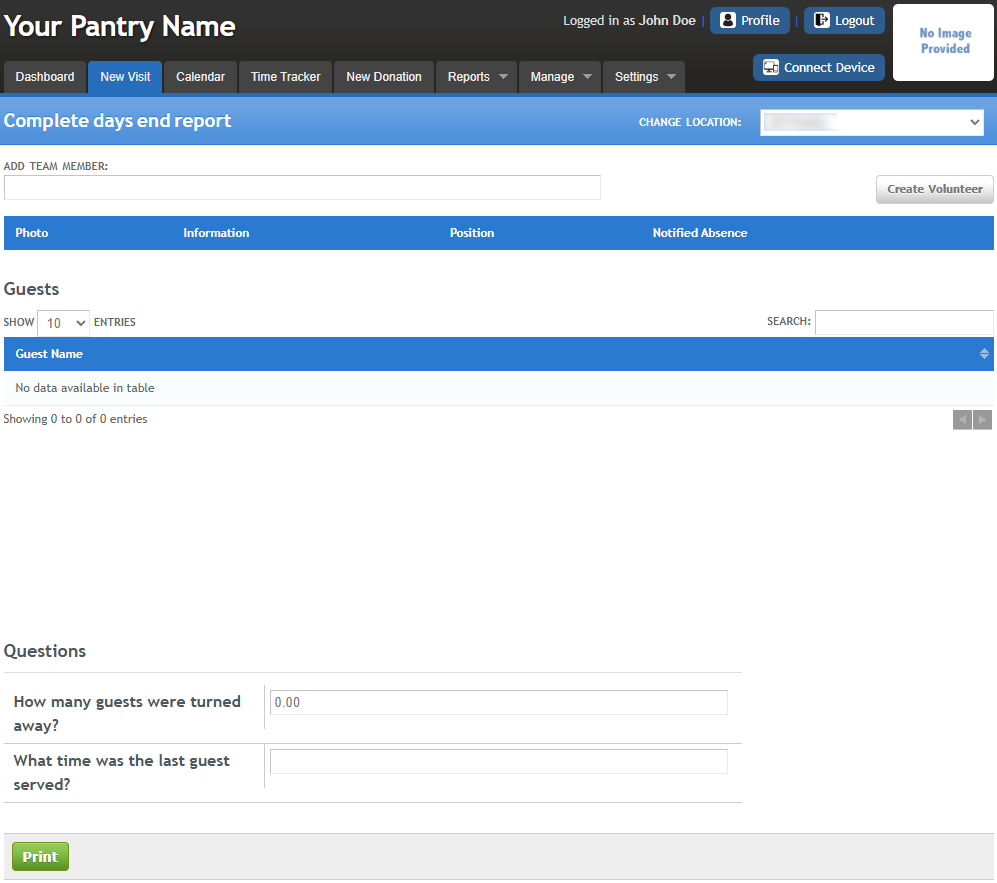
The Days End Report button opens the report page used for your regular end-of-day processing. The questions on this report are customizable, and signatures are optional.
An outreach must be selected before you can access the Days End Report.
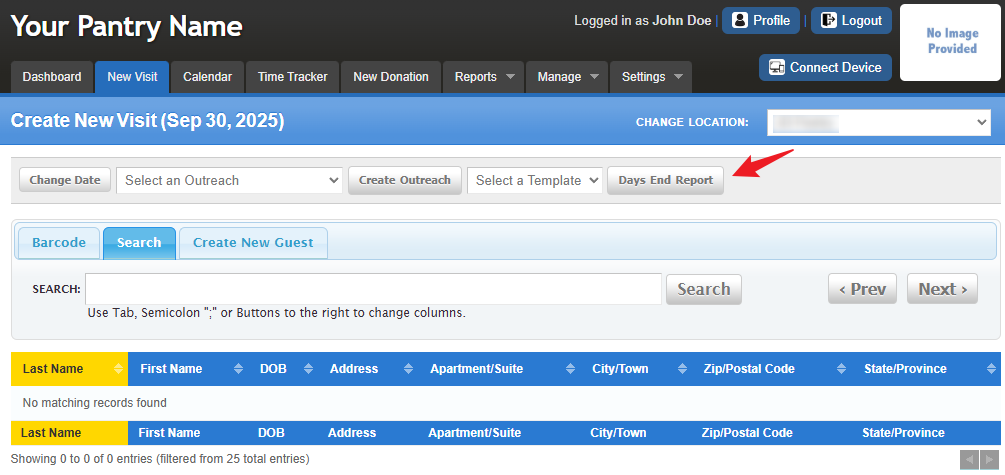
After clicking Days End Report, a page will appear where you can view and print the report. The report can be generated as a PDF or document file for easy download and record-keeping.
Finding your Guests
The system also supports searching for guests using barcodes. For the purpose of this article, the barcode field has been disabled; However, you can learn more about barcode setup and usage in this link: Barcodes
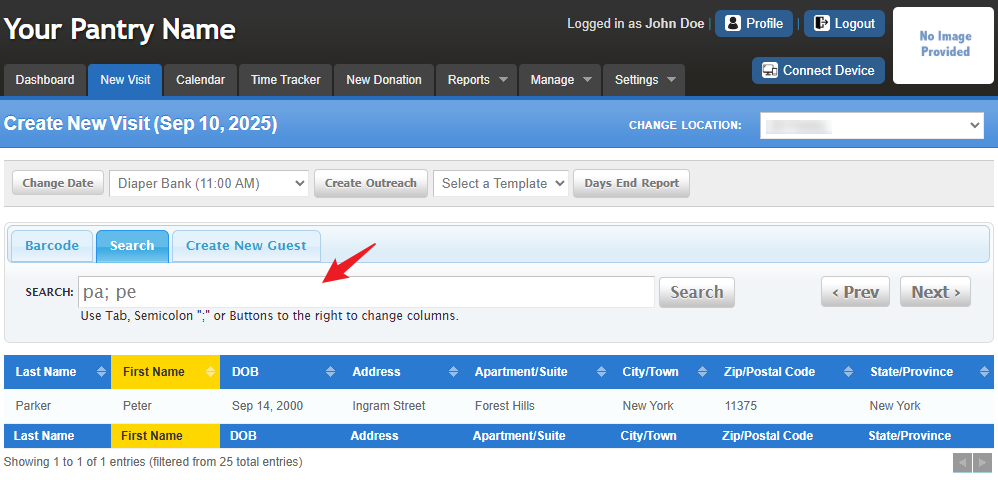
For this guide, we’ll search for a guest using their last name, first name, date of birth, and address. You can adjust the “Search By” options to match your pantry’s preferred search method.
Please refer to the link for additional information: Guide to Searching in FBM
Note: "Less is Better" - Use shorter search terms for better results.
Typing only two to three letters of a guest’s name or donor’s address helps improve accuracy and reduces duplicates.
Search Tips
- Click the Search bar area and use the Tab key so you can switch columns
- Pressing the {TAB} key on your keyboard will give you a semi colon symbol in the Search bar (;)
Type 2–3 letters of the last name, press {TAB}.
Type 2–3 letters of the first name, press {TAB} .
You may already see the guest you’re looking for
If not found, enter Year of Birth, press {TAB} .
- Still not found? Enter part of the address (house number only recommended).
Once you find the guest you are looking for, click on their name.
Viewing Guests Checked In
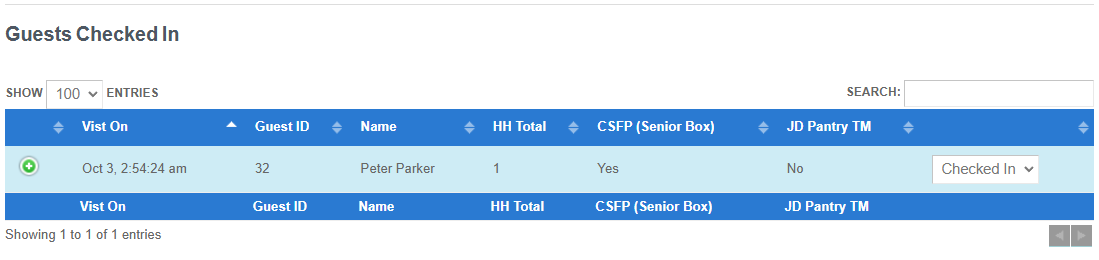
Once the visit has been completed, the guest will appear in the Guests Checked In section located below the search area. If you don’t see this section right away, scroll to the bottom of the page.
Was this article helpful?
That’s Great!
Thank you for your feedback
Sorry! We couldn't be helpful
Thank you for your feedback
Feedback sent
We appreciate your effort and will try to fix the article