TABLE OF CONTENTS
- Overview
- No Time Slots Configured in the Outreach
- Understanding the ‘Ineligible’ Alert When Creating an Internal Reservation
- “No Available Events” Alert Showing in Select Available Time
- Outreach Reservation Limits
- Outreach Shows as “Full” in the Guest Portal
- Reservation Time Slots Shows as “Closed” in the Guest Portal
- Limited Access to Reservations Based on User Role
- Frequently Asked Questions
Overview
This article explains why no time slots appear when creating a reservation through Manage > Reservation after selecting a tracking method. It outlines the possible causes of this behavior and the alerts you may encounter during the reservation process.
No Time Slots Configured in the Outreach
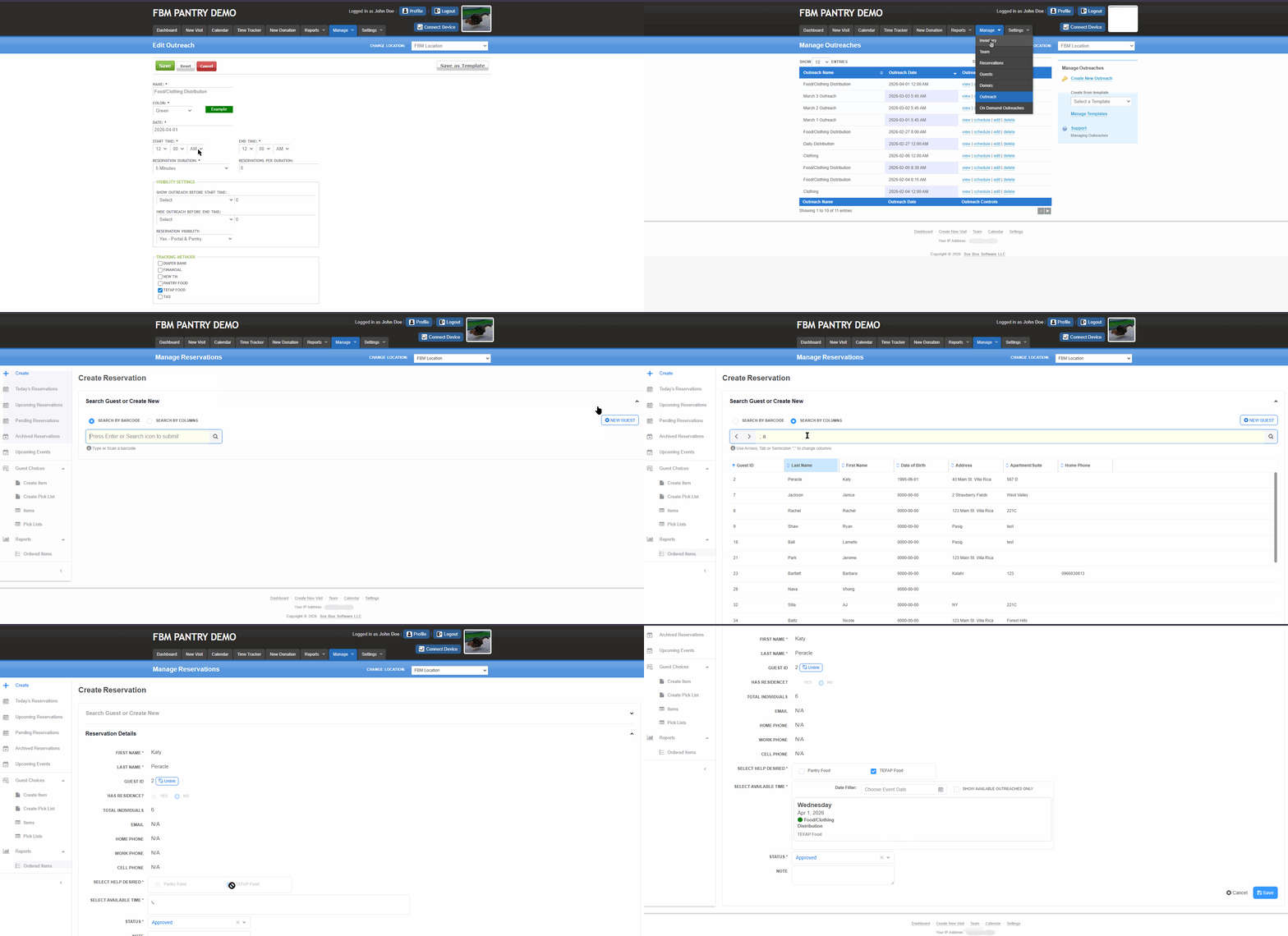
One possible reason no time slots appear under Manage > Reservation is that the outreach schedule has not been properly configured in Manage > Outreaches.
If the outreach does not have a valid Start Time and End Time, the system will not generate any available time slots for guests when creating a reservation.
In the example shown, the outreach has the same Start Time and End Time. When the time is not properly configured — or if both times are set identically without a valid duration — no available times will appear during reservation creation for the selected tracking method. Once the outreach time is properly configured, available time slots will appear when creating a reservation.
Understanding the ‘Ineligible’ Alert When Creating an Internal Reservation
A guest can create reservations based on the Times Per Period setting defined in the Tracking Method. Once the allowed number of reservations has been reached within the set time period, the system will not allow the guest to create another reservation under that same Tracking Method.
For example, if a Tracking Method is set to once per week and the guest has already created a reservation for that Tracking Method, they will not be able to create another one during the same week—even if it is for a different outreach.
When this limit is reached, the system will display the following alert:
“Ineligible: Guest has reached the Tracking Method’s visits/reservations limit within the time period.”
The option will also appear crossed out, indicating that the guest is no longer eligible to book under that Tracking Method for the selected time period.
Sample Scenario: When the ‘Ineligible’ Alert Appears
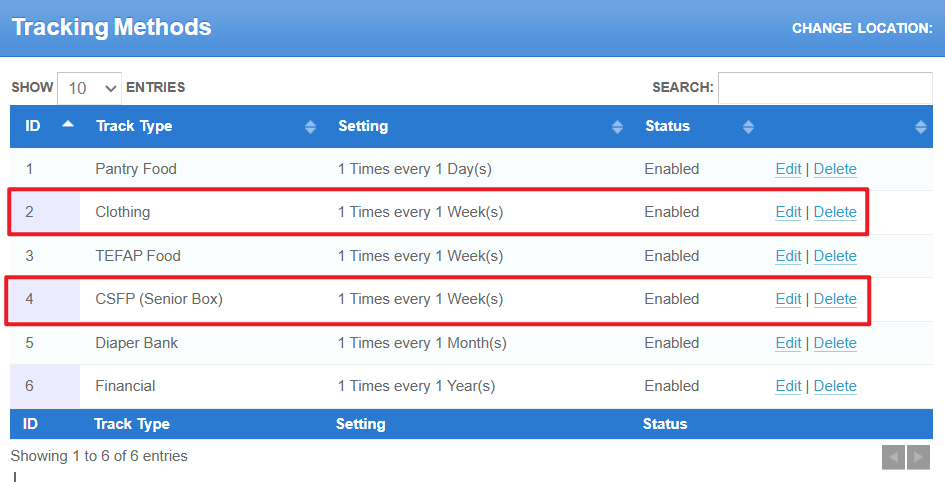
In this scenario, Senior Box and Clothing are configured as Once per Week under Times Per Period.
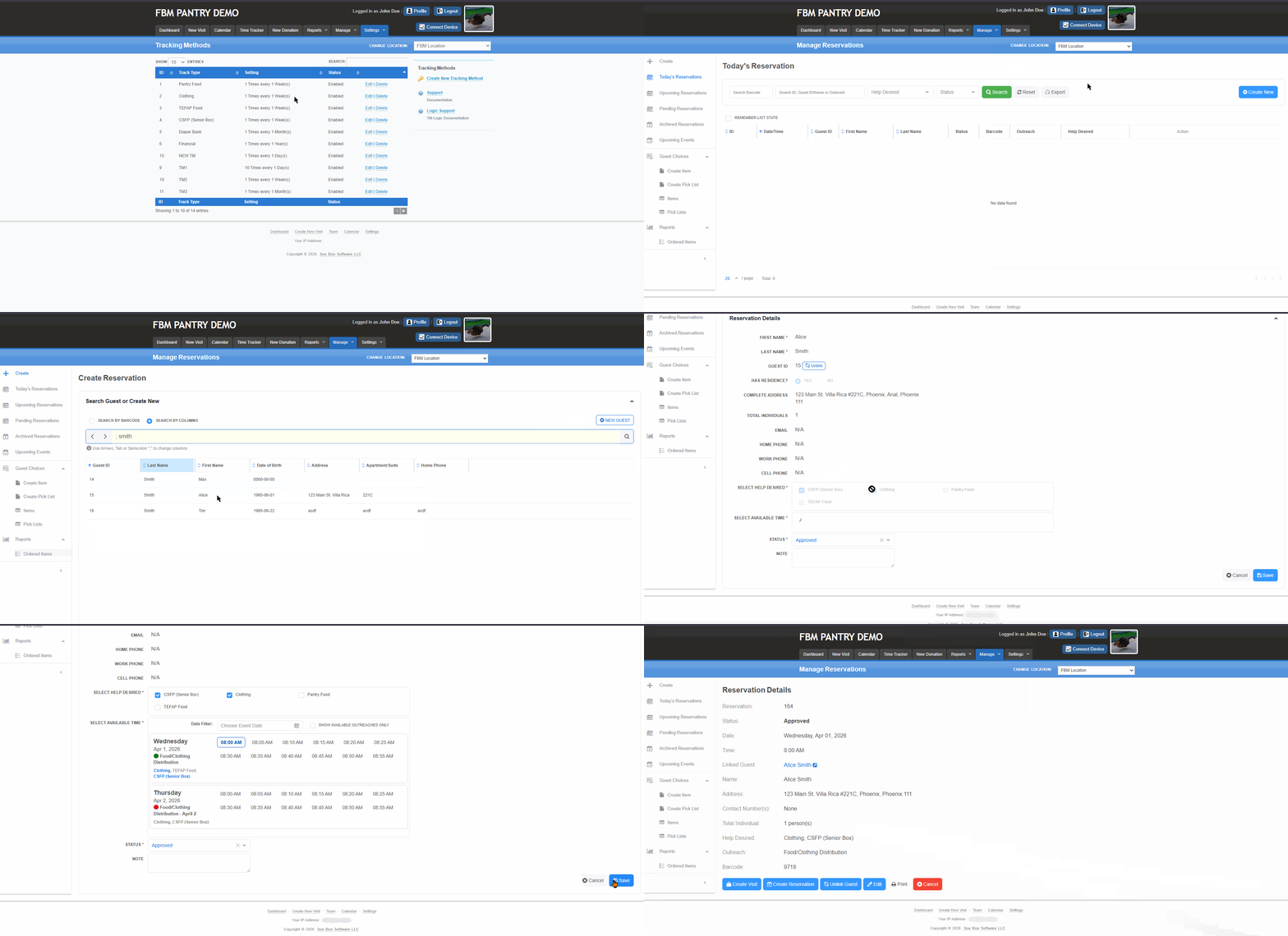
In this first GIF Guest Alice Smith has already successfully created a reservation for the selected tracking methods within the current week.
In this second GIF when creating the second reservation, Senior Box and Clothing appear crossed out in another outreach. This indicates that the guest has already reached the weekly limit for those tracking methods and is only allowed to receive that help once per week. This is expected system behavior based on the configured reservation limits.
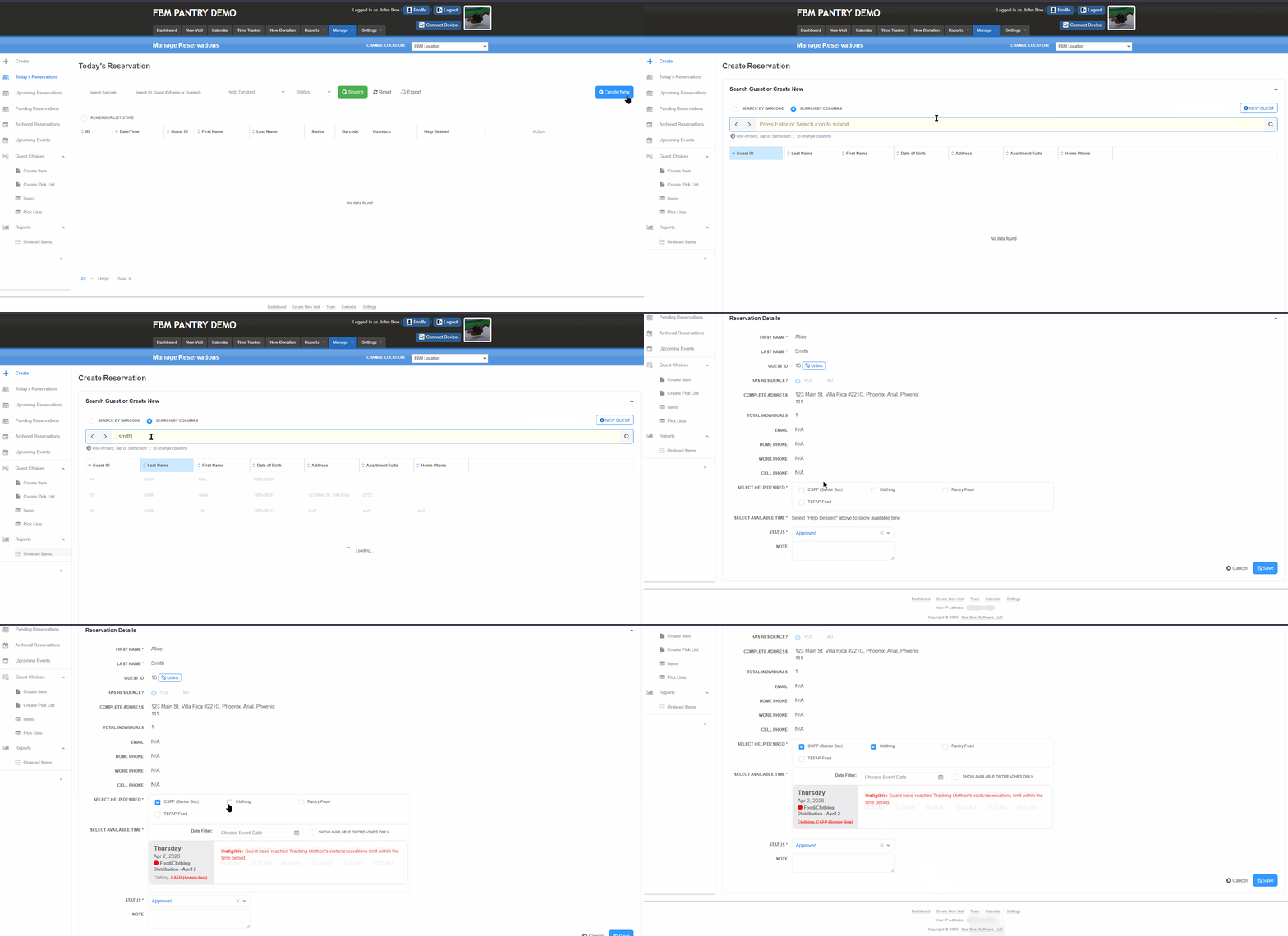
As a result, Alice will not be able to create another reservation. A pop-up message will appear with the following alert:
“Ineligible: Guest has reached the Tracking Method’s visits/reservations limit within the time period.”
“No Available Events” Alert Showing in Select Available Time
In this section you may see the “No Available Events” alert after selecting a tracking method, and no time slots will appear.
This usually occurs when a Tracking Method is linked to an outreach in one location but does not have any associated outreaches in another location even though it is marked as visible in that location.
The system will display the following alert: “No Available Events”
This happens because the Tracking Method is visible, but there are no available outreaches tied to it within the selected location.
To verify this, navigate to:
Settings > Tracking Methods > Click Edit > Location Access Settings, and confirm that the tracking method is properly configured and is enabled in the correct location. Once the tracking method is properly linked to an outreach in the correct location, available time slots will appear.
In this Sample scenario:
Pantry Food and TEFAP Food are connected to an outreach under the Black Rock location (Location A).
A reservation is successfully created for guest James Brooks in the Black Rock location.
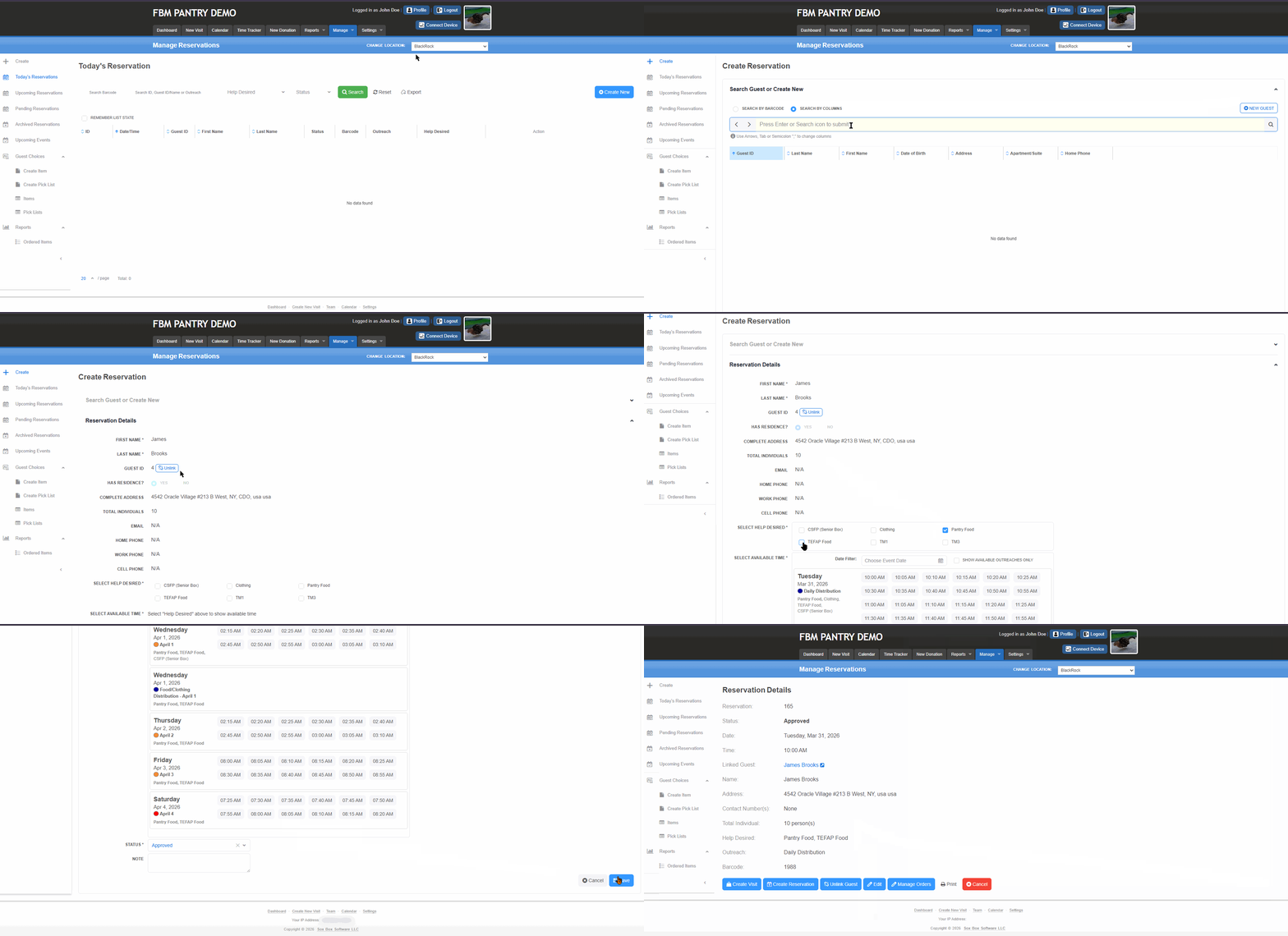
However:
When switching to the FBM Location (Location B) and attempting to create a reservation for James Brooks using the same tracking methods,
The “No Available Events” alert appears.
This happens because the sample tracking methods Pantry Food and TEFAP Food are not connected to any outreach under the FBM Location, even though they are visible in the selection list.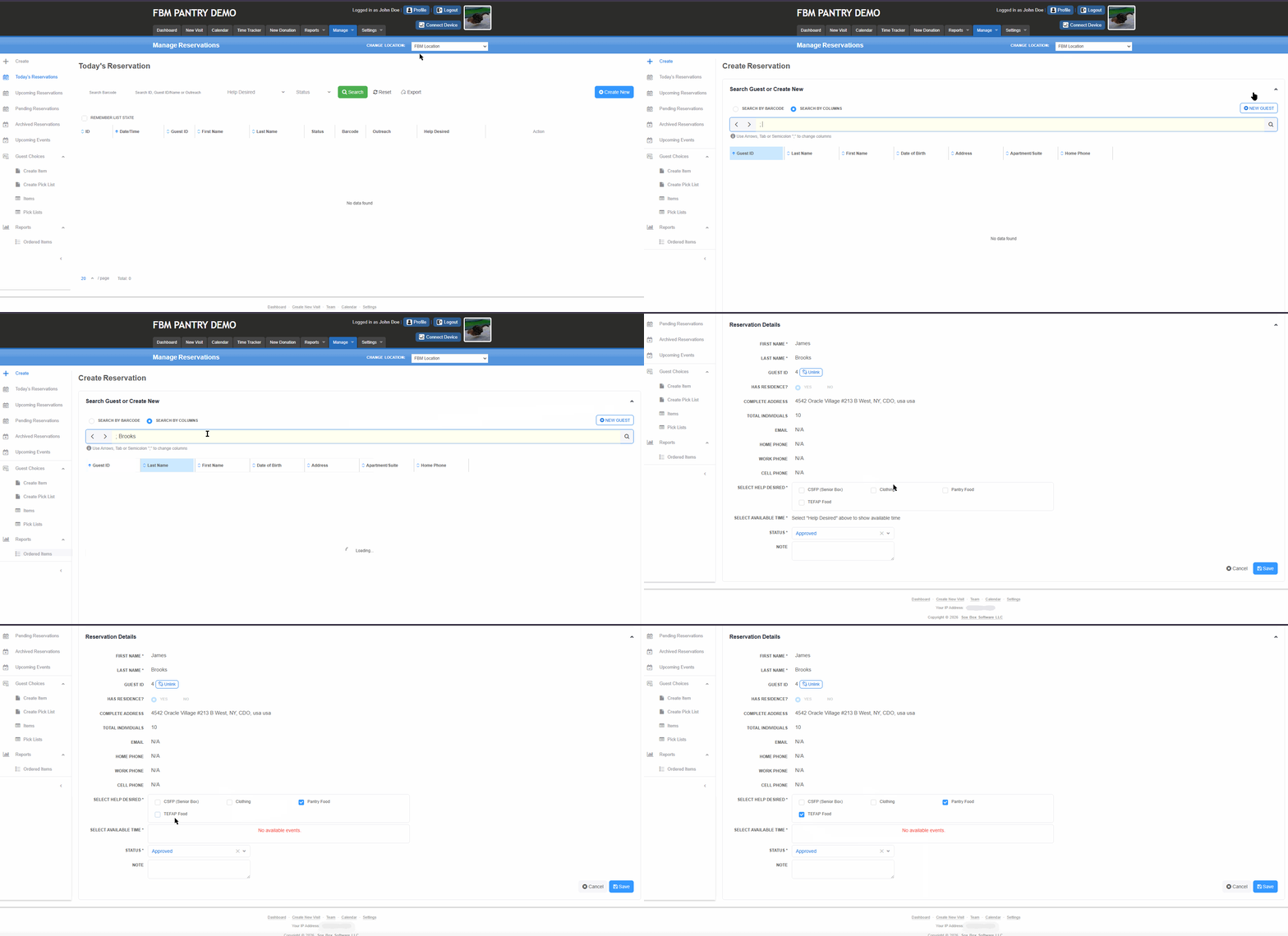
Outreach Reservation Limits
Each Outreach has settings for Reservation Duration and Reservations per Duration.
You can check these settings by navigating to: Manage > Outreach > Select your Outreach, then hover over Reservation Duration and Reservations per Duration.
If you see available time slots with numbers in them, this means the Outreach is configured with specific limits for Reservation Duration and Reservations per Duration.
Note: If Reservations Per Duration is set to 0, this means the reservations are unlimited.For more information about Outreach settings, you may refer to the related Outreach article:Manage Outreach
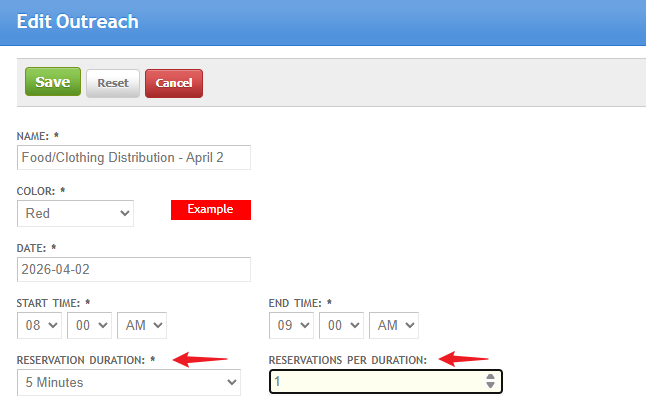
How This Affects Reservations
These settings directly affect reservation availability if all time slots within the Outreach have already been reserved, no additional time will be available when creating a reservation for that tracking method and Outreach.
Example
Reservation Duration: 5 minutes
Reservations per Duration: 1
This configuration means:
Only one reservation can be created every 5 minutes.
Once that time slot is taken, it will show as 0 (fully booked).
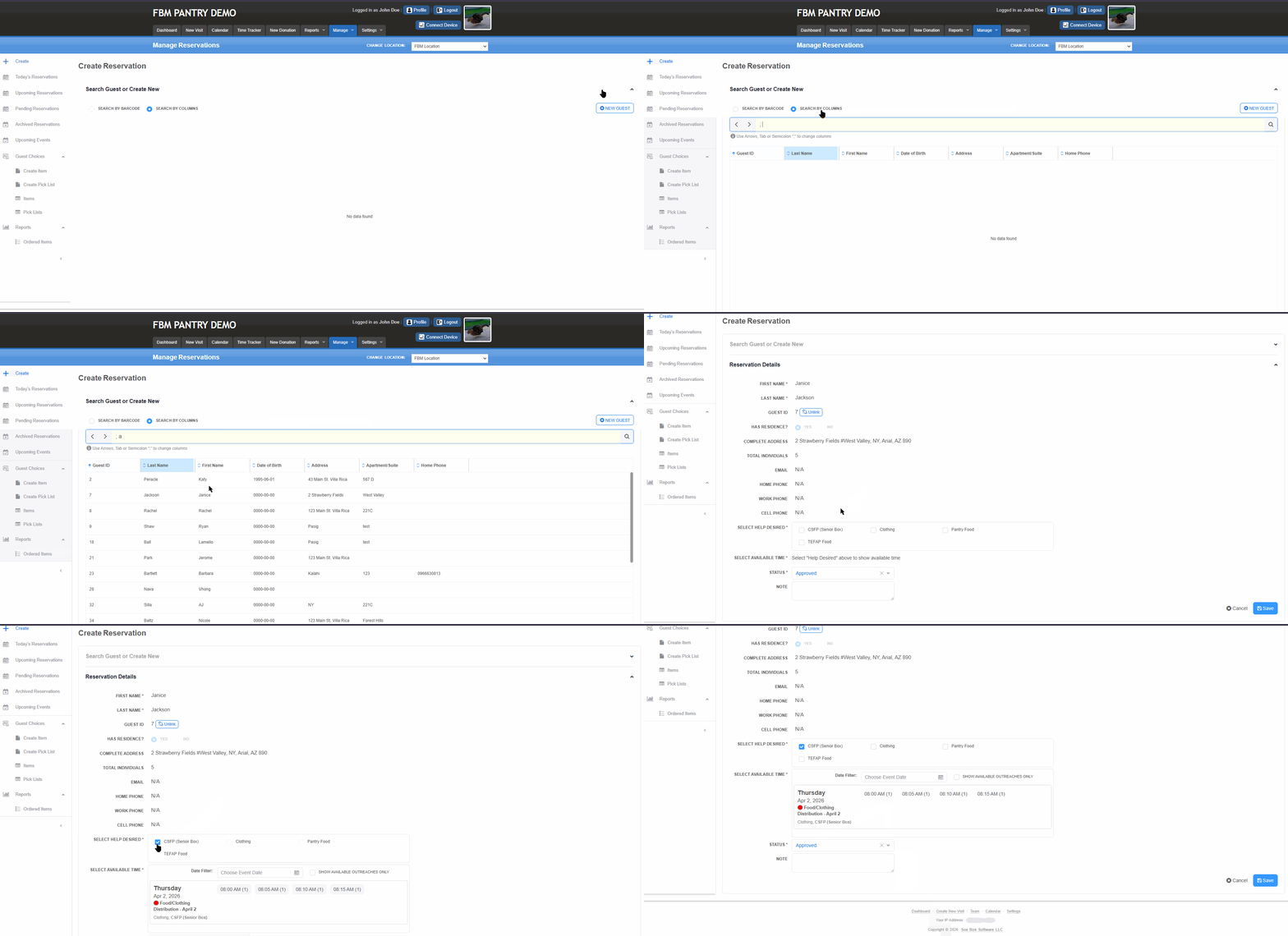
This sample gif below is what it looks like when no time slots are available because the reservation limit has already been reached.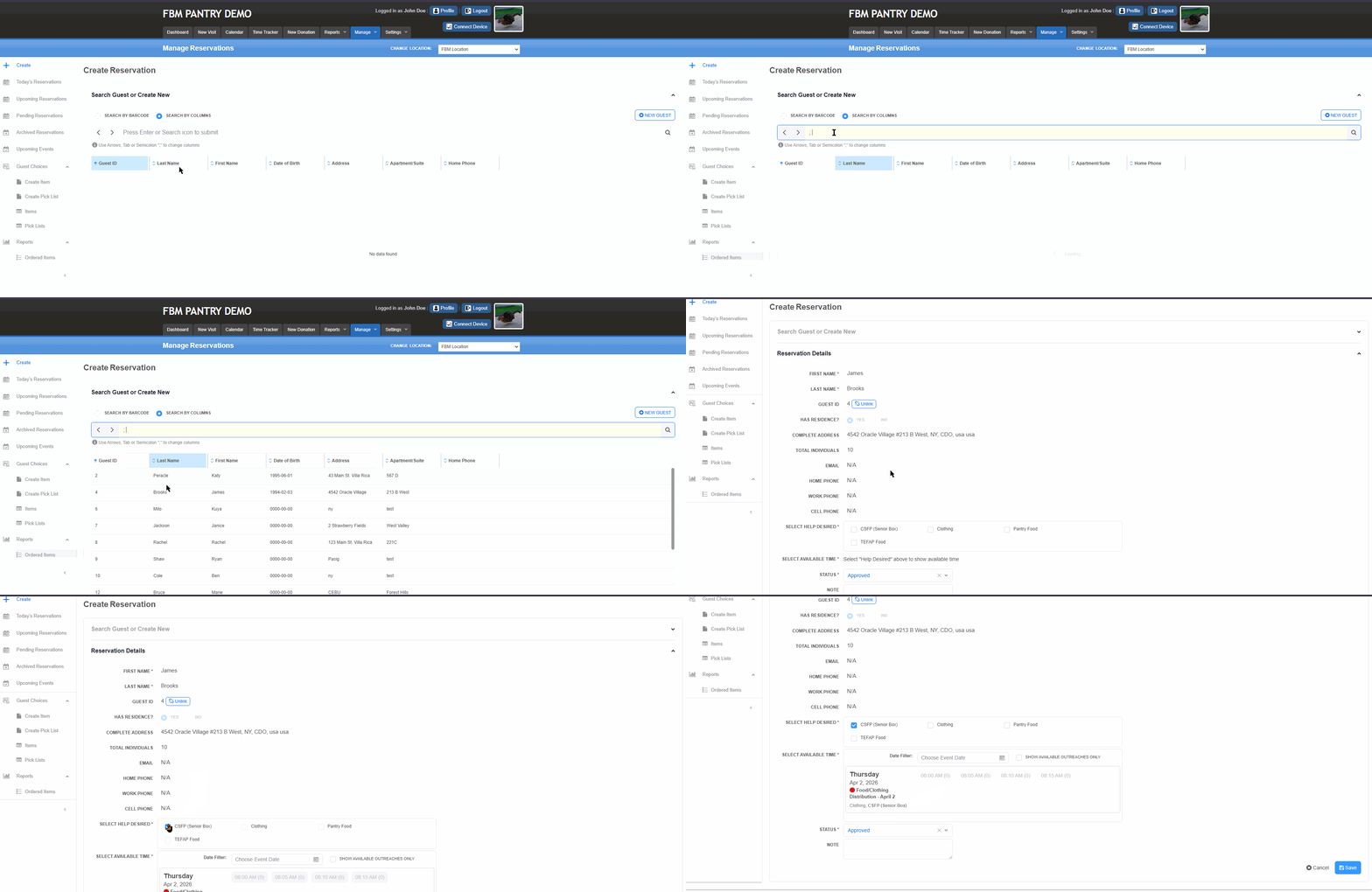
Outreach Shows as “Full” in the Guest Portal
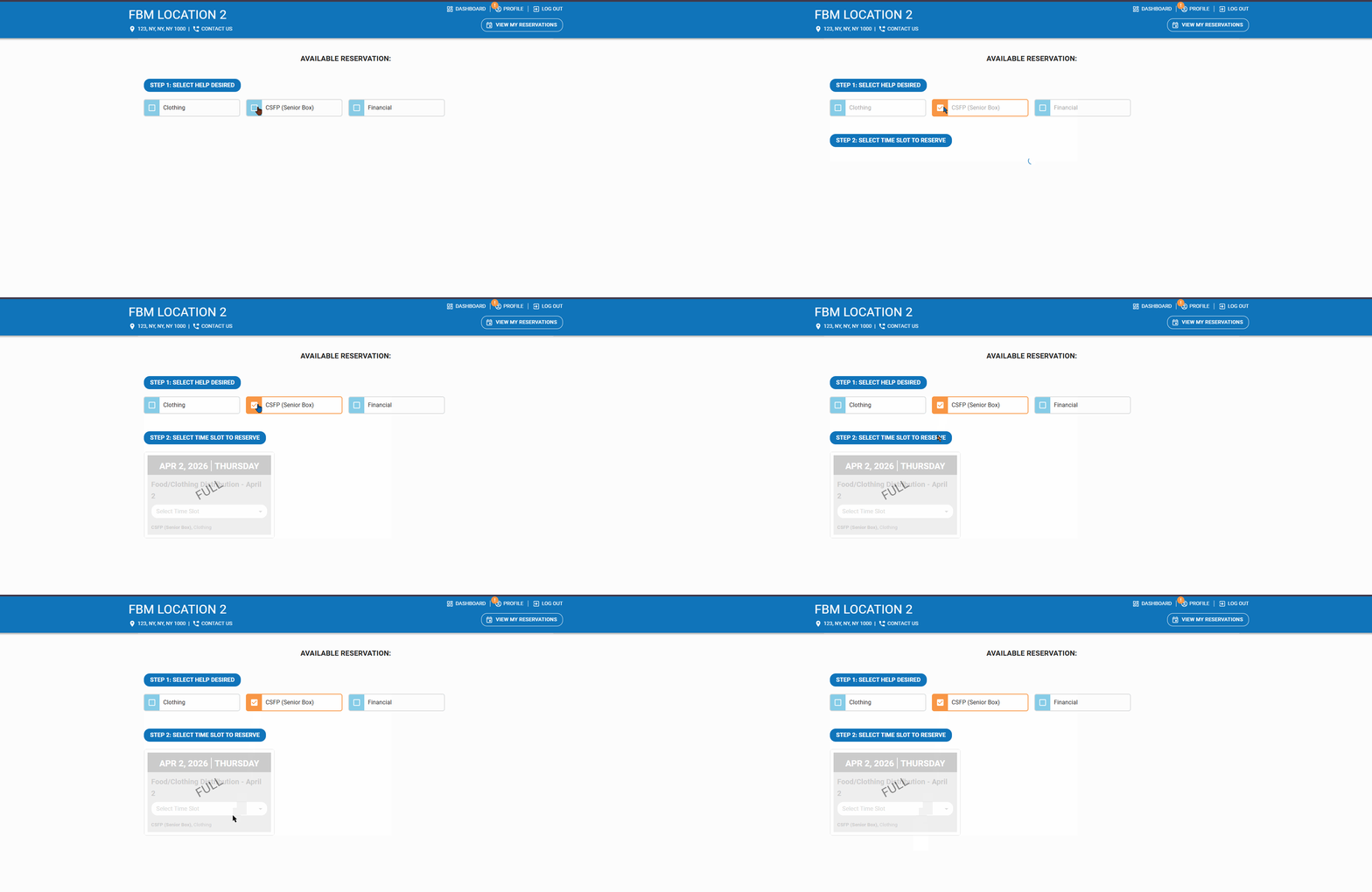
In this scenario, no time slots are available because the Outreach is already fully booked. When guests try to create a reservation for the same location and select the tracking method, the Outreach will appear as Full.
Guests may encounter this when they:
Log in to their portal account
Select the location to create a reservation
Choose a tracking method “(help desired)”
View the schedule and see that the Outreach is already FULL
At this point, no available time slots will be displayed.
Reservation Time Slots Shows as “Closed” in the Guest Portal
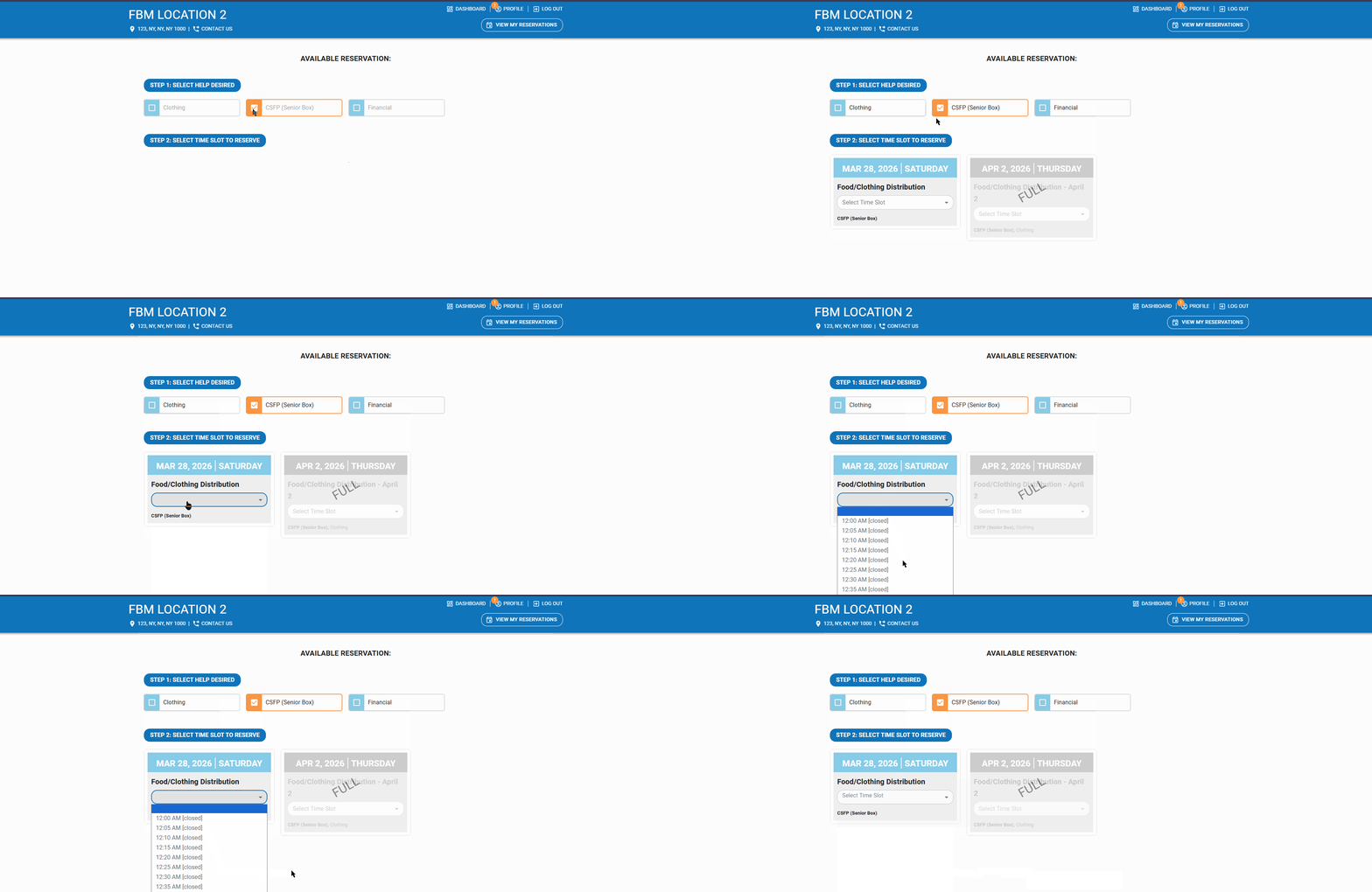
In this scenario, no time slots are available because the Outreach is already closed. When guests access the Guest Portal and attempt to create a reservation for the selected location and tracking method, the Outreach will appear as Closed, and no time slots will be available for booking.
Guests may encounter this when they:
Log in to their portal account
Select a location to create a reservation
Choose a tracking method
View the schedule and see that the Outreach has already ended (the scheduled time has passed)
At this point, no available time slots will be displayed, and the time slots will show as Closed.
Limited Access to Reservations Based on User Role
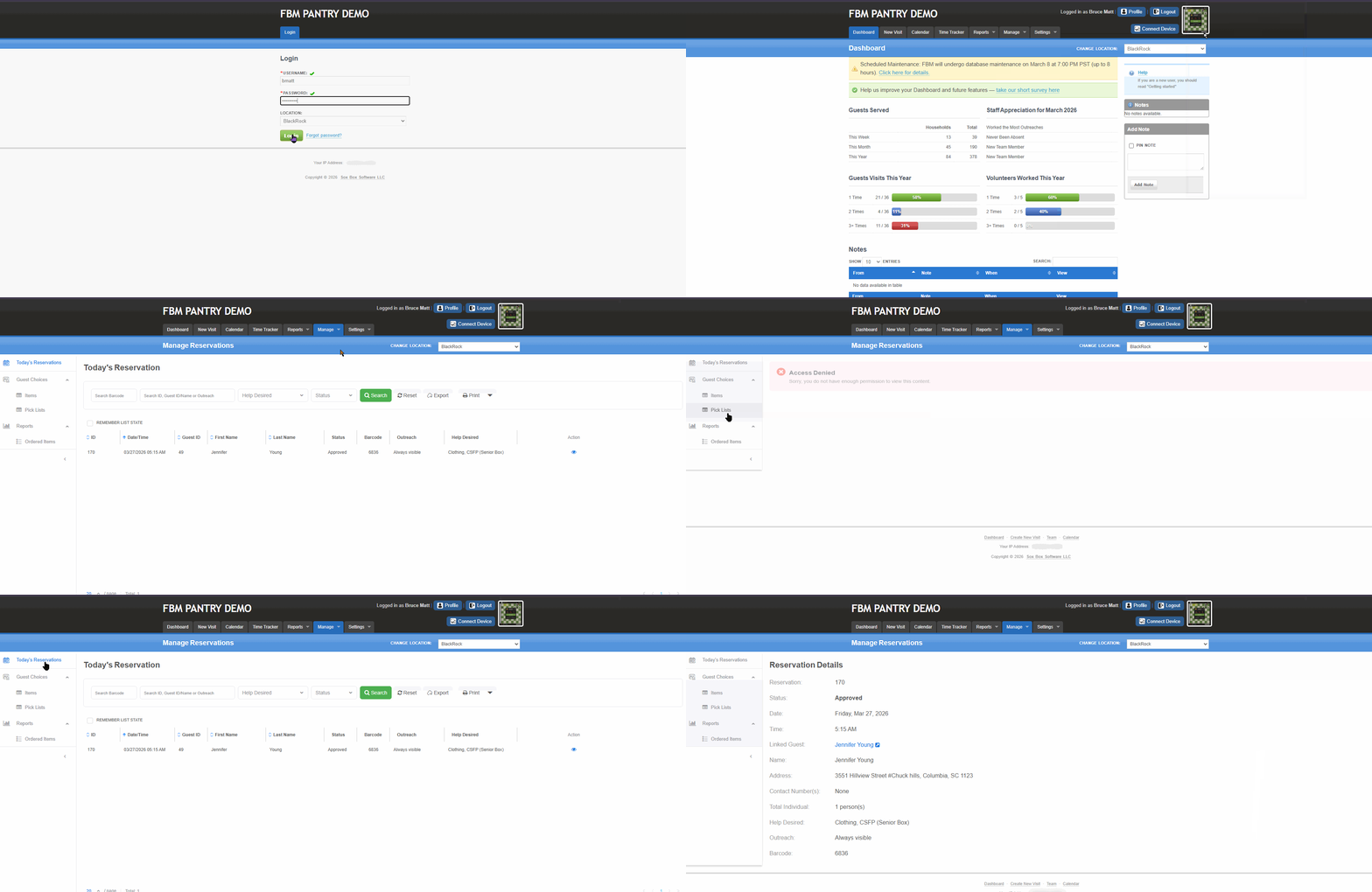
In some cases, a user group (for example, Volunteers) may not be able to see certain reservations. This usually means their group has limited permissions for the Reservation section.
Pantries assign roles to staff based on what they are allowed to do in the system. These permissions can be configured by navigating to:Settings > Groups & Permissions
Search for the three reservation-related permissions:
Reservation Ordering Item
Reservation Ordering Pick Lists
Reservation Ordering Calendar
Permission Levels
None – No access
View – Can only view reservations
Add/Edit – Can create or edit reservations
Full Access – Can add, edit, and delete reservations
In the example below, the staff member has View-only access. Because of this, they may not see certain reservation sections or available time slots for some reservations.
Frequently Asked Questions
- Why are there no time slots showing when creating a reservation?
Time slots may not appear because the Outreach is fully booked, closed, or has reached its reservation limit. What happens if Reservations per Duration is set to 0?
If it is set to 0, this means reservations are unlimited for that time duration.Why does the Outreach show as Closed in the Portal?
The Outreach may appear as Closed if the scheduled time has already passed or the event is no longer active.Can a guest create multiple reservations under the same Outreach?
No. A guest cannot have more than one reservation under the same Outreach in the guest portal, even if the Tracking Method allows multiple reservations per day.Why is the tracking method crossed out?
The tracking method is crossed out because the guest has already reached the allowed reservations limit within the set time period.What does the error “Ineligible: Guest has reached Tracking Method’s visits/reservations limit within the time period” mean?
This means the guest has already used the allowed number of reservations for that tracking method within the specified duration.Why can’t a Volunteer see certain reservations?
This is due to limited permissions under Settings > Groups & Permissions.What permission is required to create or edit reservations?
The user must have at least Add/Edit permission under the Reservation-related permissions in Groups & Permissions.Why does the Outreach show as "Full" in the Guest Portal even before creating a reservation?
The Outreach will show as Full when all available time slots have already been reserved. Guests will see this status before creating a reservation.Can a guest create a reservation under a different Outreach if one is full?
Yes, as long as the other Outreach has available time slots and the guest meets the tracking method requirements.
Was this article helpful?
That’s Great!
Thank you for your feedback
Sorry! We couldn't be helpful
Thank you for your feedback
Feedback sent
We appreciate your effort and will try to fix the article