TABLE OF CONTENTS
- What is an On Demand Outreach
- Create a New On Demand Outreach
- Edit an On Demand Outreach
- Deleting an On Demand Outreach
- How the On Demand is Used
- Hide Vs. Delete
What is an On Demand Outreach
The On Demand Outreach allows the Administrator to create one outreach that can be used every day or as needed. This simplifies the process of creating outreaches and eliminates the need of making manual outreaches each day.
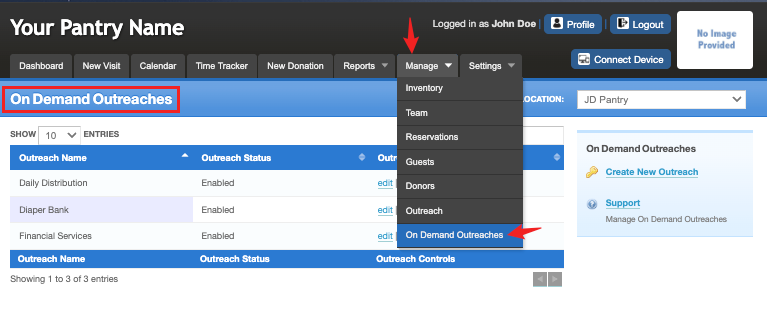
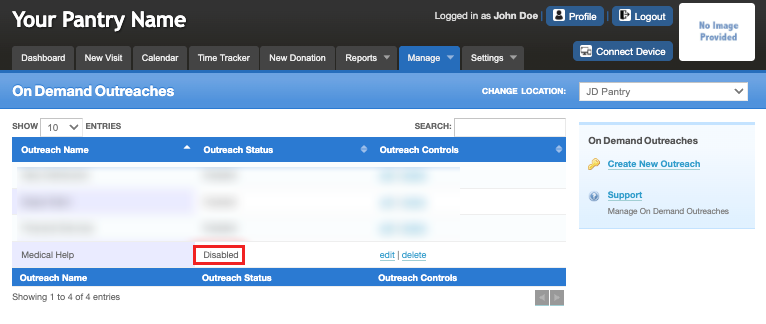
To manage your On Demand Outreaches, go to the "Manage" tab and click on "On Demand Outreaches".
Create a New On Demand Outreach
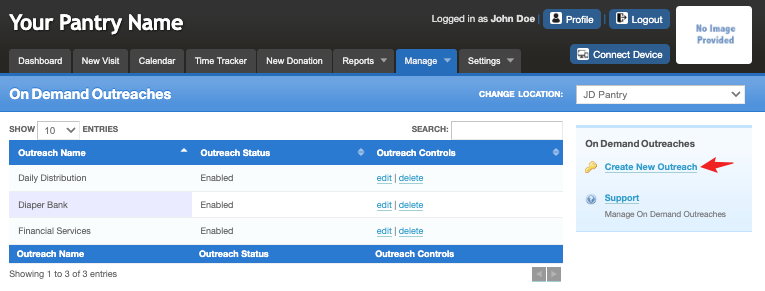
To create a new On Demand Outreach, click the "Create New Outreach" link found next to the gold key.
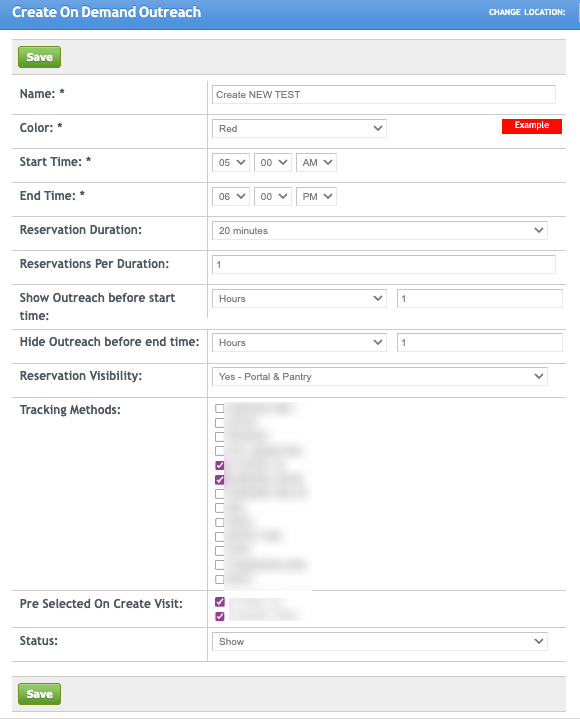
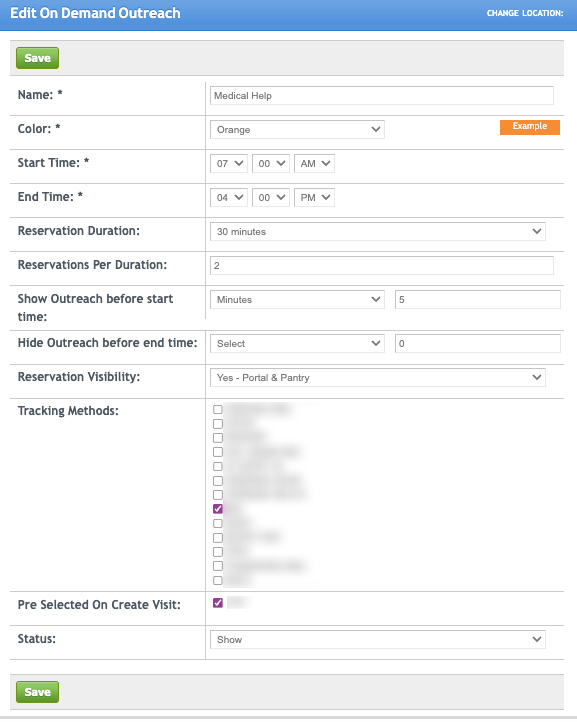
- Name – Give your outreach a clear and recognizable name so volunteers can easily identify it during intake.
- Color – Assign a color to each outreach for quick identification on the calendar.
- Start Time – The time when your doors open and guests can start arriving.
- End Time – The time when your day or outreach closes.
- Reservation Duration – The interval for which guests can book a slot. For example, 5–60 minutes per reservation.
- Reservations Per Duration – The number of guests allowed per reservation slot. If set to none, there is no limit (unlimited reservations).
- Show Outreach Before Start Time – Determines whether the outreach will appear on the calendar before the official start time.
- Hide Outreach Before End Time – Determines whether the outreach will disappear from the calendar after the official end time.
- Reservation Visibility – Determines whether reservations can be made through the Portal or only internally.
- Tracking Methods – Check all methods that will be offered for this outreach. These appear as "Help Desired" options on the visit page.
- Pre Selected On Create Visit – The Help Desired will be pre-checked when creating a visit for this outreach.
The Pre Selected on Create Visit will only appear when there is at least 1 Tracking Method selected. Otherwise, the field will remain hidden.
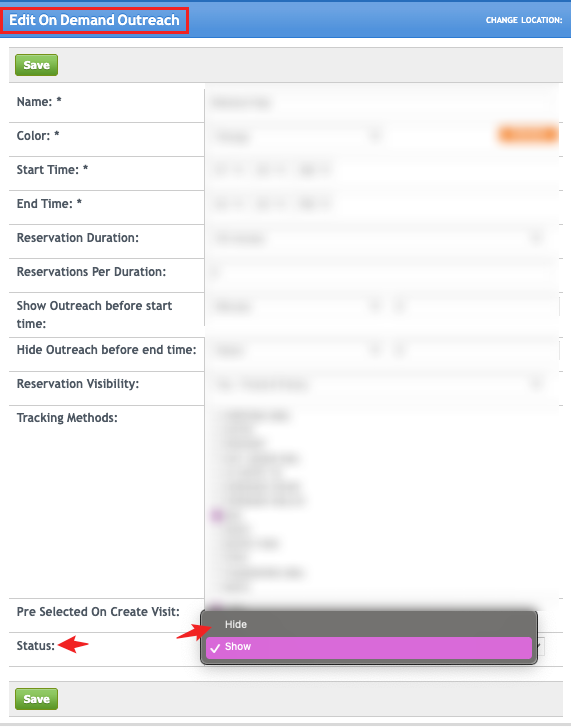
- Status – Controls whether the outreach is available:
- Show (Enabled) – Outreach is active and available for use.
- Hide (Disabled) – Outreach is inactive and cannot be used.
Edit an On Demand Outreach
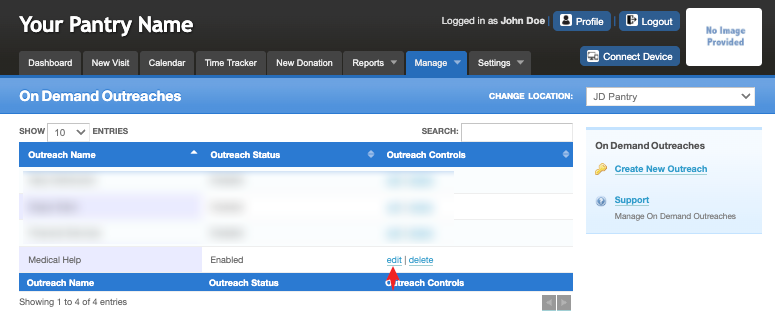
To edit an outreach, click on the "Edit" link. This will pop-up your current settings for the outreach. Make any adjustments needed and "Save".
Deleting an On Demand Outreach
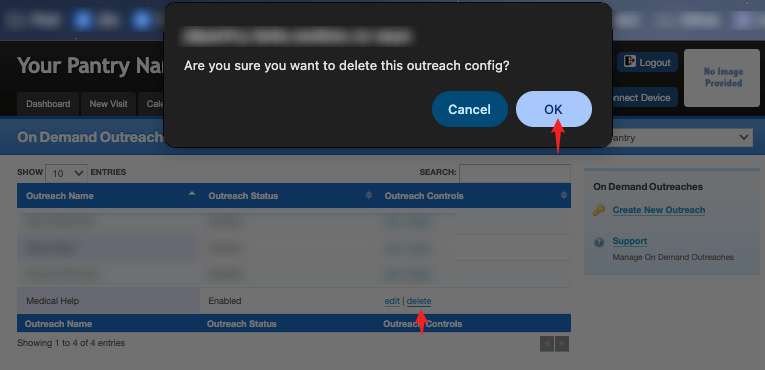
To delete an outreach, click on the "Delete" link. A message will pop-up verifying that you want to delete the outreach. Click "OK".
How the On Demand is Used
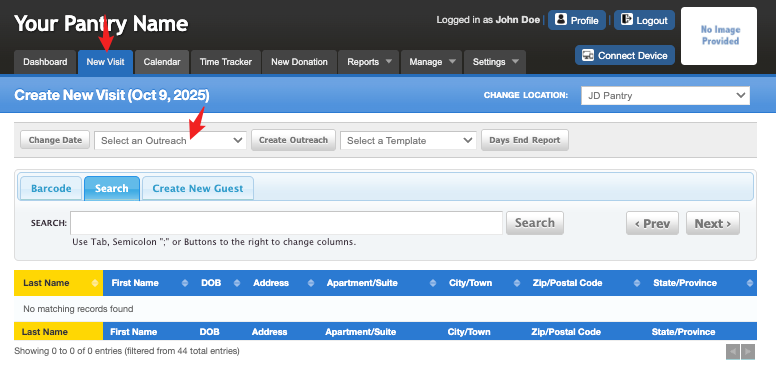
Your On Demand Outreaches are available to you through the "New Visit" and "Calendar" tabs.
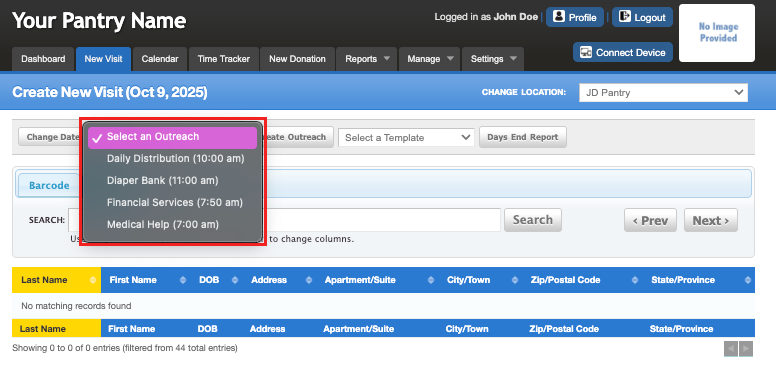
Under "New Visit", click on the "Select an Outreach" drop down.
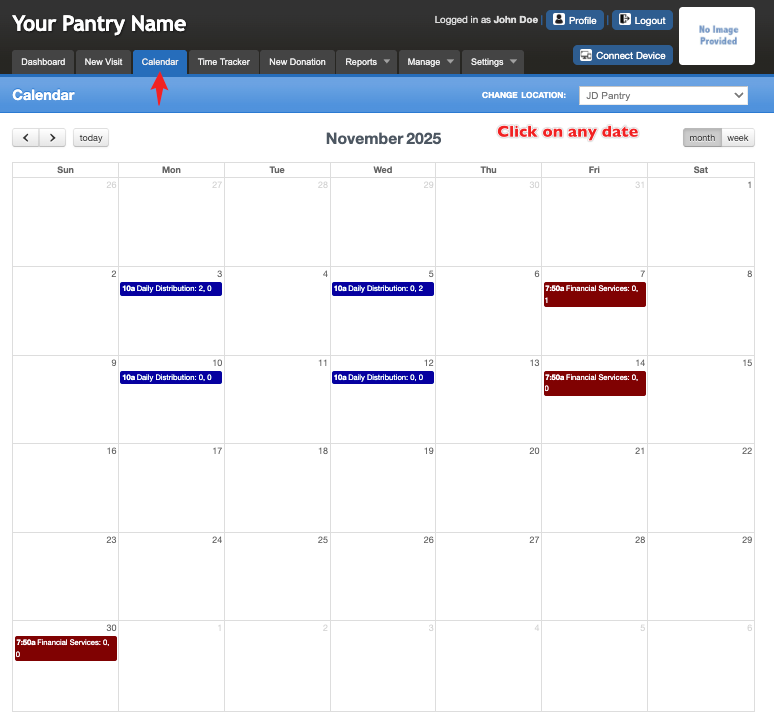
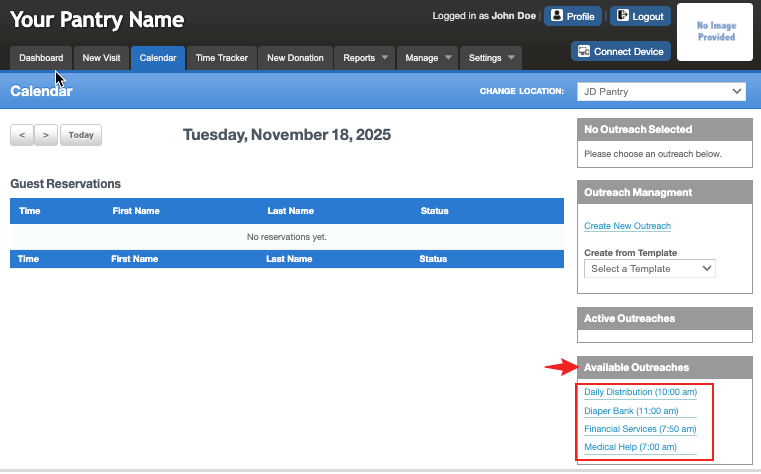
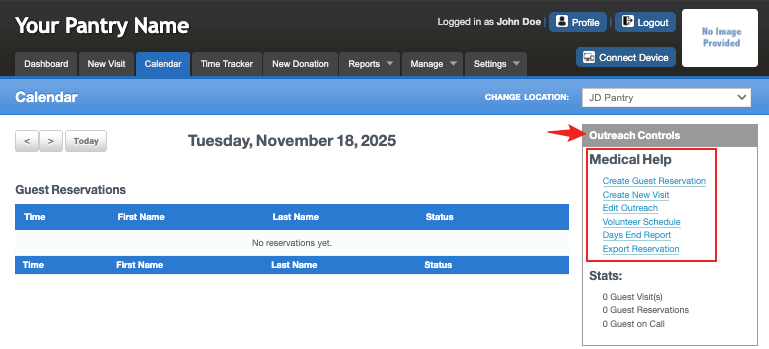
Under "Calendar", click on the day you want to set up your outreach. Your "Available Outreaches" are at the bottom of the right-hand column. Click on the one you want to use and then under "Outreach Controls", choose the action you want to perform.
Hide Vs. Delete
If you have outreaches that do not happen often, edit the outreach and change "Show" to "Hide". This will disable it until you need it again. When ready, simply go back in and change it back to ‘Show’. This will keep your regular list of outreach choices to a minimum and lessen the chance of it accidently being used on the wrong day.
Was this article helpful?
That’s Great!
Thank you for your feedback
Sorry! We couldn't be helpful
Thank you for your feedback
Feedback sent
We appreciate your effort and will try to fix the article