TABLE OF CONTENTS
- Manage Team Page
- Adding a New Team Member
- Find an Existing Team Member
- The General Tab
- Time Entries Tab
- Notes Tab
- Files Tab
- Delete a Team Member
- Customize Team Records
Manage Team Page
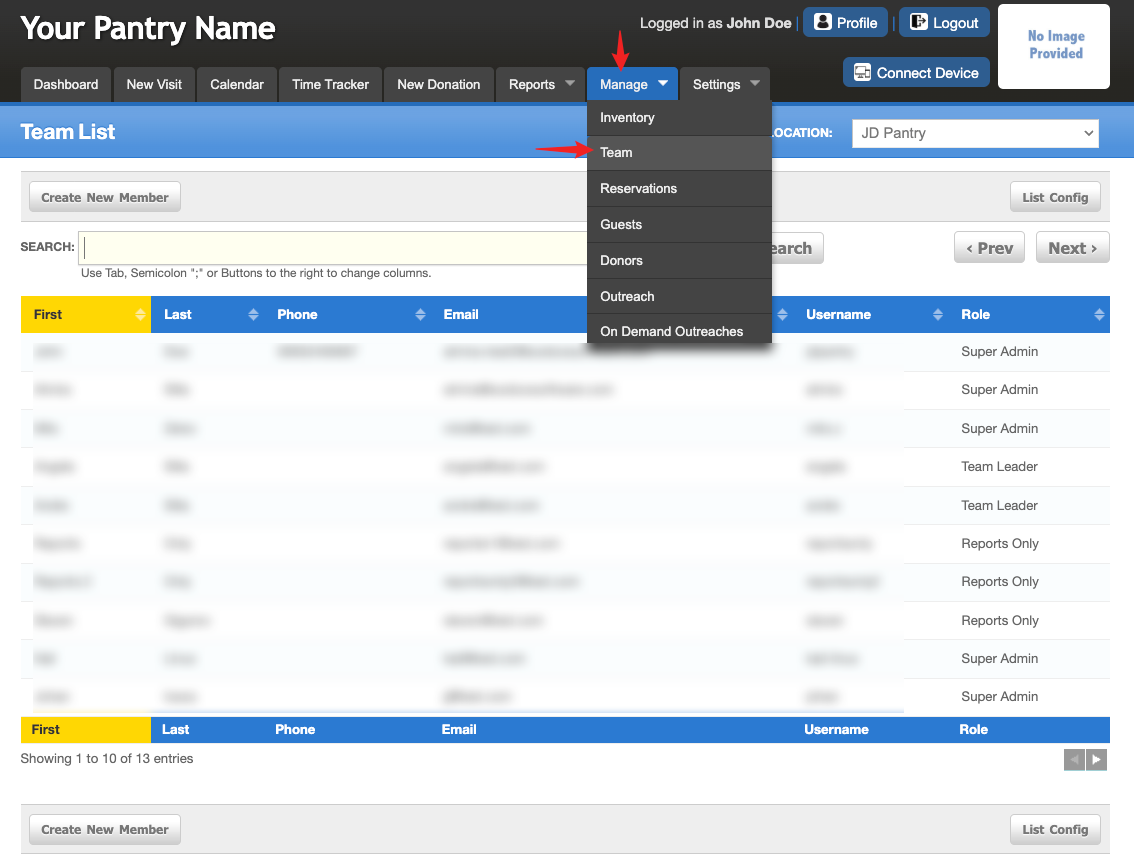
To manage your team, go to the "Manage" tab and click on "Team". Your team is all your volunteer, leadership and staff members.
Adding a New Team Member
From the "Team List" page you can add a new member or search for an existing person.
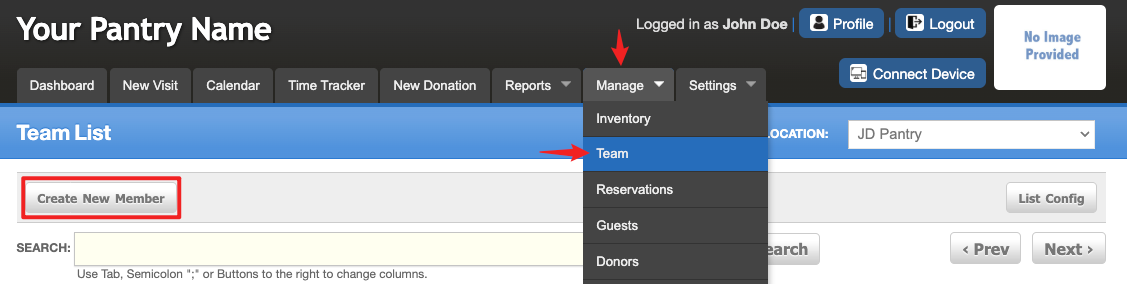
To add a new member, click on "Create New Member" and fill in the information your pantry has customized for the team record. Work from top to bottom to ensure inputting all the information. Once you are done, click "Save".
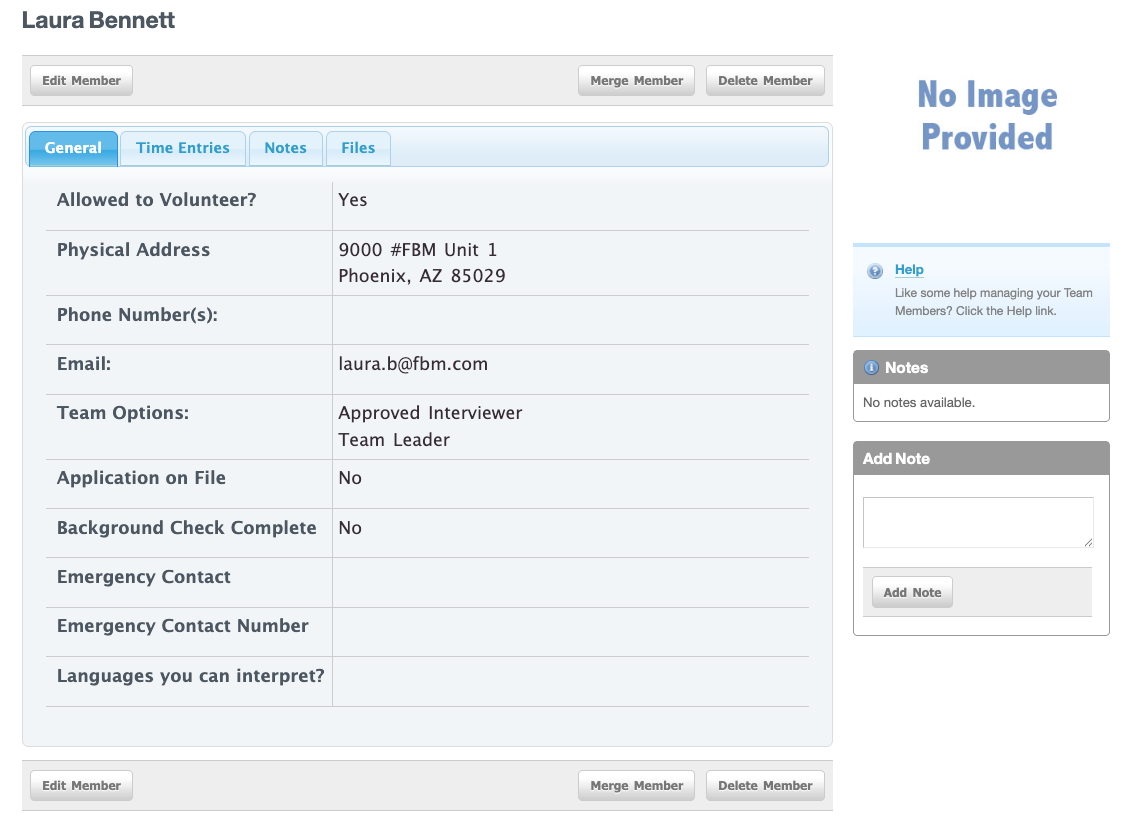
Once created, FBM will automatically default to that team members "General" page. To look for or enter another team member, simply follow the above steps again.
Find an Existing Team Member
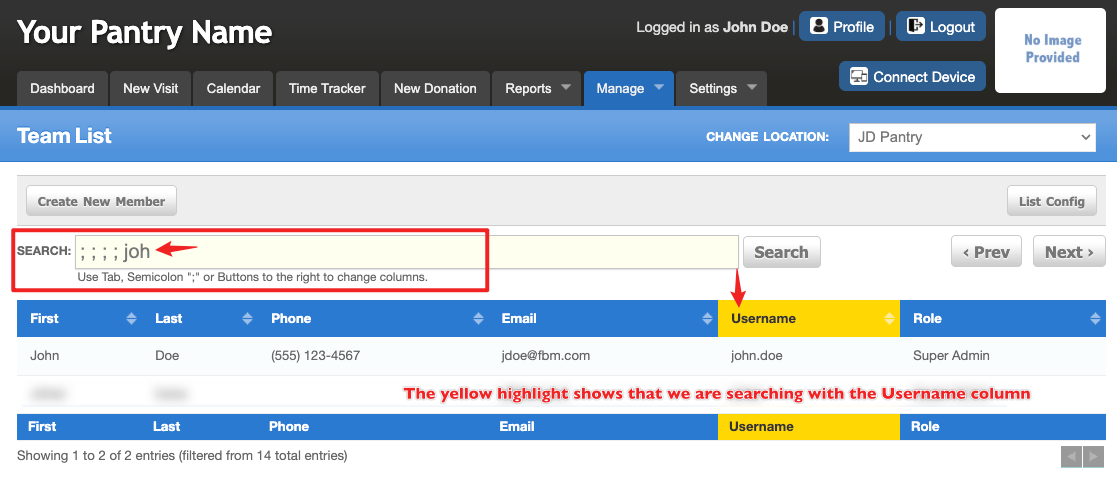
To search for an existing team member, click in the "Search" bar.
Note: For this article, we are searching by first name, last name, phone, email, username, and role. You can customize the "search by" options to better suit how your pantry is accustomed to searching. Refer to this article: Guide to Searching in FBMA "less is better" approach to searching for a team member will yield more accurate results than typing in the full name of a person.
Start by typing in two or three letters of the first name, press the {TAB} key and then two or three letters of the role and press the {TAB} key again. It’s possible that you may see the team member you are looking for already, but if not, type in the home phone number and press the {TAB} key again. If you still do not find who you are looking for continue to email, but remember…just a few characters. Please notice that as you ‘Tab’ through, the column changes to gold. This lets you know what column you are working in. Try it on your system, press tab a few times and {SHIFT} + {TAB} to move backwards.
The General Tab
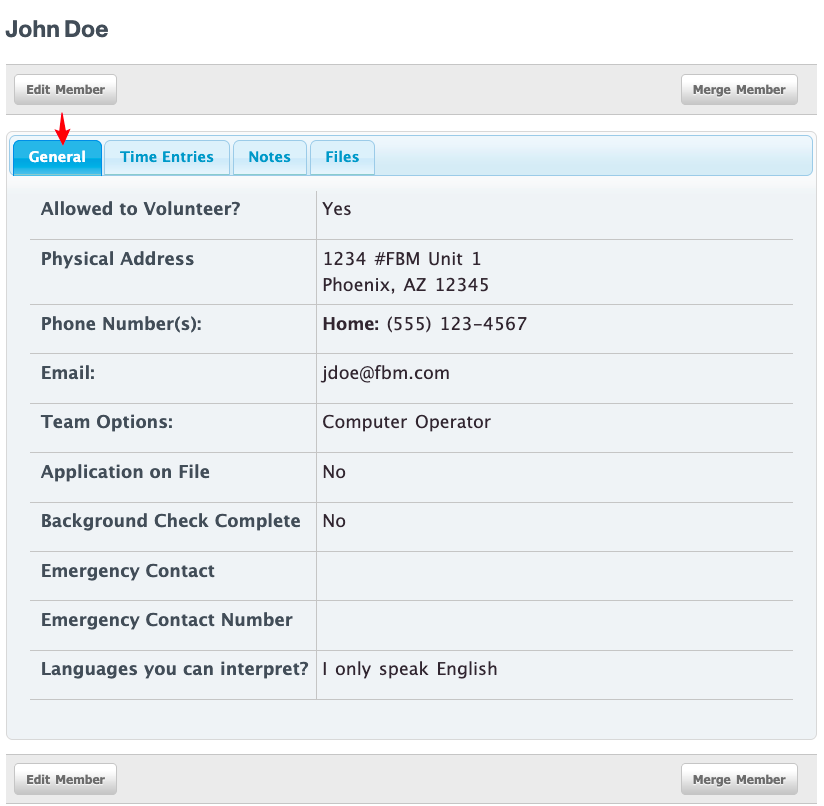
Once you find the person you are looking for, click on their name. This will take you to their "General" tab. This is a view of what is in their record.
Time Entries Tab
To view the time entry history of this team member, click on the "Time Entries" tab. This page shows you the date they logged hours, if the time was assigned to an outreach or just recorded by date and how many hours were worked.
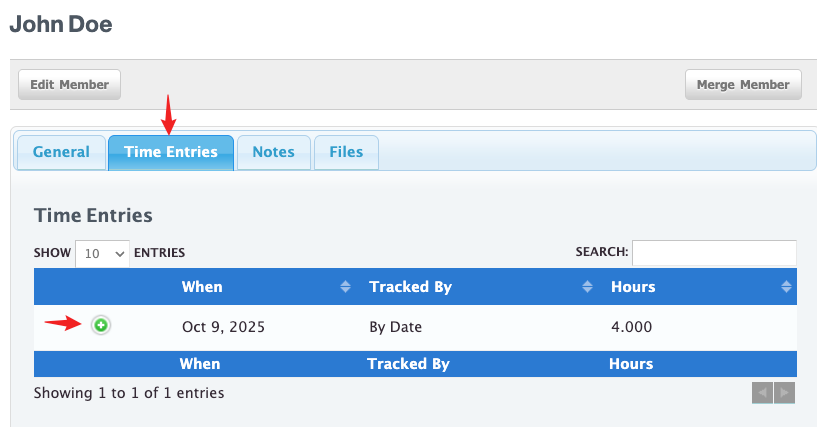
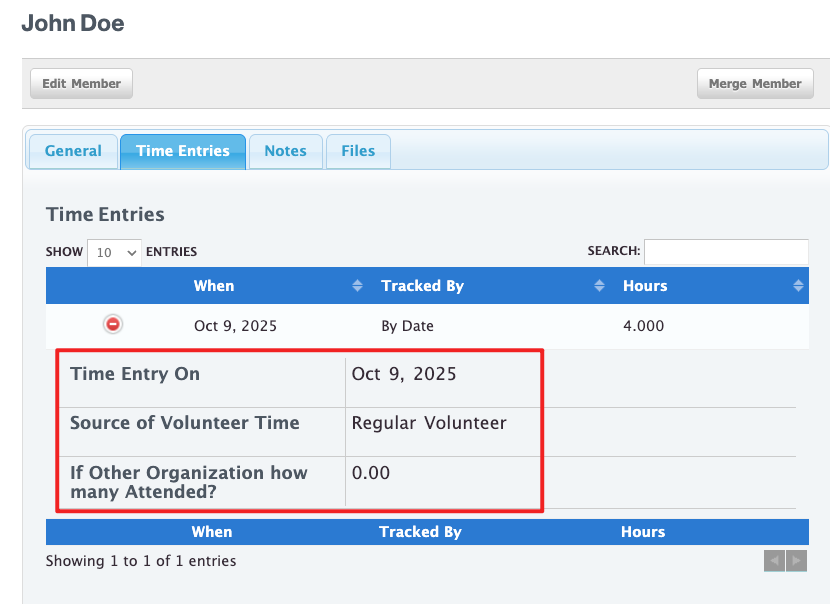
Clicking the “+” icon will expand the section and display the corresponding time entry details.
Notes Tab
The "Notes" tab is a view of all the notes that have been entered into the notes field. This page shows you the note, who entered the note and the date. There is also a delete option for the note.
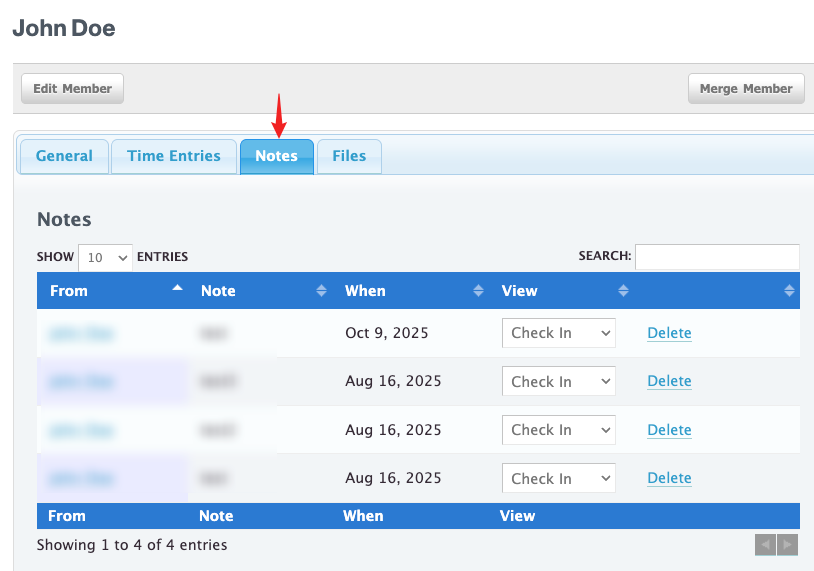
Sometimes notes regarding a volunteer or staff member may be sensitive and only selected roles should be able to view that note. You can set which role will be able to see the note using the "View" setting.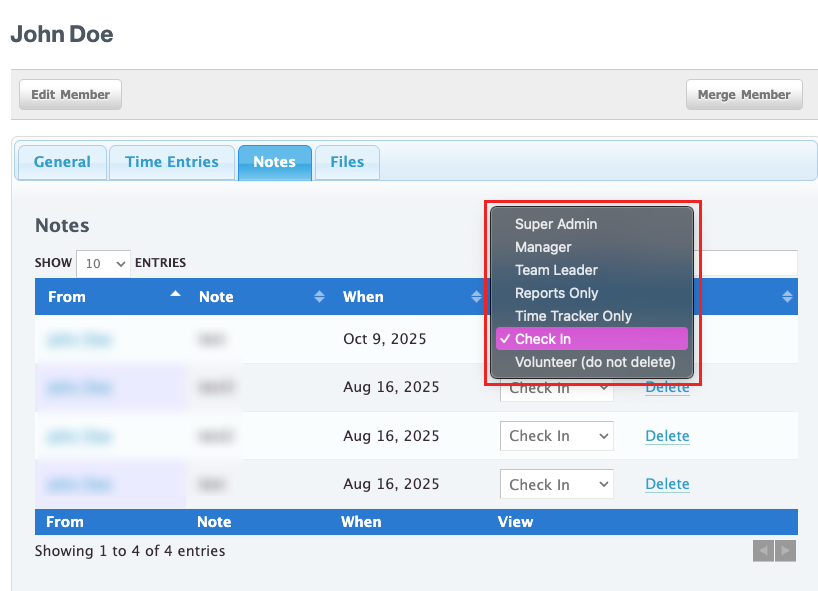
Files Tab
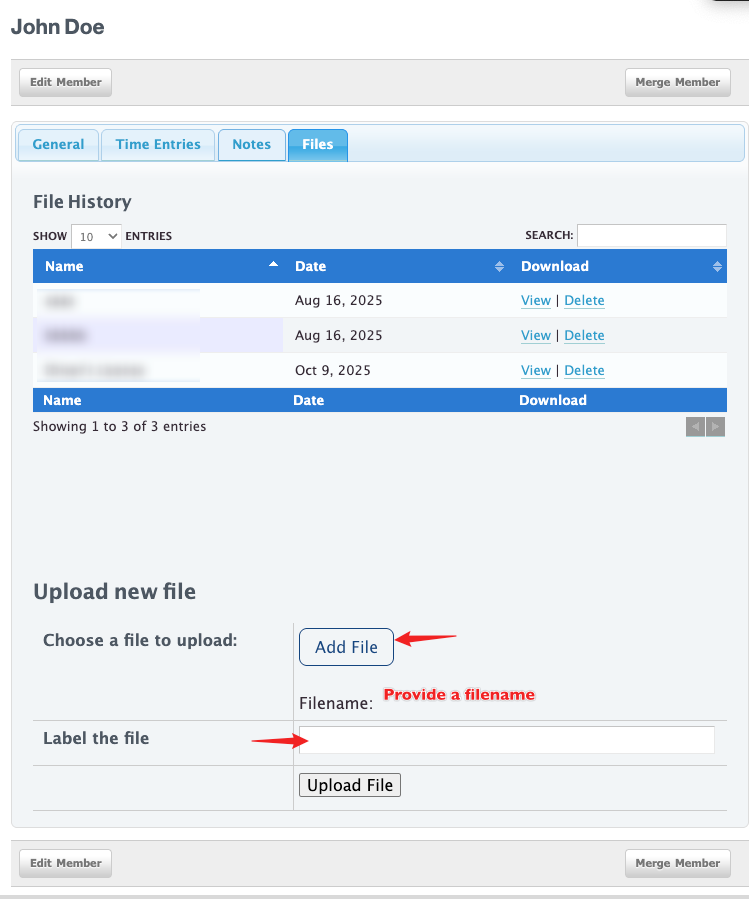
The "Files" tab is for uploading information into the team member record. Give the file a name, choose the file to upload and click on "Upload File". Once a file is uploaded you can view or delete the file by clicking on the appropriate link.
Delete a Team Member
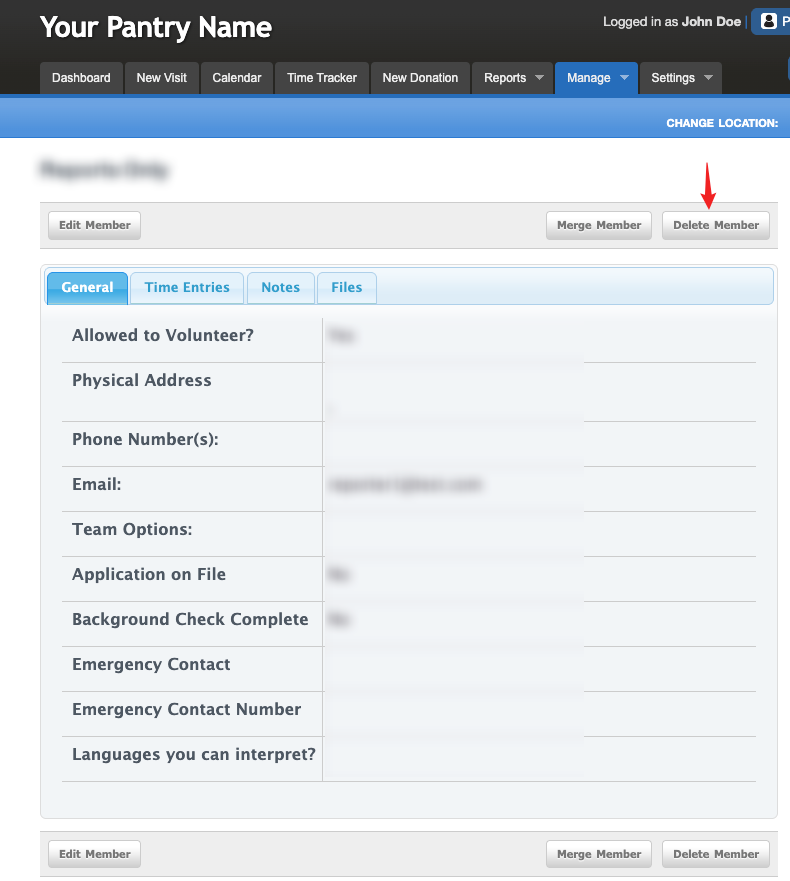
To delete a team member, click on the "Delete Member" button. A pop-up will ask "Are you sure you want to delete this member?". Click "OK" to delete. This action can’t be undone, so please make sure you do want to delete the member before clicking "OK".
Customize Team Records
To customize the team data, you have two options:
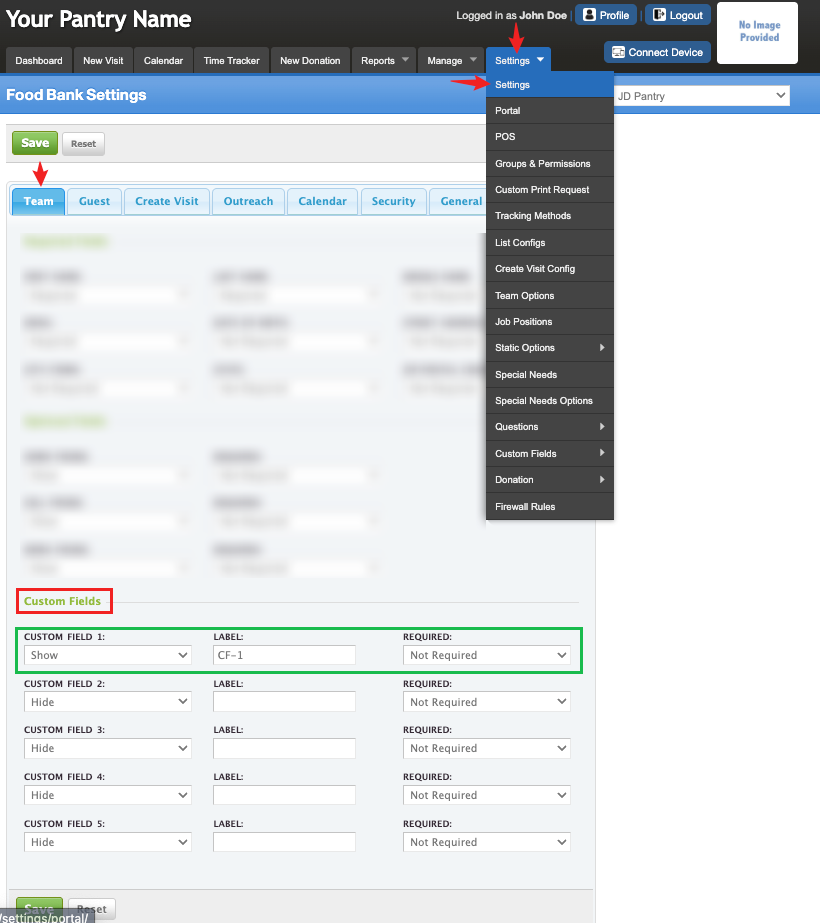
• Option 1: Settings > Settings > Team > Custom Fields > Volunteer
Use this option if you simply need to add a basic text field for volunteers. It’s ideal for quick customizations where only plain text input is required.
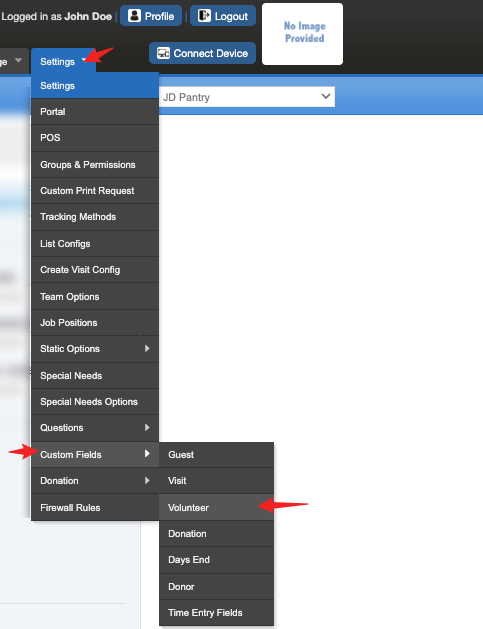
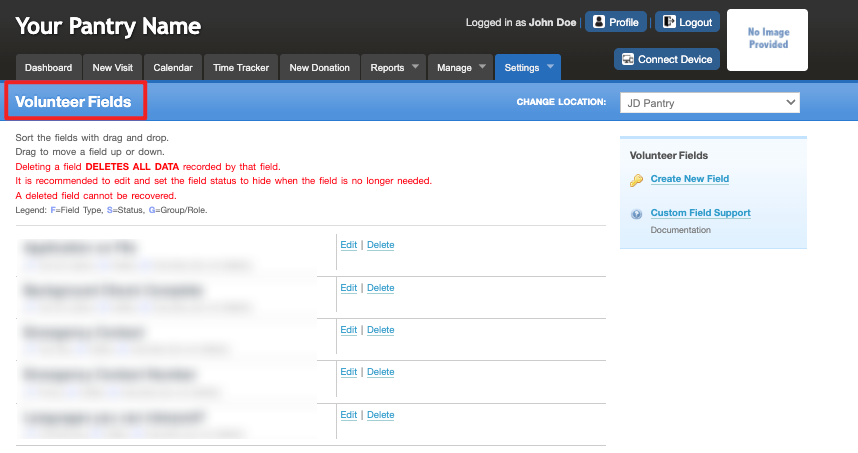
• Option 2: Settings > Custom Fields > Volunteer
Use this if you want more flexibility in the type of data you collect. Here, you can create different field types such as dropdowns, checkboxes, or dates, depending on the information you want to capture.
Option 1
Option 2
Was this article helpful?
That’s Great!
Thank you for your feedback
Sorry! We couldn't be helpful
Thank you for your feedback
Feedback sent
We appreciate your effort and will try to fix the article