TABLE OF CONTENTS
- Internal Guest Reservations
- Reservation Action Buttons
- Guest Portal Setup Overview
- Guest Reservation via Online Portal
- Creating a Reservation as a First-Time User
- Creating a Reservation with an Existing Guest Portal Account
- Navigating the Guest Portal
- FAQs – Guest Reservations (Internal System & Online Portal)
Internal Guest Reservations
This article explains how staff or volunteers can create guest reservations for guests in FoodBank Manager (FBM). Reservations can be created internally by users who have the necessary permissions assigned by the pantry’s system administrator.
These permissions can be configured by navigating to:Settings > Groups & Permissions
Search for the three reservation-related permissions:
Reservation Ordering Item
Reservation Ordering Pick Lists
Reservation Ordering Calendar
Permission Levels:
None – No access
View – Can only view reservations
Add/Edit – Can create or edit reservations
Full Access – Can add, edit, and delete reservations
Steps to Create a Guest Reservation
- Go to the Manage >Reservations.
Select Create on the left side of the page.
You will be redirected to the Create Reservation page.
Step 2: Search for an Existing Guest or Create a New Guest
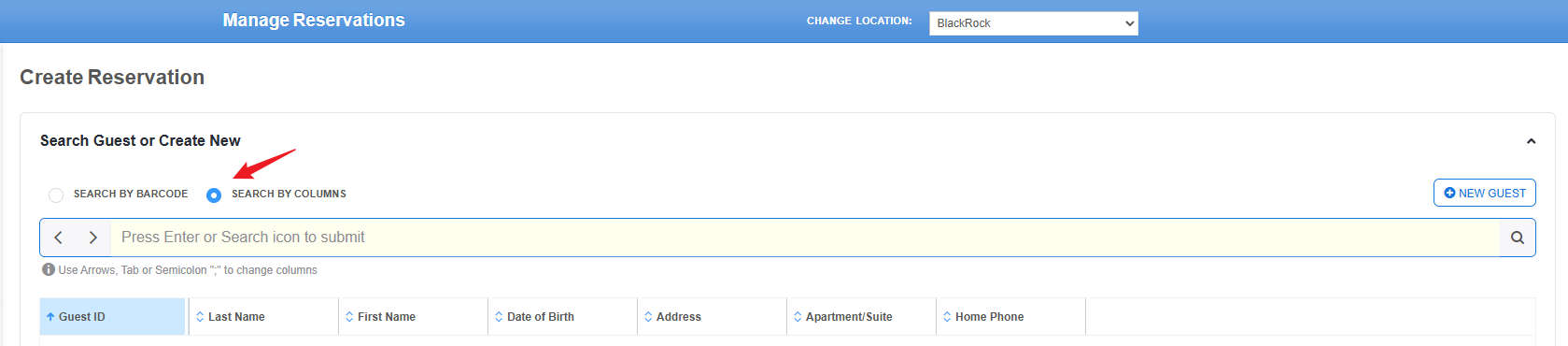
On the “Create” Section in the Reservation page, you will see three options for locating or creating a guest record:
Search by Barcode – Use this option if you want to search using the guest barcode.
Search by Columns – Search for a guest using the guest list and table columns.
New Guest – This button allows you to create and enter reservation details for a new guest.
Option A: Search by Barcode
- Select Search by Barcode.
- Scan or manually enter the guest’s barcode.
- The guest record will appear automatically.

Option B: Search by Columns
- Select Search by Columns.
- Use the search box to locate the guest.
- Press Enter to display matching guest records, or
- Use the Tab key to navigate between columns if needed.
- Select the correct guest from the list.
Option C: "New Guest” Button
If the guest does not yet exist in the system, click the New Guest button to enter the guest’s information and create a reservation. You will be able to select the Help Desired and choose an available time slot during this process.
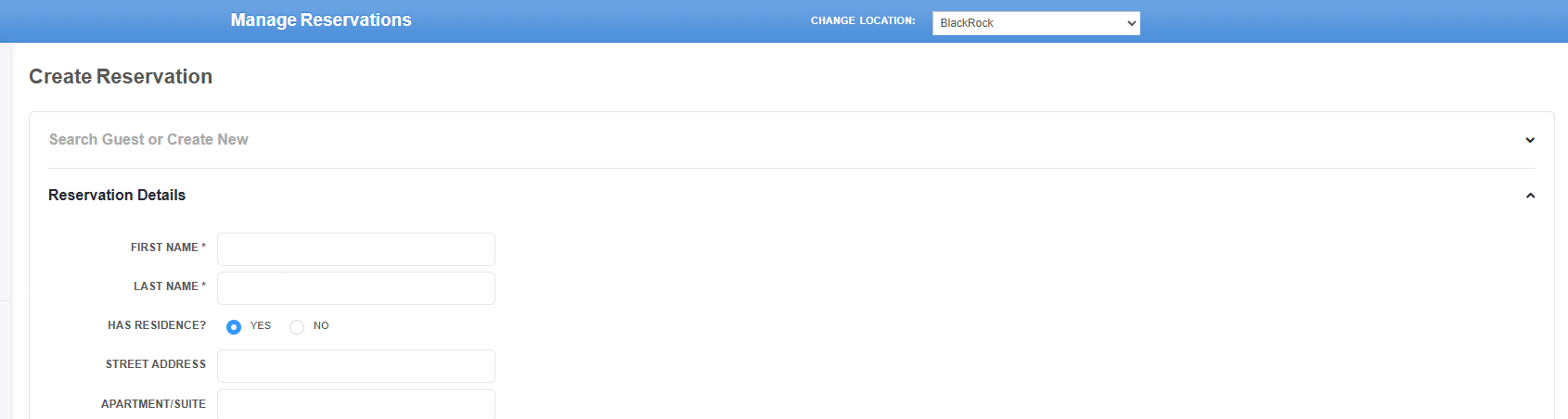
Note: using the New Guest button only creates a guest reservation entry and does not automatically create a guest record in FBMTo properly link the reservation to a guest profile, a guest record must be created either after clicking the Create Visit button or by navigating to Manage > Guest > Create New Guest.
Step 3: Select the Help Desired / Tracking Method
- After selecting the guest, the Reservation Details page will appear.
- Select the Help Desired / Tracking Method for the reservation.
- The system will display the available Outreach schedules connected to the selected tracking method.

Step 4: Select an Available Time
- Select an available date and time slot from the available schedule.
- You may also use the Date Filter and enable the “Show Available Outreaches Only” checkbox to narrow down the results based on your preferred time frame and available outreaches.
- After selecting your schedule, set the Reservation Status (Approved or Pending) using the dropdown menu, then click Save.
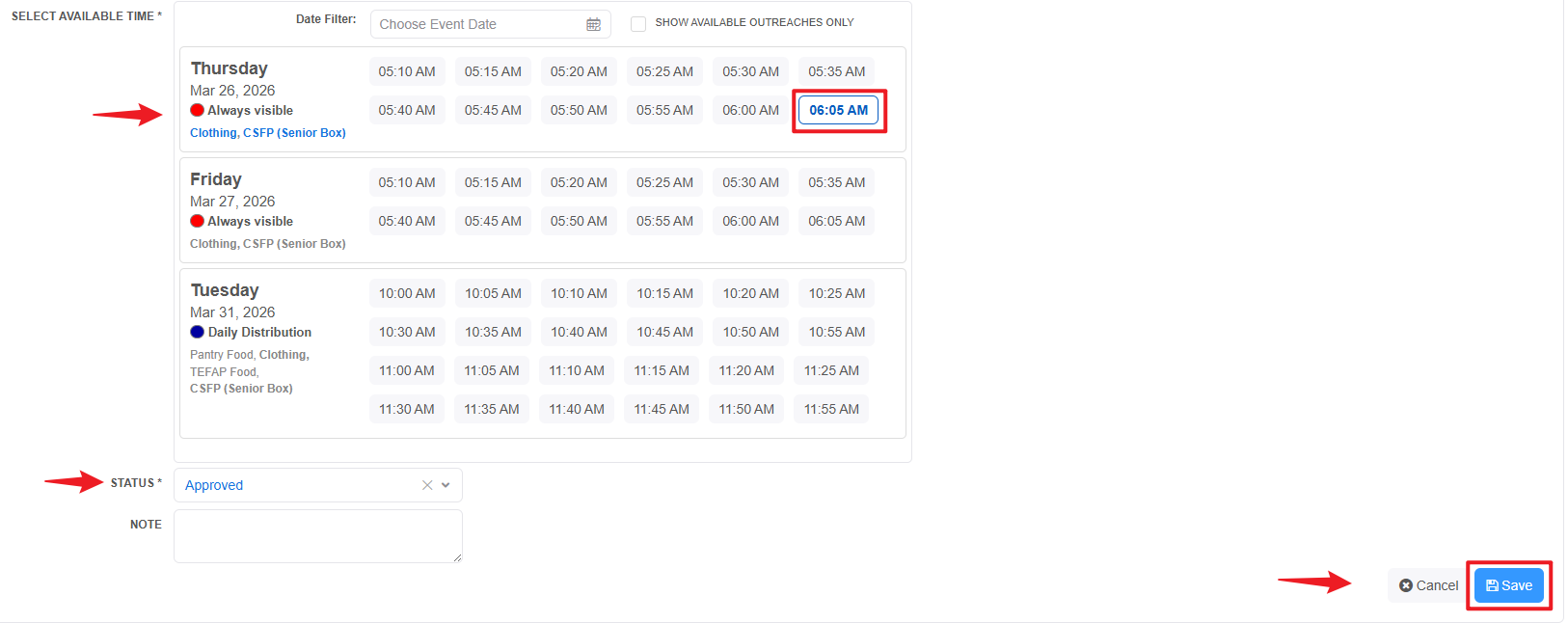
Note: Only available schedule slots linked to the selected tracking method will appear.
If the selected tracking method is connected to multiple outreaches, schedules from all associated outreaches will be displayed in the schedule view.
Step 5: Confirmation
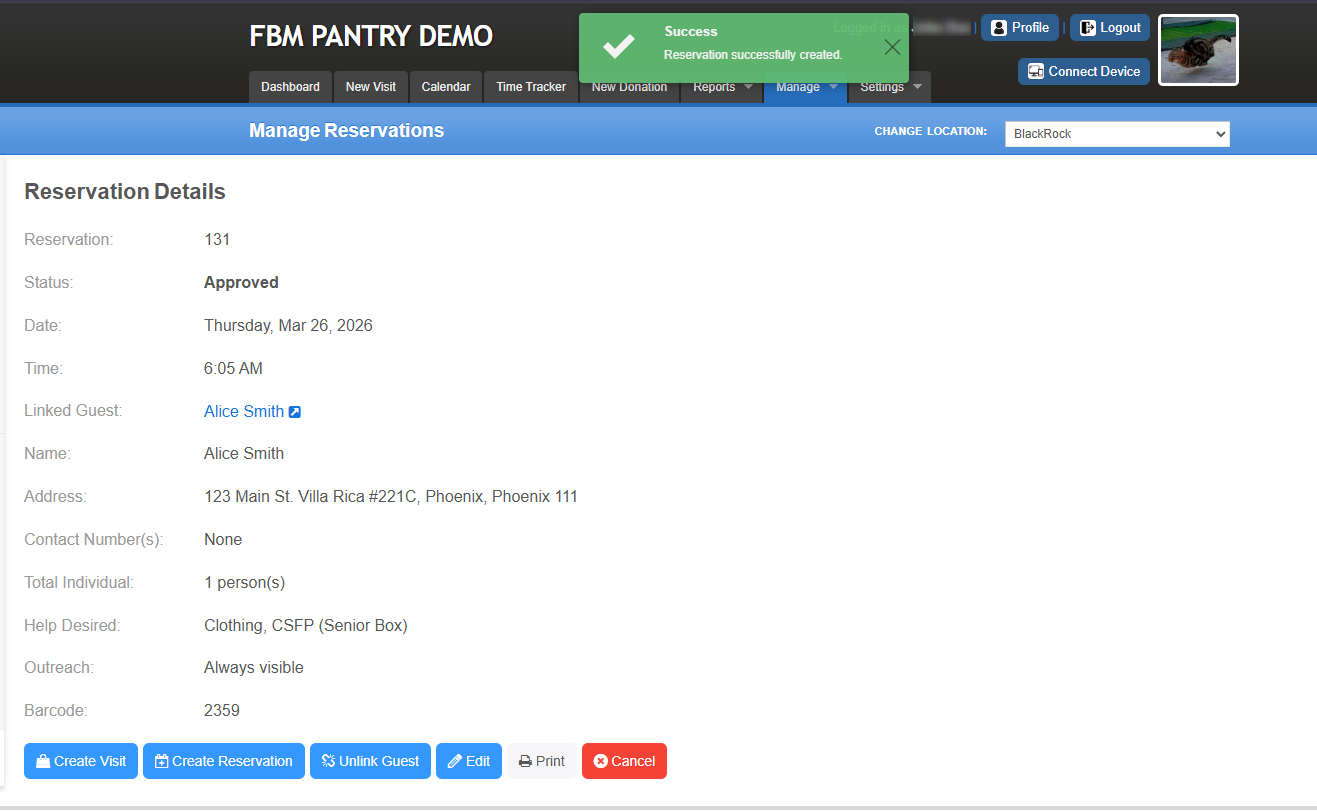
- After saving, a confirmation prompt will appear indicating that the reservation was successfully created.
- You will then be redirected to the Reservation Details page, where you can view the reservation information for the guest.
Reservation Action Buttons
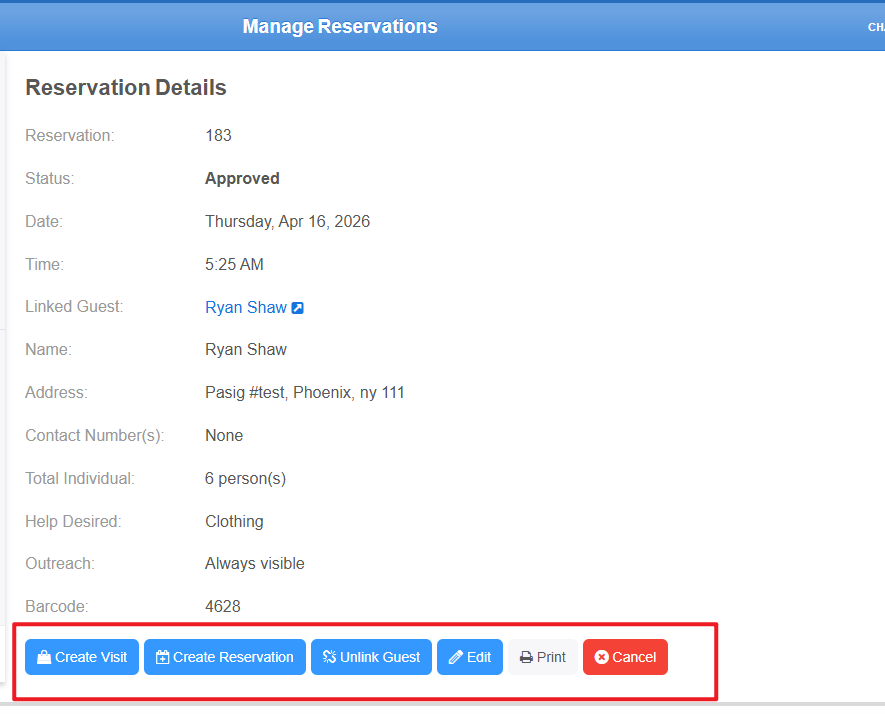
The Reservation Details page provides several action buttons for managing the reservation. Each button has a specific function and may direct you to different pages or perform different actions depending on your selection.
These buttons allow you to perform key actions such as creating a visit, creating another reservation, linking or unlinking a guest, editing reservation details, printing reservation information, or canceling the reservation. These options help you efficiently manage guest reservations within the system.
Another feature of the Reservation page is the set of action buttons available in each section, such as Today’s Reservations, Upcoming, Pending, and Archived Reservations. These buttons are located on the right side of each guest entry.
When you hover your cursor over these buttons, a tooltip will appear displaying the name of each action button. Below is a sample of these action buttons along with their corresponding meanings.
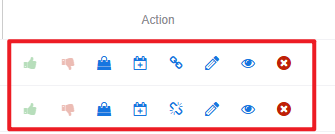
Approve - this button confirms the reservation and marks it as ready for visit creation for the guest.
Reject - this button declines the reservation. This is typically used when the organization is unable to accommodate the request or for other applicable reasons.
Create New Visit – Redirects you to the Create Visit page to record a visit for the guest’s selected reservation record.
Create Reservation – Allows you to create another reservation for the same guest for a different Help Desired / Tracking Method
Link / Unlink Guest – This button is about the connection between the internal guest record and the Portal guest account.
It also applies to records created from the Reservations page, allowing you to link or unlink a reservation to a guest record as needed.
Edit – Allows you to modify the reservation details.
View – this button allows you to view reservation details of the currently selected record.
Cancel – Cancels the reservation that was created for the guest.
A sample GIF demonstrating how to create a reservation is provided below for reference.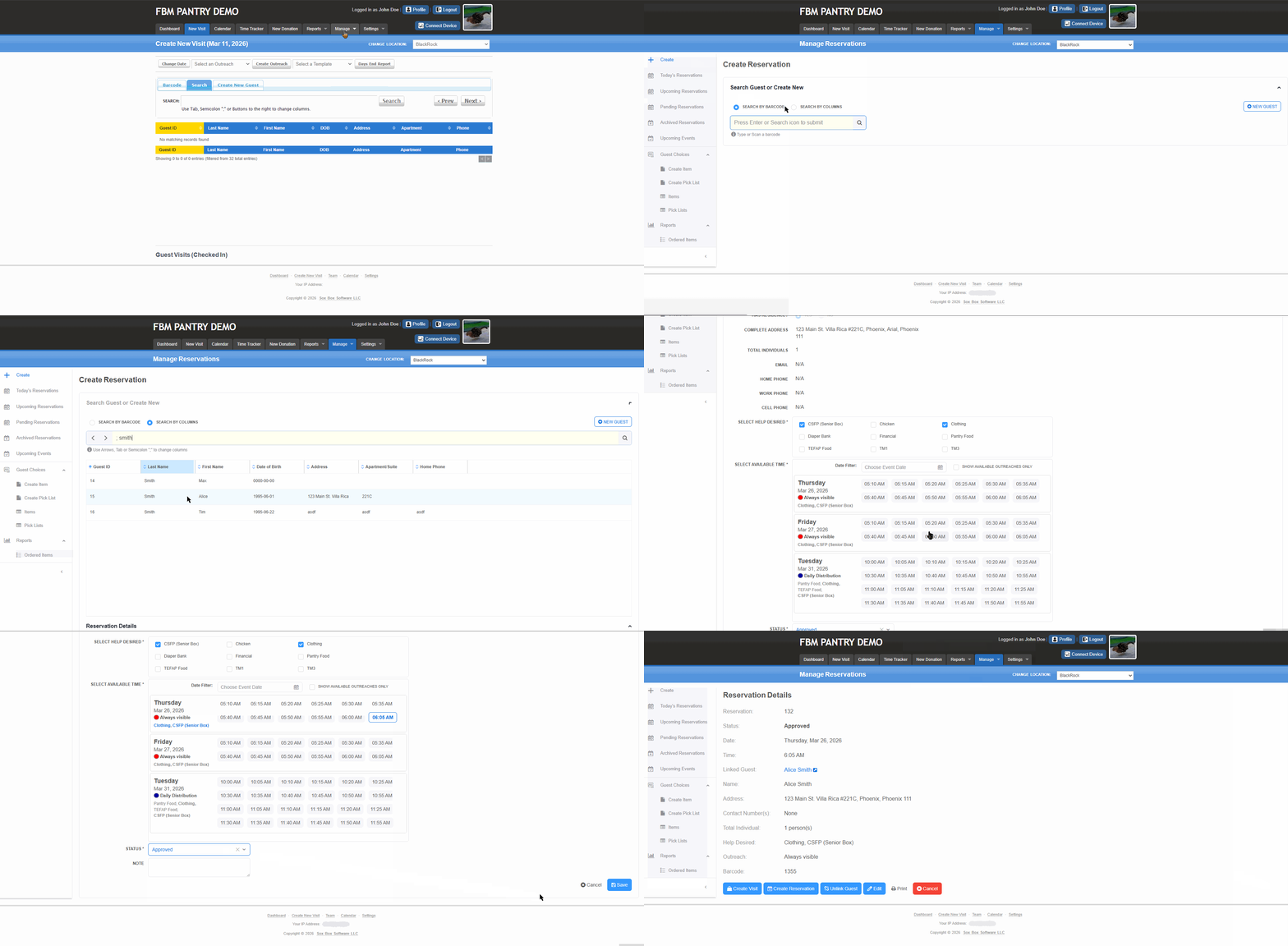
Guest Portal Setup Overview
The Guest Portal is an added feature of FBM that allows guests to create their own accounts, schedule reservations by selecting their help desired, choose available outreaches and time slots, and update their information online. All data is directly connected to your FBM pantry system.
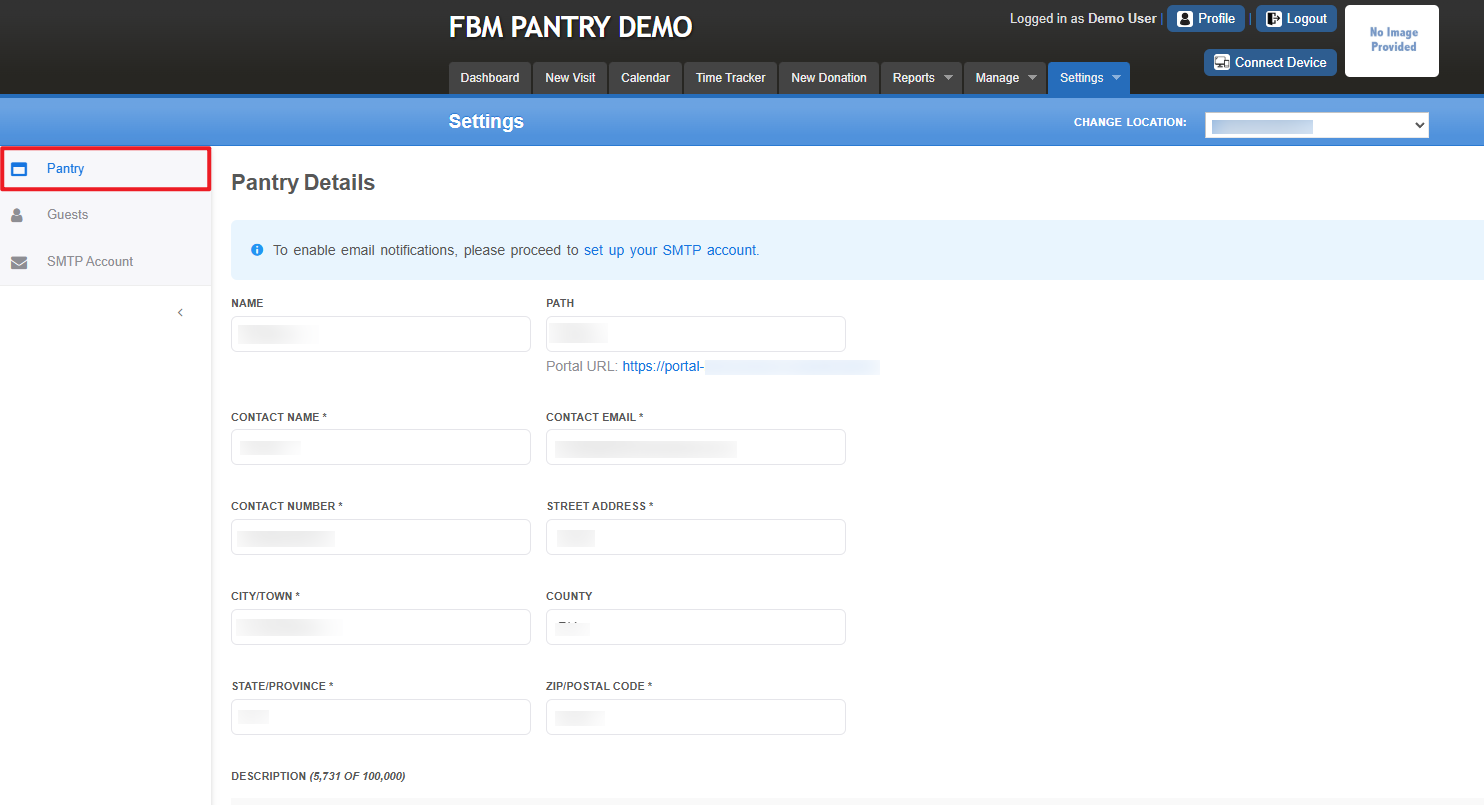
The Pantry Details section under Settings > Portal is used to configure the agency’s Guest Online Reservation Portal in the FoodBank Manager (FBM) system.
This feature is currently included at no additional cost, though it may require a separate purchase in the future. Proper configuration of this section is required to allow guests to create reservations through the Portal URL provided by the pantry.
Once the pantry details are completed and saved, the system will generate a Portal URL. Agencies can share this link with guests so they can access the Portal, create an account, and schedule reservations for available services.
This Portal configuration ensures that:
The pantry information displayed in the Guest Portal (top-left section) reflects the details configured in the FBM system and remains accurate.
Guests can access the correct Portal link provided by the pantry or agency.
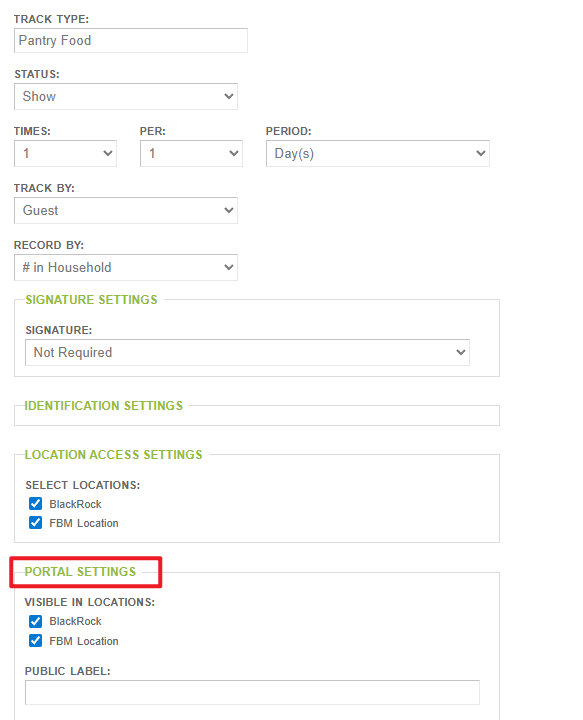
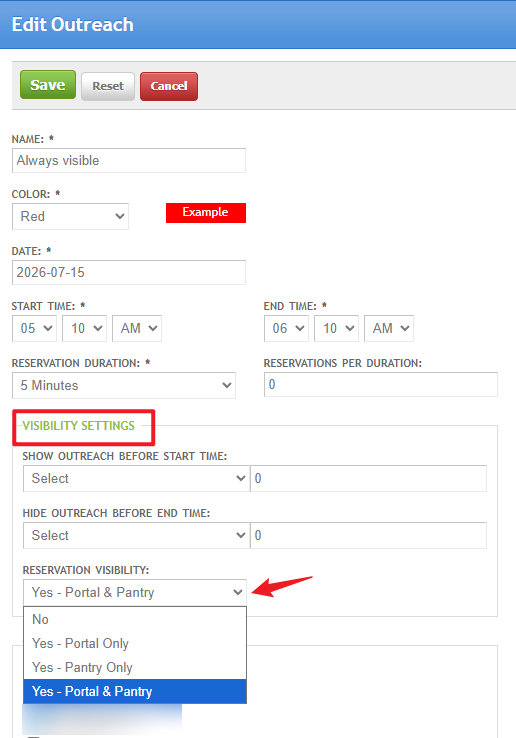
Note: Please make sure that the Tracking Methods and Outreaches intended for reservations are configured to be visible in the Guest Portal, allowing guests to view and select available schedules. See below for this setting reference:Tracking method Portal Settings:
Outreach Visibility Settings:
Guest Reservation via Online Portal
The Guest Online Portal allows guests to create and manage their reservations for pantry services provided by the pantry using FoodBank Manager (FBM).
Once the pantry has configured the Portal Settings, Tracking Methods, and Outreaches, the pantry can share the Portal URL with their guests. Guests can use this link to create an account, schedule reservations, and manage their reservation details online.
Creating a Reservation as a First-Time User
If you do not yet have a Portal account, follow the steps below after accessing the Portal link provided by your pantry or agency.
Steps to Create a Reservation as a First Time User in Guest Portal
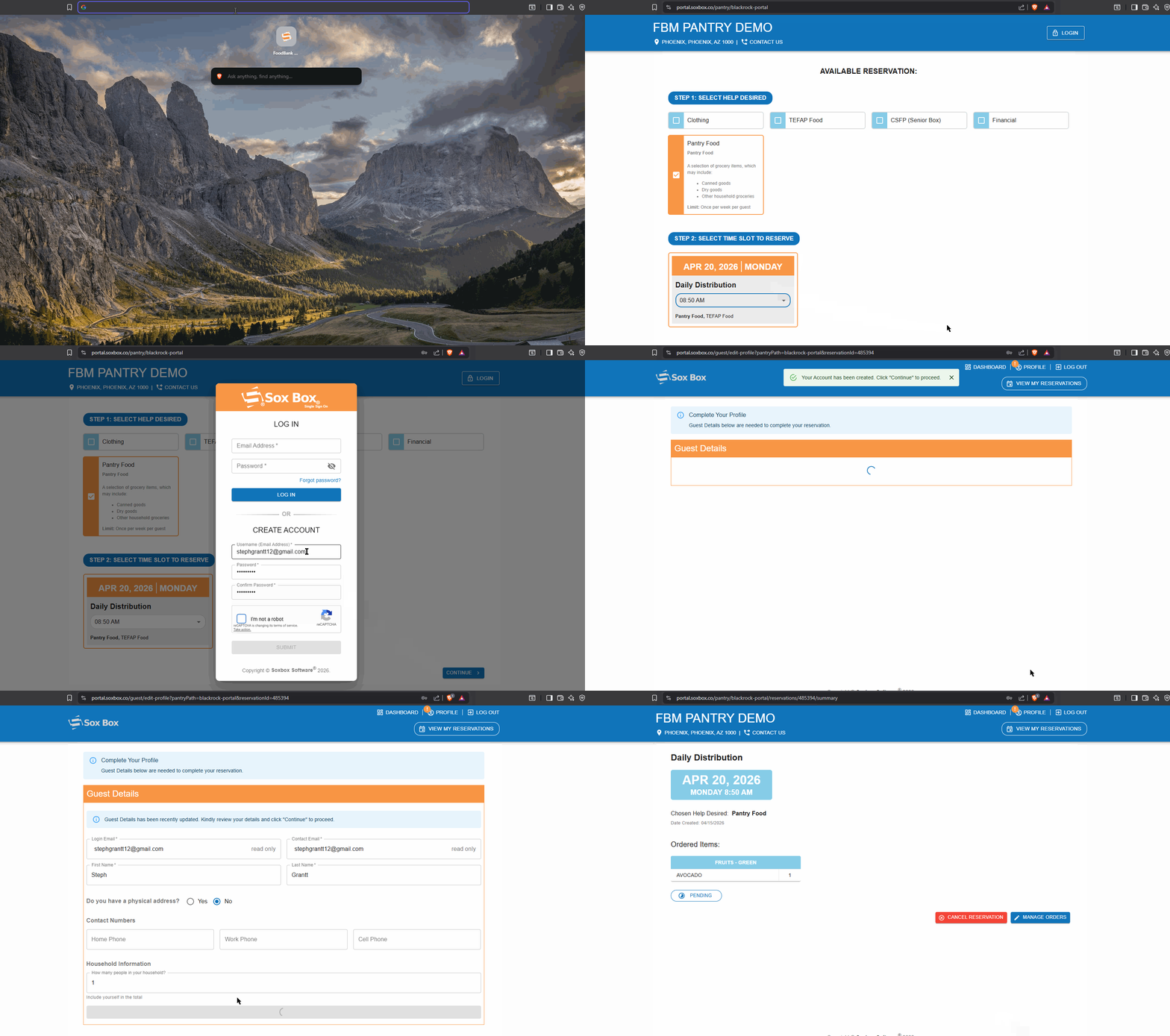
1. Access the Portal
- Go to the Portal link provided by your pantry or agency.
You will be redirected to the reservation page.
2. Select a Help Desired
- Next, select the Help Desired / Tracking Method for your reservation.
- Choose the service from the available checkboxes (for example, Pantry Food or TEFAP Food).
3. Select a Time Slot
- Proceed to select an available date and time slot from the available outreaches.
- Click Continue.
4. Create a Portal Account
Since you do not yet have an account, you will be prompted to create one.
- Enter a username.
- Create and confirm your password.
- Complete the security verification (Captcha).
- Click Submit.
- A pop up notification will appear confirming that your account has been created.
- Click Continue to proceed.
5. Complete Your Profile
You will be redirected to the Complete Your Profile page.
- Enter your guest information.
- Fill out all fields marked with an asterisk (*), as these are required.
- Click Submit.
6. Select Items/ Pick Lists (If Applicable)
In some cases, you may see “Select Your Items”.
- Select any additional items available for the reservation.
Note: This step may not appear for all pantries since it depends on the agency's configuration.
7. Confirm the Reservation
- Click Agree & Confirm Reservation.
- Your reservation will be created.
8. Reservation Details Page in Guest Portal
After successfully creating a reservation, you will be redirected to the Reservation Details page in the Guest Portal
On this page, you can view:
- The date and time of the scheduled outreach or distribution
- The Help Desired / services selected
- The date the reservation was created
- The ordered items included in the reservation
- The reservation status (Pending or Approved)
Available Actions
Guests may also see the following options:
- Cancel Reservation – Cancel the reservation if needed.
- Manage Orders – Review or update the items included in the reservation
This page allows guests to easily review and manage their reservation details.
Sample overview of a guest without an existing account creating a reservation through the Guest Portal
Creating a Reservation with an Existing Guest Portal Account
This section explains how guests with existing Portal accounts can create a reservation. Once logged in, the process is straightforward: guests can select their help desired, choose an available time slot in an outreach, and optionally add items in pick lists, and confirm their reservation.
Note: Guests must first log in to their Guest Portal account before creating a reservation.
Steps to Create a Reservation using Existing Guest Portal account
- Select Help Desired
Choose from the available Help Desired / Tracking Methods. - Select a Time Slot
Select an available time slot from the outreach schedule. - Select Items (Optional)
Choose additional items if this option is available.
Note: This step may not appear for all agencies, as it depends on the pantry configuration. - Confirm Reservation
Click Agree & Confirm Reservation to proceed. - View My Reservation
You will be redirected to the Reservation Details page, where you can view your reservation information and status.
Sample overview of a guest that has an existing account creating a reservation through the Guest Portal.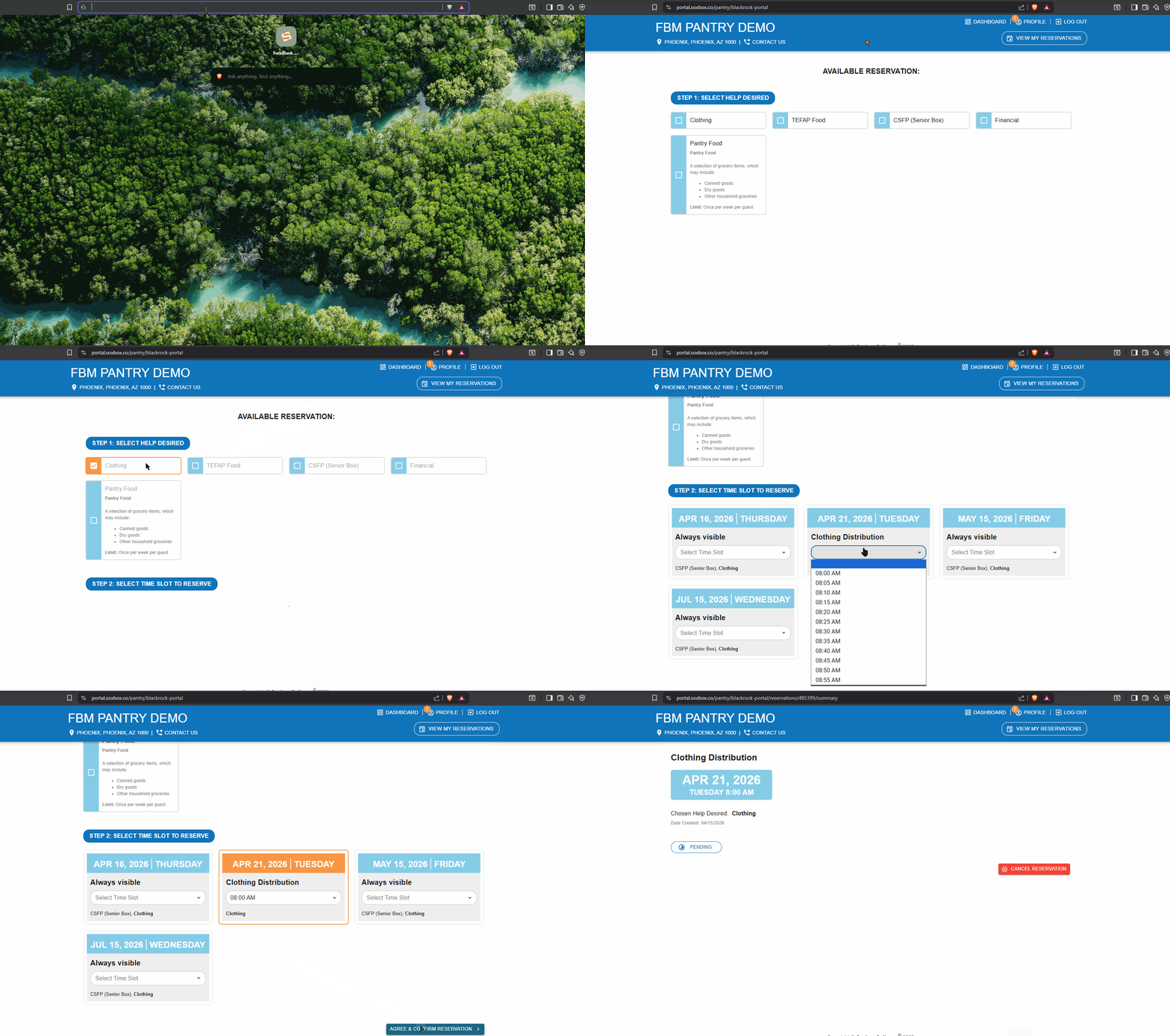
Navigating the Guest Portal
The Guest Portal includes several sections that allow guests to manage their reservations and profile information.
Dashboard
The Dashboard serves as the main page where you can view and manage your reservations in the Guest Portal. It provides a quick and organized overview of your current activity.
There are two main sections available:
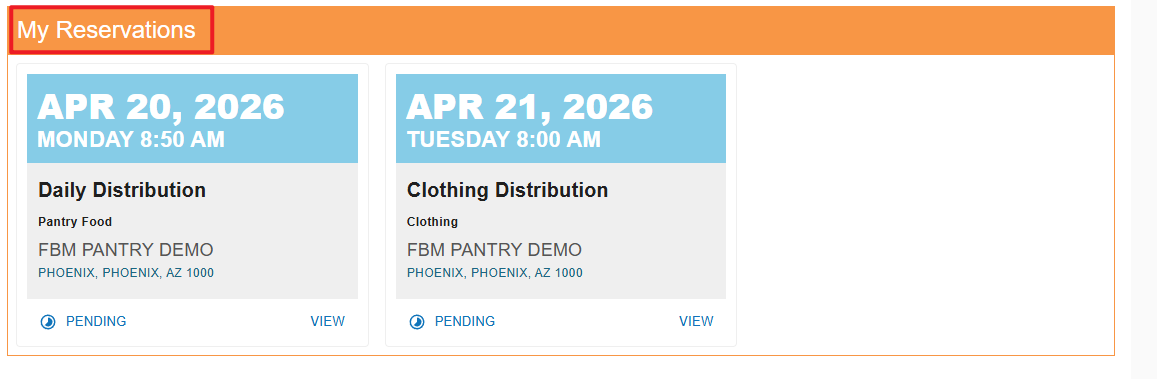
My Reservations
This section displays a list of your existing reservations along with their current status (e.g., Pending, Approved, Completed). You can easily track your upcoming or past reservations here.
Click the View button to open the full Reservation Details page, where you can see more information about your booking.
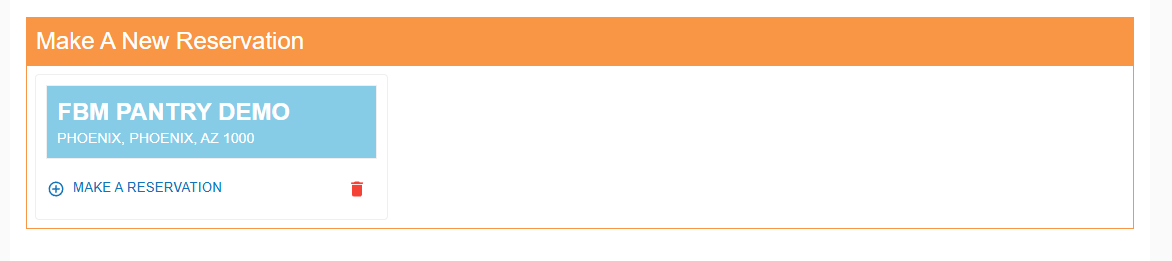
Make a New Reservation
Profile
The Profile section allows you to view and manage your guest information within the Guest Portal. This is where you can keep your personal details accurate and up to date.
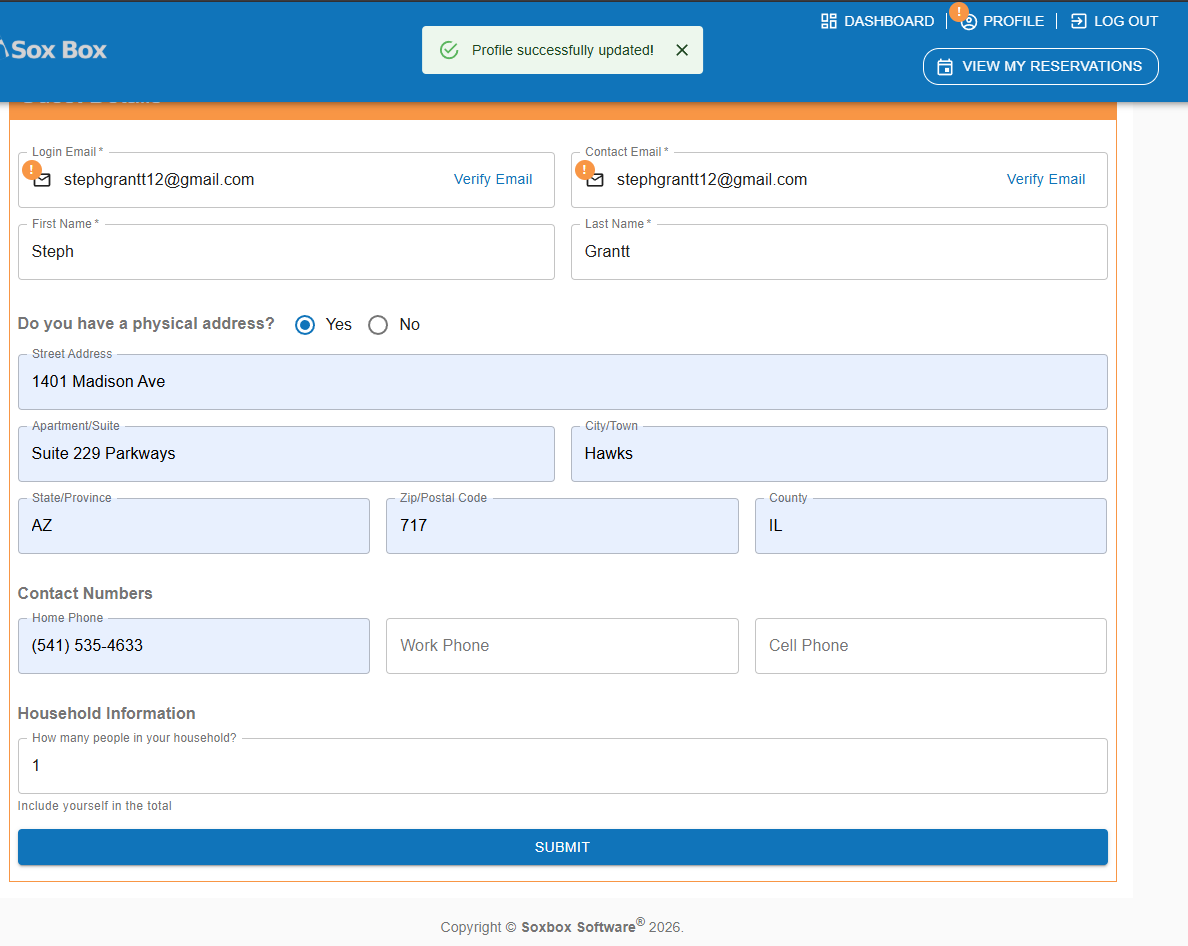
In this section, you can:
Verify your email address to ensure your account is properly confirmed
Update your personal information such as name, contact details, and other required fields
Click Submit to save changes and to keep your profile information current
Keeping your profile updated helps ensure a smooth reservation process and accurate records within the system.
Note: The information shown in this example is for demonstration purposes only and does not represent any actual personal data.Logout
The Logout option allows you to safely sign out of the Guest Online Portal.
FAQs – Guest Reservations (Internal System & Online Portal)
This section answers common questions about creating and managing guest reservations in FoodBank Manager (FBM). Reservations can be created either:
Internally by staff or volunteers within FBM
Externally by guests using the Guest Online Portal
1. What is a reservation in FBM?
A reservation allows a guest to schedule a visit for a specific Help Desired offered by a pantry. Reservations are typically linked to Tracking Methods and Outreach schedules.
2. What is the difference between internal and portal reservations?
Internal Reservations are created by staff or volunteers within FBM.
Guest Portal Reservations are created by guests using the Guest Online Portal.
Both types are recorded in the same system and appear in the Reservations section in FBM.
3. Who can create a reservation internally?
Staff or volunteers with the appropriate permissions can create reservations within FBM.
4. Where do I create a reservation internally?
To create a reservation:
Go to Manage > Reservations
Click Create
Search for a guest using barcode or columns, or create a new guest for the reservation
5. Can I create a reservation for a new guest?
Yes. You can click New Guest during the reservation process.
Important:
Creating a reservation using New Guest does not automatically create a guest record under Manage > Guests.
To properly link the reservation to a guest profile, you must:
Create the guest under Manage > Guests, or
Click Create Visit after the reservation to generate the guest record
6. Why can’t I see available schedules in the Guest Portal?
This may occur if:
The Tracking Method is not connected to an Outreach
The Outreach schedule is full, closed, or has no available time slots
The Outreach Reservation Visibility is set incorrectly (e.g., not set to Pantry & Portal)
Ensure all configurations are properly set.
7. Can staff create visits from a reservation?
Yes. Staff can click Create New Visit from the Reservation Details page to record a visit.
8. What is the Guest Online Portal?
The Guest Online Portal is a self-service feature that allows guests to create accounts, book reservations, and manage their information online.
9. How do guests access the Portal?
Guests can access the Portal using a Portal URL provided by the pantry or agency.
10. Do guests need to create an account?
Yes. Guests must create an account before completing their first reservation. Once registered, they can log in to manage future reservations.
11. Why do some reservations include item selection?
Some pantries enable item or pick list selection during reservations. This allows guests to choose items.
This feature depends on the pantry’s configuration and may not be available for all agencies.
12. Can guests cancel their reservations on their own?
Yes. Guests can cancel reservations from the Reservation Details page in the Portal by clicking Cancel Reservation.
13. Can guests create multiple reservations?
Yes, as long as there are available Tracking Methods and Outreach schedules.
Some services may have limits based on pantry configuration.
14. Why can’t guests see Help Desired options in the Portal?
This may occur if:
The Tracking Method is not enabled in Portal Settings
The Tracking Method is not linked to an Outreach
Ensure all settings are properly configured.
15. Why can’t guests see available time slots?
Guests will only see time slots if:
The Outreach schedule has available slots
The Tracking Method is connected to the Outreach
For more details, refer to this article:
https://fbm-support.freshdesk.com/support/solutions/articles/159000426926-understanding-time-slot-availability-in-reservations
16. Where can staff view reservations in FBM?
All reservations can be accessed under:
Manage > Reservations
From this page, staff can review, edit, and manage reservations based on their assigned permissions.
Was this article helpful?
That’s Great!
Thank you for your feedback
Sorry! We couldn't be helpful
Thank you for your feedback
Feedback sent
We appreciate your effort and will try to fix the article