TABLE OF CONTENTS
- Overview
- Setting Up Your Trial Account
- Accessing your Cart Account
- Account Management
- FAQs / Frequently Asked Questions
Overview
This article provides step-by-step instructions on how to set up a FoodBank Manager account, from creating a trial account to subscribing for additional features. It also explains where to access pricing, your domain link, inventory with POS, location settings, and other key features within FoodBank Manager (FBM).
Setting Up Your Trial Account
In this section, you’ll learn how to create your FoodBank Manager trial account. This includes registering your information, creating your domain, and setting up your admin account.
FoodBank Manager Registration
- Open a web browser (such as Google Chrome, Safari, or any other browser).
- Go to foodbankmanager.com.
- On the homepage, click Start your 30-day FREE trial now.
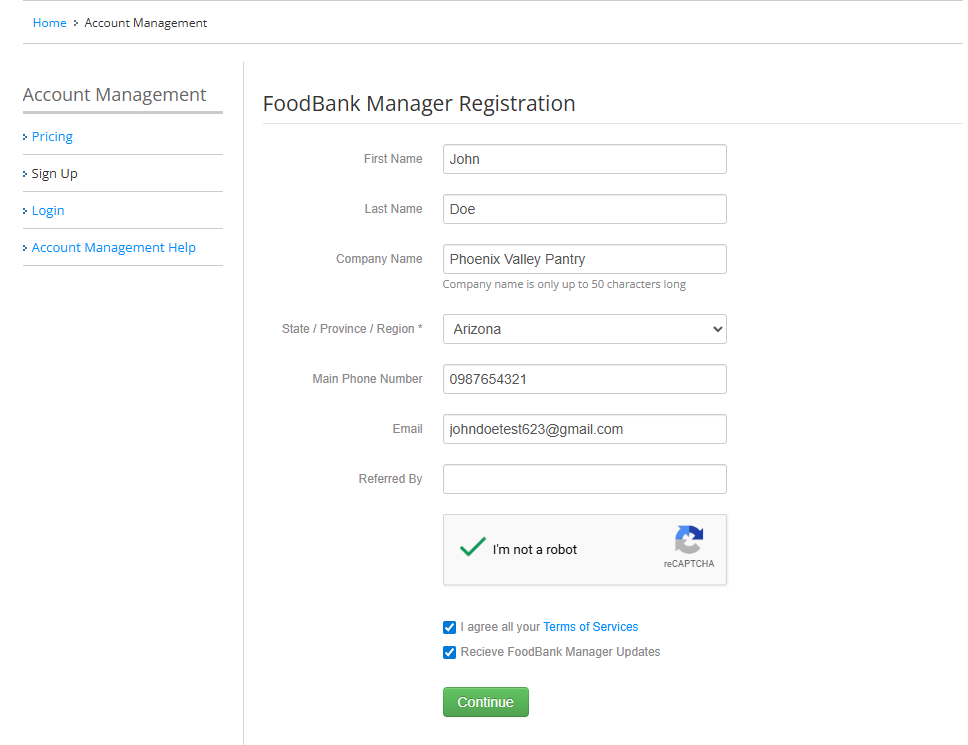
- You will be redirected to the FoodBank Manager registration page.
- Enter the required information, including first and last name, email address, phone number, etc.
Note: The name entered here will be associated with the account holder.
- Complete the CAPTCHA verification.
- Review and agree to the Terms of Service and opt in to receive FoodBank Manager updates if desired.
- Click Continue.
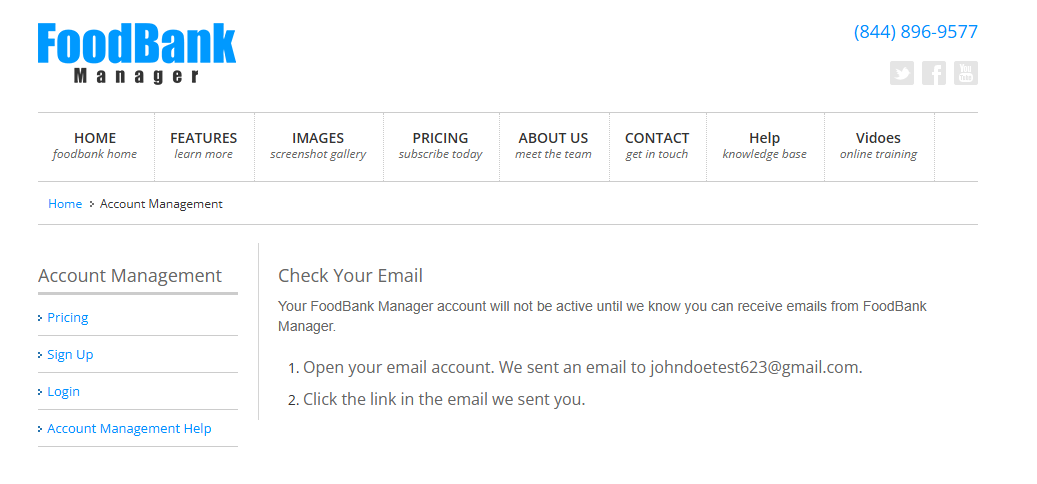
Check Your Email
After clicking Continue, you will be asked to check your email inbox.
Look for an email from FoodBank Manager with the subject “Please verify your email.”
If you do not see the email, check your spam or junk folder.
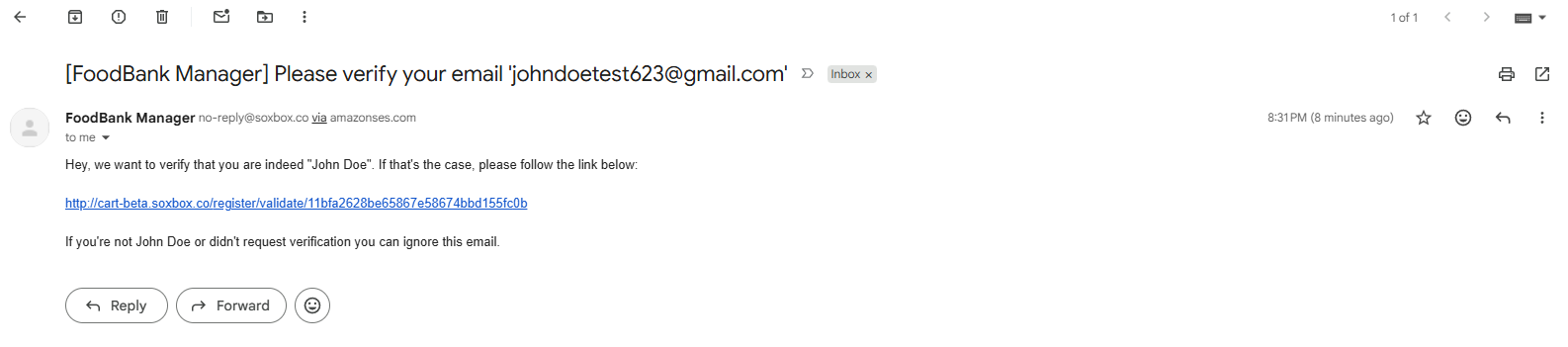
Click the verification link in the email to activate your account.
Important: Your account will not be active until the email is verified.
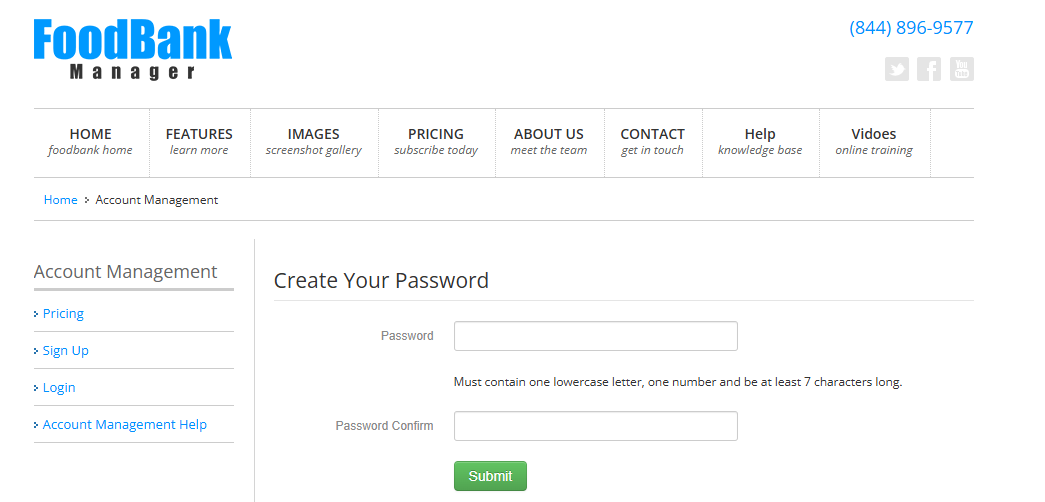
After clicking the verification link, you will be prompted to create a password for your cart account.
Setup your FBM System Details
1. Choose your Custom Domain Name
Enter a custom domain for your FoodBank Manager account
We recommend using an acronym or a shorter version of your pantry name to ensure availability
2. Create a username for your Super Admin account
Enter a username for your FBM account
3. Create a Password for Your FBM Account
Enter a password to complete your account setup
A password is required and cannot be skipped
4. Click Submit once finished
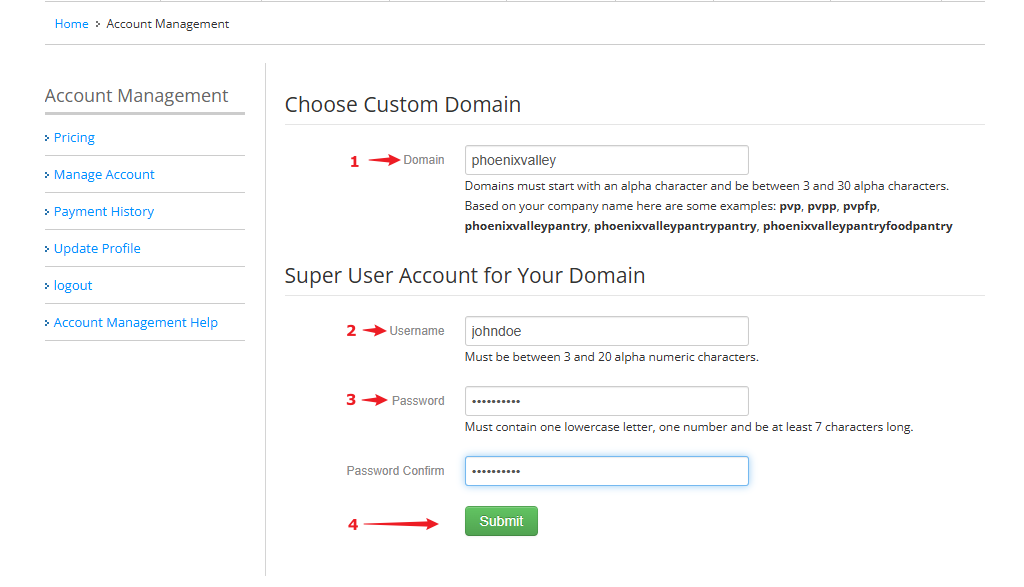
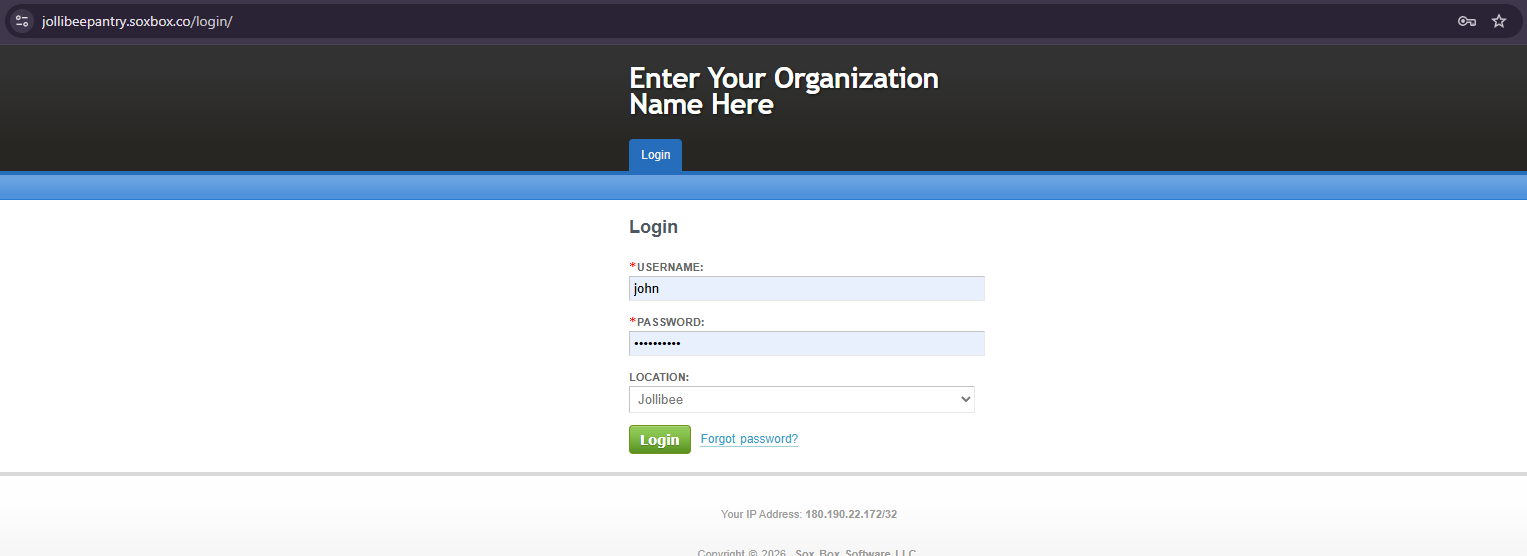
Note: Please use your username (not your email address) when logging into your FBM domain, as email-based login is not supported.Important:
FBM Domain: Log in using Username + Password
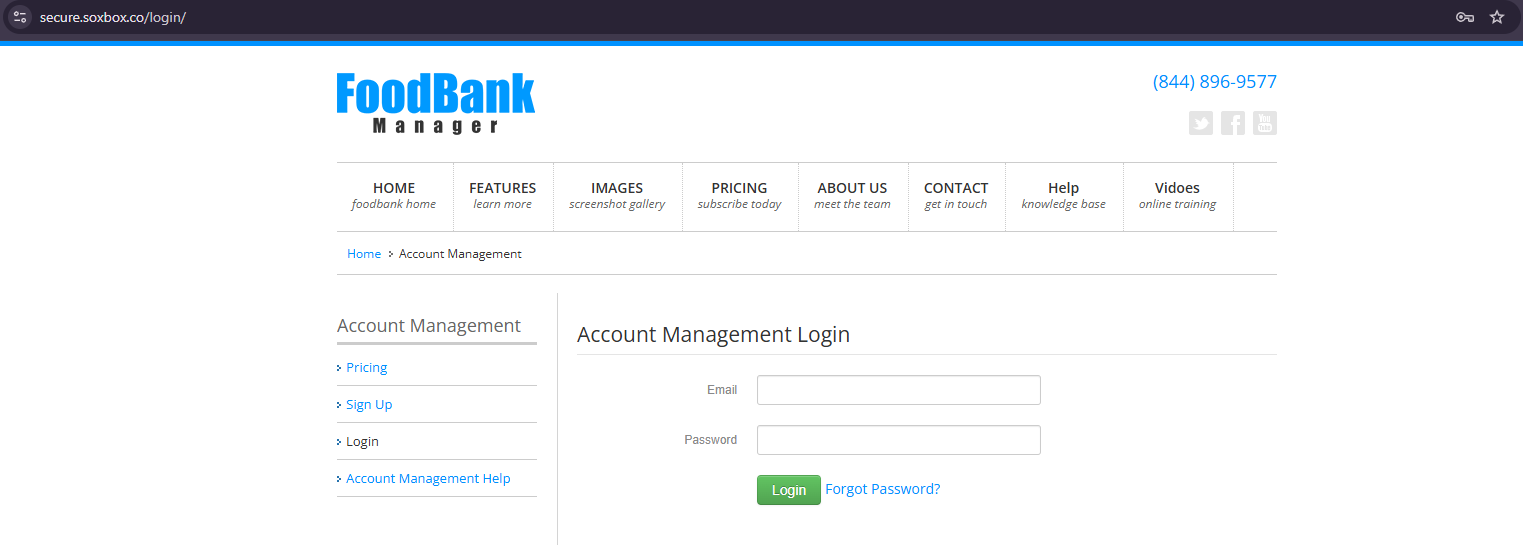
Cart Account (secure.soxbox.co): Log in using Email Address + Password
Please note that the FBM Domain and Cart Account are separate systems with different login credentials.
Review Your FoodBank Manager Information
On the Account Management page, you will see:
Company name
Domain name
Username
Selected plan and monthly price
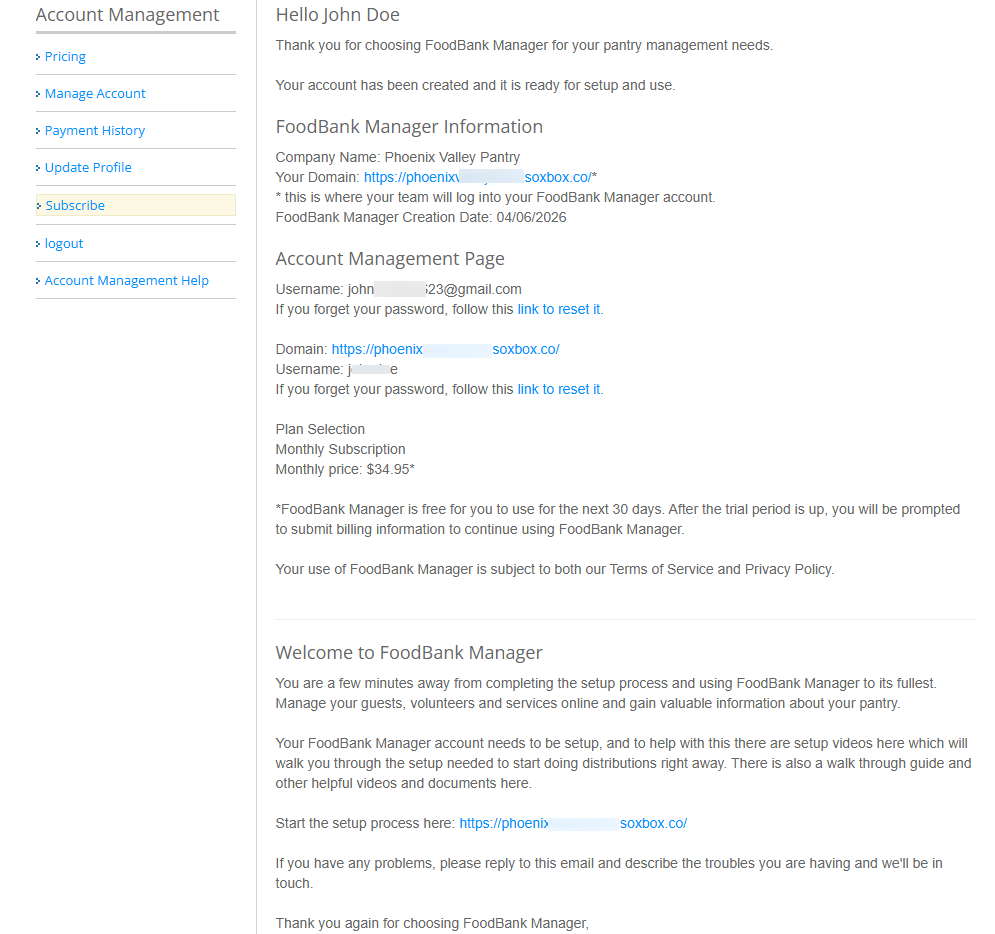
Note: FoodBank Manager offers a 30 day free trial. As your trial period nears its end, you will receive an email reminder.After the trial expires, you will have an additional 7-day grace period to decide whether you would like to continue using FBM for your pantry.
Below is a sample email from our Billing Department that you may receive as your trial approaches expiration.
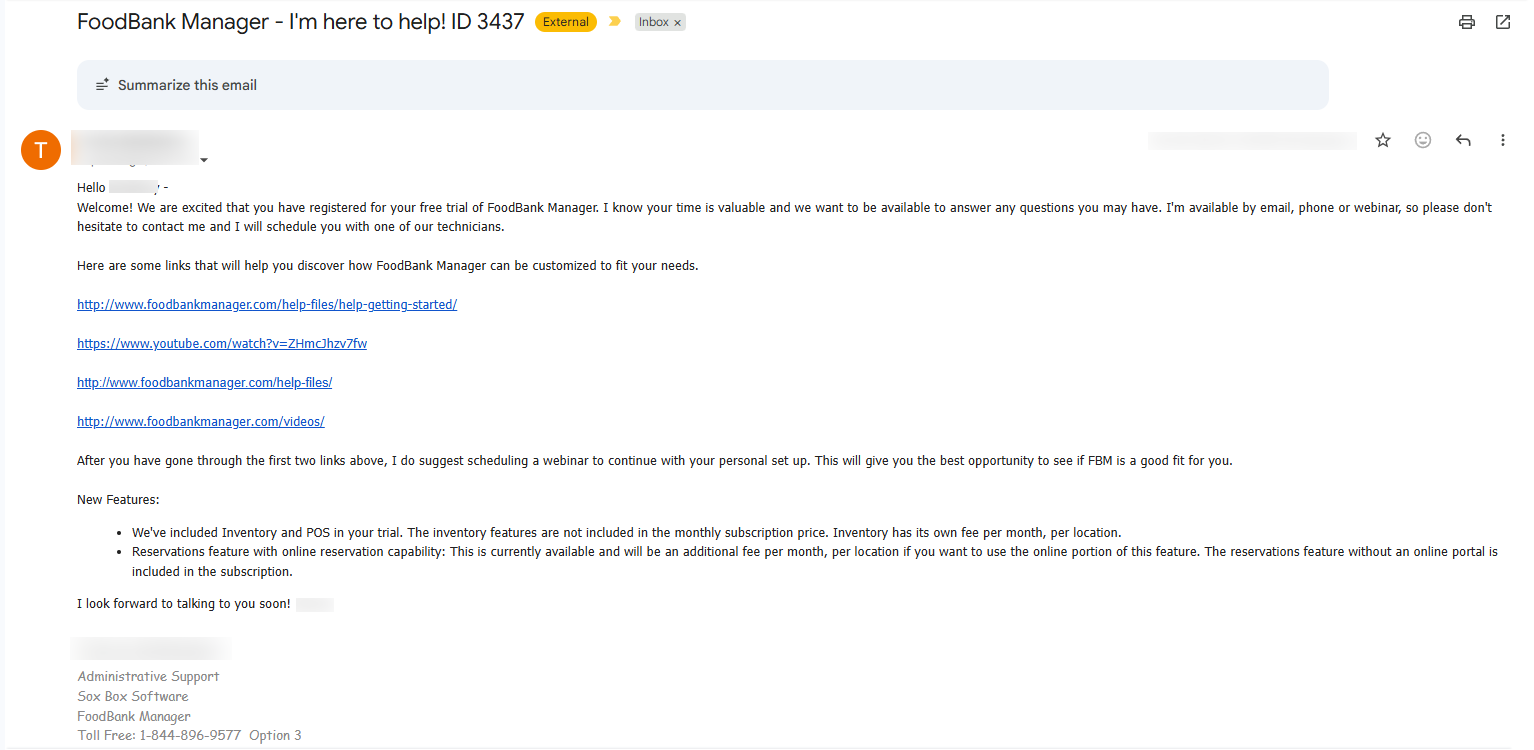
Access Your FoodBank Manager System
After completing registration, you will see a Welcome to FoodBank Manager section outlining the next steps.
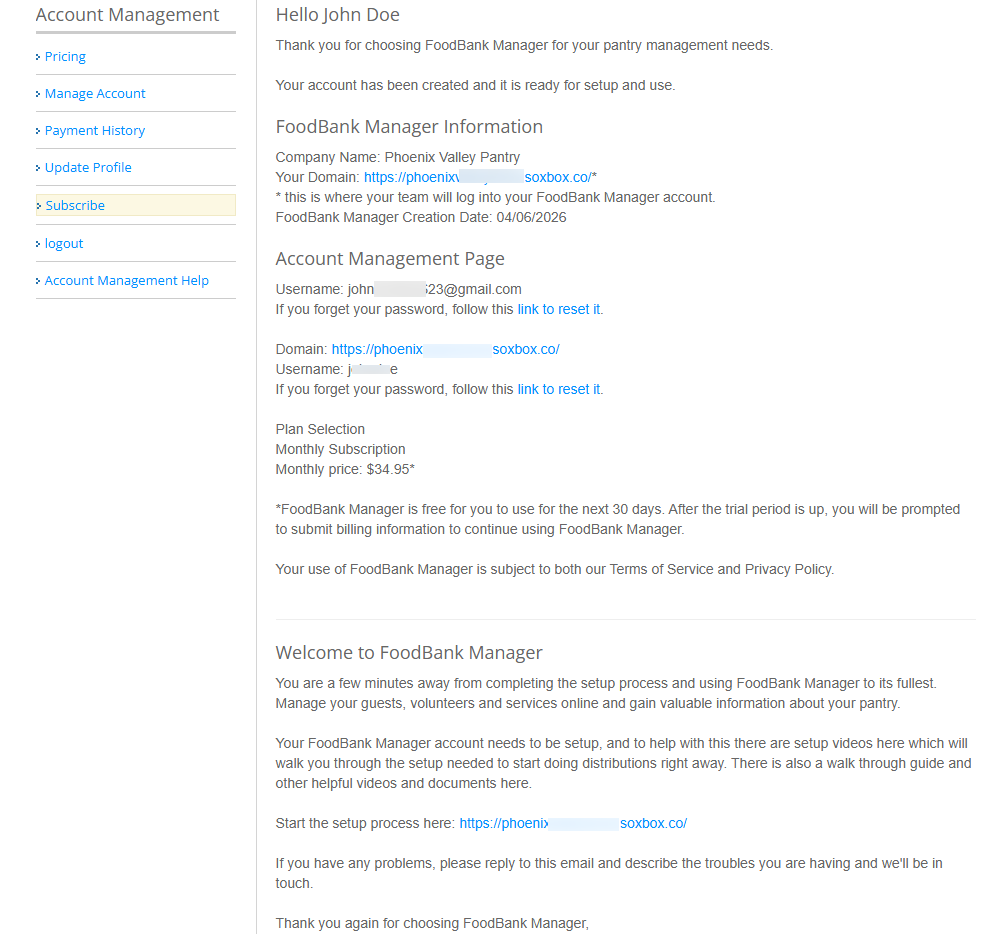
Click the provided link to login to your your FBM system using the username and password you created
Your FoodBank Manager system is now ready for setup.
Accessing your Cart Account
In this section, you will learn how to access your FBM Cart account through secure.soxbox.co. This is where you can manage your account settings, including adding locations, enabling add-ons such as Inventory & POS (Point of Sale), viewing payment history, and updating your profile and subscription.
Accessing secure.soxbox.co
- Open your web browser and go to secure.soxbox.co.
- Enter your email address and password .
Account Management
Pricing
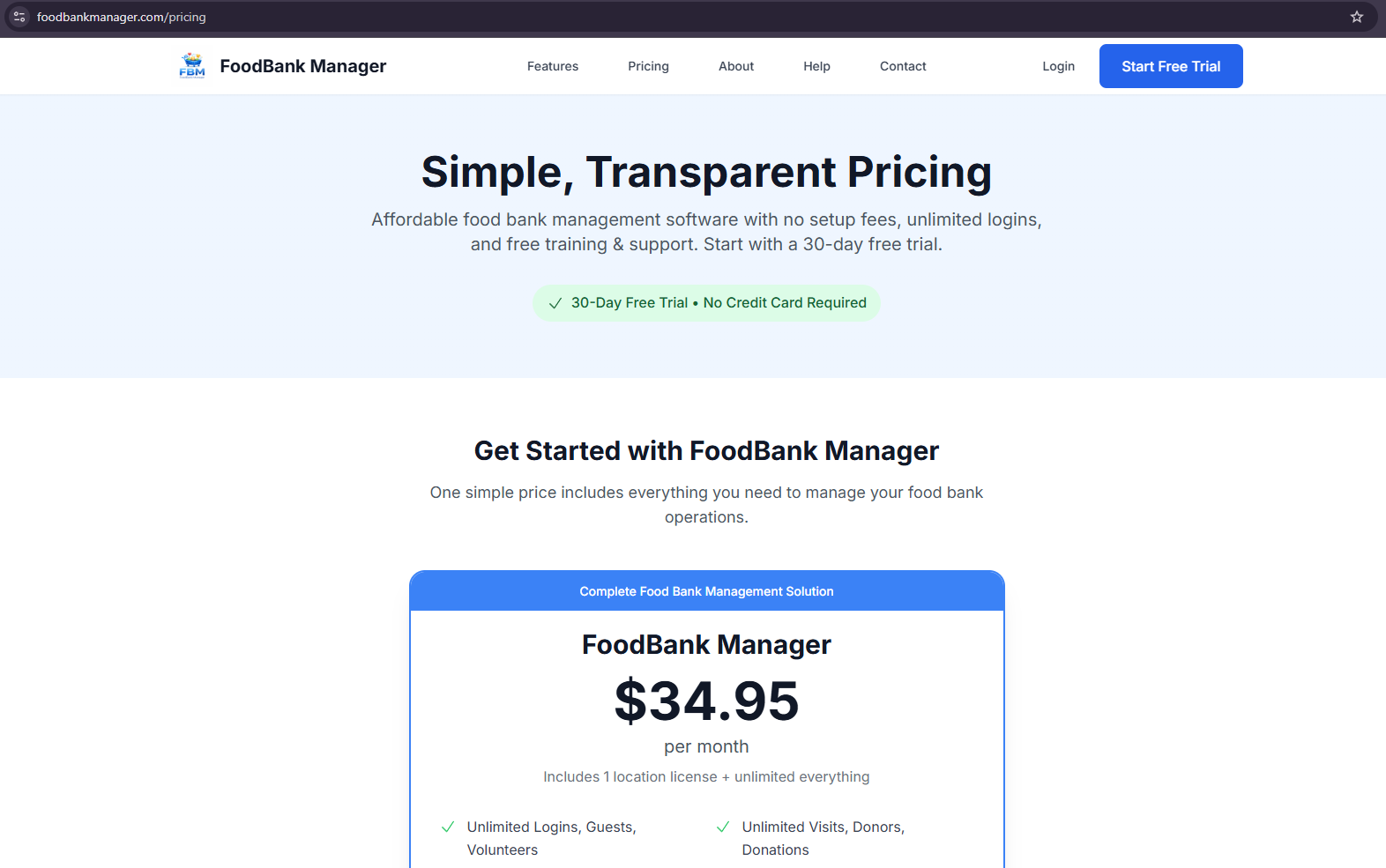
FoodBank Manager offers a base domain subscription priced at $34.95 per month, which includes unlimited logins, guests, volunteers, visits, donors, donations, and more. This plan also provides one pantry (domain) and one location license, with the option to start a 30-day free trial.
In addition to the base plan, there are optional add-ons:
Additional Locations at $25 per month per location, which allow location-specific check-ins and shared guest pools with aggregate reporting.
Inventory with Point of Sale (POS) at $25 per month per location, designed specifically for food banks and food pantries to manage inventory and distribution.
Overall, the pricing structure is modular, allowing organizations to start with a core domain and add locations or inventory features as needed.
To learn more about FBM pricing, optional add-ons, and trial options, please visit our FBM website at https://www.foodbankmanager.com/pricing
Manage Account
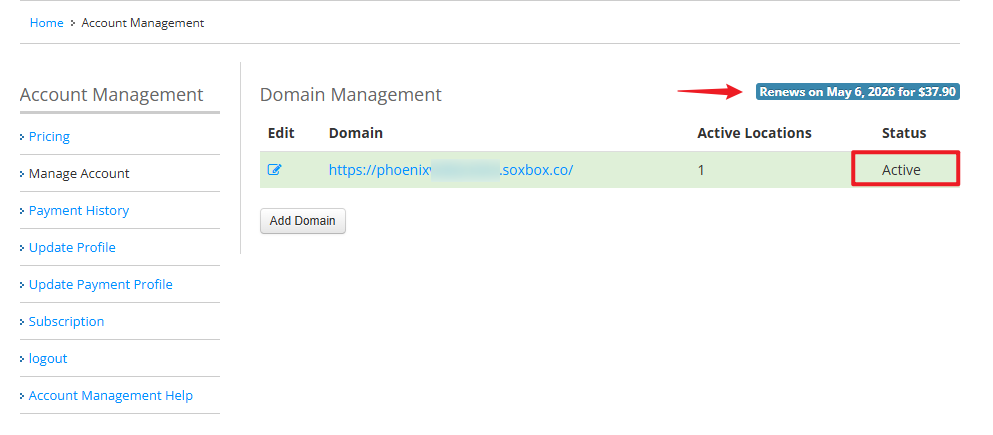
In this section administrators can manage their FBM domain and related settings.
Note: The image below is an example of what you will see once you are subscribed to FBM. It shows your subscription status and when it will renew.
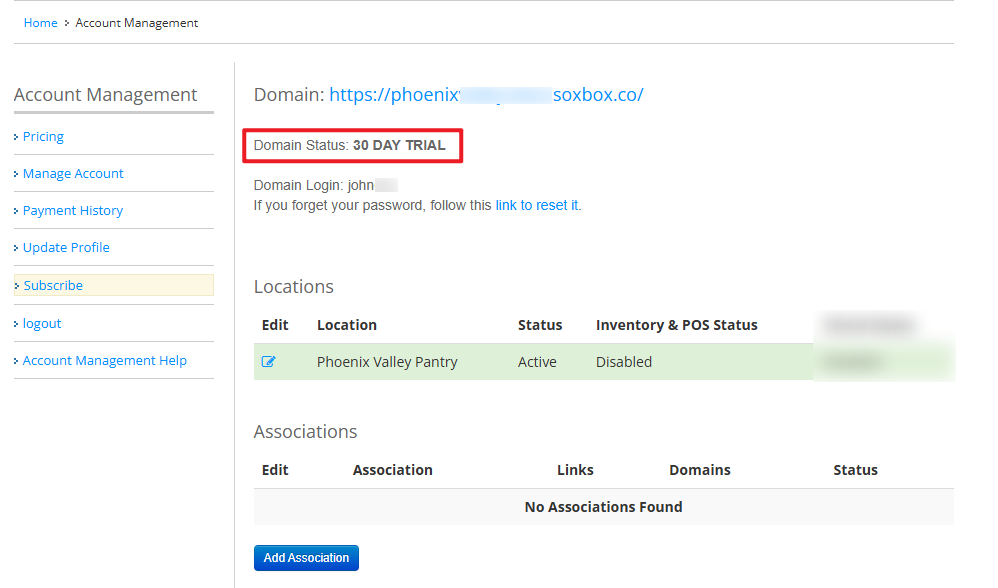
Once you click Edit, you can view your domain URL, domain status, and login information, as well as access the option to reset your password if needed.
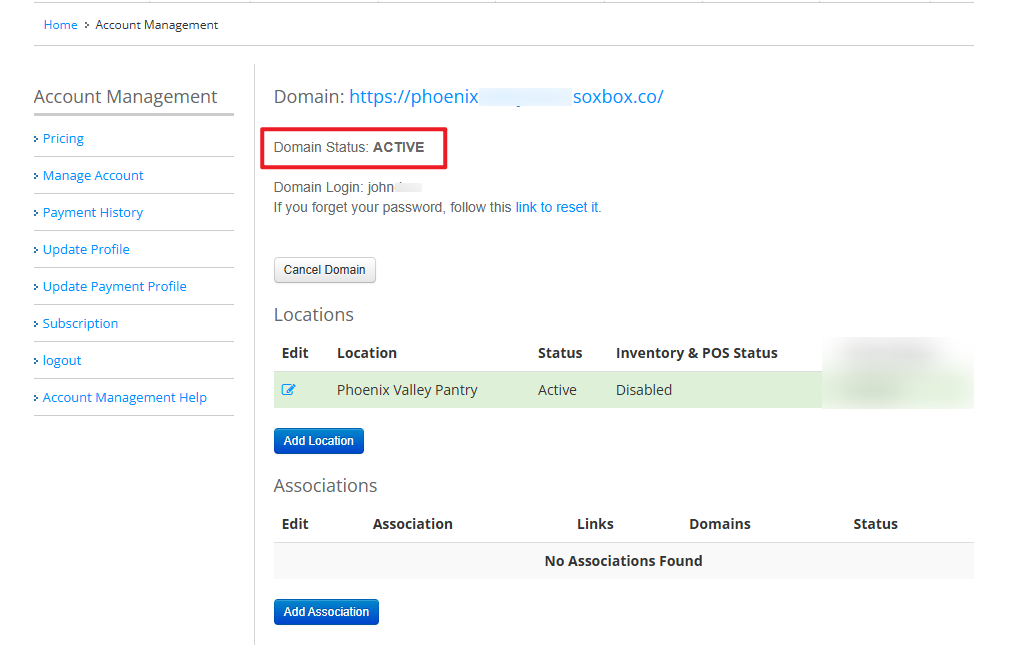
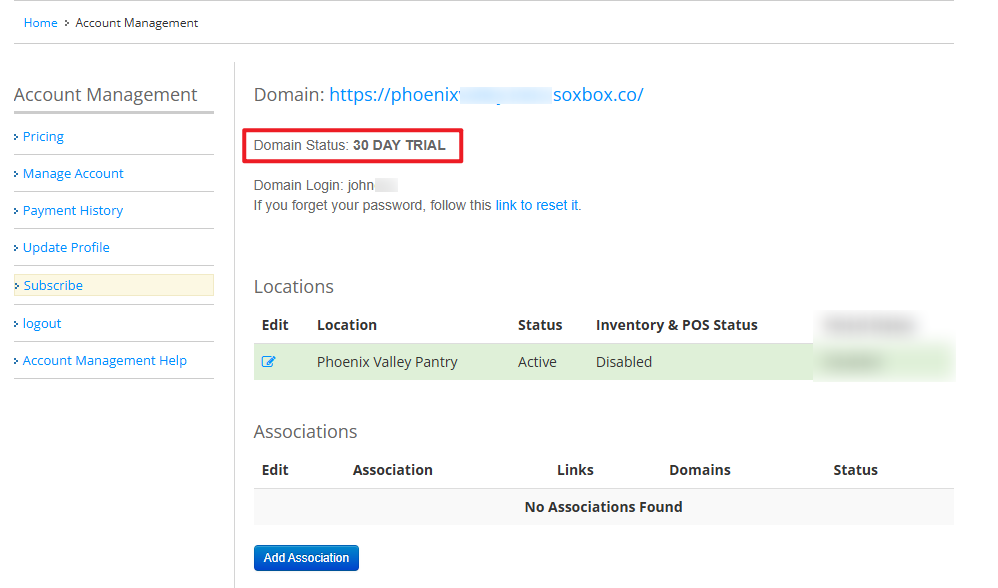
It also allows you to manage locations linked to your domain, including their active status and whether Inventory & POS is enabled for each location. New locations can be added directly from this page.
In addition, the page includes an Associations section, where domains can be linked if applicable. If no associations are configured, this section will display accordingly, with the option to add one if needed.
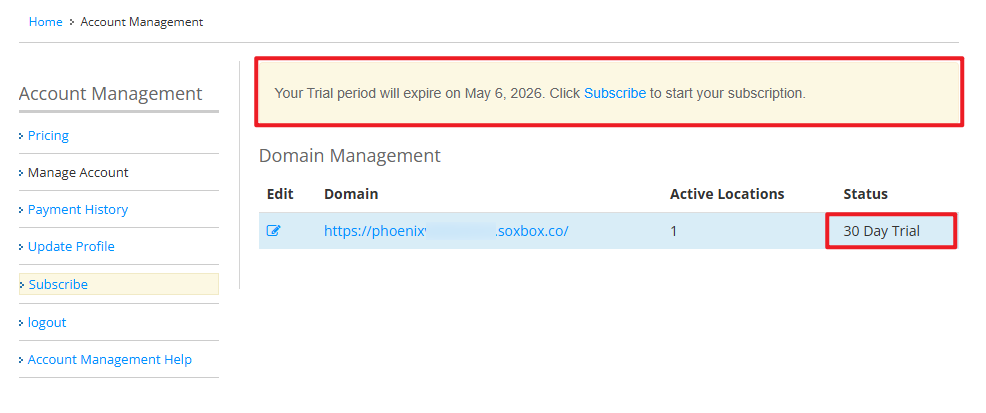
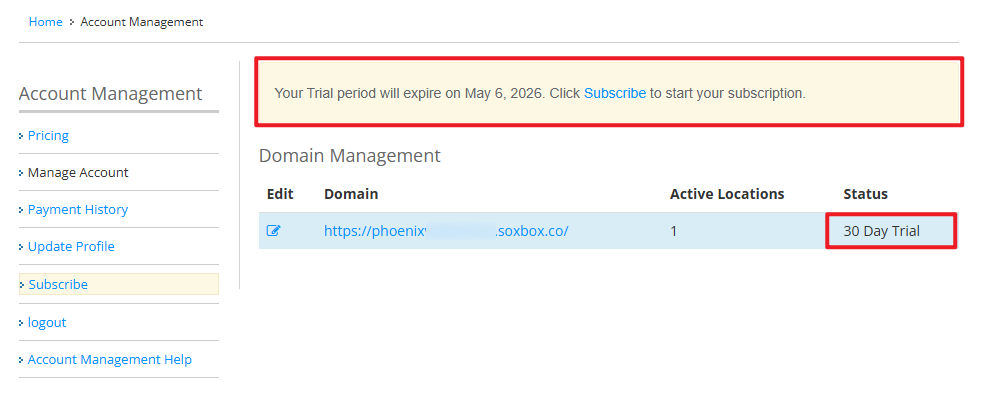
Note: The image below shows a sample view of an account in the 30-day trial period. It displays the trial status, expiration date, and indicates that the domain status is set to 30 Day trial
Payment History
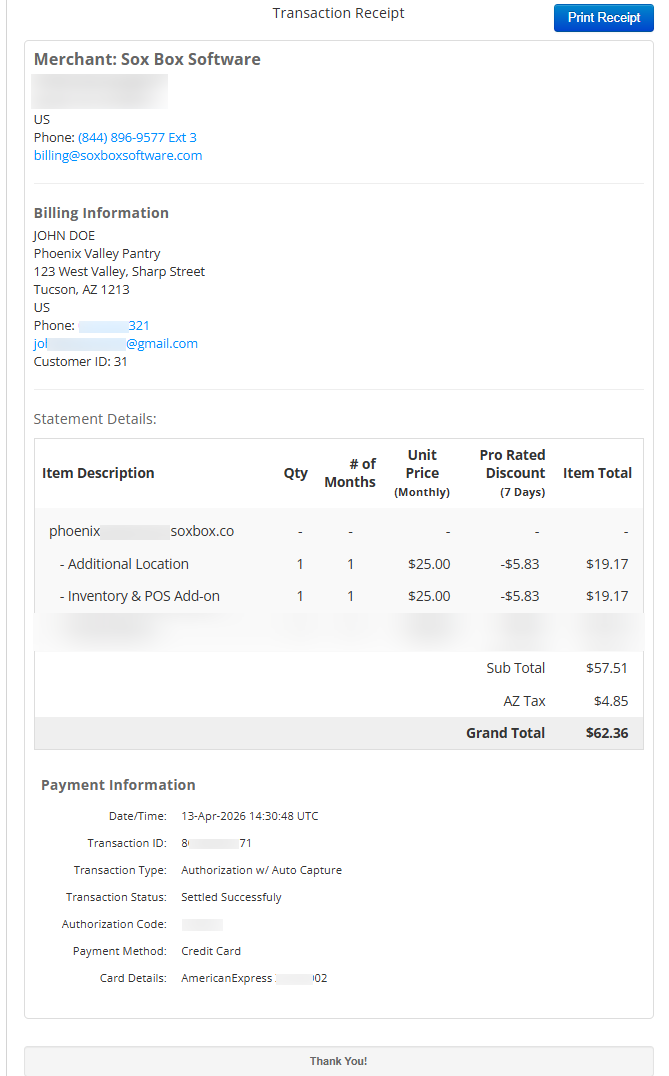
This section provides a detailed record of all subscription-related transactions for the account.
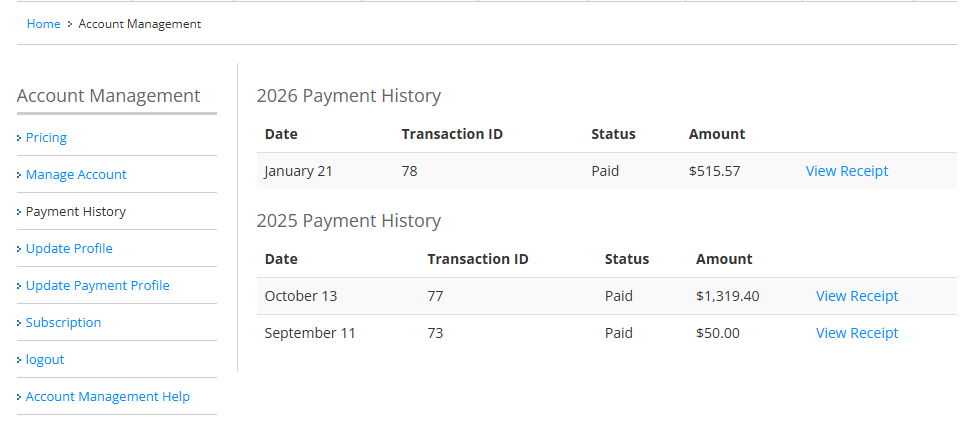
Payments are organized by year, showing key details such as the payment date, transaction ID, payment status, and amount paid. Each transaction also includes a View Receipt button, allowing users to access and download individual payment receipts for recordkeeping or accounting purposes.
Update Profile
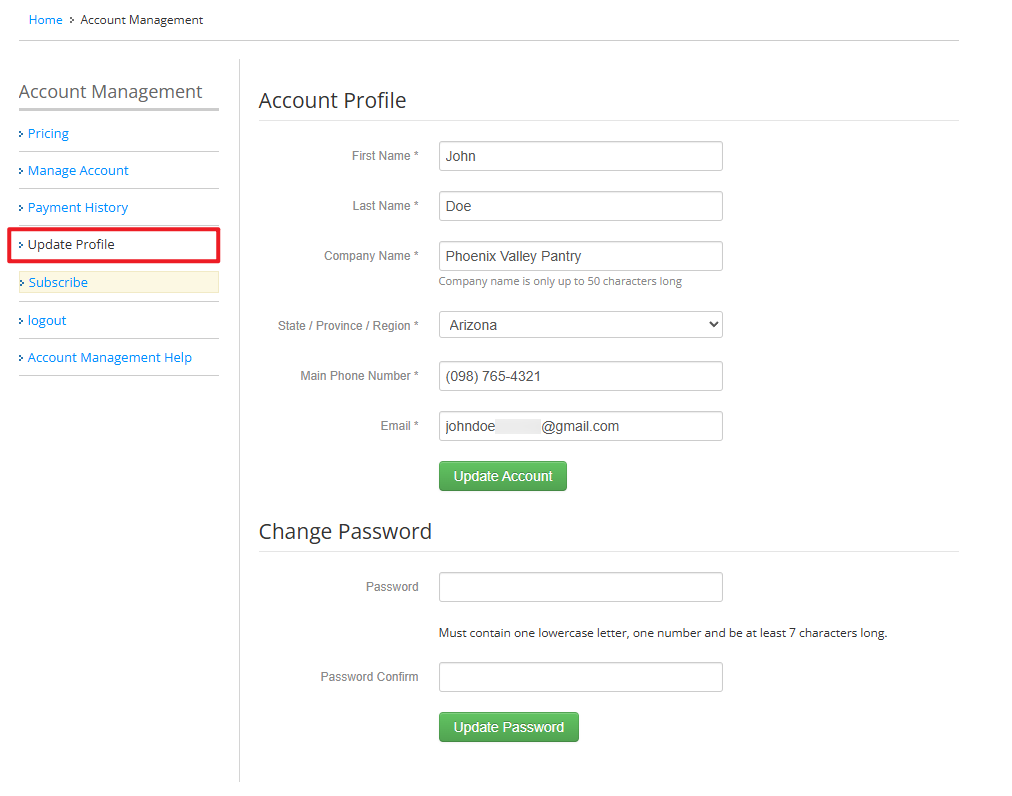
This section allows users to manage their account profile information and update their login credentials.
You can update key account details such as first name, last name, company name, main phone number, and email address. Once changes are made, clicking Update Account will save the updated profile information.
The page also includes a Change Password section, where users can securely update their account password. Passwords must meet the required criteria shown on the screen, and changes can be saved by clicking Update Password.
Update Payment Profile
This page is used to manage billing and payment information associated with the FBM subscription.
From this section, you can update the billing contact email address, which is where payment receipts and billing notifications are sent. This email address may be different from the original sign-up email. You can also review and update billing details such as the billing name, address, and location information.
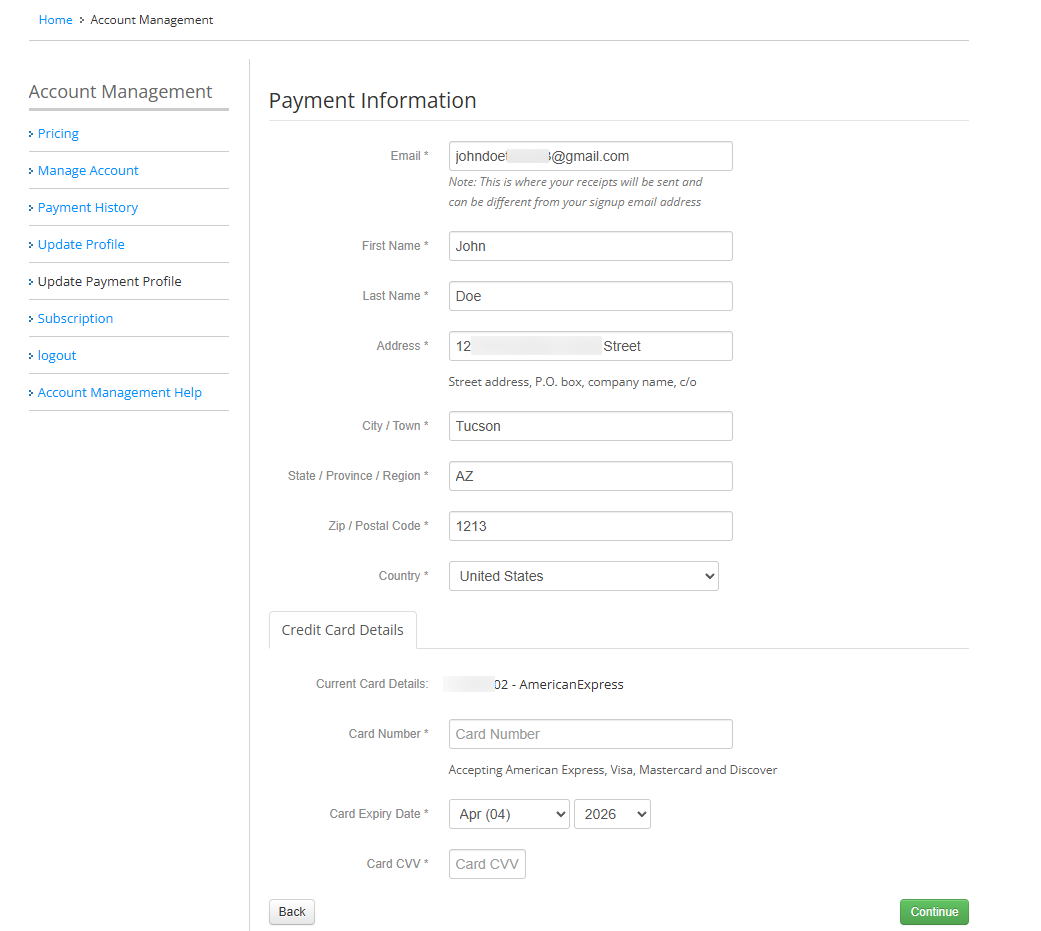
Additionally, this page allows you to update credit card details, including the card number, expiration date, and CVV. Supported payment methods include American Express, Visa, Mastercard, and Discover. Once changes are made, clicking Continue will save the updated payment information.
The image below shows the payment setup screen that appears when you click Subscribe during or after your 30-day trial period and hit Continue.
You will be redirected to the payment information page, where you can enter your details in the Pay by Credit Card section.
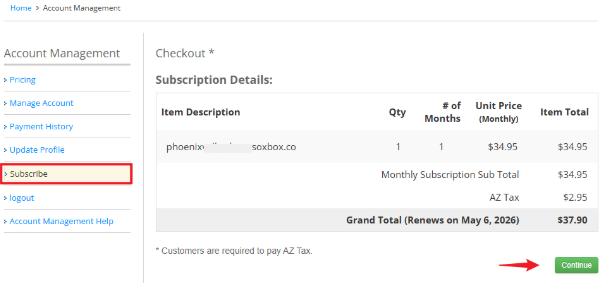
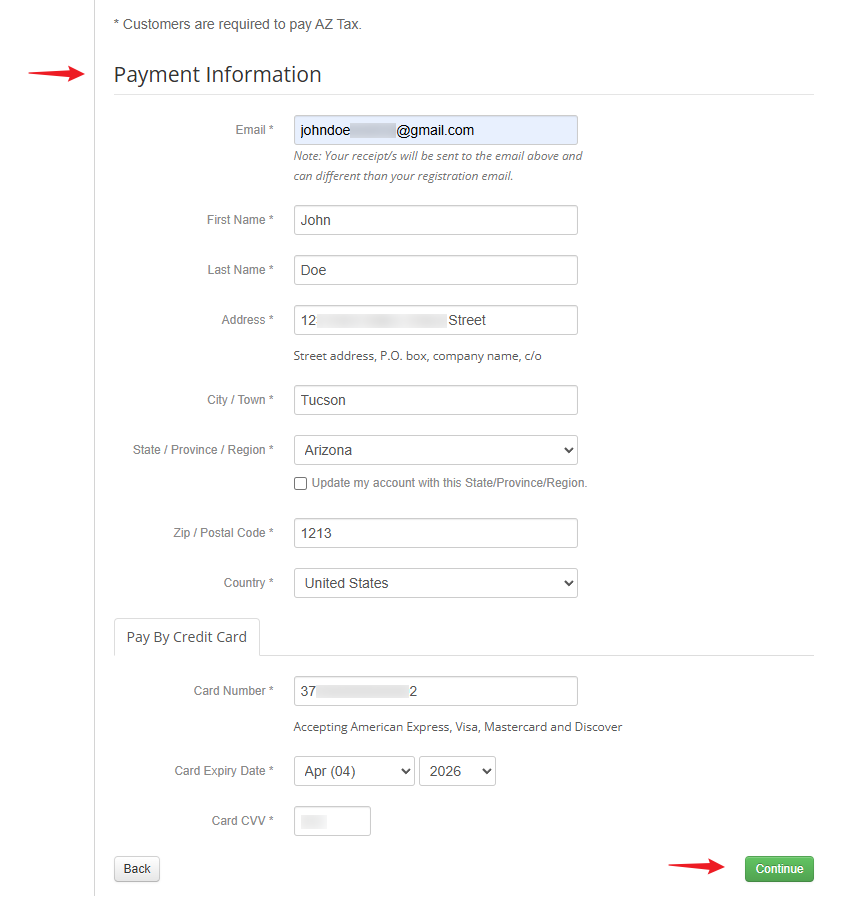
Once the payment is completed successfully and you click Continue, your account will be updated to Active status, and the payment information section will be displayed.
Subscription
This section provides a detailed breakdown of your current FBM subscription and any associated add-ons and its status
This is the view displayed in Manage Account while your account is still in the 30-day trial period.
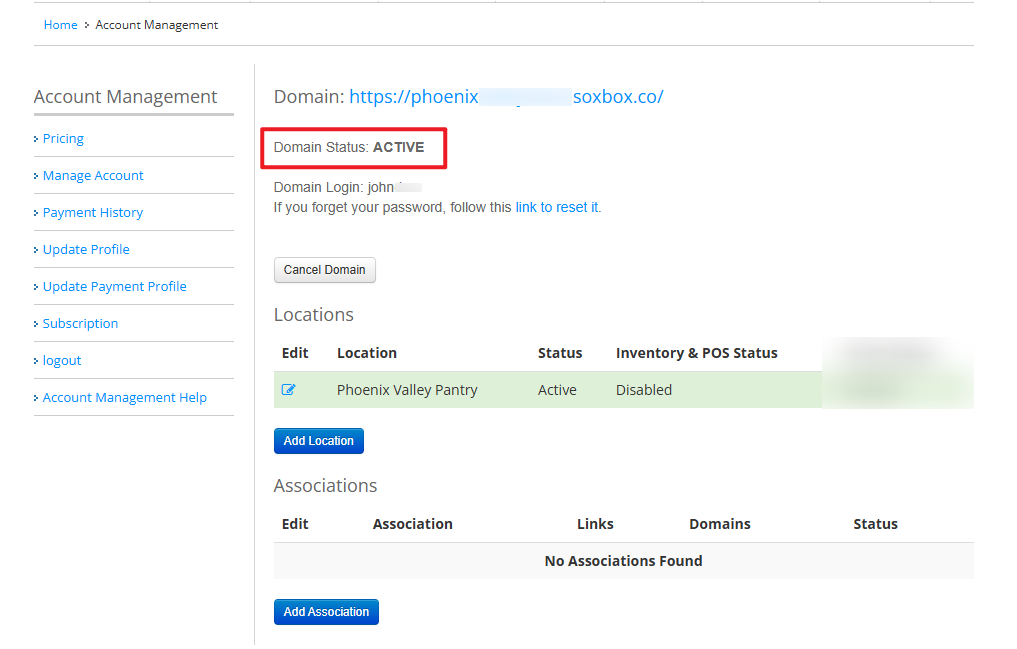
The image below is an example of what you will see once you are subscribed to FBM. It shows your subscription status and when it will renew.
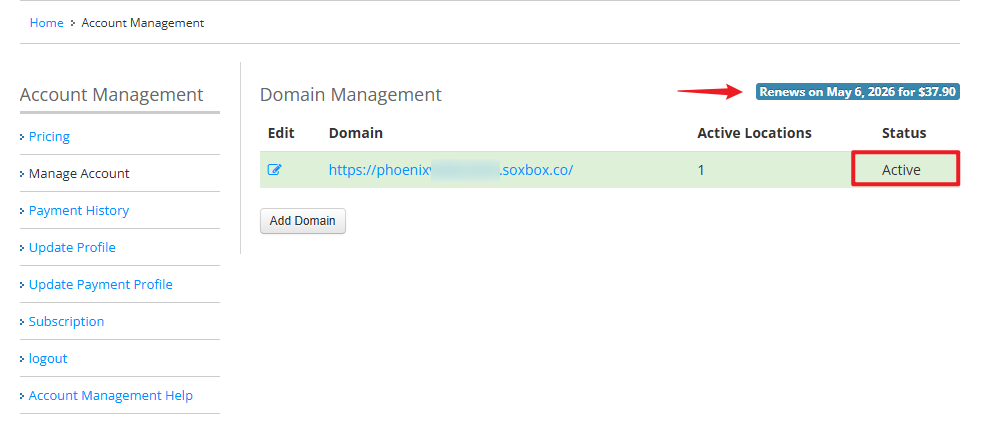
After clicking Edit, you will see that your Domain Status is set to Active. You can also view the status of your Inventory and POS on this page.
Subscription Details
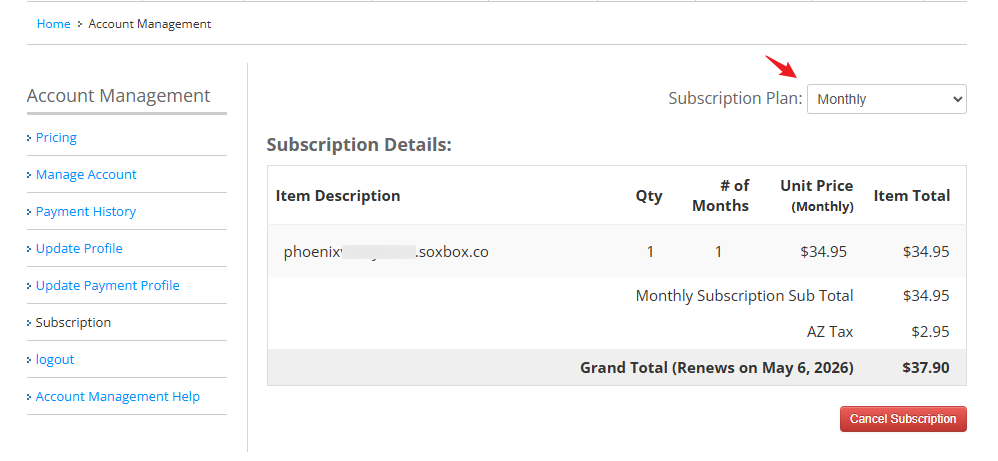
In this section it displays the subscription subtotal, grand total, and renewal date, allowing you to clearly understand your billing amounts and when your subscription will renew. You can also manage your subscription directly from this page, including the option to cancel the subscription if needed.
Sample image of a 30-day trial account with a Continue button
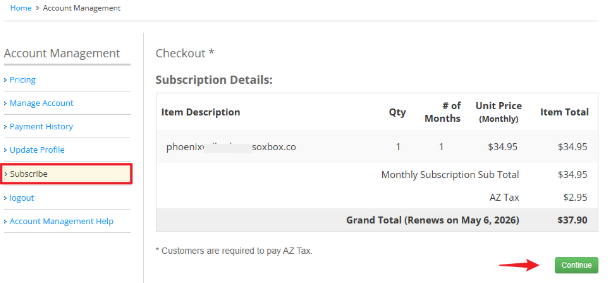
Once the payment is completed successfully and you click Continue, your account will be updated to Active status.
Sample Image of a subscribed account with a Cancel Subscription button.
Note: If you wish to change your subscription plan, you will see a yellow reminder banner about the changes. Make sure to read it carefully before clicking Update Subscription.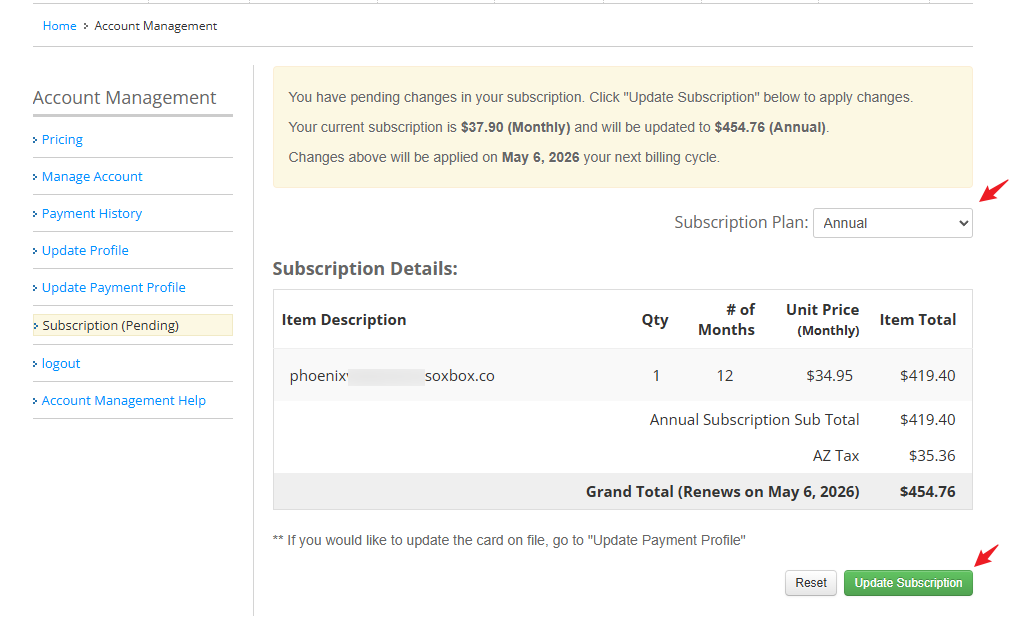
FAQs / Frequently Asked Questions
- How long is the free trial period?
FoodBank Manager offers a 30-day free trial. - Will I be notified before my trial expires?
Yes, you will receive an email reminder from our Billing Department as your trial period approaches expiration. - What happens after the trial period ends?
After the 30-day trial, you will enter a 7-day grace period where you can decide whether to subscribe. - How do I subscribe after my trial?
Go to secure.soxbox.co and login then navigate to Manage Account > Domain Management, click Subscribe, then click Continue and enter your payment information. - What happens after I complete the payment?
Once payment is successful, your account will be set to Active status and your subscription details will be displayed. - Where can I view my subscription details?
You can view your subscription details in the Subscription section of your Cart Account (secure.soxbox.co). - Can I update my payment information?
Yes, you can update your billing and payment details in the Update Payment Profile section once your account is subscribed. - Where can I view my payment history?
You can view all transactions in the Payment History section, including payment dates, amounts, and receipts. - What is the difference between FBM Domain and Cart Account login?
FBM Domain and Cart Account are separate systems with different login methods. FBM Domain requires a username and password, while Cart Account uses an email address and password. - Can I change my subscription plan?
Yes, you can modify your subscription plan. A yellow banner will appear showing pending changes. Review it before clicking Update Subscription.
- Can I cancel my subscription?
Yes, you can cancel your subscription in the Subscription Details section of your Cart Account.
- What does Active status mean?
Active status means your subscription is paid and your account is fully accessible. - What does 30 Day Trial status mean?
This means your account is still in the trial period and payment has not yet been completed. - Where can I access pricing details?
You can view pricing details at our website foodbankmanager.com/pricing
Was this article helpful?
That’s Great!
Thank you for your feedback
Sorry! We couldn't be helpful
Thank you for your feedback
Feedback sent
We appreciate your effort and will try to fix the article