TABLE OF CONTENTS
- Areas Custom Fields are Used
- Create a New Custom Field (CF)
- CF Field Settings - Field Label
- CF Field Settings - Field Type
- CF Field Settings - Set if Required
- CF Field Settings - Others Living in Home Type 1
- CF Field Settings - Answer Options
- CF Field Settings - Role
- CF Field Settings - Status
- Editing a Custom Field
- Deleting a Custom Field
- Extra CF Field Type - Signatures
- Associating the Visit Custom Fields Correctly
Custom Fields provide unlimited flexibility to record and report out the data unique to your pantry.
Areas Custom Fields are Used
To create a custom field, go to Settings > Custom Fields. Choose the area you want to create the custom field for from the list of options.
Below is a list and description of the available areas for custom fields.
- Guest – This area allows you to collect additional data that will be a part of each guest record. Consider this as permanent or semi permanent guest data. This data is recorded for each visit.
- Visit – Consider this area's fields as survey questions which need to be answered each visit and are recorded for that visit.
- Volunteer – Create custom fields that will include information about a volunteer or team member as part of their record.
- Donation – Add custom donation fields when you need to collect information that does not already have a field for that data.
- Days End – Add fields that will be used in the Days End Report.
- Donor – Create custom fields that will include information about a donor as part of their record.
- Time Entry Fields – Create custom fields to be answered for team members when recording service time.
Note: The Donation Tool, Days End Report, Donor Records and the Time Tracker are built using custom fields. These are editable to fit your needs.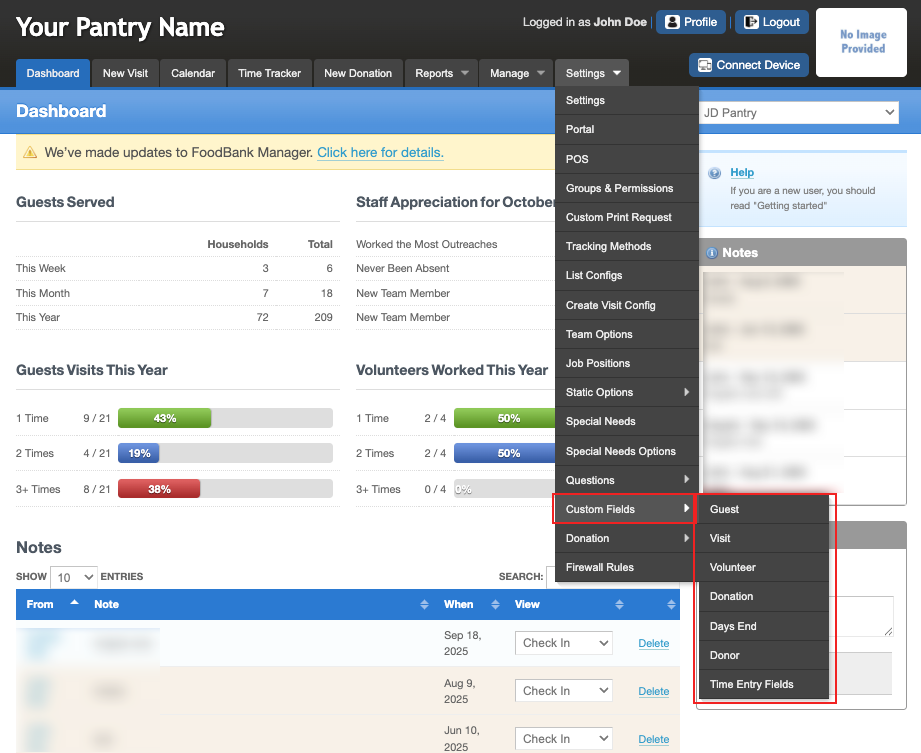
Create a New Custom Field (CF)
Once you have chosen an area from the list, you will choose to edit or delete an existing field or create a new one.
To create a new custom field, click on "Create New Field" next to the gold key.
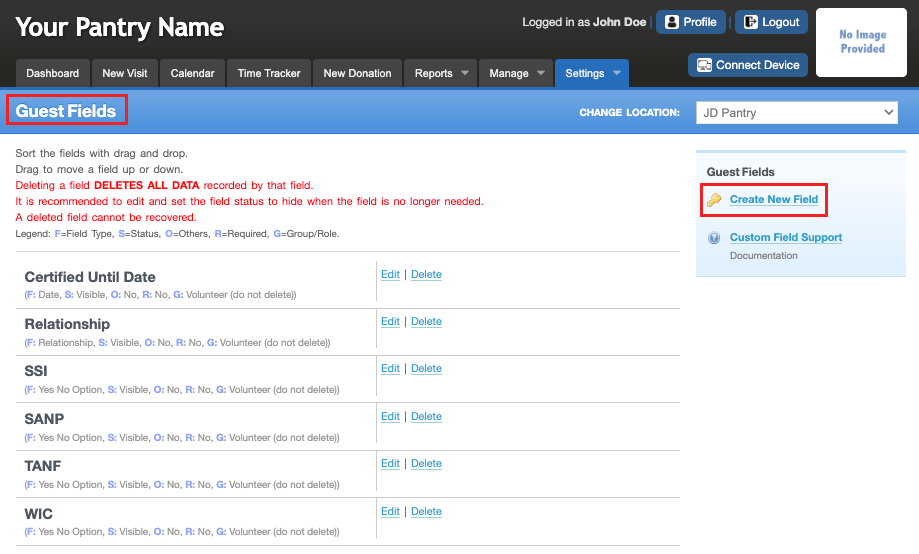
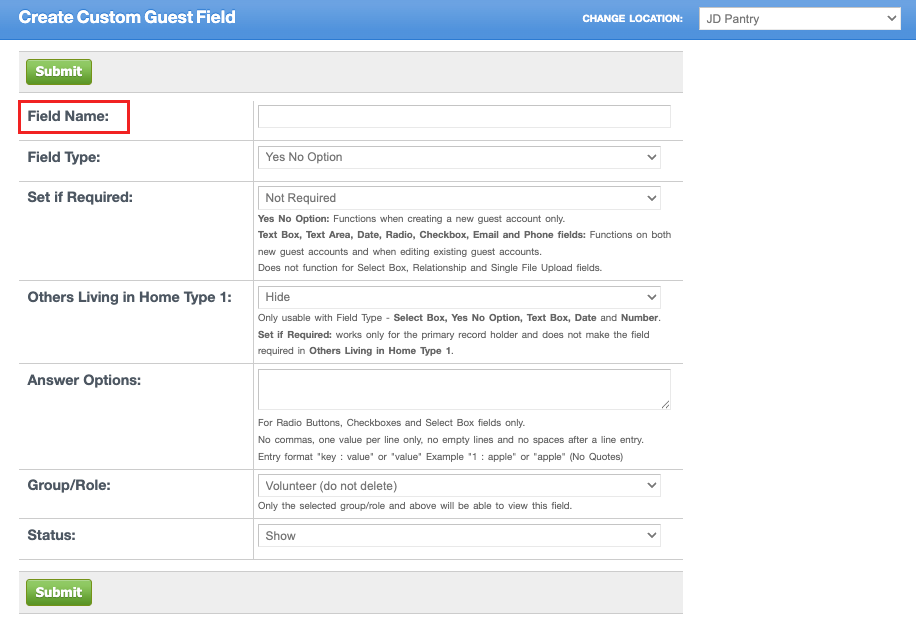
Working from top to bottom, fill in the information and click "Submit" to save.
CF Field Settings - Field Label
This is the name of the field. When naming, choose a name that tells your volunteers how to use this field so they understand what data they are trying to collect.
CF Field Settings - Field Type
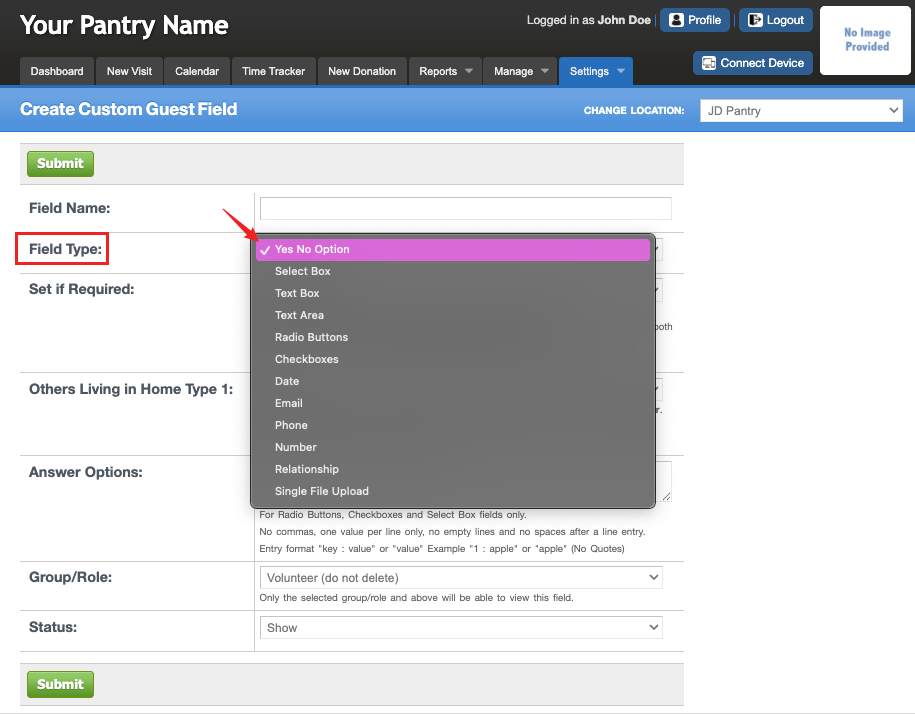
Click the drop-down menu to display the "Field Type" choices. Choose the field type that will best fit the data you wish to collect.
Example: I want to identify if a client receives SNAP. I would choose the Yes No Option field type.
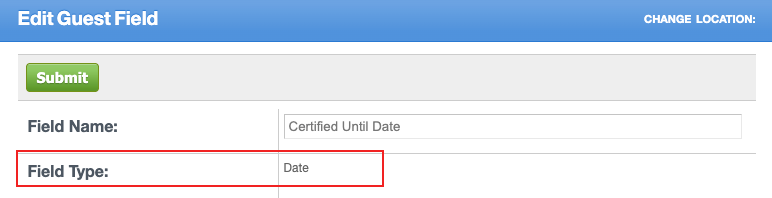
Once you save the field and attempt to edit it later, the field type cannot be changed. If you chose the wrong field type you will need to remake a new field. Delete the wrong field you made earlier if not used, or hide it if it has already been used to collect data.
CF Field Settings - Set if Required
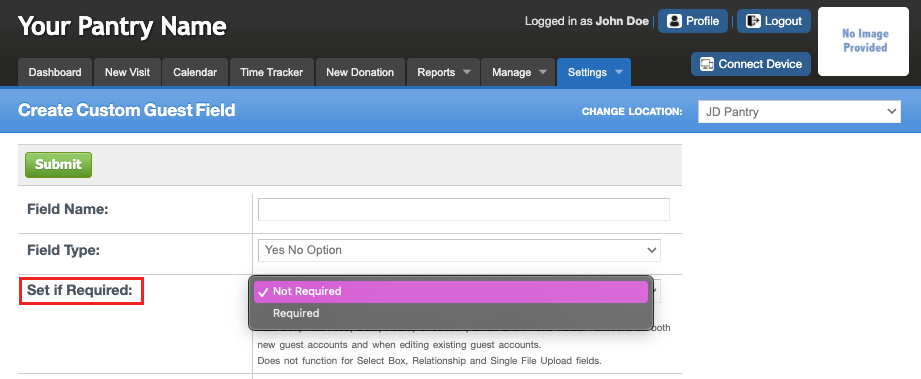
This setting allows you to specify whether the field is required or optional. Additional details about how this function works are provided below the field box.
Yes No Option: Functions when creating a new guest account only.
Text Box, Text Area, Date, Radio, Checkbox, Email and Phone fields: Functions on both new guest accounts and when editing existing guest accounts.
Does not function for Select Box, Relationship and Single File Upload fields.
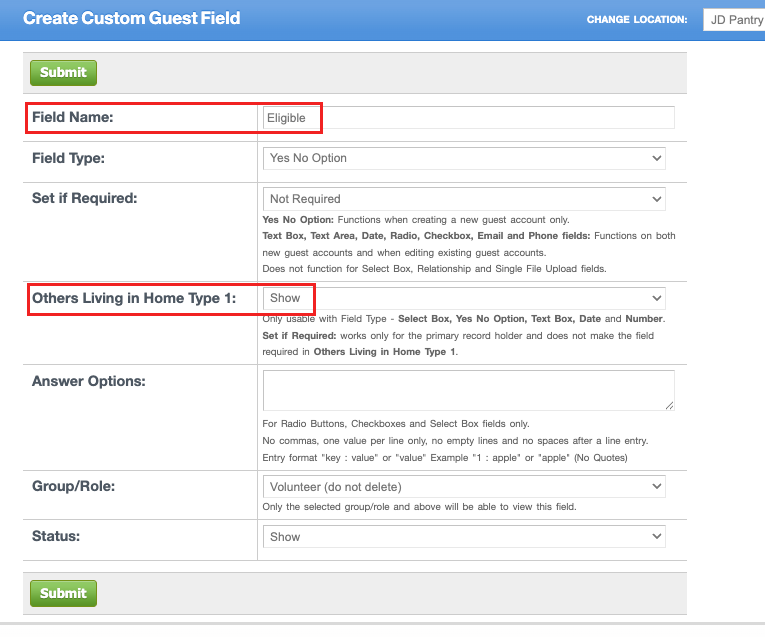
CF Field Settings - Others Living in Home Type 1
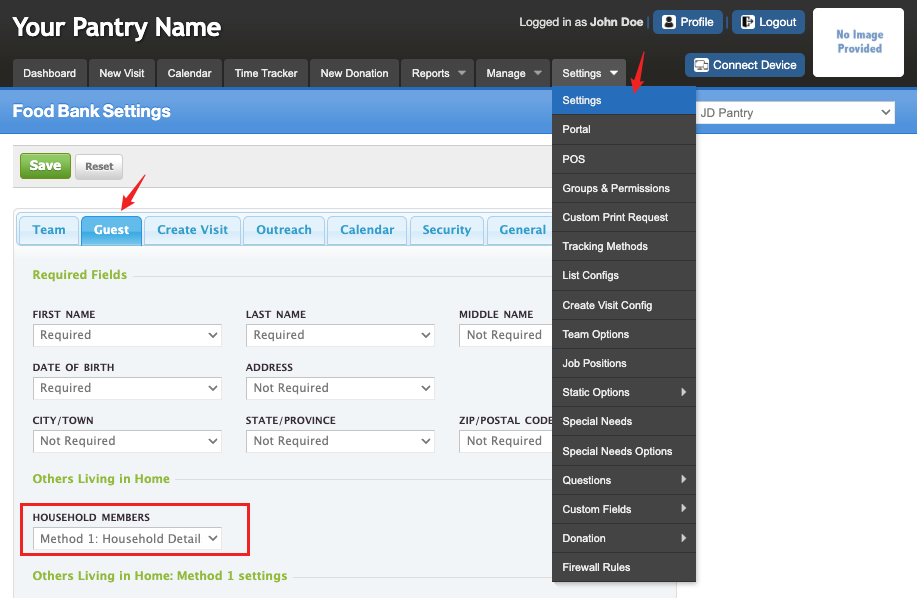
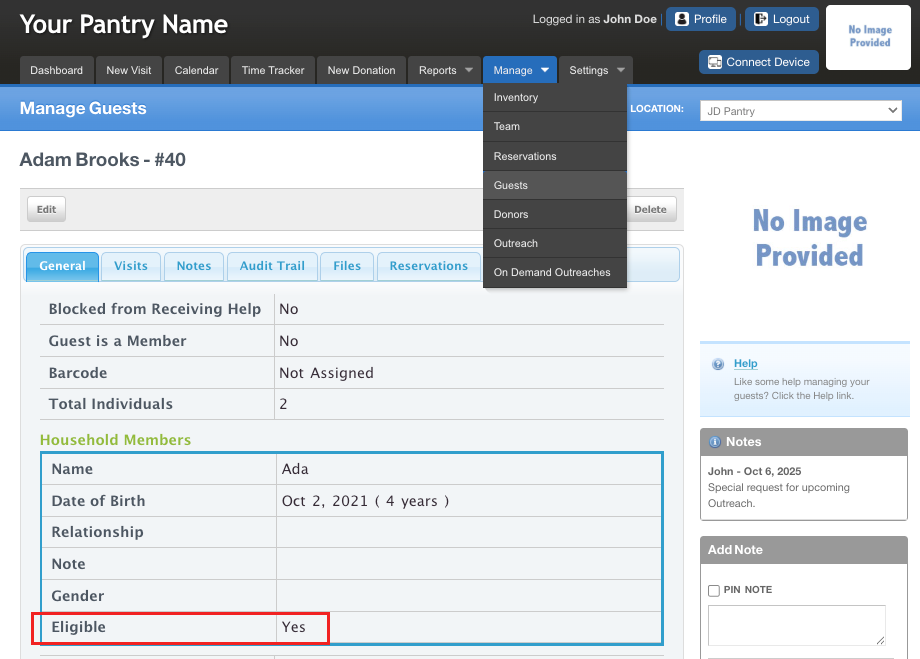
This setting determines whether the field will be shown for others living in the home with the main guest on record. To ensure it functions correctly, make sure your Guest setting under Settings > Settings > Others Living in Home is set to Household Details. Otherwise, this option will not work as intended.
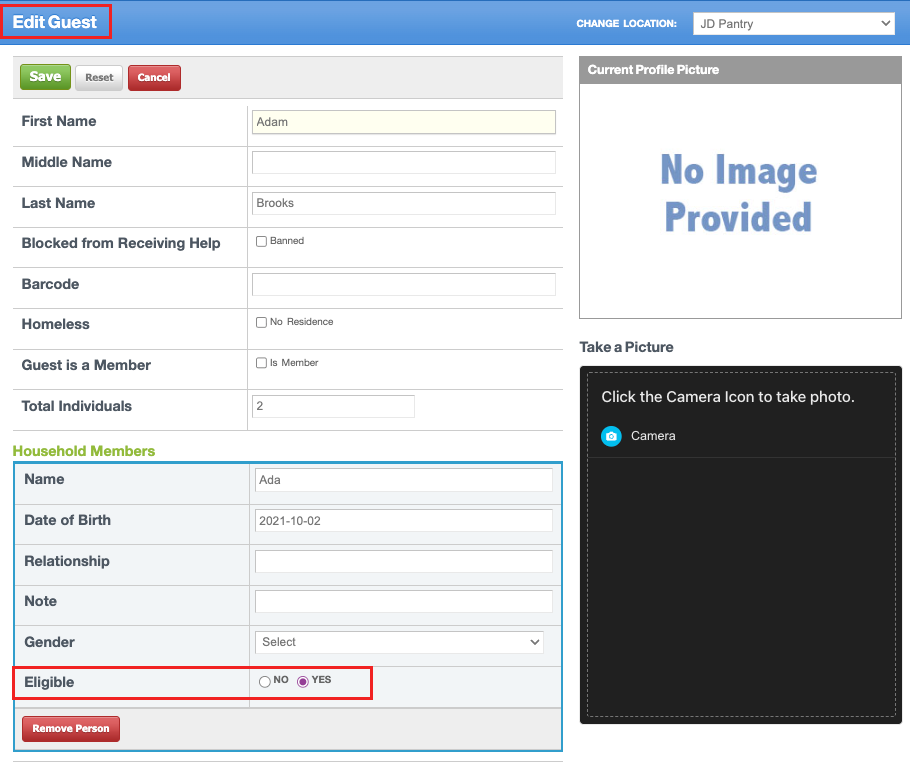
Now, when you Edit or View the guest in "Manage> Guests" , this field will be visible.
CF Field Settings - Answer Options
This setting allows you to define the available answer choices for this field. It applies only to Radio Buttons, Checkboxes, and Select Box field types. Enter one value per line with no commas, empty lines, or spaces after each entry. Use the format key : value or simply value (without quotes). For example: 1 : apple or apple.
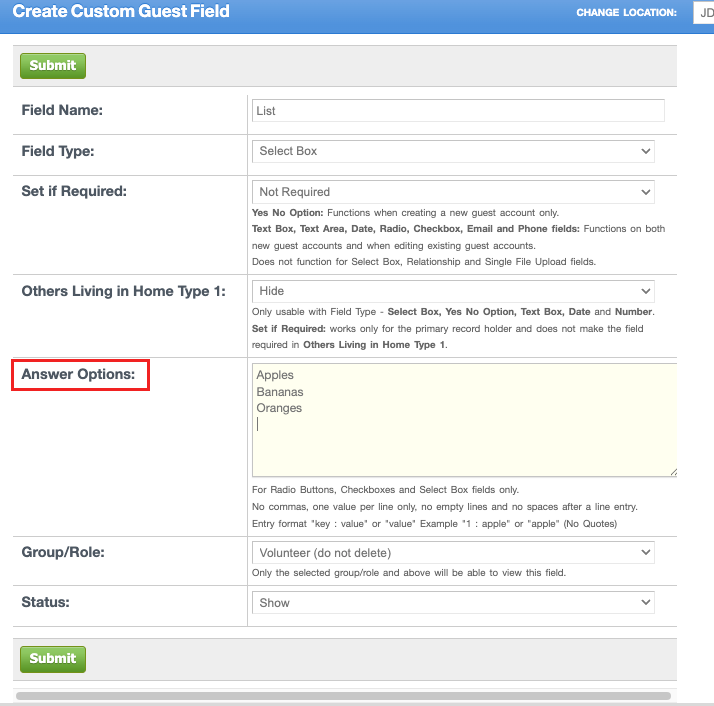
Only three field types use options. Below are the three and the differences in how they are displayed when interacted with by the end user.
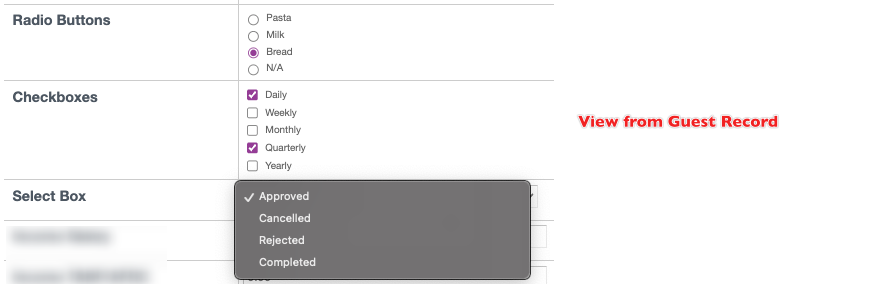
Radio Button allows you to see the full list of answers. Only one answer can be checked at a time. We suggest making ‘N/A’ one of your answers when setting up the field as this field may not apply to every guest. A downside of using this field type frequently is that it will create a rather lengthy form.
Checkboxes allows you to see the full list of answers and allows you to check more than one answer. To uncheck an incorrectly selected answer, re-click that answer to deselect it. Use of this field type can cause complexity in reporting. We recommend if you use this field type that you test the reporting for desired results.
Select Box helps save space by using a drop-down feature. Only one answer can be selected. The first item in the field options section will be the default answer, so we suggest typing in ‘Select One’ or something to that effect when setting up this field.
Refer to the image below for examples showing how each of these field types differs.
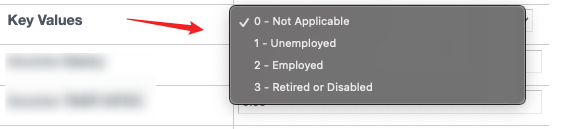
Options Key Value Methods
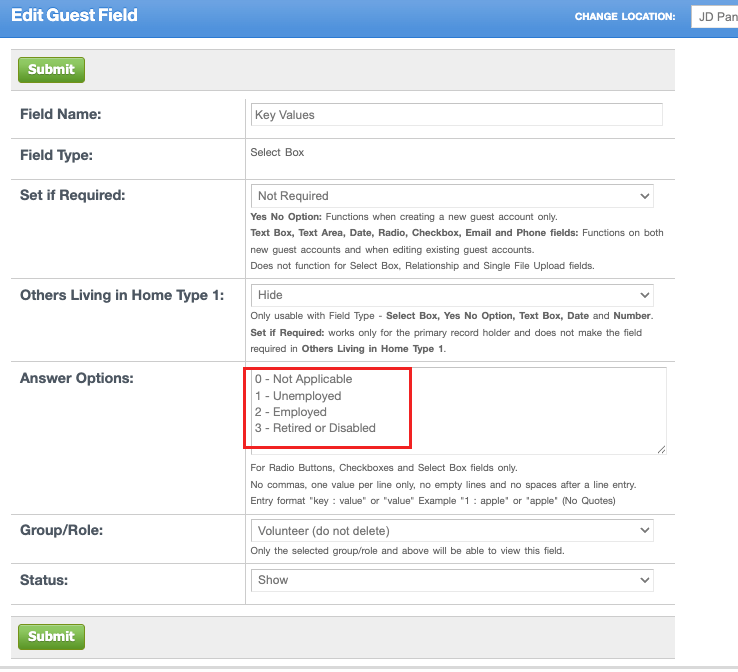
In the options field, you have two methods to enter in your data/answers that the end user will interact with when working with guests. A "Value" or a "Key : Value", both are acceptable but there are differences. Below we explain the differences and their use.
"Value": Entering in your answers as a value only displays this answer when used, records this answer into the database as the key and value and reports out the value. The value in the option box is also the key for this answer because you did not specify a key. If in the future this field is edited and an answer is changed, you are also changing the key so you would lose all data collected on the original version of this answer.
"Key : Value": Using this method for your answers displays the answer when used, records the key into the database with the value specified and reports out the value. If in the future, you edit this field and change a value for a key you would not lose the previous data because the key is the same as before. The format when entering an answer using the key value method is "Key : Value". You must include spaces before and after the colon and do not use quotes.
There are more complex reasons for using the key value method, however the primary reason to use it, is it allows you to edit the value, due to a misspelled word or a refactoring of the answer without losing any data collected previously if you do not change the key.
Below is the view in the Guest record:
CF Field Settings - Role
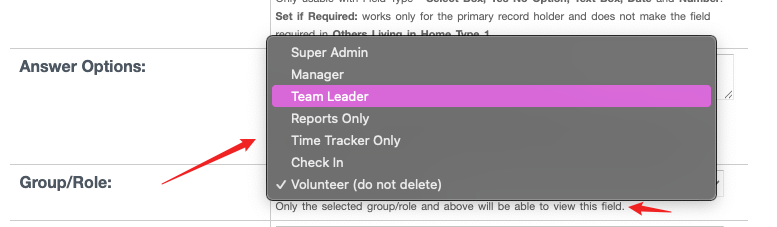
Determines who may see the field. The role you highlight and every role above it will see the field. Every role below your highlighted choice will be unable to see the field. This is a great option for extremely confidential matters.
CF Field Settings - Status
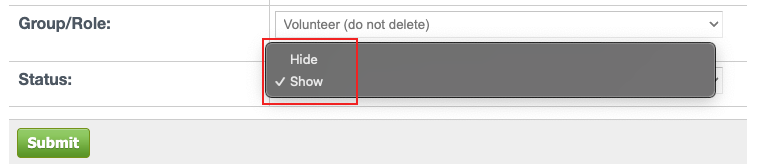
Set to "Show" when the field is being used. Set to "Hide" when it is not being used.
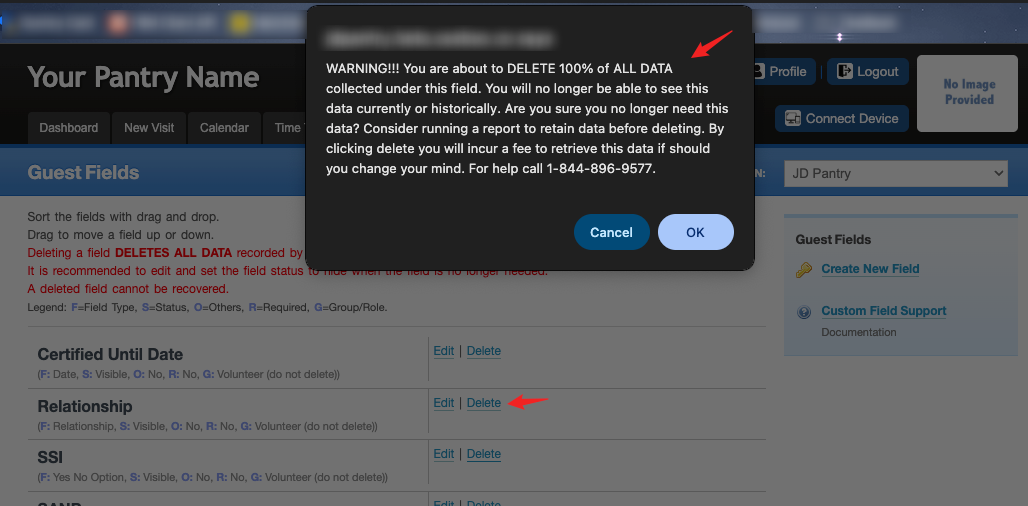
Note: As needs change and fields are no longer needed, we suggest hiding the field instead of deleting it. If hidden you can turn the field on and retrieve the data if needed. Remember deleting a custom field deletes all data collected by that field.Editing a Custom Field
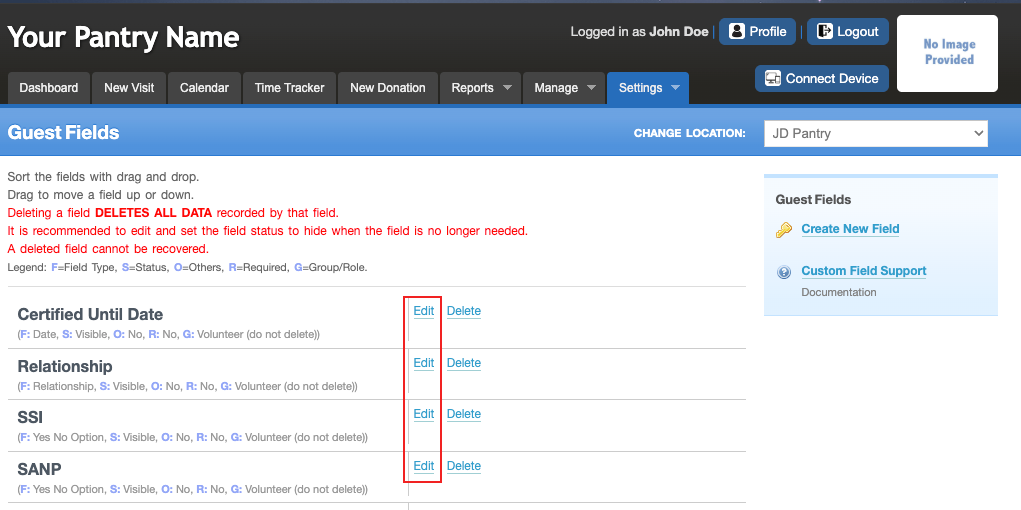
To edit an existing field, click "Edit". Everything but the ‘Field Type’ can be edited. If you need a different ‘Field Type’, you will need to create a new field.
Deleting a Custom Field
To delete an existing field, click on "Delete". A message box will pop-up asking you "Are you sure you want to delete this field and all of the data associated with it?" Click "OK" if you agree.
Extra CF Field Type - Signatures
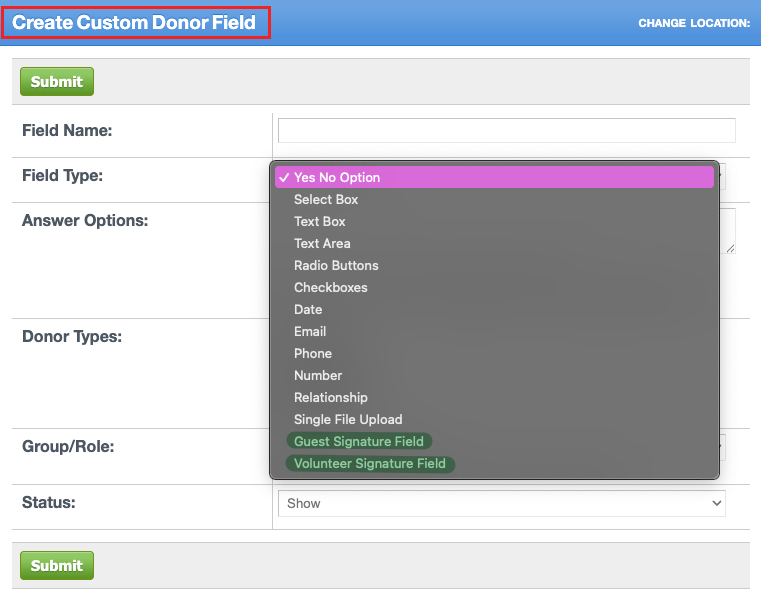
Visit, Donation, Days End, Donor and Time Entry Fields also offer signature fields for "Field Type".
Associating the Visit Custom Fields Correctly
When creating new custom Visit and Days End fields there will be a "trackMethod" section. Check all the tracking methods you want associated to this field.
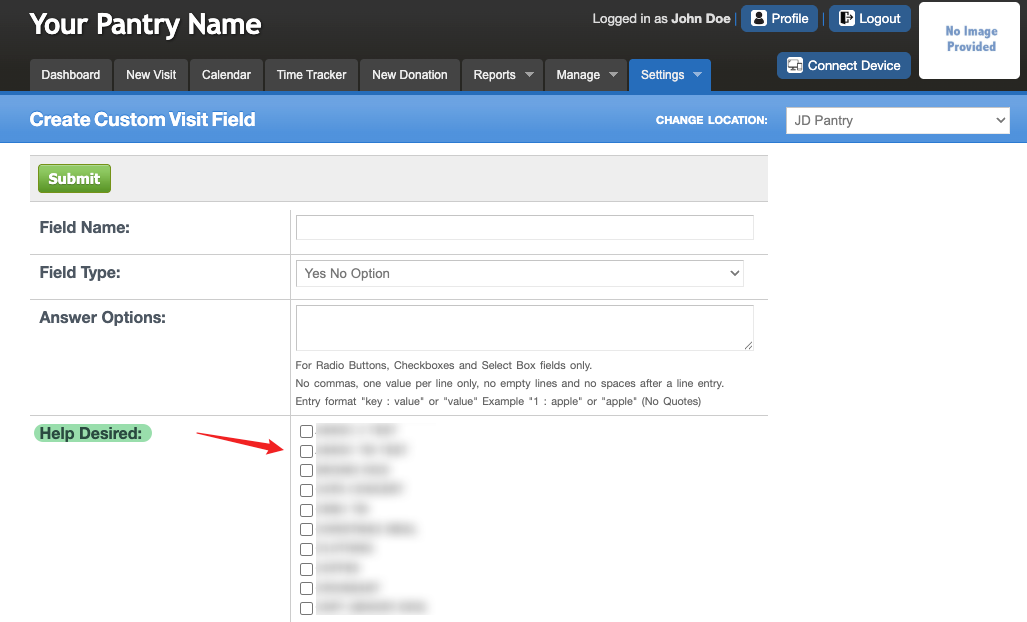
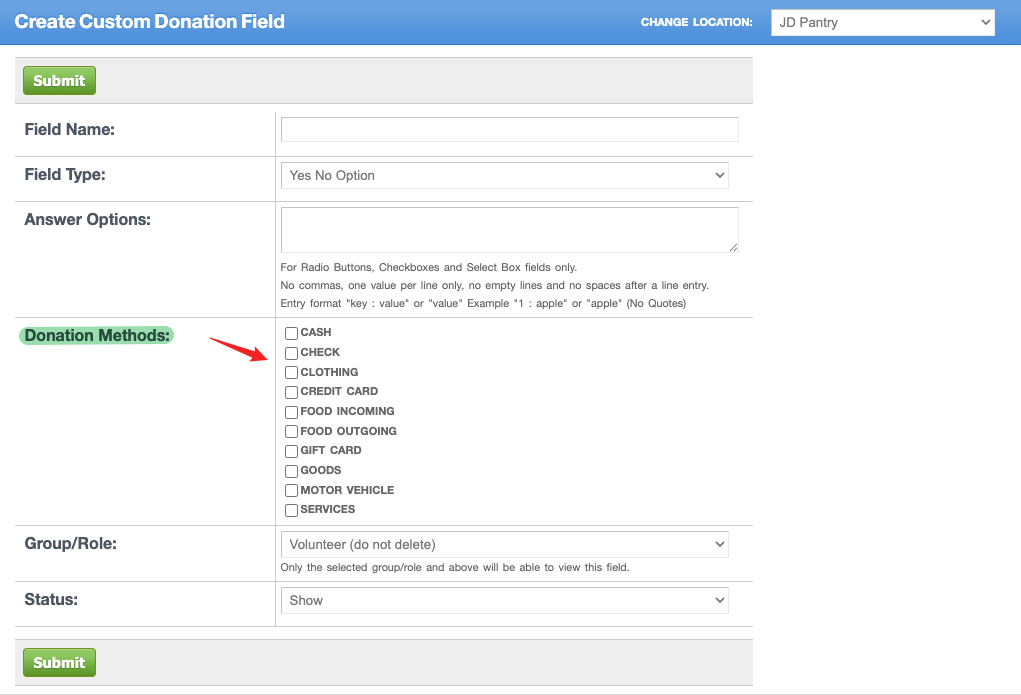
When creating new custom Donation fields there will be a "Donation Methods" section. Check all the donation methods you want associated to this field.
Was this article helpful?
That’s Great!
Thank you for your feedback
Sorry! We couldn't be helpful
Thank you for your feedback
Feedback sent
We appreciate your effort and will try to fix the article