Learn how to update your Google Cloud app's publishing status from Testing to
Production, and how to reconnect your SMTP account in FBM to keep your Gmail integration running without interruption.
1. Open Google Auth Platform
Go to console.cloud.google.com and select your project from the top menu. In the left sidebar, navigate to APIs & Services > OAuth consent screen > Audience
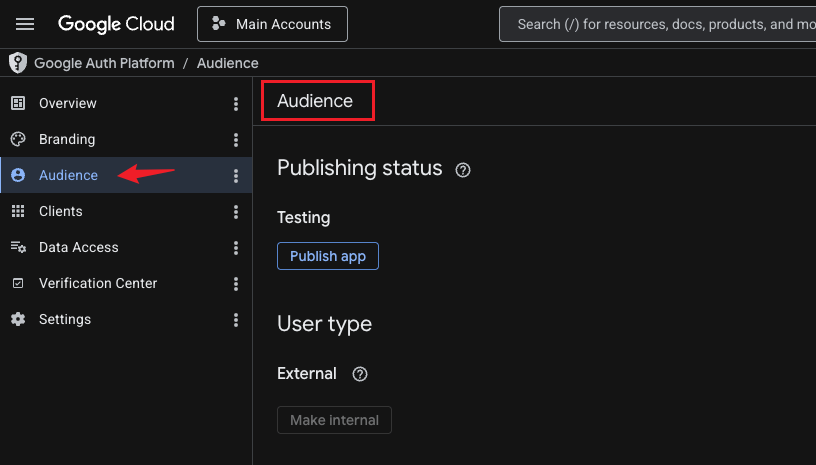
2. Check your publishing status
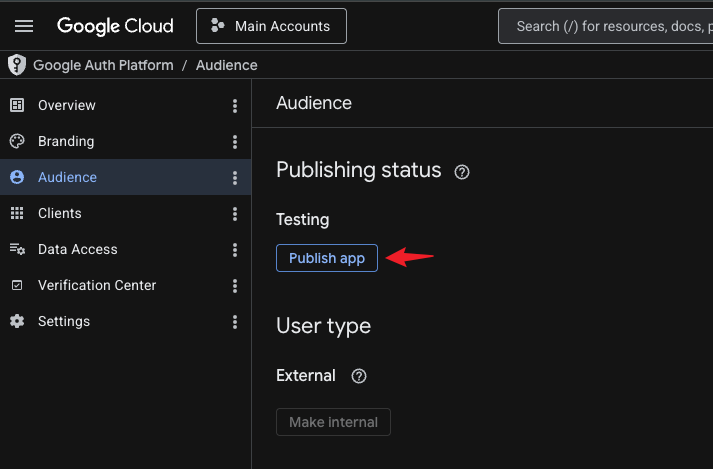
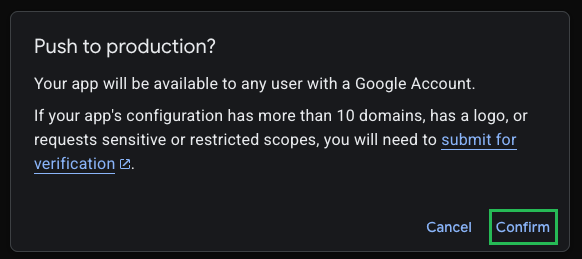
Under the Publishing status section, you'll see your current status. If it says Testing, you need to publish the app to make it available to all users. To do this, click on "Publish app" and Confirm on the pop-up window
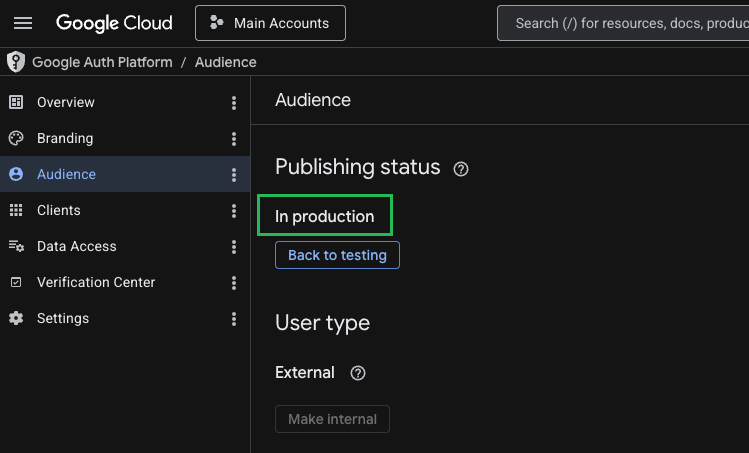
3. Confirm the status shows "In production"
Once published, the status will update to In production. A "Back to testing" button will also appear, confirming the change was successful.
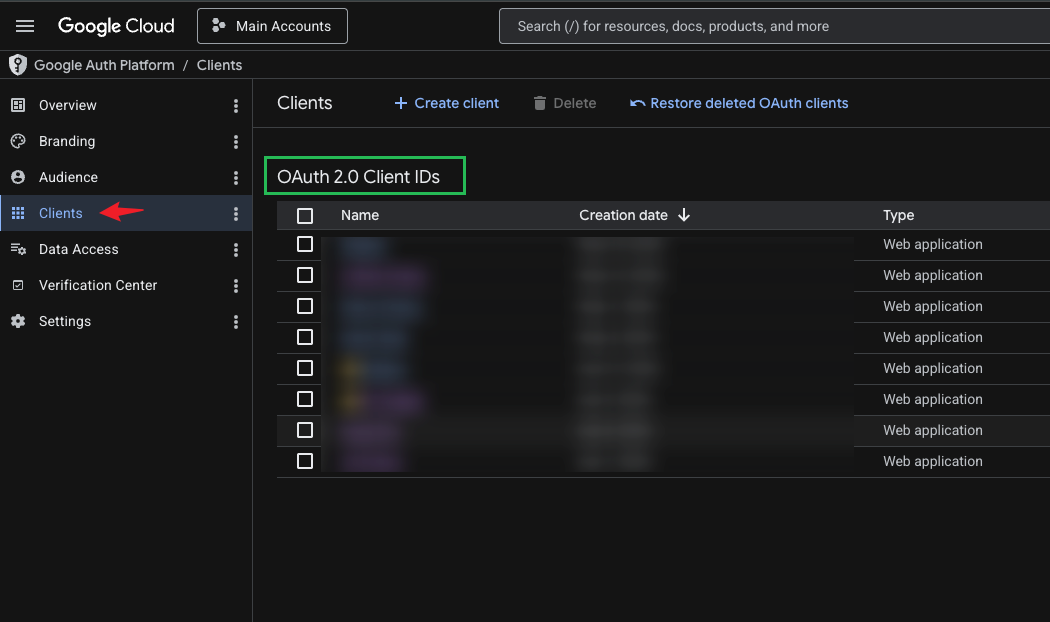
4. Go to "Clients" and select your Pantry's Client ID from the list
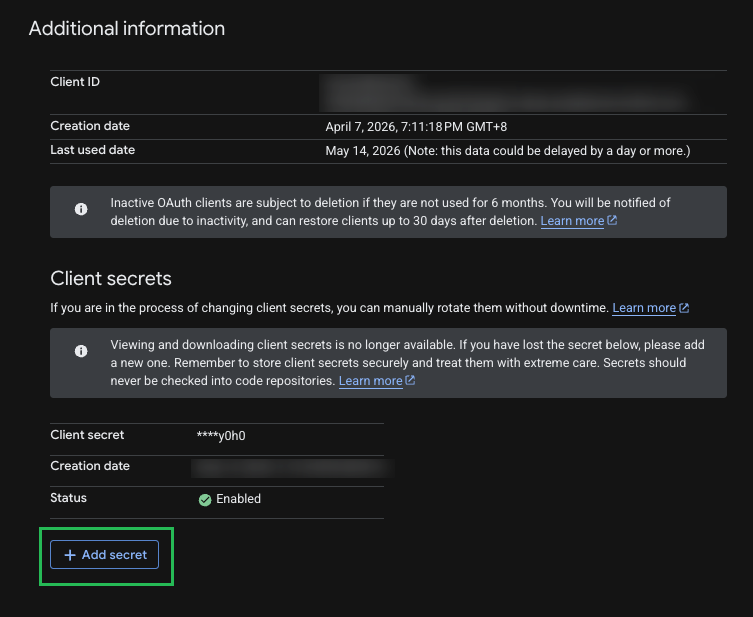
5. Under Additional Information, generate a new Client Secret
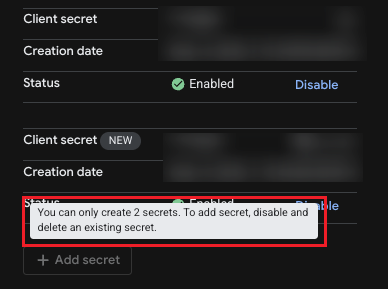
This will trigger a prompt warning about having more than 1 secret. Ensure to disable the previous Client secret by clicking on Disable and follow the on screen instructions.
6. Go to your FBM account's Settings > Portal > SMTP Account and update the Client Secret field with the new secret generated.
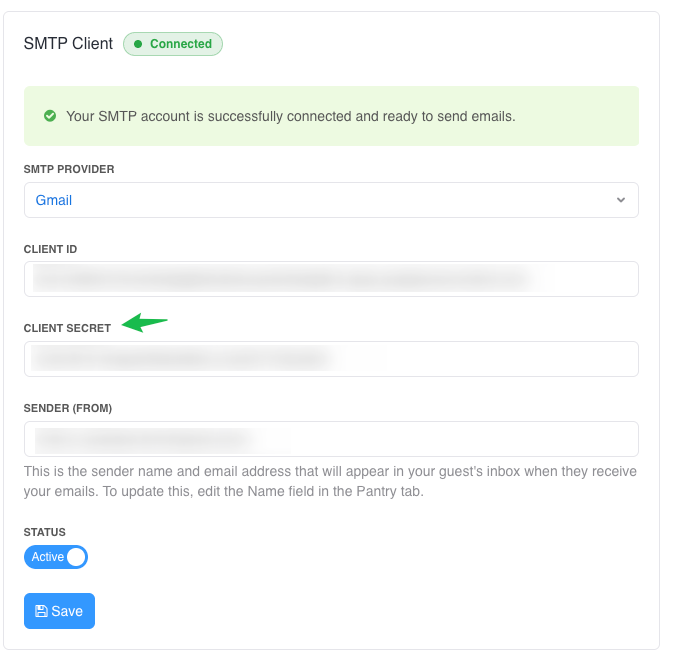
7. Follow the on-screen instructions to successfully reconnect your gmail account with FBM.
⚠️ You may see a Google security warning — this is expected

When reconnecting your Gmail account, Google may display a warning that says "Google hasn't verified this app." This appears because the app is in the process of being verified by Google and does not mean anything is wrong with your account or with FBM.

To continue, click "Advanced" and then "Go to soxbox.co (unsafe)." Despite the wording, this is safe to proceed with — you are simply granting your own app access to your own Gmail account.

If you see a second screen asking you to confirm trust in the app, click "Continue" to finish the reconnection.

Once completed, your SMTP account will be active and emails will resume as normal.
You may now continue using the email notification system.
Was this article helpful?
That’s Great!
Thank you for your feedback
Sorry! We couldn't be helpful
Thank you for your feedback
Feedback sent
We appreciate your effort and will try to fix the article